


So many people have an iPod or Zune or iPhone as their portable digital devices, but problem is they can't find a way to enjoy their favorite DVD Collections on their portable device.
Now this artilce will show you how to put DVD on your iPod/Zune/iPhone.
This includes three parts:
Part 1: How to put DVD on iPod with Cucusoft DVD to iPod Converter
Part 2: How to put DVD on Zune with Cucusoft DVD to Zune Converter
Part 3: How to put DVD on iPhone with Cucusoft DVD to iPhone Converter
Part 1: How to put DVD on iPod
Make preparation:
Download Cucusoft DVD to iPod Converter, install and run it.
Step 1: Place the DVD into your DVD drive.
Step 2: Click the "open DVD" button to load DVD.
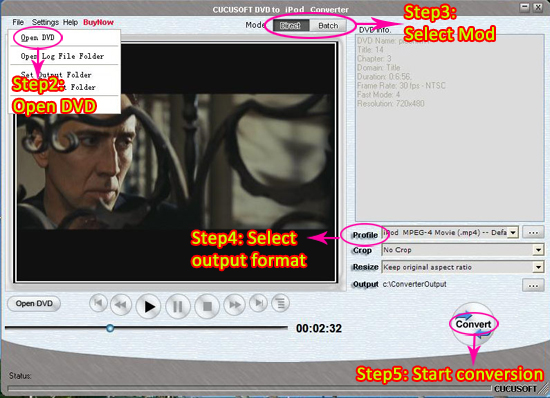
Step 3: Select "Direct mode" or "Batch Mode"
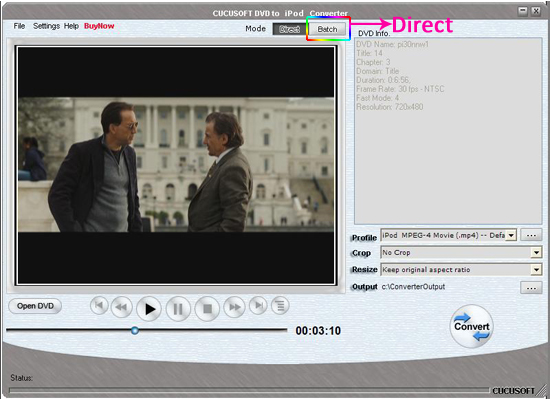
"Direct Mode" means that you can directly click the DVD Menu to select the DVD movie you want to rip. This mode is very easy for ripping a movie DVD's.
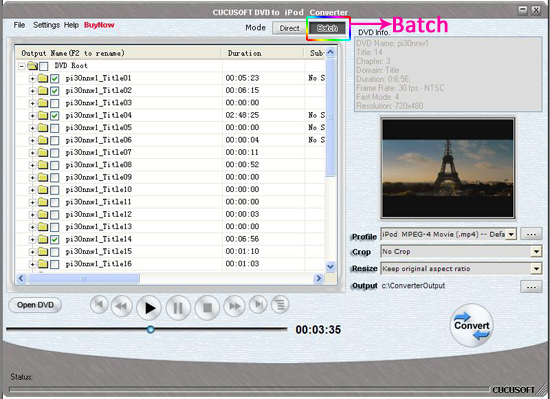
"Batch Mode" means that you can select the DVD titles/chapters and audio track they want to rip via checkbox list. This mode is very easy for batch ripping Music DVD's, MTV DVD's and Episodic DVD's.
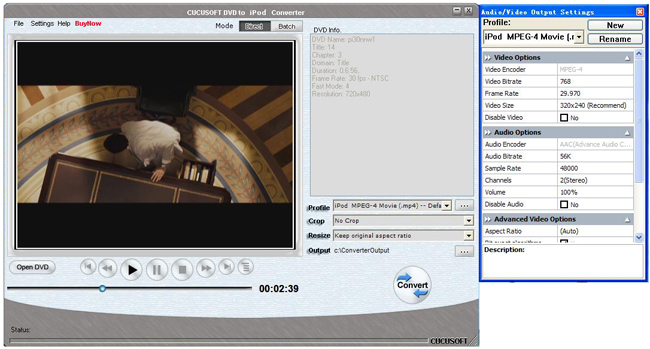
Step 4: Select output format from the "Profile" drop-down list.
Notes:
Click the "…" button at the right of the "profile" drop-down list to set the important parameters: Video Bitrate, Audio Bitrate, Frame Rate and Video Size.
For a high image/sound quality you can increase the value of Video/Audio Bitirate and for a compressed file you can decrease the value.
Step 5:Click the "Convert "button to start the conversion.
At the waiting time, you can have a cup of coffee, then the conversion will be finished.
Part 2: How to put DVD on Zune
Make preparation:
Download
Cucusoft DVD to Zune Converter, install and run it.
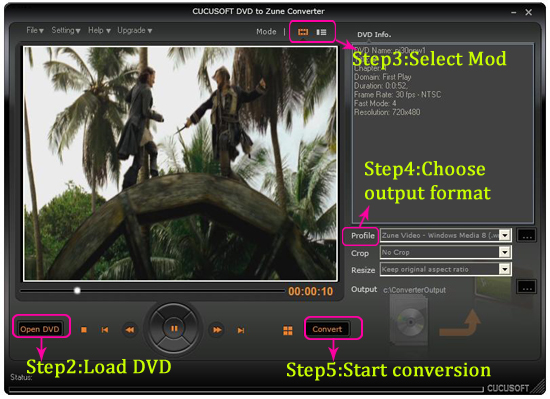
Step 1: Place the DVD into your DVD drive and click "Open DVD" button on the skin
Step 2: Click the "open DVD" button to load DVD.
Step 3: Choose the mode "Direct mode" or "Batch mode".
Step 4: Choose the profile (output format), encode speed, and set the output folder. You need to set the output folder to your hard disk.
Step 5: Click “Convert” button to start the conversion
Just in a short while the conversion will be finsihed.
Part 3: How to put DVD on iPhone[/b]
Make preparation:
Download Cucusoft DVD to iPhone Converter, install and run it.
Step 1: Place the DVD into your DVD drive.
Step 2: Click the "open DVD" button to load DVD.
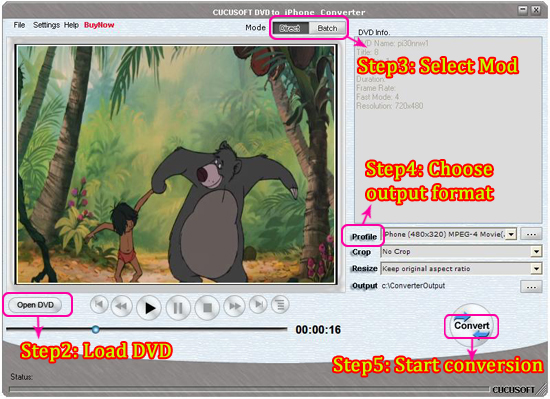
Step 3: Select "Direct mode" or "Batch Mode"
Step 4: Select output format from the "Profile" drop-down list.
Step 5: Click the "Convert "button to start the conversion.
Waiting for a moment, the conversion will be finish.
Tip
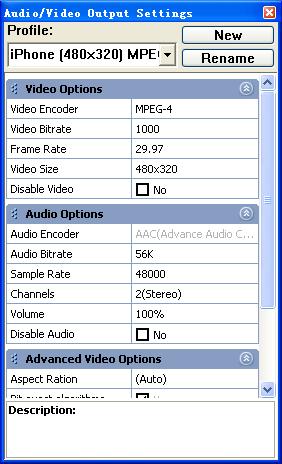
By using default setting, you can quickly accomplish many common tasks. Normally, please do not change the output setting.
Various types of Output settings are available in Cucusoft DVD to iPhone Converter.
With those easy to use programs, you also will be the master of DVD Converter, have a try and get this wonderful experience!
Mac Video Converter
Mac DVD to iPhone
Now this artilce will show you how to put DVD on your iPod/Zune/iPhone.
This includes three parts:
Part 1: How to put DVD on iPod with Cucusoft DVD to iPod Converter
Part 2: How to put DVD on Zune with Cucusoft DVD to Zune Converter
Part 3: How to put DVD on iPhone with Cucusoft DVD to iPhone Converter
Part 1: How to put DVD on iPod
Make preparation:
Download Cucusoft DVD to iPod Converter, install and run it.
Step 1: Place the DVD into your DVD drive.
Step 2: Click the "open DVD" button to load DVD.

Step 3: Select "Direct mode" or "Batch Mode"
"Direct Mode" means that you can directly click the DVD Menu to select the DVD movie you want to rip. This mode is very easy for ripping a movie DVD's.

"Batch Mode" means that you can select the DVD titles/chapters and audio track they want to rip via checkbox list. This mode is very easy for batch ripping Music DVD's, MTV DVD's and Episodic DVD's.

Step 4: Select output format from the "Profile" drop-down list.

Notes:
Click the "…" button at the right of the "profile" drop-down list to set the important parameters: Video Bitrate, Audio Bitrate, Frame Rate and Video Size.
For a high image/sound quality you can increase the value of Video/Audio Bitirate and for a compressed file you can decrease the value.
Step 5:Click the "Convert "button to start the conversion.
At the waiting time, you can have a cup of coffee, then the conversion will be finished.
Part 2: How to put DVD on Zune
Make preparation:
Download
Cucusoft DVD to Zune Converter, install and run it.
Step 1: Place the DVD into your DVD drive and click "Open DVD" button on the skin
Step 2: Click the "open DVD" button to load DVD.
Step 3: Choose the mode "Direct mode" or "Batch mode".
Step 4: Choose the profile (output format), encode speed, and set the output folder. You need to set the output folder to your hard disk.
Step 5: Click “Convert” button to start the conversion
Just in a short while the conversion will be finsihed.

Part 3: How to put DVD on iPhone[/b]
Make preparation:
Download Cucusoft DVD to iPhone Converter, install and run it.
Step 1: Place the DVD into your DVD drive.
Step 2: Click the "open DVD" button to load DVD.

Step 3: Select "Direct mode" or "Batch Mode"
Step 4: Select output format from the "Profile" drop-down list.
Step 5: Click the "Convert "button to start the conversion.
Waiting for a moment, the conversion will be finish.
Tip
By using default setting, you can quickly accomplish many common tasks. Normally, please do not change the output setting.
Various types of Output settings are available in Cucusoft DVD to iPhone Converter.

With those easy to use programs, you also will be the master of DVD Converter, have a try and get this wonderful experience!
Mac Video Converter
Mac DVD to iPhone


