


Speed Up Firefox
I am providing some Very Useful Tips to speedup your Firefox.
In your location bar, type about:config
Once it Opens You should see similar to the following screen

Tip1
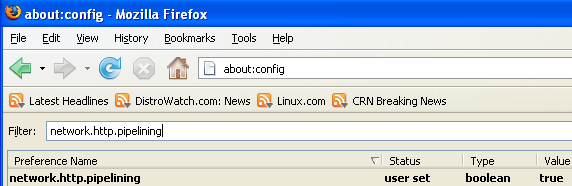
In the filter bar type network.http.pipelining
You should see the following screen

Normally it says ” false ” under value field , Double click it so it becomes ” true “.
Once you finished this you should see the following screen.
Tip2
In the filter bar again and type network.http.pipelining.maxrequests
Once it Opens You should see the following screen

Default it says 4 under value field and you need to change it to 8
Once you finished this you should see the following screen.

Once it Opens You should see the following screen

Default it says 4 under value field and you need to change it to 8
Once you finished this you should see the following screen.

Tip3
Go to the filter bar again and type network.http.proxy.pipelining
Once it Opens You should see similar to the following screen

Normally it says ” false ” under value field , Double click it so it becomes ” true “.
Once you finished this you should see the following screen.
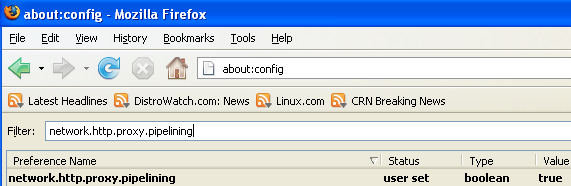
Once it Opens You should see similar to the following screen

Normally it says ” false ” under value field , Double click it so it becomes ” true “.
Once you finished this you should see the following screen.
Tip4
Go to the filter bar again and type network.dns.disableIPv6
Once it Opens You should see the following screen

Normally it says ” false ” under value field , Double click it so it becomes ” true “.
Once you finished this you should see the following screen.

Once it Opens You should see the following screen

Normally it says ” false ” under value field , Double click it so it becomes ” true “.
Once you finished this you should see the following screen.

Tip5
Go to the filter bar again and type plugin.expose_full_path
Once it Opens You should see the following screen

Normally it says ” false ” under value field , Double click it so it becomes ” true “.
Once you finished this you should see the following screen.

Once it Opens You should see the following screen

Normally it says ” false ” under value field , Double click it so it becomes ” true “.
Once you finished this you should see the following screen.

Tip6
Now you need to Create new Preference name with interger value for this got to Right click -> New -> Integer
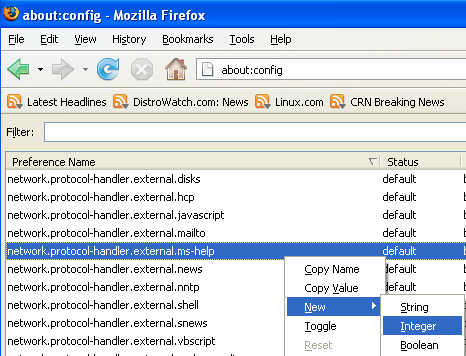
Once it opens you should see the following screen

Here you need to type nglayout.initialpaint.delay

Now you need to enter 0 in value filed and click ok

Once you finished this you should see the following screen.
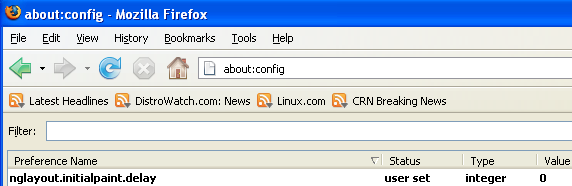
Once it opens you should see the following screen

Here you need to type nglayout.initialpaint.delay

Now you need to enter 0 in value filed and click ok

Once you finished this you should see the following screen.
Tip7
Now you need to Create one more Preference name with interger value for this got to Right click -> New -> Integer
Once it opens you should see the following screen
Here you need to type content.notify.backoffcount

Now you need to enter 5 in value filed and click ok
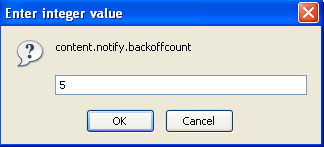
Once you finished this you should see the following screen.

Once it opens you should see the following screen
Here you need to type content.notify.backoffcount

Now you need to enter 5 in value filed and click ok
Once you finished this you should see the following screen.

Tip8
Now you need to Create one more Preference name with interger value for this got to Right click -> New -> Integer
Once it opens you should see the following screen
Here you need to type ui.submenuDelay and click ok

Now you need to enter 0 in value filed and click ok

Once you finished this you should see the following screen.

Some more Tweaks
Enable the spellchecker for inputfields and textareas (default is textareas only)
layout.spellcheckDefault=2
Open lastfm://-links directly in amarok
network.protocol-handler.app.lastfm=amarok
network.protocol-handler.external.lastfm=true
Firefox Memory Leak Fix
Open a new tab. Type “about:config” without quotes into the address bar and hit enter/click Go.
Right-click anywhere, select New, then Integer. In the dialog prompt that appears, type:
browser.cache.memory.capacity
Click OK. Another dialog prompt will appear. This is where you decide how much memory to allocate to Firefox. This depends on how much RAM your computer has, but generally you don’t want to allocate too little (under 8MB), but if you allocate too much, you might as well not do this. A good recommended setting is 16MB. If you want 16MB, enter this value into the dialog prompt:
16384
(Why 16384 instead of 16000? Because computers use base-12 counting. Thus 16 megabytes = 16384 bytes. Likewise, if you want to double that and allocate 32MB, you’d enter 32768.)
Click OK to close the dialog box, then close all instances of Firefox and restart. If your Firefox still uses the same amount of memory, give it a few minutes and it should slowly clear up. If that fails, try a system reboot.
Now your Firefox will now be 3 – 30 times faster in loading pages. and click ok and click ok
Give a rep if u like
Once it opens you should see the following screen
Here you need to type ui.submenuDelay and click ok

Now you need to enter 0 in value filed and click ok

Once you finished this you should see the following screen.

Some more Tweaks
Enable the spellchecker for inputfields and textareas (default is textareas only)
layout.spellcheckDefault=2
Open lastfm://-links directly in amarok
network.protocol-handler.app.lastfm=amarok
network.protocol-handler.external.lastfm=true
Firefox Memory Leak Fix
Open a new tab. Type “about:config” without quotes into the address bar and hit enter/click Go.
Right-click anywhere, select New, then Integer. In the dialog prompt that appears, type:
browser.cache.memory.capacity
Click OK. Another dialog prompt will appear. This is where you decide how much memory to allocate to Firefox. This depends on how much RAM your computer has, but generally you don’t want to allocate too little (under 8MB), but if you allocate too much, you might as well not do this. A good recommended setting is 16MB. If you want 16MB, enter this value into the dialog prompt:
16384
(Why 16384 instead of 16000? Because computers use base-12 counting. Thus 16 megabytes = 16384 bytes. Likewise, if you want to double that and allocate 32MB, you’d enter 32768.)
Click OK to close the dialog box, then close all instances of Firefox and restart. If your Firefox still uses the same amount of memory, give it a few minutes and it should slowly clear up. If that fails, try a system reboot.
Now your Firefox will now be 3 – 30 times faster in loading pages. and click ok and click ok
Give a rep if u like
Last edited:


