


Make your xp like windows 7
To change your Visual Style, you’re going to have to patch a file called Uxtheme.dll
First, you want to backup your Uxtheme.dll file before you patch it.
Backing up Uxtheme.dll
To backup the file, open the Start menu and type system32 into the search bar. Wait a bit, and system32 should appear in the Start Menu. Click on it to access the folder.
Once you’re in the folder, scroll down and look for uxtheme.dll
Make a copy of it and change it’s name however you like. I recommend you change it to something like uxtheme.dll.old or uxthemeold.dll
Patch Uxtheme.dll
Once you are done backing up your uxtheme.dll, you need to download a patched Uxtheme.dll
Those with Windows XP SP1/ SP2 can click here to download the Uxtheme.dll patch.
The patch will automatically help replace your old Uxtheme.dll with the new one, and restart your computer.
If you have any other version of Windows, you’re going to have tofind the patched Uxtheme.dll here,
and then manually head back to the system32 folder and replace the old Uxtheme.dll with your new one.
You’ll have to restart your computer before being able to change themes
Changing your Visual Style
Deskmundo created a Windows 7 M1 visual style for XP. You can find the download here (in the left sidebar.) Once you have download the .zip, extract the folder into C:\Windows\Resources\Themes Once extracted, open the “Windows 7 M1 VS” folder and double click the Windows 7 M1 VS.msstyles file.
Six different Windows 7 M1 styles are included, each with different variations. Choose the one you like most, and voila!
Adding the new silver breadcrumb
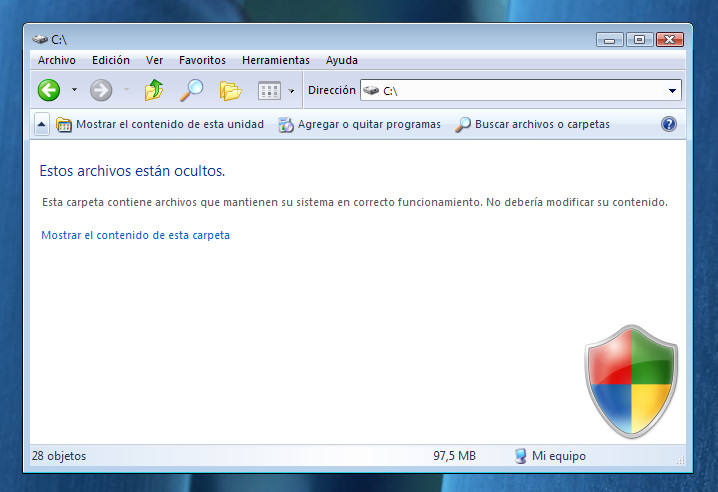
In Deskmundo’s M1 theme, instead of the breadcrumb, options are listed on the left side bar. We can add a silver breadcrumb to bring the look closer to Windows 7 M3.
The download can be found here in the left sidebar.
You should find yourself a shellstyle.dll file.
Now, decide which theme (from before) you would like to have the breadcrumb show up. Once you have decided, navigate back to C:\Windows\Resources\Themes\Windows 7 M1 VS\ and paste the shellstyle.dll you just downloaded into one of the theme folders.
Double click WIndows 7 M1 VS.msstyles again and your theme should update itself!
හොදිනම් ඉතින් රේප් දුන්නට කමක්නැ..
බලල අනිත් අයටත් බලන්න බම්ප් එකක් දාල යන්න...
To change your Visual Style, you’re going to have to patch a file called Uxtheme.dll
First, you want to backup your Uxtheme.dll file before you patch it.
Backing up Uxtheme.dll
To backup the file, open the Start menu and type system32 into the search bar. Wait a bit, and system32 should appear in the Start Menu. Click on it to access the folder.
Once you’re in the folder, scroll down and look for uxtheme.dll
Make a copy of it and change it’s name however you like. I recommend you change it to something like uxtheme.dll.old or uxthemeold.dll
Patch Uxtheme.dll
Once you are done backing up your uxtheme.dll, you need to download a patched Uxtheme.dll
Those with Windows XP SP1/ SP2 can click here to download the Uxtheme.dll patch.
The patch will automatically help replace your old Uxtheme.dll with the new one, and restart your computer.
If you have any other version of Windows, you’re going to have tofind the patched Uxtheme.dll here,
and then manually head back to the system32 folder and replace the old Uxtheme.dll with your new one.
You’ll have to restart your computer before being able to change themes
Changing your Visual Style
Deskmundo created a Windows 7 M1 visual style for XP. You can find the download here (in the left sidebar.) Once you have download the .zip, extract the folder into C:\Windows\Resources\Themes Once extracted, open the “Windows 7 M1 VS” folder and double click the Windows 7 M1 VS.msstyles file.
Six different Windows 7 M1 styles are included, each with different variations. Choose the one you like most, and voila!
Adding the new silver breadcrumb
In Deskmundo’s M1 theme, instead of the breadcrumb, options are listed on the left side bar. We can add a silver breadcrumb to bring the look closer to Windows 7 M3.
The download can be found here in the left sidebar.
You should find yourself a shellstyle.dll file.
Now, decide which theme (from before) you would like to have the breadcrumb show up. Once you have decided, navigate back to C:\Windows\Resources\Themes\Windows 7 M1 VS\ and paste the shellstyle.dll you just downloaded into one of the theme folders.
Double click WIndows 7 M1 VS.msstyles again and your theme should update itself!
හොදිනම් ඉතින් රේප් දුන්නට කමක්නැ..
බලල අනිත් අයටත් බලන්න බම්ප් එකක් දාල යන්න...
Attachments
Last edited:


