


Accessing Google Spreadsheet Data using Python
If you’re building a simple internal app and you might probably be thinking that ‘I’m going to need a database now right!’. Well, Not so fast!

As you all are familiar with importing, exporting and manipulating comma separate files (CSV) using Python, Hereby in this article I’m going to show you the step-by-step guide to access Google Spreadsheets on the cloud using Python.
As the very first thing, go to Google API Manager by simply googling it and go to https://console.developers.google.com/

https://console.developers.google.com/
To kick things off first create a new project.
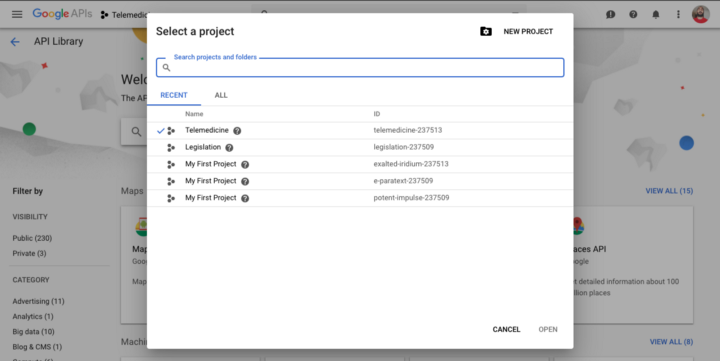
Figure 1.0: Creating a new Project
I’ll name my project ‘Telemedicine’ since we will be working with a spreadsheet which includes all the tweets related to Telemedicine hashtags which I extracted earlier (Click here to see how I extracted tweets using hashtags). Define a suitable project name according to your dataset on the cloud then click CREATE to initiate the project. (You don’t have to worry about the Location* below the project name)
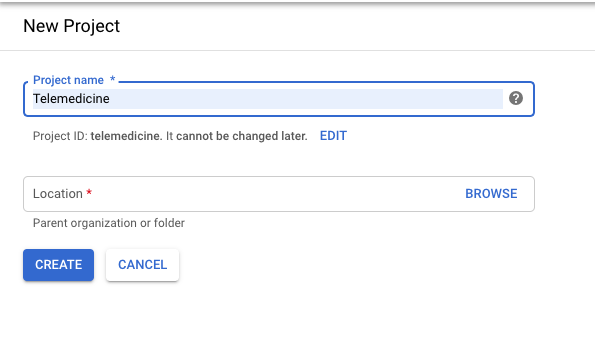
Figure 1.0: Define a suitable project name according to your dataset
OKAY. The first part is done, Now go to API Library and search for Google Drive.
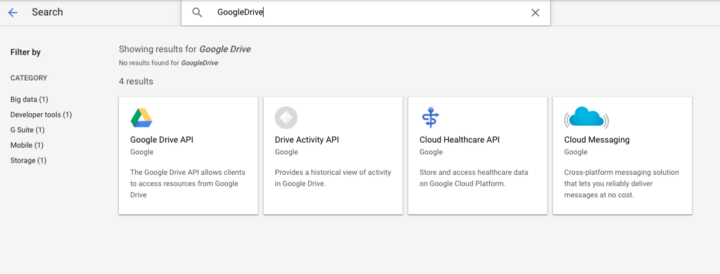
Figure 2.0: Search for Google Drive in API Library
Then add Google Drive API to our project which will allow us to access spreadsheets inside of Google Sheets for our account.

Figure 2.1: Click on Enable
Once that’s added, we need to create some credentials to access the API so click on Add Credentials on the next screen you see after enabling the API.
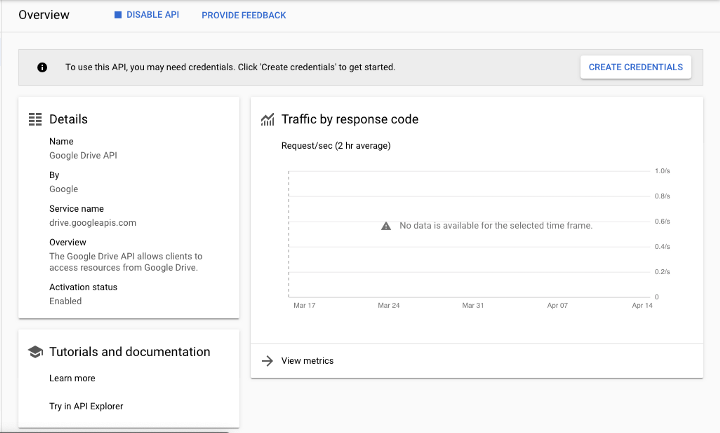
Figure 3.0: Click on Create Credentials to initialize credentials to access the API
Since we’ll be accessing the API using a web server, We’ll add the Web Server option on this page and give access to Application Data and tell them that you’re not running your application on either GCE or GAE by selecting the option ‘No, I’m not using them’ then click on the button below.
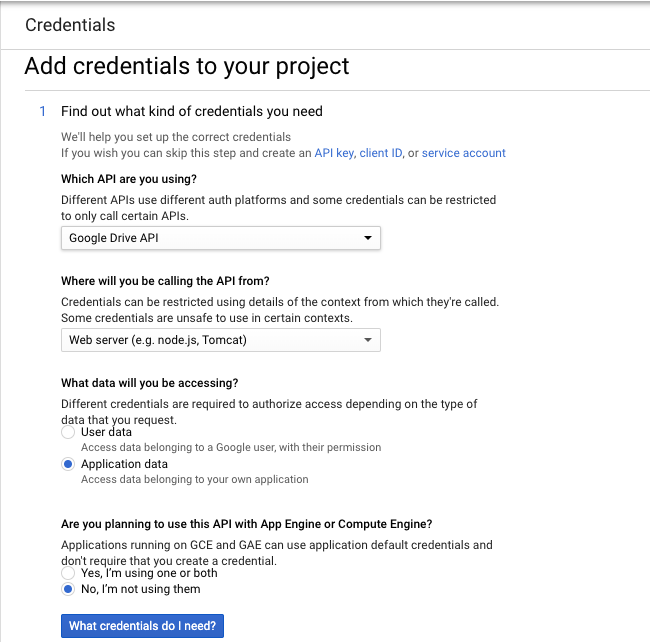
Figure 3.1: Creating credentials
Next, we will create a service account named Employees and assigned it the role Project Editor which will allow it to access and edit all the data within the API. Clicking continue will generate a JSON file that I will rename and add to the project as Telemedicine_secret.json.
Read the full article Here ( Cant post everything because it reaches the maximum number of words)


