80 Amazing Windows 7 Wallpapers

Sami cool

Member
Oct 10, 2009
211
8
0
Rajagiriya
ke6t11.jpg


Download:
http://rapidshare.com/files/304491670/80_Amazing_Windows_7_Wallpapers__1920x1200_.rar.html


Enjoy and dont forget to reply below. a simple tenx is enough :lol:
 
  • Like
Reactions: Ranhiru

RuwinRTY

Member
Dec 16, 2007
13,422
129
0
32
With My Angel
me themes add karanne kohomada broooo

Here's How:
1. Right click on a empty space on the desktop and click on Personalize. (See screenshot below)
170d1230590495-theme-change-save-right_click.jpg

2. To Change the Theme -
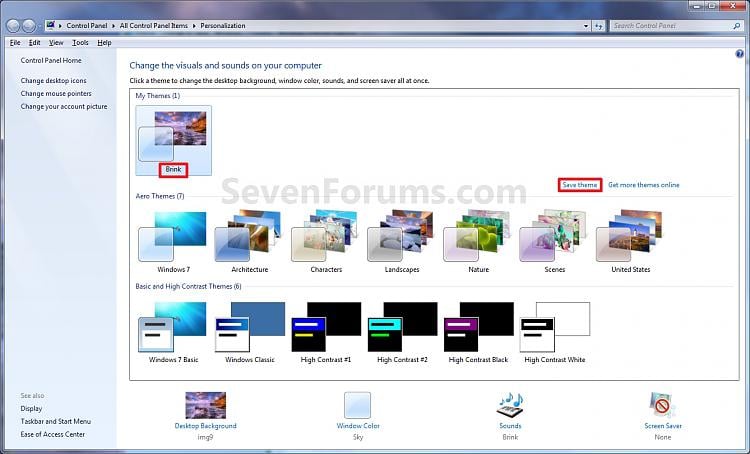
A) Click on one of the available themes. (See screenshot below)
NOTE: See the NOTE box at the top of the tutorial for more about these. To have the regional themes added, see: Themes - Regional.
171d1237145803t-theme-change-save-personalization.jpg

B) Go to step 4.
3. To Create a Custom Theme -
NOTE: Any changes that you make to a theme that you have already saved will automatically be updated and saved to it. There will be no need to save it as a new theme again in step 4 below unless you want a new theme.
A) Change the Desktop Background picture and settings.

B) Change the Window Color and Appearance settings.

C) Change the Sounds for the Windows 7 sound events to any sound file that you would like instead.

D) Change the Screen Saver and settings to be used for this theme pack.

E) Change, add, or remove any Desktop Icons that you want to with.

F) Change the Mouse Pointers to use pointers of your choice.

G) Proceed to OPTION TWO below to save your customized theme as a theme pack.
4. To Save the Current Theme to File -
NOTE: This will be your custom theme with a picture (desktop background), colors, sounds, and screen saver that you have selected and put together for the theme.
A) Under My Themes, click on the Save theme link towards the right. (See screenshot above)
NOTE: This will save your theme as .theme file for use on your computer only. If you want to share the theme with family and friends, then see: Theme Pack - Create, Save, Install, and Delete.

B) Type in a name you want for this theme, and click on the Save button. (See screenshot below)
5868d1237145803t-theme-change-save-name.jpg

5. To Delete a Selected Theme -
NOTE: You cannot delete the current theme. If you want to delete the current theme, then you must select another theme in step 2 first.
A) Under My Themes, right click on the saved theme you want to delete and click on Delete theme. (See screenshot below)
5869d1237145803t-theme-change-save-delete.jpg

B) Click on Yes to confirm the deletion. (See screenshot below)
5870d1237145803t-theme-change-save-confirm.jpg