


Android A.K.A Google OS - First Look
The intrigue set up by Google ended when they launched a new platform for mobile devices. Also along with that release they rolled out an SDK for developers, that can well give us an idea of what new phones will be capable of. Among all other things, the kit includes an emulator that we used for the today’s review. You can upload the SDK for free from the page linked above – the archive is around 56 Mb, and when unpacked it gets 171 Mb big.
The application doesn’t require you to install it, and the emulator is launched by hitting “emulator.exe” found in the Tools folder.
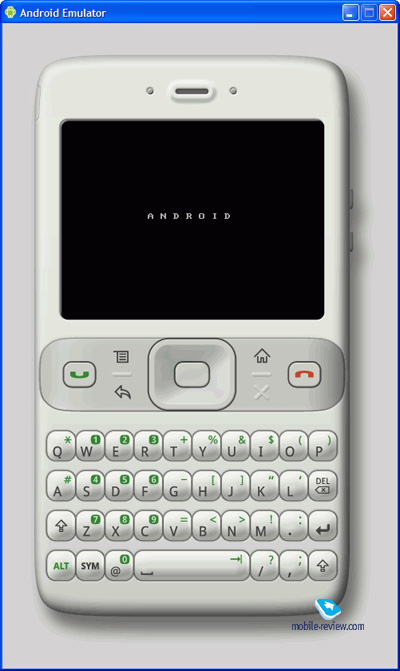
Undoubtedly, the handset pictured in the emulator’s home screen is a mere concept, but even with that we can check out what the new software platform (dubbed by Google as a revolution in the mobile world) is made of. The Google phone (let’s put it this way for convenience) packs a landscape display, a navigation cluster (some of which are touch-sensitive) and a thumbboard. The navi cluster comprises pick/hang up buttons, four shortcuts (functions, back, Home, cancel) and a four-way navigation key with OK mounted in the center.
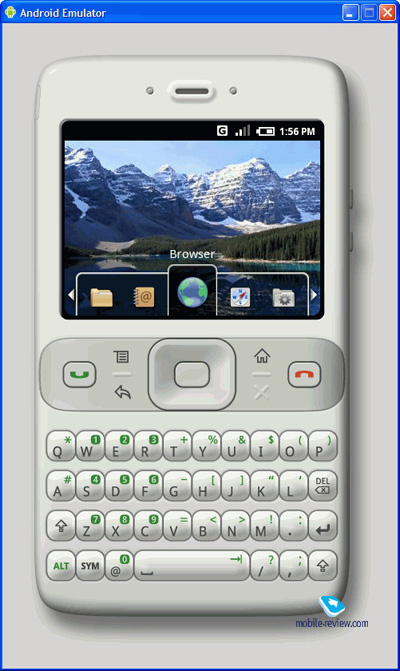
Once you start up this emulator, is, well, emulates the basic routine of any mobile phone – it turns on and searches for an available network. Then its wallpaper pops up and you get access to the memory. The default application featured in the Google phone is Browser, flanked by Maps and Developer Tools (on the right), Contacts and Applications (on the left). You can move about the applications via the navigation key or by clicking on the icons displayed on the screen – evidently, all there interactions are done with the pointer, emulating screen taps.
There aren’t many utilities available with this emulator, so we can well give every one of them a close-up.
Browser
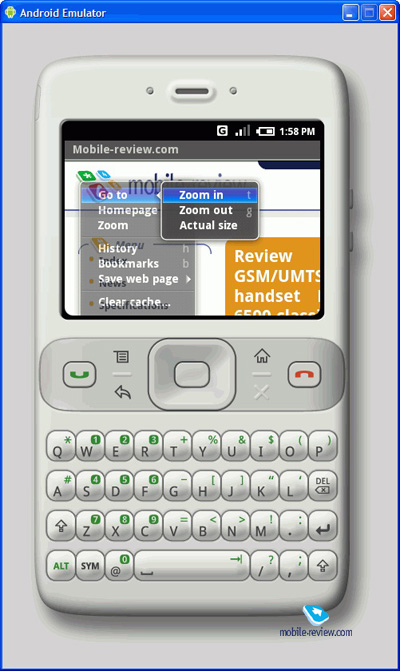
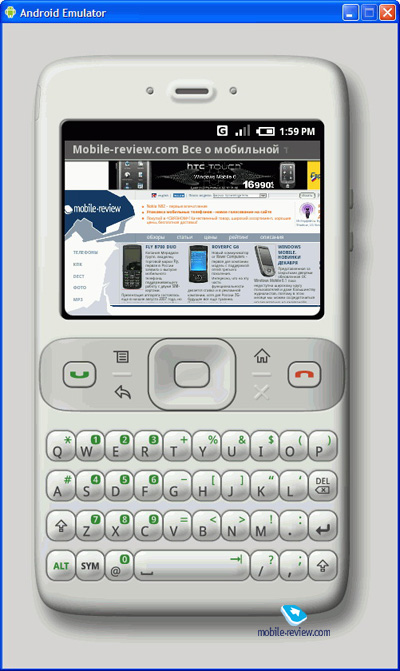
The default page of the browser is Google.com (surprisingly), but it can be changed hands down. The Android’s browser supports scaling (tap the hardware buttons), history logs and bookmarking. You are allowed to navigate web-pages with the navi-key or by sweeping your fingers across the display (as far as the emulator is concerned, with the mouse pointer) The curious thing about the browser is that it doesn’t render the main page of Google Maps properly, despite employing PC’s resources for this purpose. This way, the only browser that can display Google maps is still the Apple iPhone’s Safari.
Conclusion
We were thrilled to check out this emulator, so as to assess the abilities of the new platform. Regrettably, there are no operational applications available as yet, so our take on it was skin-deep. Among the prospective amenities of the Android are its touch-sensitive display that can be handled with fingers alone, Google Maps and phonebook. We were a little puzzled by the browser, however. But let’s not forget that this is only the first demo of the OS, so we will reserve our final judgment until first Android-based devices arrive. One thing is for sure, though: most contemporary approaches to device management and interface layout have been implemented into the system’s software, which is obviously a good thing.
The intrigue set up by Google ended when they launched a new platform for mobile devices. Also along with that release they rolled out an SDK for developers, that can well give us an idea of what new phones will be capable of. Among all other things, the kit includes an emulator that we used for the today’s review. You can upload the SDK for free from the page linked above – the archive is around 56 Mb, and when unpacked it gets 171 Mb big.
The application doesn’t require you to install it, and the emulator is launched by hitting “emulator.exe” found in the Tools folder.
Undoubtedly, the handset pictured in the emulator’s home screen is a mere concept, but even with that we can check out what the new software platform (dubbed by Google as a revolution in the mobile world) is made of. The Google phone (let’s put it this way for convenience) packs a landscape display, a navigation cluster (some of which are touch-sensitive) and a thumbboard. The navi cluster comprises pick/hang up buttons, four shortcuts (functions, back, Home, cancel) and a four-way navigation key with OK mounted in the center.
Once you start up this emulator, is, well, emulates the basic routine of any mobile phone – it turns on and searches for an available network. Then its wallpaper pops up and you get access to the memory. The default application featured in the Google phone is Browser, flanked by Maps and Developer Tools (on the right), Contacts and Applications (on the left). You can move about the applications via the navigation key or by clicking on the icons displayed on the screen – evidently, all there interactions are done with the pointer, emulating screen taps.
There aren’t many utilities available with this emulator, so we can well give every one of them a close-up.
Browser
The default page of the browser is Google.com (surprisingly), but it can be changed hands down. The Android’s browser supports scaling (tap the hardware buttons), history logs and bookmarking. You are allowed to navigate web-pages with the navi-key or by sweeping your fingers across the display (as far as the emulator is concerned, with the mouse pointer) The curious thing about the browser is that it doesn’t render the main page of Google Maps properly, despite employing PC’s resources for this purpose. This way, the only browser that can display Google maps is still the Apple iPhone’s Safari.
Conclusion
We were thrilled to check out this emulator, so as to assess the abilities of the new platform. Regrettably, there are no operational applications available as yet, so our take on it was skin-deep. Among the prospective amenities of the Android are its touch-sensitive display that can be handled with fingers alone, Google Maps and phonebook. We were a little puzzled by the browser, however. But let’s not forget that this is only the first demo of the OS, so we will reserve our final judgment until first Android-based devices arrive. One thing is for sure, though: most contemporary approaches to device management and interface layout have been implemented into the system’s software, which is obviously a good thing.


