meka latest ma version eka install karala update karala full scan ekak danna wade hari.......serial ekak hoyganna puluwannam thawath hondai,naththan aulak na free version akath godak hondai...
 http://www.malwarebytes.org/
me vidiyata karanna..........
. Reboot your computer in Safe mode with networking. Restart your computer.
After hearing your computer beep once during startup, start pressing the F8 key on your keyboard. On a computer that is configured for booting to multiple operating systems, you can press the F8 key when the Boot Menu appears.
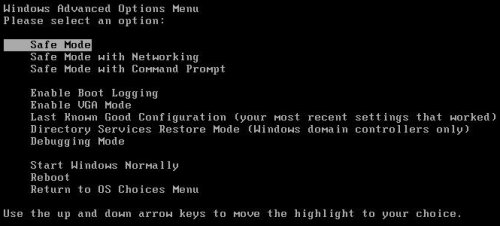
Instead of Windows loading as normal, Windows Advanced Options menu appears similar to the one below.
Windows Advanced Options menu
When the Windows Advanced Options menu appears, select
Safe mode with networking and then press ENTER.
2. Remove Antivirus8 and any associated malware.
Download
MalwareBytes Anti-malware (MBAM). Once downloaded, close all programs and windows on your computer.
Double-click on the icon on your desktop named mbam-setup.exe. This will start the installation of MalwareBytes Anti-malware onto your computer. When the installation begins, keep following the prompts in order to continue with the installation process. Do not make any changes to default settings and when the program has finished installing, make sure a checkmark is placed next to “Update Malwarebytes’ Anti-Malware” and Launch “Malwarebytes’ Anti-Malware”. Then click Finish.
MalwareBytes Anti-malware will now automatically start and you will see a message stating that you should update the program before performing a scan. If an update is found, it will download and install the latest version.
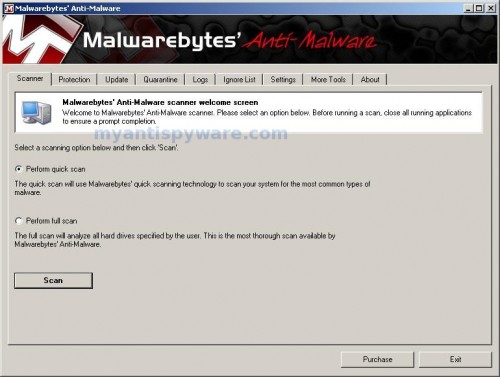
As MalwareBytes Anti-malware will automatically update itself after the install, you can press the OK button to close that box and you will now be at the main menu. You will see window similar to the one below.
Malwarebytes Anti-Malware Window>
Make sure the “Perform Full scan” option is selected and then click on the Scan button to start scanning your computer for
Antivirus8 infection. This procedure can take some time, so please be patient.
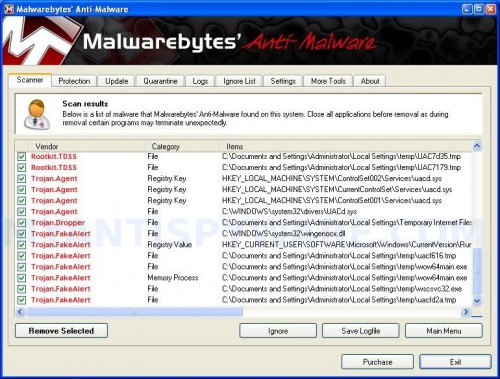
When the scan is finished a message box will appear that it has completed scanning successfully. Click OK. Now click “Show Results”. You will see a list of infected items similar as shown below.
Note: list of infected items may be different than what is shown in the image below.
Malwarebytes Anti-malware, list of infected items
Make sure all entries have a checkmark at their far left and click “Remove Selected” button to
Antivirus 8. MalwareBytes Anti-malware will now remove all of associated Antivirus8 files and registry keys and add them to the programs’ quarantine. When MalwareBytes Anti-malware has finished removing the infection, a log will open in Notepad and you may be prompted to Restart.