SpeedFan
If you need a tool that can change your computer's fan speeds, read the temperatures of your motherboard and your hard disk, read voltages and fan speeds and check the status of your hard disk using S.M.A.R.T. or SCSI attributes, then you came to the right place. SpeedFan is the software to go. It is fully configurable and you can create custom events to handle every situation in an automated way. SpeedFan works under Windows 9x, ME, NT, 2000, 2003, XP and Vista. SpeedFan works fine on Vista 64 bit too. The relevant driver is now signed with my digital certificate. And this all costs you absolutely nothing!
What is SpeedFan
SpeedFan allows you to have a deeper view of the status of your computer. Almost every computer includes support for hardware monitoring. Accessing digital temperature sensors is really useful. If you are trying to figure out why your pc hangs when under heavy load or after some hours of usage, SpeedFan might help you to find the real cause. Very often it is a poor power supply, or an improperly installed heatsink that lead to behaviours that we tend to associate with errors from the operating system, but that are not. SpeedFan automatically searches your computer for interesting chips: the hardware monitor chips. SpeedFan can expose voltages, fan speeds and temperatures. On rare occasions, the BIOS doesn't activate such features. SpeedFan tries to enable them as long as this is a safe thing to do. Not only the motherboard is searched, but also some video cards and almost every recent hard disk. SpeedFan can access status info from EIDE, SATA and even SCSI drives, showing, in a consistent way, internal data that can be used to diagnose current and future hard disk failures. This is known as S.M.A.R.T. (Self-Monitoring Analysis and Reporting Technology). At the lowest level, SpeedFan is a hardware monitor software that can access digital temperature sensors, but its main feature is that it can control fan speeds according to the temperatures inside your pc, thus reducing noise.
Disclaimer
SpeedFan is an extremely powerful tool. It can help you a lot to find the reasons for an unpredictable reboot or for a failing hard disk. It can tell you whether you are likely to experience temperature related issues and can help you to greatly reduce the noise at work or while watching a movie. But this great power requires access to a lot of resources on your motherboard and it might be that your hardware does not like such kind of access. SpeedFan is used worldwide since 2000 and there are so many happy users out there, but you should always remember that no program can be perfect and that I can't be held responsible if SpeedFan causes any damage to your system.
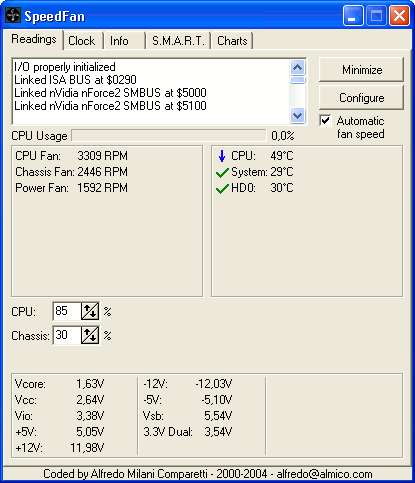
This is the main window
This is the temperature configuration window
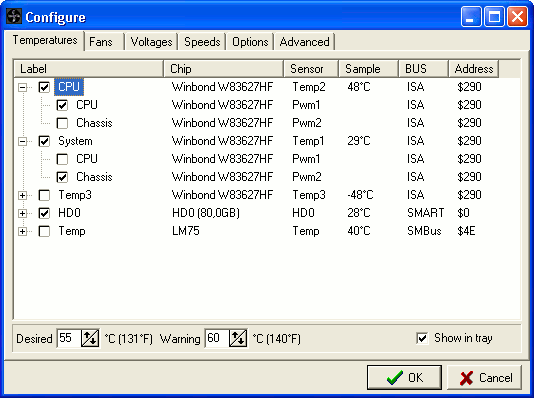
With the F2 key you can rename any reading found by SpeedFan. On the configuration dialog you can see the hardware monitor chips that were found, where they are located and sample readings. SpeedFan knows about a lot of different digital sensors and system bus. If you happen to see an unusually high temperature on this dialog, perhaps it is simply a disconnected sensor: something that the hardware monitor chip can monitor, but that the motherboard manufacturer didn't use.
This is the configuration window for advanced options
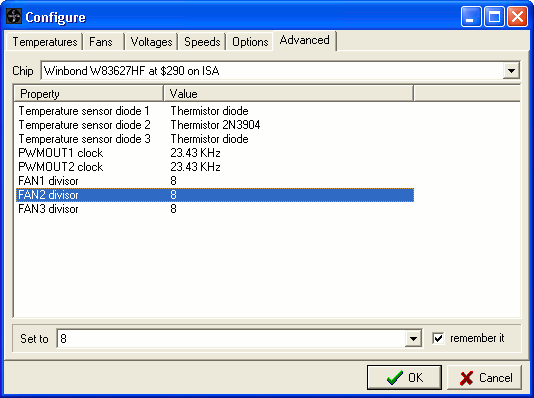
This section is extremely powerful. Here you can fine tune your hardware. You can fix wrong temperature readings if you discover that an offset is needed because the manufacturer put the actual sensor slightly away from the monitored chip. You can even fix reported fan speeds, if they are, for example, twice the real value. The most important options here allow you to enable software fan speed control. By setting the remember it option you can tell SpeedFan to set that option whenever it starts and whenever your system resumes from standby.
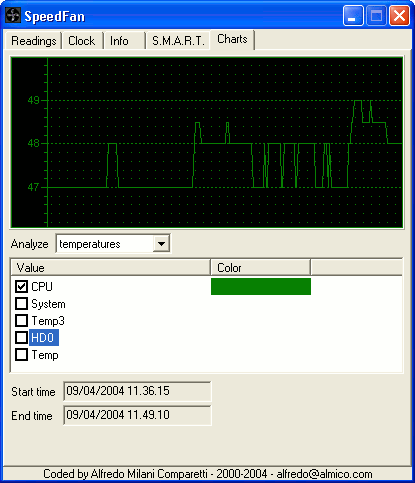
A few charts...
A full description of S.M.A.R.T. status
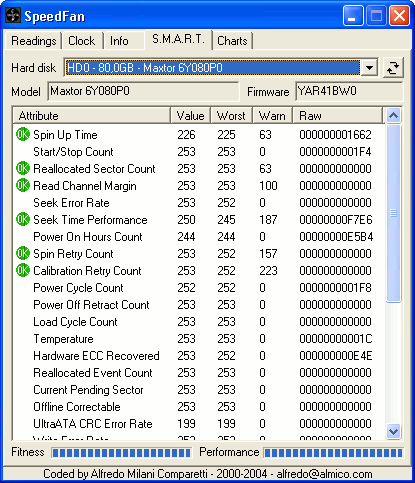
S.M.A.R.T. (or SMART) is a technology that allows the end user query the hard drive about its health and, eventually, performances. SpeedFan can query those info for you. SMART reports, for example, if the hard disk has been used for too much time (thus reaching its expected end of life), or if it took too many attempts to start spinning, or even if too many read errors occurred. You might have a look at the "What is S.M.A.R.T. and how can we use it to avoid data disaster?"article.
If you need a tool that can change your computer's fan speeds, read the temperatures of your motherboard and your hard disk, read voltages and fan speeds and check the status of your hard disk using S.M.A.R.T. or SCSI attributes, then you came to the right place. SpeedFan is the software to go. It is fully configurable and you can create custom events to handle every situation in an automated way. SpeedFan works under Windows 9x, ME, NT, 2000, 2003, XP and Vista. SpeedFan works fine on Vista 64 bit too. The relevant driver is now signed with my digital certificate. And this all costs you absolutely nothing!
What is SpeedFan
SpeedFan allows you to have a deeper view of the status of your computer. Almost every computer includes support for hardware monitoring. Accessing digital temperature sensors is really useful. If you are trying to figure out why your pc hangs when under heavy load or after some hours of usage, SpeedFan might help you to find the real cause. Very often it is a poor power supply, or an improperly installed heatsink that lead to behaviours that we tend to associate with errors from the operating system, but that are not. SpeedFan automatically searches your computer for interesting chips: the hardware monitor chips. SpeedFan can expose voltages, fan speeds and temperatures. On rare occasions, the BIOS doesn't activate such features. SpeedFan tries to enable them as long as this is a safe thing to do. Not only the motherboard is searched, but also some video cards and almost every recent hard disk. SpeedFan can access status info from EIDE, SATA and even SCSI drives, showing, in a consistent way, internal data that can be used to diagnose current and future hard disk failures. This is known as S.M.A.R.T. (Self-Monitoring Analysis and Reporting Technology). At the lowest level, SpeedFan is a hardware monitor software that can access digital temperature sensors, but its main feature is that it can control fan speeds according to the temperatures inside your pc, thus reducing noise.
Disclaimer
SpeedFan is an extremely powerful tool. It can help you a lot to find the reasons for an unpredictable reboot or for a failing hard disk. It can tell you whether you are likely to experience temperature related issues and can help you to greatly reduce the noise at work or while watching a movie. But this great power requires access to a lot of resources on your motherboard and it might be that your hardware does not like such kind of access. SpeedFan is used worldwide since 2000 and there are so many happy users out there, but you should always remember that no program can be perfect and that I can't be held responsible if SpeedFan causes any damage to your system.
This is the main window
This is the temperature configuration window
With the F2 key you can rename any reading found by SpeedFan. On the configuration dialog you can see the hardware monitor chips that were found, where they are located and sample readings. SpeedFan knows about a lot of different digital sensors and system bus. If you happen to see an unusually high temperature on this dialog, perhaps it is simply a disconnected sensor: something that the hardware monitor chip can monitor, but that the motherboard manufacturer didn't use.
This is the configuration window for advanced options
This section is extremely powerful. Here you can fine tune your hardware. You can fix wrong temperature readings if you discover that an offset is needed because the manufacturer put the actual sensor slightly away from the monitored chip. You can even fix reported fan speeds, if they are, for example, twice the real value. The most important options here allow you to enable software fan speed control. By setting the remember it option you can tell SpeedFan to set that option whenever it starts and whenever your system resumes from standby.
A few charts...
A full description of S.M.A.R.T. status
S.M.A.R.T. (or SMART) is a technology that allows the end user query the hard drive about its health and, eventually, performances. SpeedFan can query those info for you. SMART reports, for example, if the hard disk has been used for too much time (thus reaching its expected end of life), or if it took too many attempts to start spinning, or even if too many read errors occurred. You might have a look at the "What is S.M.A.R.T. and how can we use it to avoid data disaster?"article.
Code:
[URL="http://www.almico.com/sfdownload.php"]http://www.almico.com/sfdownload.php[/URL]