
Latest ads
-
 🚀 එක පැකේජ් එකයි - මාසෙටම Unlimited Internet! 🌐
- sayuru bandara
- Updated:
-
 🎬 CapCut Pro 1 Month Access! LKR 600
- sayuru bandara
- Updated:
-
 🚀 Google One AI PRO Plan (Gemini Pro Activation) – 18 Months Access! LKR 2200
- sayuru bandara
- Updated:
-
 Canva Pro Lifetime Own Mail Activation LKR 500
- sayuru bandara
- Updated:
-
 Tele marketing executive
- nuwandse
- Updated:
Dual Audio add [Video Editing ගැන දන්න අය විතරක් එන්න ]
- Thread starter rock pora
- Start date
You are using an out of date browser. It may not display this or other websites correctly.
You should upgrade or use an alternative browser.
You should upgrade or use an alternative browser.


මචං ඕක karaoke සිස්ටම් එකට කරන්න පුළුවන්, ඒ කියන්නේ ඕන track 2 left N right side දෙකට දාල කරන්නත් පුළුවන්.. එතකොට කරන්න තියෙන්නේ video එක බලනකොට audio channel 2 මාරු කරන්න විතරයි
හොඳ අදහස,හැබැයි එතකොට අහන්න වෙන්නේ එක Channel එකකින් විතරයිනේ,මේකත් Premiere වලින් පහසුවෙන්ම කරගන්න පුළුවන්

Thanx machobamp
Thanx machoBUMP
01.Encode කරන්න කලින් එහෙම track 2ක් add කරන්න පුළුවන්,උදාහරණයක් හැටියට English tack එකයි hindi එකයි.ඒ වුනාට encode කරාට පස්සේ ඒ දෙකම එකක් වෙනවා.ඒ නිසා Encode කරාට පස්සේ අපිට ඒ Track වෙනනෙනම ගන්න බෑ (හැබැයි ක්රම නැතුවම නෙවේ,)
02.Adobe Premiere Pro වලින් Video එකකට Language Tracks/Audio Tracks කැමති ගානක් add කරගන්න පුවවන්
03.Edit කරන්නත් Adobe Premiere Pro බාවිතා කරන්න පුළුවන්
හරි බන් එහෙම තමයි normal encode සිද්දිය.
උබ දැකලා නැද්ද BRRip movies download කරන්න තියෙනකොට ,movie title එකේ Dual Audio [Hindi /English ]/ dubbed in හින්දි, Dual Audio කියල තියෙනවා .මෙහෙම තියෙන්නේ මන් කියන විදියට Audio tracks දෙකක් තියෙන කොට විතරයි.
එක බලන්නේ මෙහෙමයි

මේක හද්ද පරණ classic player එකකින් ගත්ත එකක්.අලුත් එකේ ඔහොම නෙමෙයි බලන්නේ.එකේ කෙලින්ම Audio කියල එනවා.එතනින් තමයි tracks ටික තෝරන්නේ
Last edited:

thanx macho
හරි මචෝ එහෙම කරන්න පුළුවන් තමයි.
මන් අහන්නේ මචෝ එහෙම කරන්න පුළුවන් software එකක් ගැන දන්නවද කියලයි
anyway thanx macho

Adobe Premier, Aftereffect මේවා වලින් කරන්න පුළුවන් මචං...


හරි මචෝ මේවගෙන් පුලුවන්ද එහෙම play වෙනකොට tracks මාරුවෙන් මාරුවට play කරන්න ????Adobe Premier, Aftereffect මේවා වලින් කරන්න පුළුවන් මචං...

මෙහෙමයි කරන්නේ..
DVD වලට Video එක Create කරනවා නම් මම කරන්නේ "Adobe Encore DVD" බාවිතා කරන එක.
ඒකට Dolby Audio Tracks, DTS.. AC3.. MPG .. වගේ Audio Formats වලින් විතරක් නොවෙයි එකම Formats වලින් Audio Tracks 64 කට එහා Add දෙන්න පුළුවන්..
උදා :
මම හදන මංගල උත්සව වීඩියෝ එකකට 2.1 Audio Channel තියන Audio Track එකකුයි...
5.1 Dolby ශබ්ද සහිත Audio Track එකකුයි දාන්න ඕන කියලා...
එතකොට මේ දෙකම මේ මෘදුකාංගය හරහා අපේ DVD or Blueray Disk එකට දාගන්න පුළුවන්..
මෙහෙම කරාම DVD Player වලින් හෝ Power DVD වගෙග් හොඳ ඒවයින් Audio Tracks තෝරගන්න පුළුවන් වෙනවා..
DVD වලට Video එක Create කරනවා නම් මම කරන්නේ "Adobe Encore DVD" බාවිතා කරන එක.
ඒකට Dolby Audio Tracks, DTS.. AC3.. MPG .. වගේ Audio Formats වලින් විතරක් නොවෙයි එකම Formats වලින් Audio Tracks 64 කට එහා Add දෙන්න පුළුවන්..
උදා :
මම හදන මංගල උත්සව වීඩියෝ එකකට 2.1 Audio Channel තියන Audio Track එකකුයි...
5.1 Dolby ශබ්ද සහිත Audio Track එකකුයි දාන්න ඕන කියලා...
එතකොට මේ දෙකම මේ මෘදුකාංගය හරහා අපේ DVD or Blueray Disk එකට දාගන්න පුළුවන්..
මෙහෙම කරාම DVD Player වලින් හෝ Power DVD වගෙග් හොඳ ඒවයින් Audio Tracks තෝරගන්න පුළුවන් වෙනවා..
Thanx lot macho
Thanx macho.මෙහෙමයි කරන්නේ..
DVD වලට Video එක Create කරනවා නම් මම කරන්නේ "Adobe Encore DVD" බාවිතා කරන එක.
ඒකට Dolby Audio Tracks, DTS.. AC3.. MPG .. වගේ Audio Formats වලින් විතරක් නොවෙයි එකම Formats වලින් Audio Tracks 64 කට එහා Add දෙන්න පුළුවන්..
උදා :
මම හදන මංගල උත්සව වීඩියෝ එකකට 2.1 Audio Channel තියන Audio Track එකකුයි...
5.1 Dolby ශබ්ද සහිත Audio Track එකකුයි දාන්න ඕන කියලා...
එතකොට මේ දෙකම මේ මෘදුකාංගය හරහා අපේ DVD or Blueray Disk එකට දාගන්න පුළුවන්..
මෙහෙම කරාම DVD Player වලින් හෝ Power DVD වගෙග් හොඳ ඒවයින් Audio Tracks තෝරගන්න පුළුවන් වෙනවා..
මන් මේ DVD සිද්දියත් හොය හොයා හිටියේ

මගේ Adobe Encore DVD මෘදුකාංගයෙන් පුථුවන් DVD or Blueray විතරයි.. මට පේන්නේ උඹට ඕන AVI කරගන්න
ඒක ගැන නම් මම දන්නේ නෑ...
කෝකටත් මේක කියවපන්...
______________________________________________
How to make a Dual or Multiple Audio AVI or MPEG4 file (XviD, DivX, other) and/or How to add Multiple SUBTITLES
v.1.2
Updated 2005-05-20
A simple guide how to add, remove, or swap any single, dual or multiple audio tracks with or without subtitles in AVI files.
Once upon a time I have noticed big surprise in my friends eyes when they suddenly discovered that some of my backup dvdrips in MPEG-4 format have dual and triple audio tracks within, and so I decided to write this short and simple guide, because almost every standalone divx/dvd player on the market supports multiaudio anyway.
TOOLS NEEDED:
AVI-Mux GUI
http://www-user.tu-chemnitz.de/~noe/....html#download
Morgan Stream Switcher (not neccessary, for playback issues - see below)
http://www.morgan-multimedia.com/download/mmswitch.exe
Level of knowledge required: n00b, brainless, etc

1.
Download AVI-Mux GUI if you dont have it yet, and run it (it doesnt require any installation).
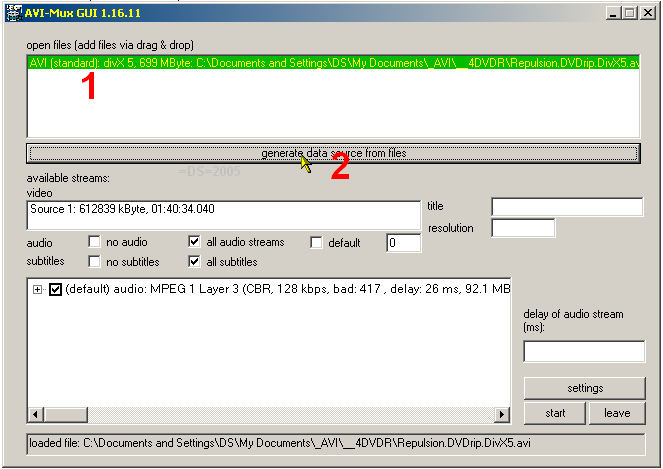
Load your avi file (with or without any audio) in AVI-Mux GUI by simply drag'n'drop it there (#1)
In my example file I loaded has only English original audio, and Im going to add English Commentary audio as a secondary audio. Someone else may want to use i.e. dubbed audio track in his localized language... or add both. Its your choice
2.
Once youve loaded the file, highlight it by clicking on it, then click on "generate data source from files". It will show you what video and audio streams your file has, see #2
3.
Load the external audio track (and/or subtitles) what you wish to add to your movie (in my example it is MP3 rip of Commentary Track) see #3.
Addendum:
If youre adding multiple audio tracks with multiple subtitles - see picture #3B (in addendum, at the end of this guide - below). Picture #3c shows all the multiplexed subtitle options within finalized AVI file (on a computer, using plain Windows Media Player 6.4 and ffdshow filter). Please note that not all dvd/divx standalone players are able to select and/or display subtitles that are multiplexed 'inside' the AVI file.
For adding only subtitles, or multiple audio and multiple subtitles, follow next steps the same way as I explained when adding just second audio track.
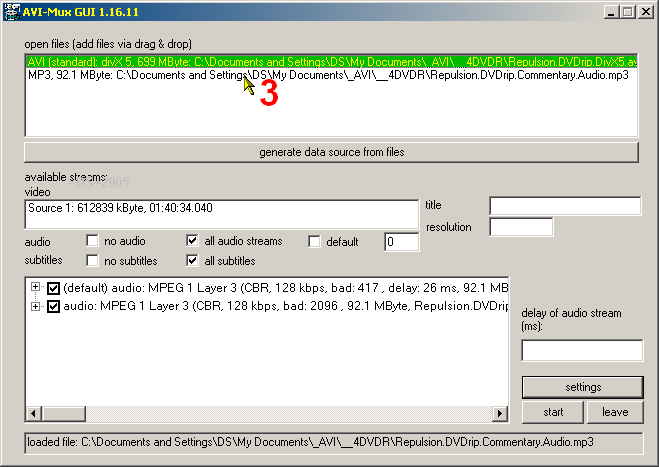
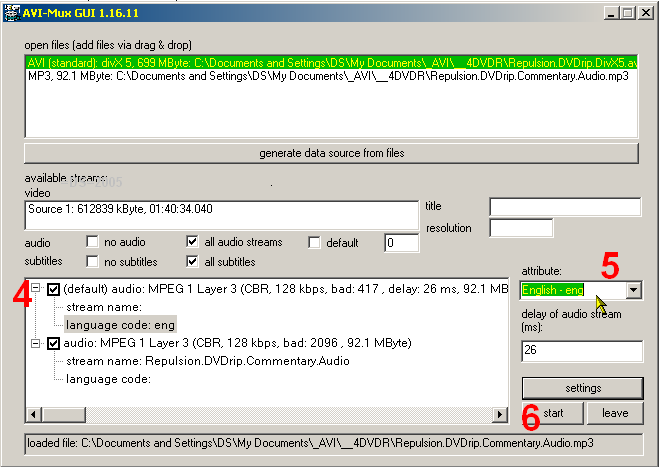
Make sure your original movie audio track is set as Default audio (#4), unless you want to change it. 'Default' audio track It means this audio track will play on every software or hardware divx/dvd-player that is *not* capable of playing other audio tracks, and there are plenty of them out there. So if I would have set as a 'default' the commentary track that Im adding in my example, then it wouldnt be right on such players, right?
You can also set Language properties/names for each of the audio tracks (#5) for all those players that are able to distinguish and select more than one audio track.
Finally hit 'start' (#6) and select where to save your newly created dual audio file and under what name.
Thats all.
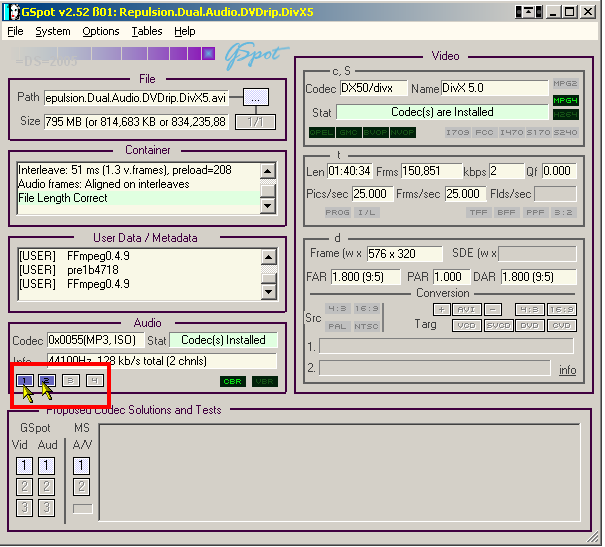
If you load your newly created multi-audio AVI file in a GSpot, it will show properties for all of your audio tracks selectable there:
 .
.
PLAYBACK ISSUES
Standalone divx/dvd player should have no problem with such files, and you would select audio tracks the same way as you do with standard DVD-Video discs on your player (usually hit the button "Audio" on your remote
).
But there is one tricky part of playing such files on a PC with software players.
I do know many of them have problem with secondary audio tracks within AVI container (yet all of them will have no problem playing such AVI files at all, they will just play them with the 'default' audio track only).
Since it is not the scope of this guide how to make secondary audio playable on your PC and every software player out there (I dont watch movies on any computers, so please forgive me) I will just write how to make them playable with most popular player on PC - Windows Media Player which is built-in into every Windows since Windows 95:
Simply install Morgan Media Switcher - available for free (link above).
It works on every WMP from version 6.4 and up, and I just have tested version 0.99 with WMP6.4 on my Windows 2000 machine.
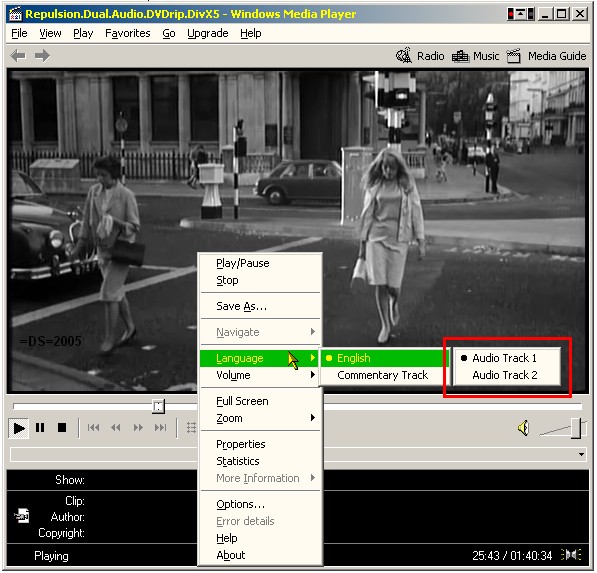
In a red frame you can see the way names of your Audio Tracks normally will appear.
However if you want their names to be more specific (like it is in my example - "Audio Track 1" appear as "English", and "Audio Track 2" appear as "Commentary Track") you need to open your Notepad, and create new text file (usually it is autonamed as "New Text Document").
Open it and type:
[MSS]
Audio_1=English
Audio_2=Commentary Track
(as in my example, you may need to type i.e. Francaise and Whatever instead of English and Commentary Track).
Save the file, then rename it to exact same name as your movie file is, and change the file's extension from .txt to .mss (so Morgan Stream Switcher could see it).
As in my example, since previously I saved my dual audio movie as:
Repulsion.Dual.Audio.DVDrip.DivX5.avi
therefore I renamed this New Text Document.txt file to:
Repulsion.Dual.Audio.DVDrip.DivX5.mss
If you can't see the .txt extension of your file it means your Windows hide extensions by default, you need to enable it first, otherwise the .txt extension will still be there and you will be creating something like "Repulsion.Dual.Audio.DVDrip.DivX5.mss.txt" without seeing the ending .txt part of filename (as it would have been in my example).
Enjoy =)
ඒක ගැන නම් මම දන්නේ නෑ...
කෝකටත් මේක කියවපන්...
______________________________________________
How to make a Dual or Multiple Audio AVI or MPEG4 file (XviD, DivX, other) and/or How to add Multiple SUBTITLES
v.1.2
Updated 2005-05-20
A simple guide how to add, remove, or swap any single, dual or multiple audio tracks with or without subtitles in AVI files.
Once upon a time I have noticed big surprise in my friends eyes when they suddenly discovered that some of my backup dvdrips in MPEG-4 format have dual and triple audio tracks within, and so I decided to write this short and simple guide, because almost every standalone divx/dvd player on the market supports multiaudio anyway.
TOOLS NEEDED:
AVI-Mux GUI
http://www-user.tu-chemnitz.de/~noe/....html#download
Morgan Stream Switcher (not neccessary, for playback issues - see below)
http://www.morgan-multimedia.com/download/mmswitch.exe
Level of knowledge required: n00b, brainless, etc

1.
Download AVI-Mux GUI if you dont have it yet, and run it (it doesnt require any installation).
Load your avi file (with or without any audio) in AVI-Mux GUI by simply drag'n'drop it there (#1)
In my example file I loaded has only English original audio, and Im going to add English Commentary audio as a secondary audio. Someone else may want to use i.e. dubbed audio track in his localized language... or add both. Its your choice
2.
Once youve loaded the file, highlight it by clicking on it, then click on "generate data source from files". It will show you what video and audio streams your file has, see #2
3.
Load the external audio track (and/or subtitles) what you wish to add to your movie (in my example it is MP3 rip of Commentary Track) see #3.
Addendum:
If youre adding multiple audio tracks with multiple subtitles - see picture #3B (in addendum, at the end of this guide - below). Picture #3c shows all the multiplexed subtitle options within finalized AVI file (on a computer, using plain Windows Media Player 6.4 and ffdshow filter). Please note that not all dvd/divx standalone players are able to select and/or display subtitles that are multiplexed 'inside' the AVI file.
For adding only subtitles, or multiple audio and multiple subtitles, follow next steps the same way as I explained when adding just second audio track.
Make sure your original movie audio track is set as Default audio (#4), unless you want to change it. 'Default' audio track It means this audio track will play on every software or hardware divx/dvd-player that is *not* capable of playing other audio tracks, and there are plenty of them out there. So if I would have set as a 'default' the commentary track that Im adding in my example, then it wouldnt be right on such players, right?
You can also set Language properties/names for each of the audio tracks (#5) for all those players that are able to distinguish and select more than one audio track.
Finally hit 'start' (#6) and select where to save your newly created dual audio file and under what name.
Thats all.
If you load your newly created multi-audio AVI file in a GSpot, it will show properties for all of your audio tracks selectable there:
PLAYBACK ISSUES
Standalone divx/dvd player should have no problem with such files, and you would select audio tracks the same way as you do with standard DVD-Video discs on your player (usually hit the button "Audio" on your remote
But there is one tricky part of playing such files on a PC with software players.
I do know many of them have problem with secondary audio tracks within AVI container (yet all of them will have no problem playing such AVI files at all, they will just play them with the 'default' audio track only).
Since it is not the scope of this guide how to make secondary audio playable on your PC and every software player out there (I dont watch movies on any computers, so please forgive me) I will just write how to make them playable with most popular player on PC - Windows Media Player which is built-in into every Windows since Windows 95:
Simply install Morgan Media Switcher - available for free (link above).
It works on every WMP from version 6.4 and up, and I just have tested version 0.99 with WMP6.4 on my Windows 2000 machine.
In a red frame you can see the way names of your Audio Tracks normally will appear.
However if you want their names to be more specific (like it is in my example - "Audio Track 1" appear as "English", and "Audio Track 2" appear as "Commentary Track") you need to open your Notepad, and create new text file (usually it is autonamed as "New Text Document").
Open it and type:
[MSS]
Audio_1=English
Audio_2=Commentary Track
(as in my example, you may need to type i.e. Francaise and Whatever instead of English and Commentary Track).
Save the file, then rename it to exact same name as your movie file is, and change the file's extension from .txt to .mss (so Morgan Stream Switcher could see it).
As in my example, since previously I saved my dual audio movie as:
Repulsion.Dual.Audio.DVDrip.DivX5.avi
therefore I renamed this New Text Document.txt file to:
Repulsion.Dual.Audio.DVDrip.DivX5.mss
If you can't see the .txt extension of your file it means your Windows hide extensions by default, you need to enable it first, otherwise the .txt extension will still be there and you will be creating something like "Repulsion.Dual.Audio.DVDrip.DivX5.mss.txt" without seeing the ending .txt part of filename (as it would have been in my example).
Enjoy =)

http://forum.doom9.org/showthread.php?t=96032
oya link ekata gihin balanna. meGUI. oka patta. man oken wedakaranawa. oken puluwanvideo ekakata audio track 2ta wadaa add karanna. etapasse play karanakota apita one track eka witharak play karanna puluwan. oya software eken thamai dual audio mkv film ehema hadanne. avi/mkv/mp4 muxer thiyenawa. ewagen puluwan audio 2k add karaganna lesiyenma.
oya link ekata gihin balanna. meGUI. oka patta. man oken wedakaranawa. oken puluwanvideo ekakata audio track 2ta wadaa add karanna. etapasse play karanakota apita one track eka witharak play karanna puluwan. oya software eken thamai dual audio mkv film ehema hadanne. avi/mkv/mp4 muxer thiyenawa. ewagen puluwan audio 2k add karaganna lesiyenma.

හරි මචෝ මේවගෙන් පුලුවන්ද එහෙම play වෙනකොට tracks මාරුවෙන් මාරුවට play කරන්න ????
player වල play කරන්න මචන් ඔය විදියට හදාගන්න පුළුවන්... හැබැයි එඩිට් කරන්න ඕන උනාම save කරපු file එකෙන් තමයි එක කරන්න වෙන්නේ. PC එකෙත් play කරනකොට tracks මාරු කරන්න පුළුවන්. නැත්නම් video එකට audio preset add කරල තමයි හදන්න ඕන.
Thanx machan
player වල play කරන්න මචන් ඔය විදියට හදාගන්න පුළුවන්... හැබැයි එඩිට් කරන්න ඕන උනාම save කරපු file එකෙන් තමයි එක කරන්න වෙන්නේ. PC එකෙත් play කරනකොට tracks මාරු කරන්න පුළුවන්. නැත්නම් video එකට audio preset add කරල තමයි හදන්න ඕන.
මට උදව් කරපු සෑම යාළුවෙක්ටම බොහොමත්ම ස්තුතියි
Similar threads

- Replies
- 54
- Views
- 1K


- Replies
- 14
- Views
- 451

- Replies
- 13
- Views
- 335


