


Latest ads
-
V2ray VPN for Tunneling
- hu KANNA
- Updated:
-
 ඕනම රටකට සෙට් වෙන CV එකක්
- ErMurazor
- Updated:
-
 Hambantota 7 Acres Beachfront Land For Sell DownSouth , PerPerch Price 420 000
- 1024 Digital
- Updated:
-
 Baseus PI LITE INDOOR CAMERA
- ErMurazor
- Updated:
You are using an out of date browser. It may not display this or other websites correctly.
You should upgrade or use an alternative browser.
You should upgrade or use an alternative browser.

DJ.ROCKSTAR said:woow elakri machanzz than gud job
Thanx
& Thanx goes 2 bk1206 too


ela machodraco said:how 2 repair local area connection kiyana 1kha balnna.
oyata godak wedagath wei
mama mai mekha thaniyen hoyagatthe


Automatically defrag drives with a new context menu item!
Create a new Registry import file named context_defrag.inf in Notepad (be sure to save with it with the Save as type set to All Files and not Text Documents) and place the following text inside:
; context_defrag.INF
; Adds Defrag to the right click context menu in Windows XP
[version]
signature="$CHICAGO$"
[DefaultInstall]
AddReg=AddMe
[AddMe]
HKCR,"Drive\Shell\Defrag\command",,,"DEFRAG.EXE %1"
Then, right-click and choose Install. This will add a context menu to XP that allows you to automatically defrag drives, using the command line version of the built-in defragmentation utility. To use it, navigate to a drive in My Computer, right-click, and choose Defrag. A command line window will appear, and that drive will be defragged. When it's complete, the window just disappears.
UPDATE: To remove this functionality, Open regedit.exe and navigate to the following location:
HKEY_CLASSES_ROOT\Drive\shell\
Then delete the Defrag folder and close Regedit.
Create a new Registry import file named context_defrag.inf in Notepad (be sure to save with it with the Save as type set to All Files and not Text Documents) and place the following text inside:
; context_defrag.INF
; Adds Defrag to the right click context menu in Windows XP
[version]
signature="$CHICAGO$"
[DefaultInstall]
AddReg=AddMe
[AddMe]
HKCR,"Drive\Shell\Defrag\command",,,"DEFRAG.EXE %1"
Then, right-click and choose Install. This will add a context menu to XP that allows you to automatically defrag drives, using the command line version of the built-in defragmentation utility. To use it, navigate to a drive in My Computer, right-click, and choose Defrag. A command line window will appear, and that drive will be defragged. When it's complete, the window just disappears.
UPDATE: To remove this functionality, Open regedit.exe and navigate to the following location:
HKEY_CLASSES_ROOT\Drive\shell\
Then delete the Defrag folder and close Regedit.
Add/Remove optional features of Windows XP
I first mentioned this technique in an old Technology Showcase for Windows 2000, but it still works in Windows XP, and can be quite useful: For some reason, Microsoft has removed the ability to specify which Windows components you want to install during interactive Setup, and when you go into Add/Remove Windows Components in the Control Panel, you still don't have the full list of applications and applets you can add and remove. Thankfully, this is easy to fix.
To dramatically expand the list of applications you can remove from Windows XP after installation, navigate to C:\WINDOWS\inf (substituting the correct drive letter for your version of Windows) and open the sysoc.inf file. Under Windows XP Professional Edition, this file will resemble the following by default:
[Version] Signature = "$Windows NT$"
DriverVer=06/26/2001,5.1.2505.0
[Components]
NtComponents=ntoc.dll,NtOcSetupProc,,4
WBEM=ocgen.dll,OcEntry,wbemoc.inf,hide,7
Display=desk.cpl,DisplayOcSetupProc,,7
Fax=fxsocm.dll,FaxOcmSetupProc,fxsocm.inf,,7
NetOC=netoc.dll,NetOcSetupProc,netoc.inf,,7
iis=iis.dll,OcEntry,iis.inf,,7
com=comsetup.dll,OcEntry,comnt5.inf,hide,7
dtc=msdtcstp.dll,OcEntry,dtcnt5.inf,hide,7
IndexSrv_System = setupqry.dll,IndexSrv,setupqry.inf,,7
TerminalServer=TsOc.dll, HydraOc, TsOc.inf,hide,2
msmq=msmqocm.dll,MsmqOcm,msmqocm.inf,,6
ims=imsinsnt.dll,OcEntry,ims.inf,,7
fp_extensions=fp40ext.dll,FrontPage4Extensions,fp40ext.inf,,7
AutoUpdate=ocgen.dll,OcEntry,au.inf,hide,7
msmsgs=msgrocm.dll,OcEntry,msmsgs.inf,hide,7
msnexplr=ocmsn.dll,OcEntry,msnmsn.inf,,7
smarttgs=ocgen.dll,OcEntry,msnsl.inf,,7
RootAutoUpdate=ocgen.dll,OcEntry,rootau.inf,,7
Games=ocgen.dll,OcEntry,games.inf,,7
AccessUtil=ocgen.dll,OcEntry,accessor.inf,,7
CommApps=ocgen.dll,OcEntry,communic.inf,HIDE,7
MultiM=ocgen.dll,OcEntry,multimed.inf,HIDE,7
AccessOpt=ocgen.dll,OcEntry,optional.inf,HIDE,7
Pinball=ocgen.dll,OcEntry,pinball.inf,HIDE,7
MSWordPad=ocgen.dll,OcEntry,wordpad.inf,HIDE,7
ZoneGames=zoneoc.dll,ZoneSetupProc,igames.inf,,7
[Global]
WindowTitle=%WindowTitle%
WindowTitle.StandAlone="*"
The entries that include the text hide or HIDE will not show up in Add/Remove Windows Components by default. To fix this, do a global search and replace for ,hide and change each instance of this to , (a comma). Then, save the file, relaunch Add/Remove Windows Components, and tweak the installed applications to your heart's content.

I first mentioned this technique in an old Technology Showcase for Windows 2000, but it still works in Windows XP, and can be quite useful: For some reason, Microsoft has removed the ability to specify which Windows components you want to install during interactive Setup, and when you go into Add/Remove Windows Components in the Control Panel, you still don't have the full list of applications and applets you can add and remove. Thankfully, this is easy to fix.
To dramatically expand the list of applications you can remove from Windows XP after installation, navigate to C:\WINDOWS\inf (substituting the correct drive letter for your version of Windows) and open the sysoc.inf file. Under Windows XP Professional Edition, this file will resemble the following by default:
[Version] Signature = "$Windows NT$"
DriverVer=06/26/2001,5.1.2505.0
[Components]
NtComponents=ntoc.dll,NtOcSetupProc,,4
WBEM=ocgen.dll,OcEntry,wbemoc.inf,hide,7
Display=desk.cpl,DisplayOcSetupProc,,7
Fax=fxsocm.dll,FaxOcmSetupProc,fxsocm.inf,,7
NetOC=netoc.dll,NetOcSetupProc,netoc.inf,,7
iis=iis.dll,OcEntry,iis.inf,,7
com=comsetup.dll,OcEntry,comnt5.inf,hide,7
dtc=msdtcstp.dll,OcEntry,dtcnt5.inf,hide,7
IndexSrv_System = setupqry.dll,IndexSrv,setupqry.inf,,7
TerminalServer=TsOc.dll, HydraOc, TsOc.inf,hide,2
msmq=msmqocm.dll,MsmqOcm,msmqocm.inf,,6
ims=imsinsnt.dll,OcEntry,ims.inf,,7
fp_extensions=fp40ext.dll,FrontPage4Extensions,fp40ext.inf,,7
AutoUpdate=ocgen.dll,OcEntry,au.inf,hide,7
msmsgs=msgrocm.dll,OcEntry,msmsgs.inf,hide,7
msnexplr=ocmsn.dll,OcEntry,msnmsn.inf,,7
smarttgs=ocgen.dll,OcEntry,msnsl.inf,,7
RootAutoUpdate=ocgen.dll,OcEntry,rootau.inf,,7
Games=ocgen.dll,OcEntry,games.inf,,7
AccessUtil=ocgen.dll,OcEntry,accessor.inf,,7
CommApps=ocgen.dll,OcEntry,communic.inf,HIDE,7
MultiM=ocgen.dll,OcEntry,multimed.inf,HIDE,7
AccessOpt=ocgen.dll,OcEntry,optional.inf,HIDE,7
Pinball=ocgen.dll,OcEntry,pinball.inf,HIDE,7
MSWordPad=ocgen.dll,OcEntry,wordpad.inf,HIDE,7
ZoneGames=zoneoc.dll,ZoneSetupProc,igames.inf,,7
[Global]
WindowTitle=%WindowTitle%
WindowTitle.StandAlone="*"
The entries that include the text hide or HIDE will not show up in Add/Remove Windows Components by default. To fix this, do a global search and replace for ,hide and change each instance of this to , (a comma). Then, save the file, relaunch Add/Remove Windows Components, and tweak the installed applications to your heart's content.

Vista Tips
Use ReadyBoost to speed up your system!

What is ReadyBoost and what is SuperFetch?
Microsoft introduces, using Windows, these new techniques, which have to speed up your computer which is used for daily usage.
How do these technologies work?
Do you really get a super system when you extend the memory using a USB stick?
The memory in computers increased dramatically since a few years ago. This is logical because there is nothing what makes a computer more stable and faster than extra memory. Microsoft wants to use that new memory maximum and equipped Windows Vista with a few techniques which have to take care of this.
The memory manager of Windows Vista can change the grouping of the memory any time, which decreases the chance of overloading a part of the memory. Microsoft calls this 'dynamic kernel address space'.
The possibility to assign memory dynamically is also used to decide which data have to be loaded into the memory and which data is mend for the virtual memory. Previous versions of Windows did not make any difference between data which is used much and which is used less. Windows Vista does it on another way. SuperFetch doesn't look at the data which is unused the longest, but it predicts which data will be needed as first again and keeps this data stored in the memory.If there will be any free space in the RAM-memory then SuperFetch will fill these spaces with the data of which it predicts it will be needed as first again.
Use ReadyBoost to speed up your system!

What is ReadyBoost and what is SuperFetch?
Microsoft introduces, using Windows, these new techniques, which have to speed up your computer which is used for daily usage.
How do these technologies work?
Do you really get a super system when you extend the memory using a USB stick?
The memory in computers increased dramatically since a few years ago. This is logical because there is nothing what makes a computer more stable and faster than extra memory. Microsoft wants to use that new memory maximum and equipped Windows Vista with a few techniques which have to take care of this.
The memory manager of Windows Vista can change the grouping of the memory any time, which decreases the chance of overloading a part of the memory. Microsoft calls this 'dynamic kernel address space'.
The possibility to assign memory dynamically is also used to decide which data have to be loaded into the memory and which data is mend for the virtual memory. Previous versions of Windows did not make any difference between data which is used much and which is used less. Windows Vista does it on another way. SuperFetch doesn't look at the data which is unused the longest, but it predicts which data will be needed as first again and keeps this data stored in the memory.If there will be any free space in the RAM-memory then SuperFetch will fill these spaces with the data of which it predicts it will be needed as first again.
Bookmarks and toolbar buttons not working after upgrading
* If bookmarks are missing, see Lost bookmarks.
* If toolbar buttons are missing, see Back and forward or other toolbar buttons are missing.
If Norton 360 is installed
A component installed with Norton 360 can cause problems with bookmarks and history after installing or updating to Firefox 3. These problems usually occur after restarting Firefox. Symptoms include:
* Bookmarks disappearing
* Bookmarks not saving
* History not saving
* Toolbar buttons such as Back and Forward not working
If you are experiencing these problems, you need to check for and delete this component from your computer.
1. From the menu at the top of the Firefox window, select File and then select the Exit menu item.
2. Right-click on an empty spot in the Windows task bar and select Task Manager (or press
Ctrl+Shift+Esc).

# Select the Processes tab.
# Select the firefox.exe entry in the processes list and press End Process. (If there is no "firefox.exe" entry, skip this step.)
# Open My Computer or Windows Explorer.
# Browse to the folder: C:\Program Files\Mozilla Firefox\Components
# Delete the file coFFPlgn.dll from this folder.
* If the file will not delete, you may not have ended the "firefox.exe" process properly in steps 2-4.
# Open Firefox and verify that bookmarks and toolbar buttons are working properly.
* If bookmarks are missing, see Lost bookmarks.
* If toolbar buttons are missing, see Back and forward or other toolbar buttons are missing.
If Norton 360 is installed
A component installed with Norton 360 can cause problems with bookmarks and history after installing or updating to Firefox 3. These problems usually occur after restarting Firefox. Symptoms include:
* Bookmarks disappearing
* Bookmarks not saving
* History not saving
* Toolbar buttons such as Back and Forward not working
If you are experiencing these problems, you need to check for and delete this component from your computer.
1. From the menu at the top of the Firefox window, select File and then select the Exit menu item.
2. Right-click on an empty spot in the Windows task bar and select Task Manager (or press
Ctrl+Shift+Esc).

# Select the Processes tab.
# Select the firefox.exe entry in the processes list and press End Process. (If there is no "firefox.exe" entry, skip this step.)
# Open My Computer or Windows Explorer.
# Browse to the folder: C:\Program Files\Mozilla Firefox\Components
# Delete the file coFFPlgn.dll from this folder.
* If the file will not delete, you may not have ended the "firefox.exe" process properly in steps 2-4.
# Open Firefox and verify that bookmarks and toolbar buttons are working properly.
Improving speed and efficiency in firefox
Managing different file types
Firefox can handle many types of files. However, for some files such as movies or music, Firefox needs Plugins or external applications that can handle those files. If Firefox doesn't have the needed Plugin or doesn't know what application to use to open the file, it can still save the file to your hard disk. When saving files, you can keep track of them using the Download Manager.
Plugins extend Firefox's functionality and run within it. Plugins like Sun Java, Adobe Flash, and RealNetworks RealPlayer allow Firefox to show multimedia files and run small applications such as movies, animations, and games. You can find common Plugins on the Plugins page at Mozilla Add-ons.
When files cannot be opened within Firefox, you can choose to open them with applications outside of Firefox. For example, you can use the media player of your choice to play MP3 files.
Firefox 2:
You can specify how Firefox handles files it can't display in the Download Actions dialog. To open this dialog, select Tools > OptionsEdit > PreferencesFirefox > Preferences, open the Content panel, and click the Manage… button in the File Types section. You can change the action for a file type or remove it. More information about this dialog is available in File Types optionspreferences.
Firefox 2
Firefox 3:
You can specify how Firefox handles files it can't display in the Applications panel. To open this panel, select Tools > OptionsEdit > PreferencesFirefox > Preferences, and click the Applications panel. You can change the action for a file type or remove it. More information about this dialog is available in Applications optionspreferences.
Firefox 3
When you click on a file and Firefox doesn't know how to handle it, an Opening dialog box is displayed, offering these choices:
Managing different file types
Firefox can handle many types of files. However, for some files such as movies or music, Firefox needs Plugins or external applications that can handle those files. If Firefox doesn't have the needed Plugin or doesn't know what application to use to open the file, it can still save the file to your hard disk. When saving files, you can keep track of them using the Download Manager.
Plugins extend Firefox's functionality and run within it. Plugins like Sun Java, Adobe Flash, and RealNetworks RealPlayer allow Firefox to show multimedia files and run small applications such as movies, animations, and games. You can find common Plugins on the Plugins page at Mozilla Add-ons.
When files cannot be opened within Firefox, you can choose to open them with applications outside of Firefox. For example, you can use the media player of your choice to play MP3 files.
Firefox 2:
You can specify how Firefox handles files it can't display in the Download Actions dialog. To open this dialog, select Tools > OptionsEdit > PreferencesFirefox > Preferences, open the Content panel, and click the Manage… button in the File Types section. You can change the action for a file type or remove it. More information about this dialog is available in File Types optionspreferences.
Firefox 2
Firefox 3:
You can specify how Firefox handles files it can't display in the Applications panel. To open this panel, select Tools > OptionsEdit > PreferencesFirefox > Preferences, and click the Applications panel. You can change the action for a file type or remove it. More information about this dialog is available in Applications optionspreferences.
Firefox 3
When you click on a file and Firefox doesn't know how to handle it, an Opening dialog box is displayed, offering these choices:
Managing different file types
Firefox can handle many types of files. However, for some files such as movies or music, Firefox needs Plugins or external applications that can handle those files. If Firefox doesn't have the needed Plugin or doesn't know what application to use to open the file, it can still save the file to your hard disk. When saving files, you can keep track of them using the Download Manager.
Plugins extend Firefox's functionality and run within it. Plugins like Sun Java, Adobe Flash, and RealNetworks RealPlayer allow Firefox to show multimedia files and run small applications such as movies, animations, and games. You can find common Plugins on the Plugins page at Mozilla Add-ons.
When files cannot be opened within Firefox, you can choose to open them with applications outside of Firefox. For example, you can use the media player of your choice to play MP3 files.
Firefox 2:
You can specify how Firefox handles files it can't display in the Download Actions dialog. To open this dialog, select Tools > OptionsEdit > PreferencesFirefox > Preferences, open the Content panel, and click the Manage… button in the File Types section. You can change the action for a file type or remove it. More information about this dialog is available in File Types optionspreferences.
Firefox 2
Firefox 3:
You can specify how Firefox handles files it can't display in the Applications panel. To open this panel, select Tools > OptionsEdit > PreferencesFirefox > Preferences, and click the Applications panel. You can change the action for a file type or remove it. More information about this dialog is available in Applications optionspreferences.
Firefox 3
When you click on a file and Firefox doesn't know how to handle it, an Opening dialog box is displayed, offering these choices:
* Open with: Firefox opens the file using the default program in your system settings. You can also choose a different program by selecting Other… in the drop-down list.
* Save to Disk: Firefox allows you to select a location to save the file. If you have selected Save all files to (this folder) in the Main panel of OptionsPreferences, the file will automatically be saved to the default folder; otherwise Firefox will ask you where to save it.
* Do this automatically for files like this from now on: When this is selected, Firefox will automatically perform the selected action the next time you download a file of this type.
Firefox 2:
Tip: You can clear your saved optionspreferences for Do this automatically for files like this from now on in the Download Actions dialog.
Firefox 2
Firefox 3:
Tip: You can clear your saved optionspreferences for Do this automatically for files like this from now on in the Applications panel.
Firefox 3
Making Firefox your default browser
Firefox displays web pages on the Internet and on your computer. To easily open web pages, you can make Firefox your default browser.
Firefox 2:
To make Firefox your default web browser, select Tools > OptionsEdit > PreferencesFirefox > Preferences and click the Check Now button in the Main panel.
Firefox 2
Firefox 3:
To make Firefox your default web browser, select Tools > OptionsEdit > PreferencesFirefox > Preferences and click the Check Now button in the Advanced panel.
Firefox can handle many types of files. However, for some files such as movies or music, Firefox needs Plugins or external applications that can handle those files. If Firefox doesn't have the needed Plugin or doesn't know what application to use to open the file, it can still save the file to your hard disk. When saving files, you can keep track of them using the Download Manager.
Plugins extend Firefox's functionality and run within it. Plugins like Sun Java, Adobe Flash, and RealNetworks RealPlayer allow Firefox to show multimedia files and run small applications such as movies, animations, and games. You can find common Plugins on the Plugins page at Mozilla Add-ons.
When files cannot be opened within Firefox, you can choose to open them with applications outside of Firefox. For example, you can use the media player of your choice to play MP3 files.
Firefox 2:
You can specify how Firefox handles files it can't display in the Download Actions dialog. To open this dialog, select Tools > OptionsEdit > PreferencesFirefox > Preferences, open the Content panel, and click the Manage… button in the File Types section. You can change the action for a file type or remove it. More information about this dialog is available in File Types optionspreferences.
Firefox 2
Firefox 3:
You can specify how Firefox handles files it can't display in the Applications panel. To open this panel, select Tools > OptionsEdit > PreferencesFirefox > Preferences, and click the Applications panel. You can change the action for a file type or remove it. More information about this dialog is available in Applications optionspreferences.
Firefox 3
When you click on a file and Firefox doesn't know how to handle it, an Opening dialog box is displayed, offering these choices:
* Open with: Firefox opens the file using the default program in your system settings. You can also choose a different program by selecting Other… in the drop-down list.
* Save to Disk: Firefox allows you to select a location to save the file. If you have selected Save all files to (this folder) in the Main panel of OptionsPreferences, the file will automatically be saved to the default folder; otherwise Firefox will ask you where to save it.
* Do this automatically for files like this from now on: When this is selected, Firefox will automatically perform the selected action the next time you download a file of this type.
Firefox 2:
Tip: You can clear your saved optionspreferences for Do this automatically for files like this from now on in the Download Actions dialog.
Firefox 2
Firefox 3:
Tip: You can clear your saved optionspreferences for Do this automatically for files like this from now on in the Applications panel.
Firefox 3
Making Firefox your default browser
Firefox displays web pages on the Internet and on your computer. To easily open web pages, you can make Firefox your default browser.
Firefox 2:
To make Firefox your default web browser, select Tools > OptionsEdit > PreferencesFirefox > Preferences and click the Check Now button in the Main panel.
Firefox 2
Firefox 3:
To make Firefox your default web browser, select Tools > OptionsEdit > PreferencesFirefox > Preferences and click the Check Now button in the Advanced panel.
Log in error in Windows live messenger
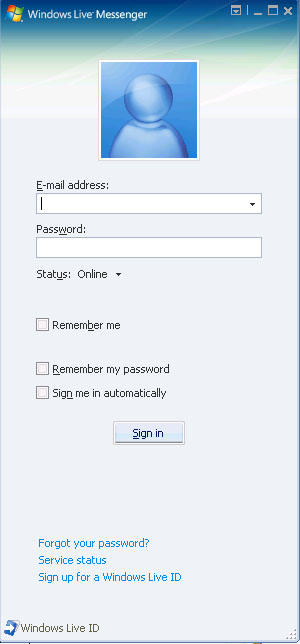
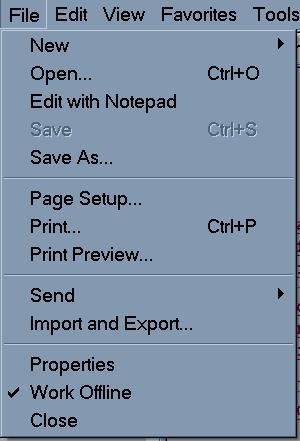
first go 2 internet explorer > go 2 file > if this is the "work offline" cheked ( un check it)
then try 2 log in again !!
if that don't work
try this ~~
if U r using a router right click on the 2 blinking computers in the task bar "near the MS Clock" right click it > repair
first go 2 internet explorer > go 2 file > if this is the "work offline" cheked ( un check it)
then try 2 log in again !!
if that don't work
try this ~~
if U r using a router right click on the 2 blinking computers in the task bar "near the MS Clock" right click it > repair
Last edited:


Similar threads


- Replies
- 5
- Views
- 887

