

Latest ads
-
Singapore V2Ray VPN for Tunneling
- hu KANNA
- Updated:
-
 Plan your Crypto & Forex entries before you take the trade
- romeshnonis
- Updated:
-
 RHCSA, RHCE, AWS, Docker, Kubernetes Training
- Sanjeewani95
- Updated:
-
 🛡️ Kaspersky Antivirus – 1 Year / 1 Device | Rs. 2,300 | Only 9 Left
- KSPathirana
- Updated:
-
Professional CCTV Installation Service
- Techguy231
- Updated:
.::ElaKiri - PhotoShop Support Thread::.
- Thread starter fazaal24
- Start date
You are using an out of date browser. It may not display this or other websites correctly.
You should upgrade or use an alternative browser.
You should upgrade or use an alternative browser.


Wireframing in Photoshop
Final OutPut:

----------------------------------------------------------------------------------------------------
Open a new document, 500 x 250 pixels.
Fill the background with a blue color. Select the brush tool and select a 1 pixel hard edge. Press 'D' to make your foreground color black to paint with.
Now create a new layer and paint a box like here I use.
Tip: Hold down the shift key at each corner to have photoshop draw a straight line to the next point.

Next, hide the background layer so only your black box is showing. Grab the rectangular marquee tool and draw a selection around the box looks like below.

Then go to Edit => Define Brush. Name your brush "Wireframe" and click OK.

Hide the brush layer and create a new layer on top of it. Make white your foreground color because that is the color we want our wire frame to be.
Move over to the paths palette and click the new path button on the bottom of the palette. Then select the pen tool and draw a path like I have across your image.

Now go into the brushes palette.
First, in the "Brush Tip Shape" section, select the brush that we just created. Then go to the shape dynamics section. Select Angle Jitter control drop down box to "Fade". Then enter a value of around 100 in the box. Now go back to the brush tip shape and you may need to play with the spacing setting.
I have set around 10-20 percent. Just look at the preview area to see the style that you are going for.
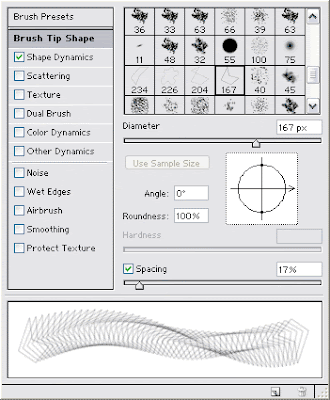
Once you have your brush the way you want it, go back to the paths palette.
Make sure your brush tool is active first and that you are on the new layer, and make sure white is your foreground color. Click the "Sroke path with brush" button in the bottom of the paths palette.
This will stroke the path with the brush that you just created on the active layer.
Final OutPut:

----------------------------------------------------------------------------------------------------
Open a new document, 500 x 250 pixels.
Fill the background with a blue color. Select the brush tool and select a 1 pixel hard edge. Press 'D' to make your foreground color black to paint with.
Now create a new layer and paint a box like here I use.
Tip: Hold down the shift key at each corner to have photoshop draw a straight line to the next point.

Next, hide the background layer so only your black box is showing. Grab the rectangular marquee tool and draw a selection around the box looks like below.

Then go to Edit => Define Brush. Name your brush "Wireframe" and click OK.

Hide the brush layer and create a new layer on top of it. Make white your foreground color because that is the color we want our wire frame to be.
Move over to the paths palette and click the new path button on the bottom of the palette. Then select the pen tool and draw a path like I have across your image.

Now go into the brushes palette.
First, in the "Brush Tip Shape" section, select the brush that we just created. Then go to the shape dynamics section. Select Angle Jitter control drop down box to "Fade". Then enter a value of around 100 in the box. Now go back to the brush tip shape and you may need to play with the spacing setting.
I have set around 10-20 percent. Just look at the preview area to see the style that you are going for.
Once you have your brush the way you want it, go back to the paths palette.
Make sure your brush tool is active first and that you are on the new layer, and make sure white is your foreground color. Click the "Sroke path with brush" button in the bottom of the paths palette.
This will stroke the path with the brush that you just created on the active layer.

WoW machan ela ah !!!fazaal24 said:Wireframing in Photoshop
Final OutPut:

ntrox said:he he.
Post 1000 giya
Ela ElA ohoma yan fazza ayya

ElaKiri machan Thanks for the sup

Here... 300 mb Movie... ( Paycheck )
( no qulity loss, V/A 100% ) ( Emaill : [email protected] )
Paycheck.part1.rar
http://rapidshare.com/files/140297608/Paycheck.part1.rar
Paycheck.part2.rar
http://rapidshare.com/files/140329993/Paycheck.part2.rar
Paycheck.part3.rar
http://rapidshare.com/files/140482295/Paycheck.part3.rar
Paycheck.part4.rar
http://rapidshare.com/files/140544485/Paycheck.part4.rar
pass: Blackscop
( no qulity loss, V/A 100% ) ( Emaill : [email protected] )
Paycheck.part1.rar
http://rapidshare.com/files/140297608/Paycheck.part1.rar
Paycheck.part2.rar
http://rapidshare.com/files/140329993/Paycheck.part2.rar
Paycheck.part3.rar
http://rapidshare.com/files/140482295/Paycheck.part3.rar
Paycheck.part4.rar
http://rapidshare.com/files/140544485/Paycheck.part4.rar
pass: Blackscop
eranga_m said:meke gindara ganne kohomada kiyala kiyannako ! aththatama gindara wage eka enne
Hehe Ooka machan Fire thibba image ekak yata indan udata animate kara


fazaal24 said:Hehe Ooka machan Fire thibba image ekak yata indan udata animate kara
e kiwwe ??
 fire thibba full image ekak yata indala udata scroll kala kiyana ekada ??
eranga_m said:e kiwwe ??
Yup image eken Fire tika witharak kapala aran ehema kara


Wow ElaKiri Icreations Superb Job
Gottaa Add it to the Tutorial List.
Photoshop Basics
Applying Shadows to Layers Method I - Icreations
Applying Shadows to Layers Method II - Icreations
Superb JobGottaa Add it to the Tutorial List.
Photoshop Basics
Applying Shadows to Layers Method I - Icreations
Applying Shadows to Layers Method II - Icreations
fazaal24 said:Wow ElaKiri Icreations
Gottaa Add it to the Tutorial List.
Photoshop Basics
Applying Shadows to Layers Method I - Icreations
Applying Shadows to Layers Method II - Icreations
Ela ELa..


After you make the selection, do:chanaka89 said:Mata mage sigi1 smooth karanna one.tell me how to do that
go to this menu,
Select > Feather (Keyboard shortcut: Alt + Ctrl + D)
this will apply the feather effect to the selection. Then copy the selection and paste it into a new layer and you'll see the effect.
Mess with it and you'll love it machan.

Tnx machan!KishanW said:After you make the selection, do:
go to this menu,
Select > Feather (Keyboard shortcut: Alt + Ctrl + D)
this will apply the feather effect to the selection. Then copy the selection and paste it into a new layer and you'll see the effect.
Mess with it and you'll love it machan.
i did it but i cant see any changes

Similar threads
- Replies
- 10
- Views
- 330

- Replies
- 1
- Views
- 157

