.::ElaKiri - PhotoShop Support Thread::.

dilrasan

Well-known member
  • Oct 30, 2007
    42,726
    1
    4,811
    113
    40
    හත් ඉලව්වෙ!
    fazaal24 said:
    Meka thama GIF wala thiyana awla machan, GIF support karanne 256 colours witharai ban,,eekai save karaddi quality eka low wenne. So wadiya complicated colours use karanne nethuwa animation eka karoth Quality loss eka penne nehe:D

    D-1.png

    Ayyooo..ow thamai.:sorry: :sorry: :sorry: ..mea balannako....:sorry: :baffled: :baffled:
    d.gif

    Den wena ekak hadala balanna oni...:rolleyes:
    Wediya Colours danne nethuwa...:lol:
     

    MaD-DoC

    Member
    Oct 27, 2007
    6,337
    22
    0
    SLIIT/Malabe
    HDR Tutorial

    HDR
    High Dynamic Range

    well learn to make photo's like this :

    corvetteHDR.jpg


    the tutorial is written for people who have never opend photoshop, but if you have some knowledge of photoshop it will go very easy,
    2-5 minutes work


    Ok let's get started,
    or no wait,

    first you should download this :
    Code:
    http://rapidshare.com/files/140991958/HDRsoft.Photomatix.Pro.v3.0.1.rar
    or
    Code:
    http://www.megaupload.com/nl/?d=DTITGUIN

    it's an apllication well need to make the pic's HDR,
    I asume you have photoshop 5 (or higher) on your computer,


    Ok, now we really can get started


    step 1
    first of all, open photoshop,
    when you've done this open your image via dialogue(file->open) or by dragging it into photoshop

    HDRtut001.jpg

    open via dialogue

    step 2
    once opend directly do a save as and place it in a new map (call the map HDR or something you like...) and call it 0 and choose ".jpg" out of the list of file types then click save


    File-saveas.jpg

    (file-save as)
    Saveas0.jpg

    (put it in a new map, rename it to 0 and click save)


    now we are going to take the exposure up by 2,
    I'll guide you trough this whole process step by step,


    step 3

    first we need to get the exposure screen poping up,
    left down at your screen you'll see your layer browser (if you don't see it go to window -> workspace -> default workspace)

    if you've found it press the round button (with a half white and a half black
    (just look it the picture below) & choose exposure out of the list

    closeupadjustmentlayer.jpg

    click the marked button

    Step 4

    in the dialogue just typ +2 nest to exposure and click ok

    exposure2.jpg

    change the zero to +2

    Step 5

    now were going to do a save as again (file -> save as)
    save this picture as +2 in the same map as we saved the previous image and also as a ".jpg"

    Step 6

    now we need to go back to the layer browser, you'll see two layers there:
    1 Background
    1 Exposure (with a black&white round before it)

    doubleclick on the black&white round in front of the exposure layer

    exposurelayer.jpg

    doubleclick the black&white round in front of the exposure layer

    Step 7

    change the exposure into -2 and click ok

    exposure-2.jpg

    change the exposure to -2

    now the last step we are going to do in photoshop

    Step 8

    save this image again as a jpg, but this time as -2,
    after you have done this, close photoshop and start photomatixpro3 (wich you can download at the top of the page)

    this is how the program should look like:

    mainscreenPM.jpg

    photomatixpro3 main screen

    click on the 'generate HDR image button'
    click browse & browse to your HDR map we made earlier & select all 3 images & click open & click ok

    openHDr.jpg

    open the edited images


    Step 9

    once the image is generated you'll get folowing dialogue:

    exposurevalues.jpg


    enter the value's like on the above picture and click ok,
    on the next dialogue click also ok

    Step 10

    now you'll get a RAW HDR image that probalby still needs some adjustments so click on the button tone mapping,
    now you'll get a bunch of settings, I suggest you mess around a bit with them & when you are done click on the process button

    Step 11

    now we are going to save this baby (file -> save as)
    give the picture a name & voila your done,


    here is endresult:
    corvetteHDR.jpg


    after edited it a bit:
    corvetteHDRtech-1.jpg
     

    fazaal24

    Member
    Nov 10, 2006
    33,026
    18
    0
    Carbon Canyon Dehiwala
    dilrasan said:
    D-1.png

    Ayyooo..ow thamai.:sorry: :sorry: :sorry: ..mea balannako....:sorry: :baffled: :baffled:

    Den wena ekak hadala balanna oni...:rolleyes:
    Wediya Colours danne nethuwa...:lol:

    Ammo Awrudu gaanak wath yai animation eka load wenna:PFrames keeyak thiyanwada machan? mata nam animation eka penune nehe adsl "fast" wadi hinda:P

    By the way im Fazaal24 not Fazzal24:lol:

    Nice Work Machan:D
    ---------------------------------------------------

    And Thaanks for the HDR Tutorial MaD-Doc...!!Thank you very much for the brushes, and others too:D
     

    MaD-DoC

    Member
    Oct 27, 2007
    6,337
    22
    0
    SLIIT/Malabe
    Creating A Custom Brush From An Image

    Step 1: Getting Started

    Open an image or graphic
    Note: whatever size your image is when you make it a brush will be the size of the brush. For example, if you take an image 30x30, your custom brush will be that size. If you need more than one size for your new brush, you'll have to repeat the steps to create a new brush for each size you desire.
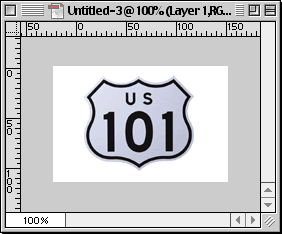
    Here's the image I opened, then scaled down using the Image>Image Size...

    us101new.gif


    Step 2: Defining the Image as a Brush
    1. Once you have your image sized the way you like, go to Edit>Define Brush...
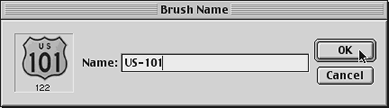
    2. A dialog box will pop up and you can enter a Name for the brush
    brushname.gif


    Step 3: Appling your Custom Brush

    1. Select it by clicking the brush icon in the Toolbar
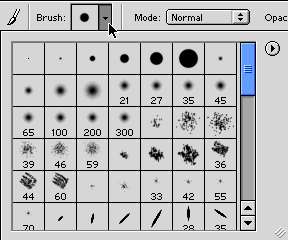
    2. Go up to the Brush Options menu and clicking the drop down arrow.
    3. Scroll down until you see the brush you created. Generally, it will be the last brush in the drop down palette.
    4. Click it to make that the current brush
    arrow.gif


    Step 4: Painting with the New Brush

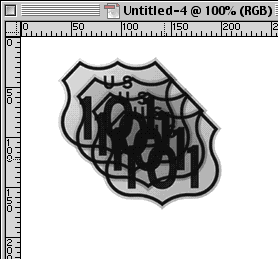
    You can now paint with the new brush the same as you would any other brush.

    draw.gif


    Step 5: Adjusting the Brush's Spacing


    You can also adjust the spacing on the brush just like you can on regular brushes.

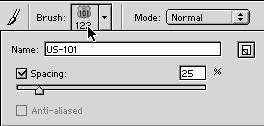
    spacing2.gif


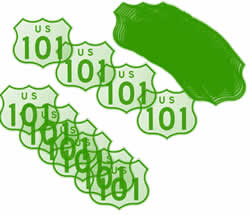
    Here are some examples of different spacing settings:


    spacing.jpg


    Step 6: Adjusting the Opacity


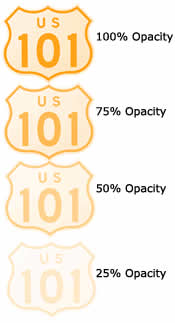
    Opacity is another option you can apply to the brush
    1. With the newly created brush selected, go over to the Opacity Slider and click the black arrow to open up the slider menu.
    2. Now you can drag it to adjust the settings. You can also enter a number in manually in the Opacity field.
    opacity2.gif

    opacity3.jpg


    Step 7: Changing the Color

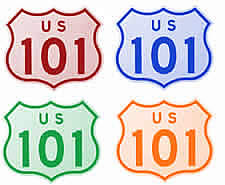
    You can also change the color of the brush the same as a regular brush.
    1. Select the Brush
    2. Select a Foreground Color
    colors.jpg


    Step 8: Accessing Photoshop's Preset Brushes


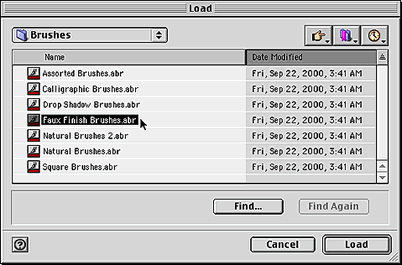
    You can access more brushes by clicking the black arrow under the brush options menu and selecting Load Brushes from the menu
    brusheswindow.gif
     

    harshafx

    Member
    Nov 8, 2007
    8,690
    7
    0
    icreations said:
    SHORT Def.,
    Meekai Layer mask ekak dammaama api use karana image ekaka apita awashya / anawahsya Kotas Full grapihx eken hangala tiyanna Puluwan ( mask karala ) ethakota apita aai welawaka ooni nam apita e anawashayi kiyapu kotas aai show karanna puluwan ( not like Cutting the image, it'll permanently cut off the image )

    eekai basic ma theory eka... vistharathmaka wa denna puluwan et dan Mama Off.:( heta ooni nam dennam;) :D
    Ela ela:D thanx machan :D
     

    harshafx

    Member
    Nov 8, 2007
    8,690
    7
    0
    fazaal24 said:
    Sorry for the delay machan;)

    Layer mask eke main concept eka machan 1) images blend karana ekai 2) images wala portions hide karana eka directly alter karanne nethuwa.
    Poddak mongal wage athi ne :P

    Mama dan poddak wada..welaawaka dannam Tutorial ekak;)
    na na ela ela theruna :yes:
    man baye hitiye prashne thereida danne na kiyala :lol:
     

    MaD-DoC

    Member
    Oct 27, 2007
    6,337
    22
    0
    SLIIT/Malabe
    Jack_Sparrow said:
    AI kiwwe mokadda?:confused::confused::confused:

    ado vector kiyanne monawada?

    AI = Adobe Illustrator

    Ayi bun Vector Images Thiyenne.

    me thread eke balapan Vector Images thiyanawa.

    http://www.elakiri.com/forum/showthread.php?t=87311

    Beautiful Nature Backgrounds Vectors
    lczveegpok6eec6w9v3.jpg


    xiu5ldn4sl60bvrs8c7.jpg


    Download:

    Code:
    Code:
    http://rapidshare.com/files/141509590/beautiful_nature_nackgrounds_vectors.rar

    Code:
    Code:
    http://www.adrive.com/public/b8e15310521782360861cd5521321a6174aa2e96171074e77cbd7d7fa5
     

    MaD-DoC

    Member
    Oct 27, 2007
    6,337
    22
    0
    SLIIT/Malabe
    Shadow Text

    Step 1. Begin by typing out some text

    1.gif


    Step 2. Duplicate the layer

    Step 3. Flip the new layer Vertically.Edit>Transform>Flip Vertical

    newtext.gif


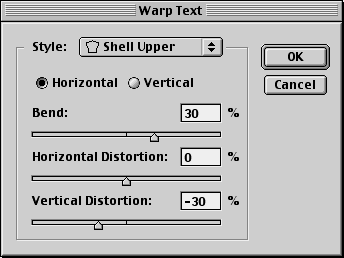
    Step 4. With the Text Copy layer still selected, click the Warp Text button and from the options choose Upper Shell. Adjust the Bend and Vertical settings to match the values in the image below. You can also input your own values. Just play around with them a bit:)


    warptext.gif

    warptextbox.gif


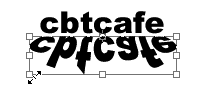
    Step 5. Adjust the size of the Text Copy layer to match the first layer. Do this by selecting the layer and clicking Command-T/Control-T to access the Free Transform tool and drag out the corner handles to scale the text.


    transform.gif


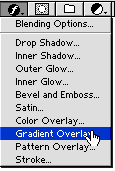
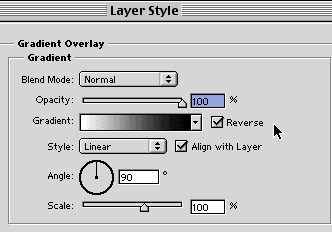
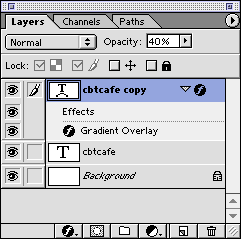
    Step 6. Next, apply a Gradient Overlay by clicking the Add Layer Style button to the Text Copy to give it a fading out effect.


    gradientoverlay.gif

    layerstyle.gif


    Be Sure to select the "Reverse" option

    Step 7. Adjust the Text Copy opacity to around 40% and you're all set!

    layeropacity.gif

    final.gif
     

    Jack_Sparrow

    Well-known member
  • Jun 16, 2008
    42,522
    1
    16,928
    113
    Black Pearl
    MaD-DoC said:
    AI = Adobe Illustrator

    Ayi bun Vector Images Thiyenne.

    me thread eke balapan Vector Images thiyanawa.

    http://www.elakiri.com/forum/showthread.php?t=87311

    Beautiful Nature Backgrounds Vectors
    lczveegpok6eec6w9v3.jpg


    xiu5ldn4sl60bvrs8c7.jpg


    Download:

    Code:
    Code:
    http://rapidshare.com/files/141509590/beautiful_nature_nackgrounds_vectors.rar

    Code:
    Code:
    http://www.adrive.com/public/b8e15310521782360861cd5521321a6174aa2e96171074e77cbd7d7fa5


    Thnx machan owa DL karala copy paste karawanada?

    ado illustrator mama danne neeeeeeeee:(
     

    MaD-DoC

    Member
    Oct 27, 2007
    6,337
    22
    0
    SLIIT/Malabe
    Flipping and Rotating Images

    Jack_Sparrow said:
    Machoo PS walin kohomada Pic ekak anith peththa harawanne (rotate karanawa nemei):confused::confused::confused::confused:


    Flipping and Rotating Images

    Step 1: Getting Started

    Begin with an open image you'd like to work with

    ducknew.jpg


    Step 2: Flipping the Image


    Go to Image>Rotate Canvas>Flip Horizontal.

    flip.gif


    And here's your final image:


    duck2.gif