.::ElaKiri - PhotoShop Support Thread::.

cloud_strife

Active member
  • Jul 14, 2008
    1,845
    1
    36
    any where!
    nuwanoo7 said:
    kata hari kiyala denna puluwanda......... image ekaka mulu rawnkarala edit karanahati........ mama karanna haduwa be.... im a beginner to photo shop....:( :( :( :( :( :(

    by fazaal
    pshop-roundcorners-2.jpg


    me thiyenne meka !!:)
     

    dilrasan

    Well-known member
  • Oct 30, 2007
    42,726
    1
    4,811
    113
    40
    හත් ඉලව්වෙ!
    Separating Images From it's Background (Advanced)

    First Select a Picture.(This Method is Used For Difficult Images.For an example ,the image that i have taken below)

    ThePic.jpg


    It would be very difficult and time consuming to separate this image from it's background because of the complexity, Specially around her hair area.
    This tutorial will focus on using Channels to help mask out a complex objects with clean edges. This technique will also save you a lot of time.

    Ok....Here We Go..!!

    Open The Image From photoshop And Make A Duplicate of the image Layer

    1.png
    -------->
    2.png


    This way the original is preserved on the background and we are working on a duplicated layer. Hide the background by clicking off its visibility icon.

    3.png
    ---------->
    4.png


    Choose Select----->Color Range from the Menu.You'll get a Box Like What is Shown Below And then Select the Highlighted tool.

    5.png


    Then click on the Background of the Image(For an Example The Out Side of the Girl In this Photo).Click different Spots in the Background , so that a maximum area of the Background will be counted.After Doing it You'll get it like this And Additionally adjust the Fuzziness slider until the image (the Girl) is mostly black and the background is a clean(White) as you can get it. For My Image I Am Done For this Extent.Hit OK.

    6.png
    ----------->
    7.png


    With the selection active, switch to the Channels palette. Click the save selection as channel button (it’s Highlighted in the Image 08). A new Alpha channel will now be visible.

    8.png
    -------->
    9.png


    With Ctrl Key Pressed, Click on the Visible Icon of the Alpha Channel and With the Ctrl Key Still Pressed Click on the Visible Icon of the RBG Channel.

    10.png


    Time to fine tune the mask. Choose a Black Brush and make the edge hard. Then Go to Select -----> Deselect in the Menu.Now Click on the Alpha Channel.

    11.png


    Then Paint over all the areas that belong in the object to mask out (the Girl).Actually U have to Do here is Fill the white (or Ash) Spots left in the Black Area . Use a larger brush for large areas and a smaller brush for finer detail such as around the hair. Use a white paint color to paint out the areas that should be removed.that is which is the Background of the image.


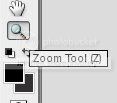
    Important:-Use the Advantage of the Zooming in this part.otherwise You'll not be able to do the rest carefully.
    16.jpg

    Sometimes it can be hard to guess which part of the image belongs in the foreground and a peek at the original image is needed. Click on visible icon of the RGB Channel.The original photo is now visible and the mask appears as reddish color.

    12.png


    Then try best to make the painting Accurate.You can Switch back to the mask view by clicking the RBG visible icon again.Keep going until you have a clean mask.


    Hold Ctrl Key and click on the Alpha 1 thumbnail. You will now see an active selection like this.

    13.png


    Click on RGB to see the color image.Open the layers palette. Select the working layer and press the Delete key. The masked area of the backround will now be removed to reveal a nice clean masking effect.

    14.png


    Now it's Done.Now You Can give it the Finishing touch.Well I Gave it a Blur touch And Some Other Effects.
    LastResult.png


    Try What You Can.And Just Imagine if you Try to do this using Other tools that we used to Remove the Background before.Enjoy...!!!:D:D:D
     

    fazaal24

    Member
    Nov 10, 2006
    33,026
    18
    0
    Carbon Canyon Dehiwala
    Wow Dilaa, I never knew this trick. All i knew is the harder way using the Magnetic Lasso Tool. This seems to be much easier and youve taken a lot of effort to bring it out great:D

    Appreciate it a lot machan:D Meeka try ekak dennama oone :) Dan nam baha ban, have t0 study :(
     

    dilrasan

    Well-known member
  • Oct 30, 2007
    42,726
    1
    4,811
    113
    40
    හත් ඉලව්වෙ!
    fazaal24 said:
    Wow Dilaa, I never knew this trick. All i knew is the harder way using the Magnetic Lasso Tool. This seems to be much easier and youve taken a lot of effort to bring it out great:D

    Appreciate it a lot machan:D Meeka try ekak dennama oone :) Dan nam baha ban, have t0 study :(

    :yes: :yes: ;) :D :cool:
     

    dilrasan

    Well-known member
  • Oct 30, 2007
    42,726
    1
    4,811
    113
    40
    හත් ඉලව්වෙ!
    cloud_strife said:
    thnks dilrasan

    this is wat i did

    mage ekanm poddak awul una:lol::lol::lol:

    Ela ..Blur tool eken watea allanna issella Pic eka neat karala inna oni..:D

    Anika Blur tool eke size eka podi wennath oni.Hardness eka adu wennath oni...:D
    neththan Blur karala kiyala peanna gannawane...;)

    and use Zoom tool to do it.so that u can carefully Blur the Edges Nicely..:D
    u can use Eraser,Magic wand tool...anything that u can use to remove the unwanted Stuff..:D

    the last part is Bluring and so...:D..
    ela work...keep doing it.U'll Learn the Stuff by ur Self too...;)
     

    cloud_strife

    Active member
  • Jul 14, 2008
    1,845
    1
    36
    any where!
    dilrasan said:
    Ela ..Blur tool eken watea allanna issella Pic eka neat karala inna oni..:D

    Anika Blur tool eke size eka podi wennath oni.Hardness eka adu wennath oni...:D
    neththan Blur karala kiyala peanna gannawane...;)

    and use Zoom tool to do it.so that u can carefully Blur the Edges Nicely..:D
    u can use Eraser,Magic wand tool...anything that u can use to remove the unwanted Stuff..:D

    the last part is Bluring and so...:D..
    ela work...keep doing it.U'll Learn the Stuff by ur Self too...;)

    ela:):) thnks bro!!