.::ElaKiri - PhotoShop Support Thread::.

dilrasan

Well-known member
  • Oct 30, 2007
    42,726
    1
    4,810
    113
    40
    හත් ඉලව්වෙ!
    How to Make the Coners of an Image Round

    Ok.Many Friends Asked about this problem.
    So this is the Solution.Go through this simple Tutorial.It's Very Easy..!!

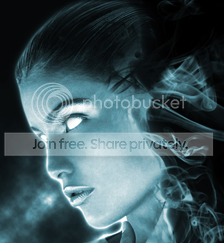
    I am Going to Use this Picture to Illustrate the Technique

    1-2.png


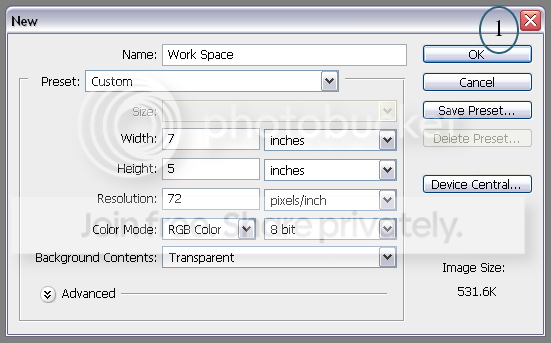
    First of All We have to make a work Space in Photoshop.For that Just Go to
    File--->New

    1-3.png

    (You can use a Smaller one than this.but this Space is good for common work.But make sure that you have chosen transparent for the background content)

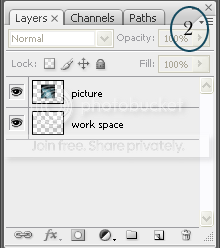
    Then Open the Picture that you are going to make it's corners round.And by using the Move tool,drag the image on to the work space


    4-2.png


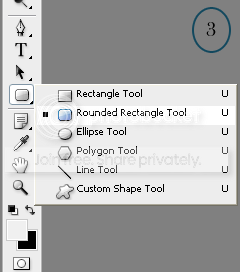
    Then Select the Rounded rectangle tool from the tool bar (or just use the shortcut key "u")

    untitledcopy-2.png


    You can Specify the Radius of the Circular Corner here.I used this value for this one
    d13f27a1.png


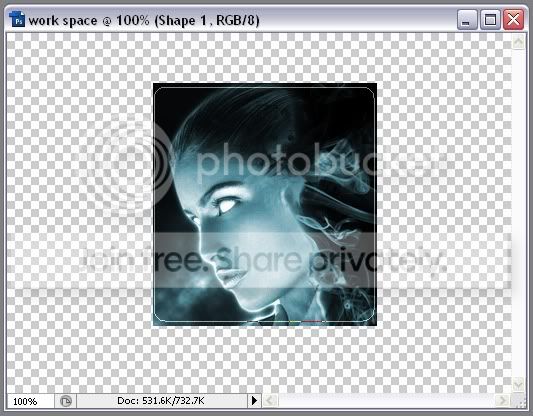
    Then Draw the Rounded rectangle on the Picture.

    44.png


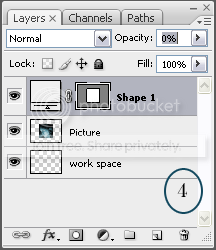
    The Opacity must be reduced to zero to see the shape Correctly.

    untitled-26.jpg


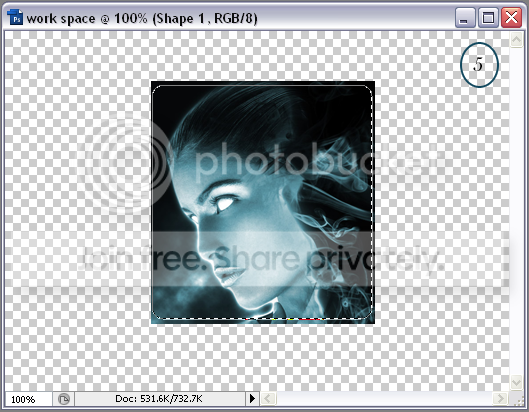
    And now what you have to do is,Click on the Shape1 layer in the layer palette with the Ctrl key Pressed.Then You'll See that the Shape is Selected in Dotted Lines.

    01-2.png


    Now Go to Select--->Inverse

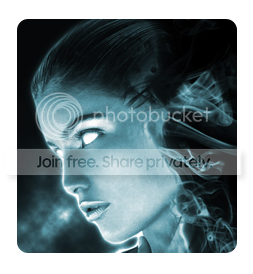
    Then Click on the Picture layer and Press the Delete Button.Done..Deselect all and your Picture is ready.:D

    workspace.png
     
    • Like
    Reactions: DesignerZ

    foxuzlab

    Member
    Jan 9, 2009
    31
    0
    0
    Balangoda
    A Fantastic Brush collection!

    graphics.png
    Collection of brushes for Photoshop


    4da227a10201photos.jpg

    Collection of brushes for Photoshop (Jan/2010) | 1.50 GB

    Brushes for Photoshop - sets a variety of the best brushes for Photoshop, allowing very easy and fast, with a few strokes to make a complete original form any work ... Among them, the brush, which can draw water effects, snow, birds, grunge, smoke, plants, paint stains, fingerprints, foam, cracks, abstraction, butterflies, letters, dolls, skulls, scrolls and much more ...

    Title: Collection of brushes for Photosho
    Developer: Adobe
    Permit File: 1280x800
    File type:. Jpg .. abr. Png
    Size: 1.5 GB

    System requirements:
    Operating system: Windows All
    Processor: Pentium III 1 GHz
    Memory: 512 MB
    Video card: 16 bit, 1280x800
    Available at Railway: 1 GB Download from Hotfile
    Code:
    http://hotfile.com/dl/23229994/e33252d/Brushes.ollection.part01.rar.html
    http://hotfile.com/dl/23229998/ace6470/Brushes.ollection.part02.rar.html
    http://hotfile.com/dl/23229999/6ed186c/Brushes.ollection.part03.rar.html
    http://hotfile.com/dl/23230001/b847ec6/Brushes.ollection.part04.rar.html
    http://hotfile.com/dl/23229995/6868126/Brushes.ollection.part05.rar.html
    http://hotfile.com/dl/23230003/6c85c55/Brushes.ollection.part06.rar.html
    http://hotfile.com/dl/23229996/9ed7c72/Brushes.ollection.part07.rar.html
    http://hotfile.com/dl/23229997/389f4ab/Brushes.ollection.part08.rar.html
    http://hotfile.com/dl/23230000/b056e71/Brushes.ollection.part09.rar.html
    http://hotfile.com/dl/23230002/8d431f2/Brushes.ollection.part10.rar.html
    http://hotfile.com/dl/23230104/ff6a357/Brushes.ollection.part11.rar.html
    http://hotfile.com/dl/23230111/c56bdaf/Brushes.ollection.part12.rar.html
    http://hotfile.com/dl/23230139/add1f13/Brushes.ollection.part13.rar.html
    http://hotfile.com/dl/23230146/3a0de5d/Brushes.ollection.part14.rar.html
    http://hotfile.com/dl/23230154/27597d1/Brushes.ollection.part15.rar.html
    http://hotfile.com/dl/23230155/ad3325f/Brushes.ollection.part16.rar.html


    Mirror from Rapidshare
    Code:
    http://rapidshare.com/files/331616629/Brushes.__ollection.part01.rar
    http://rapidshare.com/files/331617878/Brushes.__ollection.part02.rar
    http://rapidshare.com/files/331619911/Brushes.__ollection.part03.rar
    http://rapidshare.com/files/331621748/Brushes.__ollection.part04.rar
    http://rapidshare.com/files/331624671/Brushes.__ollection.part05.rar
    http://rapidshare.com/files/331626789/Brushes.__ollection.part06.rar
    http://rapidshare.com/files/331629362/Brushes.__ollection.part07.rar
    http://rapidshare.com/files/331630802/Brushes.__ollection.part08.rar
    http://rapidshare.com/files/331636706/Brushes.__ollection.part09.rar
    http://rapidshare.com/files/331637252/Brushes.__ollection.part10.rar
    http://rapidshare.com/files/331639308/Brushes.__ollection.part11.rar
    http://rapidshare.com/files/331639455/Brushes.__ollection.part12.rar
    http://rapidshare.com/files/331641253/Brushes.__ollection.part13.rar
    http://rapidshare.com/files/331641308/Brushes.__ollection.part14.rar
     

    foxuzlab

    Member
    Jan 9, 2009
    31
    0
    0
    Balangoda
    Create a Retro-Futuristic 2010 Poster in Photoshop

    by Ben Rama :yes:


    Introduction:

    To start off 2010 I wanted to create a slightly grungy, retro futuristic sci-fi poster. I basically wanted an image that could represent the feeling 2010 seems like the future to some of us. If you know what I mean, good, I’m sure this poster will be plenty of fun.
    To create an image like this I like to look through some stock and brainstorm. A really excellent place to help with this is a site called Compfight. It’s a search engine for flickr photos that allows you to search for creative commons images.
    Once I have a few images in Photoshop Ill come back to the project 2 or three times with new ideas and get them down. If I’m stuck for ideas looking through the art magazines and websites which usually gets the creative juices flowing again.
    As usual the PSD file is available for download free at the end.
    Time to complete 2 hrs .
    Note:
    Create the doc according to the dimensions of your screen if you want to use this as desktop wallpaper.
    Resources used :Sea by visualpanic /Moon by luc.viatour/ Infinity font
    Thank you to the artists who provided the materials ,please remember to follow these artists rules and credit them where appropriate.
    Step 1

    Create a document at 800 x 950 at 72 DPI Then bring in this image of the sea , press C do get the crop tool and select only the sea portion ignoring the people.

    Step 2

    Select the gradient tool, choose the radial gradient (second from the top) Draw a radial gradient using this red colour ff0000 halfway down the left hand side. Then change the blend mode to multiply and reduce the opacity to 79%.


    Step 3

    With the background setup we can bring in this image of the moon resize and position the moon like this image, and then reduce the layer’s opacity to 76%.
    Step 4

    Choose this purple colour 271642 for the foreground colour and black for the background colour. Then in a new layer go to filter render clouds. Drop the layers opacity to 73 %. Usually to create stars we can use the noise filter but this time well we’ll use a different technique. Create a new layer above the clouds and fill it with white, change its blend mode to dissolve and reduce its opacity to 1 to 2 %. Finally do a gaussian blur at around 0.7 and voila very quick stars.
    step-4-purple-clouds-copy1.jpg
    Step 5

    White rectangle: Now well create the white rectangle shapes that make up the background. Create a rectangle like in the following image and fill it with white, then reduce the opacity to 10 %.
    Step 6

    Now well add a layer mask by clicking the circle in a square at the bottom of the layers palette. With the gradient on linear and set to black to white click and drag a gradient. Make sure you are on the layer mask and hold shift to get a good fade.​
    Step 7

    Now duplicate this layer with CTRL + J and rotate it with Ctrl + T to free transform. You should end up with something like this.​
    Step 8

    Keep duplicating the layer and rotating it until you have this kind of effect.​
    Step 9

    Your layers palette should look like this:​
    Step 10

    Now using shift select all the rectangles in the layers palette and merge them Ctrl + E. (To work non – destructively you can duplicate the layers ). Then add a layer mask and using a black to white gradient on the layer mask fade the bottom part of the rectangles.​
    This is what you should end up with :

    Step 11

    Now find a quote you like or a group of words you think will work well in this graphic. Go to Wordle paste in your favourite quote and select go. This is a brilliant little website that puts the words you enter into a new layout font and colour. After hitting randomise play around with the font layout and colour. Once you are happy with the image if on windows: hold down Alt and then the print screen (Prt Sc) button, hit Ctrl + V to paste into Photoshop. On a Mac press command and shift then press 3 to capture to your desktop.
    Step 12

    Once the image you like is in Photoshop crop any extra bits away then resize and position the text like in the following image. I set the image to screen which gets rid of the dark area. Depending on the colour of your background and text you may need to choose overlay or multiply, just have a scroll through the blend modes until your happy.
    Step 13

    Download these brilliant cloud brushes .After loading them create a new layer then brush some clouds in like the following image.
    Step 14

    Duplicate the cloud layer add a colour overly layer style with colour set to 83b2e7. Then lower the opacity to 83%.
    Step 15

    Download the infinity font from here and once installed type out the words ‘TWENTY TEN’. Now position this at the top use the align buttons to get it in the middle.
    Step 16

    Rasterize the type and add a gradient overlay layer style, with default settings from black to white.
    Step 17

    Download these Kinetic brushes and brush with white behind the Twenty ten letters ( so in a layer below them ) . When done we’ll add a gradient overlay from7fe0f8 to cef8ff. Finally lower the opacity to 39 %.

    Step 18

    Finally create a layer below the cloud brushes and Wordle letters but above the white rectangle shapes. Then fill it with white and go to filter, render lighting effects and choose ‘RGB lights’, leave all the other settings as default.
    Then use a Gaussian blur at 31.7 image.
    For the final steps change the blend mode to soft light and reduce the opacity to 60 %

    Conclusion

    That’s a wrap for now having gone through the tutorial you will now know how to use layer masks a neat little way of putting words together with different layouts and how to create a rounded retro futuristic poster . Hopefully you had fun and learnt something new.
    Free PSD

    The PSD file is available for download free from here.
    Rapidshare Download (6.49 mb Zip File)

    Mediafire Download (6.49 mb Zip File)


    If you want more put me a request!
     

    foxuzlab

    Member
    Jan 9, 2009
    31
    0
    0
    Balangoda
    Water Abstract!

    See how to create water abstract in just few steps.
    Step 1: Start with this new document.


    Step 2: Press 'D' to reset your color palette.
    Go to Filter> Render> Fiber and use this settings:


    Step 3: Go to Filter> Distort> Polar Coordinates and use this settings:


    Step 4: Now go to Filter> Blur> Radial Blur and use this settings:


    Step 5: Add some colors so go to Image> Adjustments> Hue/Saturation and use this settings:


    Step 6: Duplicate the layer. Go to Filter> Blur> Gaussian Blur and use this settings:


    Step 7: Set the duplicated layer blending mode to 'Lighten'.


    Step 8: Merge the layer together by pressing Ctrl+E and duplicate the layer again.
    Go to Filter> Distort> Ocean Ripple and use this settings:


    Step 10: Set the duplicated layer blending mode to 'Lighten'.

    Here's is the Final Result: