Flash to iPod, Swf to iPod video converter

reallyone

Member
Dec 17, 2007
56
0
0
AnvSoft Flash to iPod Converter is a powerful utility that convert Macromedia Flash SWF files to MPEG-4 files including movie clips, action scripts and audio in the Flash movies. It is designed to convert Flash SWF to MPEG-4 format playable on iPod. With Flash to iPod Converter, you can easily turn your Flash videos into memorable projects on your mobile devices such as Apple iPod, Sony PSP and Pocket PCs to share with family and friends.

How to Convert SWF to iPod :
Step1: Download the trial software, when this is finished install and run the software, a window like the one shown below should now be on your screen.

anvsoft-flash-to-ipod-converter-1.jpg


Step2: With the program open click file and choose the add one or more video files.

anvsoft-flash-to-ipod-converter-2.jpg


Step3: The box we've highlighted in red is the contents table, it will show all the files you've chosen to convert.

anvsoft-flash-to-ipod-converter-3.jpg


Step4: If you want to delete the file, please click "Remove".

anvsoft-flash-to-ipod-converter-4.jpg


Step5: Finally we're ready to convert, just click the "Convert Now!" button and the process will begin.

anvsoft-flash-to-ipod-converter-5.jpg


Step6: Well done you've successfully converted the files. Check the output folder to make sure you're happy with the results.

anvsoft-flash-to-ipod-converter-6.jpg


Flash to iPod Converter
 

reallyone

Member
Dec 17, 2007
56
0
0
If you have an iPod or if you are planning to have one, you can upload plenty of materials besides music, such as movies, video clips or television shows. Then it a good idea to copy streaming videos off the popular video sharing sites, YouTube, Dailymotion, Google Video, Yahoo! Video, etc, for playback on your iPod when you are on the move: waiting in a long queue, sitting on the waiting room of airport, etc. If this is the case, then you will find this article useful for you. Now come and enjoy reading it.
YouTube Robot is a YouTube Converter that will allow you to obtain the quality and output size in converting FLV to iPod movie. But generally speaking, the higher the picture and audio quality, the longer it will take to convert. For detailed information on this converter, ease of use, conversion speed, etc. Anyhow, you will find that it is a fine FLV to iPod Converter.
The present page is to graphically show you how this product will offer you the solution to converting online FLV movies to MP4 iPod video.
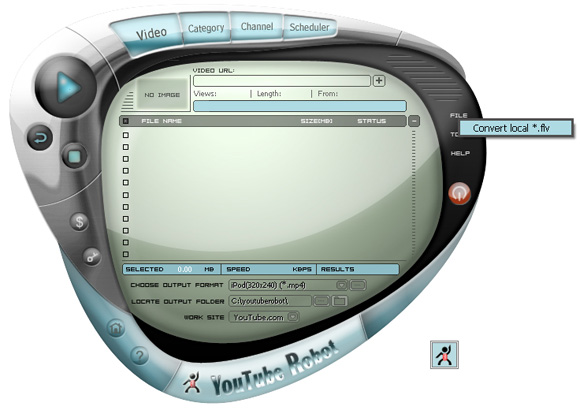
1. Import the source FLV file into the program
Click the "FILE" on the menu to import source FLV Flash Video files into the conversion program.

ui.jpg


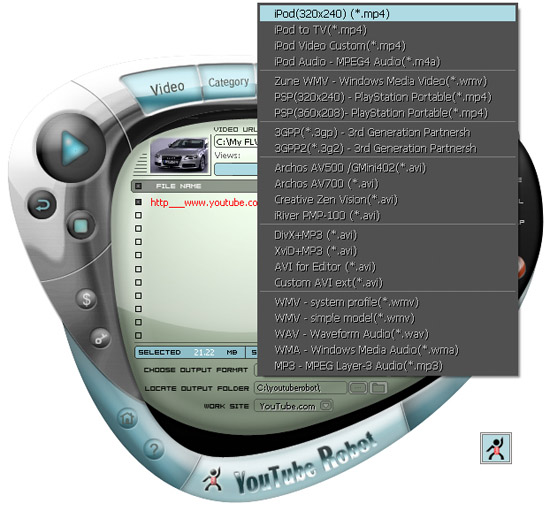
2. Configure the settings for iPod movie
Click "Choose profile" to choose the output format.

ipodoutput.jpg


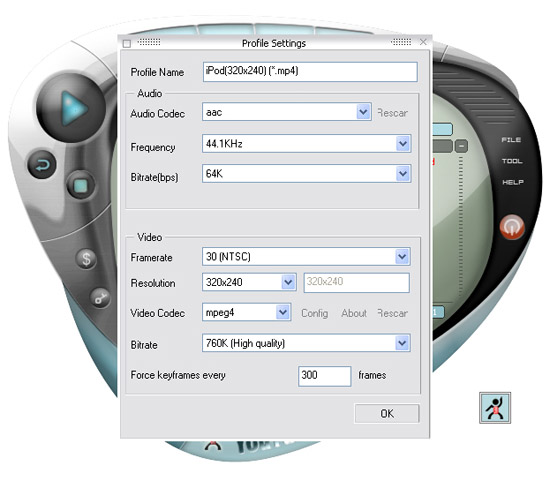
Select the target video profile in the "output format" dropdown list in the format area. If you choose " (*.mp4)" as the output format, YouTube Robot allows you to specify the video quality by clicking the "Settings" button. In general, you'd better keep the default value, that's enough to reserve wonderful video quality.And you can select output folder through folder “browse” button.And you may specify the output path (default is C:\youtuberobot\ ), that is where your converted files in. Click " Browse " to reset it as you wish. Click " Folder " Label you can open output fold directly.

st.jpg


Add watermark
If you are a register user ,you can use “ Add custom watermark ”function. You can add your company's logo or your website address to output video files. Select “settings”from meum,then click the “Add custom watermark”button,you can choose your own logo.Default choose is “None”,when you select ”Text “ option you can input your slogan or website address and you can change font and color. Also you can drag and drop the words to anywhere of the black screen (etc:top left corner or top right corner). When you select“Bitmap”option, you can select your picture and drag picture on the screen .Now you output file will include your Company's logo or website address.
3. Encode the iPod movie
With this FLV to iPod Converter from YouTube Robot, conversion of FLV to MP4 iPod movie is merely a 3-step process, and what leaves is to import the encoded iPod MP4 movie into your cute iPod player and sit back to enjoy.
4. Transfer
a. When your iPod plug into computer usb port, our software will auto transfer converted files to iPod directly.
b. If your iPod is not connected to your computer when converting finished, you have to manual transfer it to your iPod with follow step.
Open iTunes.

itunes1.jpg


1.Plug the iPod into a USB 2.0 port on your computer. The end of the cord that goes into the computer has a picture of a three-pronged wire on it, while the iPod end has a rectangle with a line through it.
2.Wait for iTunes to recognize the iPod.
3.Click on the iPod under "Devices."
4.iTunes and iPod can automatically sync up every time you plug in an iPod, but it is easier to manually manage an iPod by clicking "Manually Manage Music" while viewing the iPod screen.

itunes-2.gif


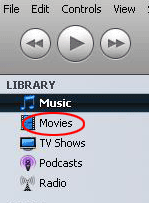
6. Choose Movies to view all the movies that you've added to your iTunes library. When you purchase and download movies from the iTunes Store, they appear in the Movie list. To watch a movie, just double-click a movie file—the movie plays, by default, in the artwork and video viewer. To view the movie in full screen, click the Full Screen button at the bottom of the iTunes.
7.To add a playlist to your iPod, you can use a previously created playlist by clicking and dragging it to the iPod icon. Use the same steps as for iTunes to create a new playlist on your iPod.

YouTube Converter