


Google Earth’s Hidden Surprise: A Flight Simulator
Hidden inside Google Earth is a secret Flight Simulator that takes full advantage of Google’s extensive satellite imagery.
To access the hidden feature, open Google Earth and hit Command+Option+A (note it must be capital A) or Ctrl+Alt+A if you’re using a Windows Machine.
The Google Earth Flight Simulator comes with two aircraft options, a F16 Viper and the more manageable SR22 4 seater. Players have the option of commencing the game from their current location in Google Earth or can pick from a list of pre-determined runways.
Overall the game play is fairly simple in terms of control, but the striking difference is flying over real pictures of locations. I took a quick flight from San Francisco International, headed North to the Golden Gate then turn back over the city before heading towards the Valley. It wasn’t perfect, but it was as good visually as the paid Microsoft Flight Simulator, and in terms of actually presenting real objects it was better.


Using Flight Simulator
You can fly around the globe in Google Earth using the flight simulator feature. This allows you to operate a simulated aircraft using either your mouse or another controller.
Entering Flight Simulator
To enter the flight simulator, do one of the following:
* Click Tools > Enter Flight Simulator
* Press Ctrl + Alt + A (Command/Open Apple Key + Option + A on the Mac)
The Flight Simulator dialog box appears. You need to chose the following:
* Aircraft - Choose the airplane you would like to fly based on the descriptions shown. The SR22 is a slower plane and easier for beginners.
* Start Position - Choose where you would like to begin.
* Joystick support - Check Joystick enabled if there is a joystick device on your computer that you would like to use.
To change these settings, exit the flight simulator and press Ctrl + Alt + A (Command/Open Apple Key + Option + A on the Mac)
Viewing Flight Simulator Help
To view this page at any time, press Ctrl + H. (Windows and Linux only).
Exiting Flight Simulator
To exit the flight simulator, do one of the following:
* Click Exit Flight Simulator
* Press Ctrl + Alt + A or Escape (Command/Open Apple Key+ Option + A or Escape on the Mac).
Flying Your Aircraft
Once you have entered the flight simulator, a head-up display (HUD) appears:
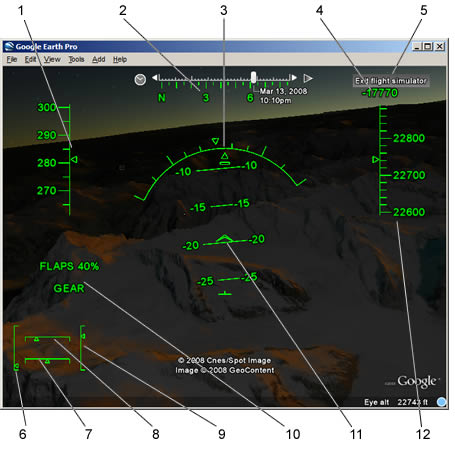
1. Speed (knots)
2. Heading
3. Bank angle
4. Vertical speed (feet per minute)
5. Exit flight simulator feature
6. Throttle
7. Rudder
8. Aileron
9. Elevator
10. Flap and gear indicators
11. Pitch angle (degrees)
12. Altitude (feet above sea level)
To hide or display the HUD, press H.
You can use either a joystick or mouse with the flight simulator feature. To use a mouse, click the mouse in the center of the screen so the cursor becomes a + (cross). To pause or resume the flight simulator at any time, press the space bar.
To take off, first press the Page Up key to increase thrust and move the aircraft down the runway. Once your plane is moving, move the mouse or joystick back slightly down. With enough speed, you take off. To change direction or bank the aircraft, make small motions with the mouse or joystick. Be careful not to over-correct. Once the wings are level, center the mouse or joystick. To look around, press the arrow keys + Alt (slow) or Ctrl (fast).
To adjust thrust, aileron, elevator, rudder, elevator trim nose or flap,
Landing Your Aircraft
Landing is a bit trickier and takes some practice. To land the aircraft:
1. Approach the appropriate airstrip or flat area.
2. Press Page Down to reduce thrust and slow down the aircraft.
3. Press G to extend the landing gear.
4. Press F to increase the flap setting. This slows the aircraft.
5. Once you have touched down, using wheel brakes to slow the aircraft. Press , (comma) to apply the left wheel brake; press . (period) to apply the right wheel brake.
Flight Simulator Keyboard Controls
This section describes the various keyboard combinations that you can use with the flight simulator. To enter the flight simulator mode, press Ctrl + Alt + A (Command/Open Apple Key + Option + A on the Mac). Once you have entered flight simulator mode for the first time, you can re-enter the mode by choosing Tools > Enter Flight Simulator. To leave flight simulator mode, click Exit Flight Simulator in the top right corner or press Ctrl + Alt + A (Command/Open Apple Key+ Option + A on the Mac).
The following keystrokes control navigation and other aspects of the flight simulator. You can also control the aircraft with a mouse or joystick. To disable or enable mouse controls, left click (single click on a Mac). Once mouse controls are active, the pointer shape changes to a cross on your screen.
Keyboard Controls
Hidden inside Google Earth is a secret Flight Simulator that takes full advantage of Google’s extensive satellite imagery.
To access the hidden feature, open Google Earth and hit Command+Option+A (note it must be capital A) or Ctrl+Alt+A if you’re using a Windows Machine.
The Google Earth Flight Simulator comes with two aircraft options, a F16 Viper and the more manageable SR22 4 seater. Players have the option of commencing the game from their current location in Google Earth or can pick from a list of pre-determined runways.
Overall the game play is fairly simple in terms of control, but the striking difference is flying over real pictures of locations. I took a quick flight from San Francisco International, headed North to the Golden Gate then turn back over the city before heading towards the Valley. It wasn’t perfect, but it was as good visually as the paid Microsoft Flight Simulator, and in terms of actually presenting real objects it was better.


Using Flight Simulator
You can fly around the globe in Google Earth using the flight simulator feature. This allows you to operate a simulated aircraft using either your mouse or another controller.
Entering Flight Simulator
To enter the flight simulator, do one of the following:
* Click Tools > Enter Flight Simulator
* Press Ctrl + Alt + A (Command/Open Apple Key + Option + A on the Mac)
The Flight Simulator dialog box appears. You need to chose the following:
* Aircraft - Choose the airplane you would like to fly based on the descriptions shown. The SR22 is a slower plane and easier for beginners.
* Start Position - Choose where you would like to begin.
* Joystick support - Check Joystick enabled if there is a joystick device on your computer that you would like to use.
To change these settings, exit the flight simulator and press Ctrl + Alt + A (Command/Open Apple Key + Option + A on the Mac)
Viewing Flight Simulator Help
To view this page at any time, press Ctrl + H. (Windows and Linux only).
Exiting Flight Simulator
To exit the flight simulator, do one of the following:
* Click Exit Flight Simulator
* Press Ctrl + Alt + A or Escape (Command/Open Apple Key+ Option + A or Escape on the Mac).
Flying Your Aircraft
Once you have entered the flight simulator, a head-up display (HUD) appears:
1. Speed (knots)
2. Heading
3. Bank angle
4. Vertical speed (feet per minute)
5. Exit flight simulator feature
6. Throttle
7. Rudder
8. Aileron
9. Elevator
10. Flap and gear indicators
11. Pitch angle (degrees)
12. Altitude (feet above sea level)
To hide or display the HUD, press H.
You can use either a joystick or mouse with the flight simulator feature. To use a mouse, click the mouse in the center of the screen so the cursor becomes a + (cross). To pause or resume the flight simulator at any time, press the space bar.
To take off, first press the Page Up key to increase thrust and move the aircraft down the runway. Once your plane is moving, move the mouse or joystick back slightly down. With enough speed, you take off. To change direction or bank the aircraft, make small motions with the mouse or joystick. Be careful not to over-correct. Once the wings are level, center the mouse or joystick. To look around, press the arrow keys + Alt (slow) or Ctrl (fast).
To adjust thrust, aileron, elevator, rudder, elevator trim nose or flap,
Landing Your Aircraft
Landing is a bit trickier and takes some practice. To land the aircraft:
1. Approach the appropriate airstrip or flat area.
2. Press Page Down to reduce thrust and slow down the aircraft.
3. Press G to extend the landing gear.
4. Press F to increase the flap setting. This slows the aircraft.
5. Once you have touched down, using wheel brakes to slow the aircraft. Press , (comma) to apply the left wheel brake; press . (period) to apply the right wheel brake.
Flight Simulator Keyboard Controls
This section describes the various keyboard combinations that you can use with the flight simulator. To enter the flight simulator mode, press Ctrl + Alt + A (Command/Open Apple Key + Option + A on the Mac). Once you have entered flight simulator mode for the first time, you can re-enter the mode by choosing Tools > Enter Flight Simulator. To leave flight simulator mode, click Exit Flight Simulator in the top right corner or press Ctrl + Alt + A (Command/Open Apple Key+ Option + A on the Mac).
The following keystrokes control navigation and other aspects of the flight simulator. You can also control the aircraft with a mouse or joystick. To disable or enable mouse controls, left click (single click on a Mac). Once mouse controls are active, the pointer shape changes to a cross on your screen.
Keyboard Controls


