Hi Guys, I need a big help, I need to scan some documents in to PDF or Word, my scanner does only out put images, can someone give me a software to do what I need?
Scanning using ABBYY FineReader
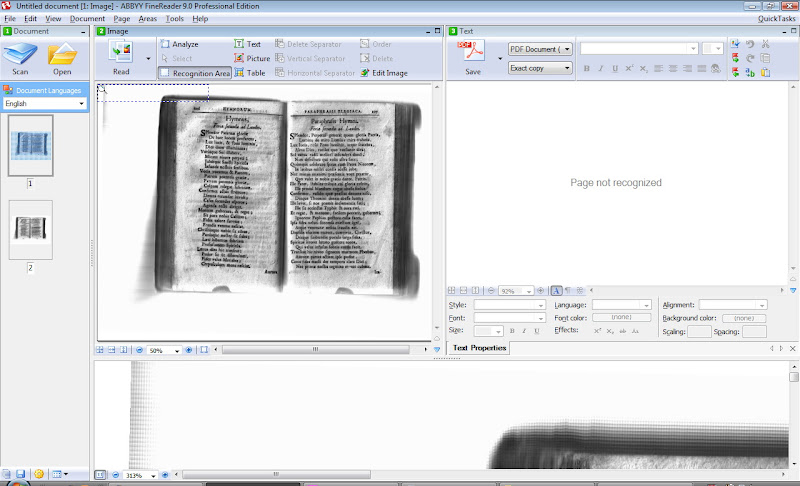
1. Use the big "SCAN" button to scan the pictures in and repeat for each page. Don’t worry about formatting and tidying up the image - all this can be done later. Or, if you have used another program for scanning, load them into ABBYY using File->Open PDF of Image.
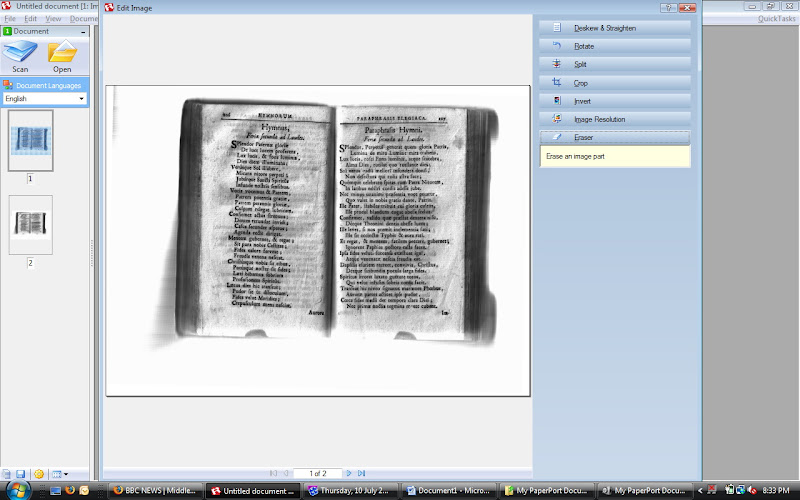
2. Page Menu->Edit Page Image
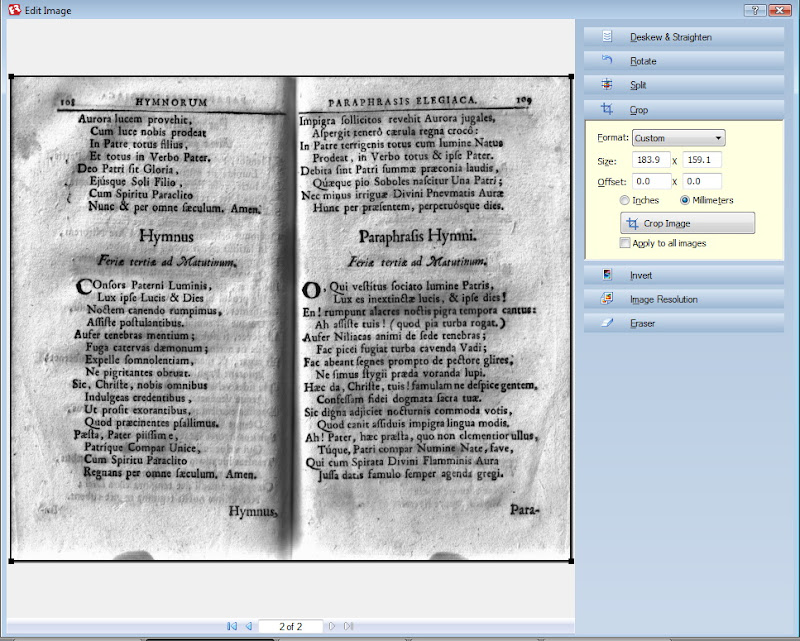
3. Use the Crop Tool to crop the page down to size. Do this for each page. Try to find a size which matches all the pages.
If you are brave use the “Apply to all images” button.
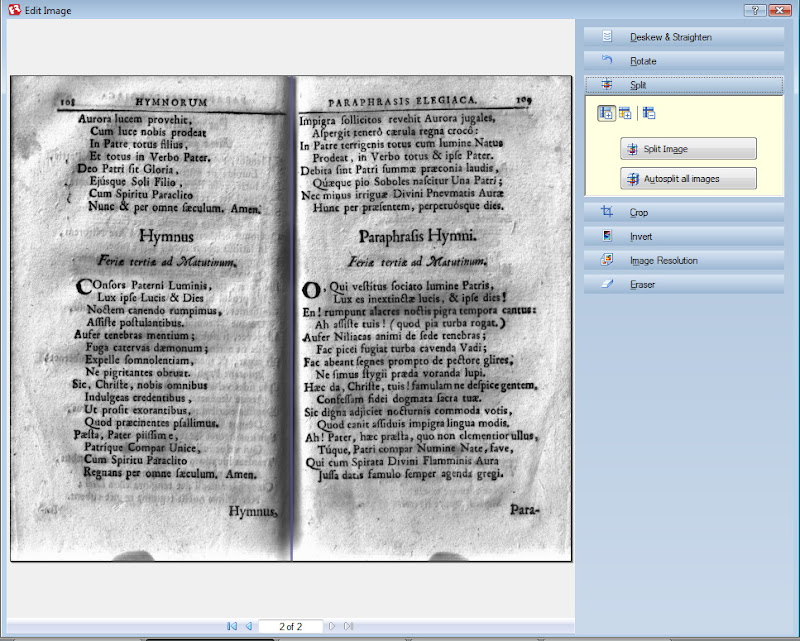
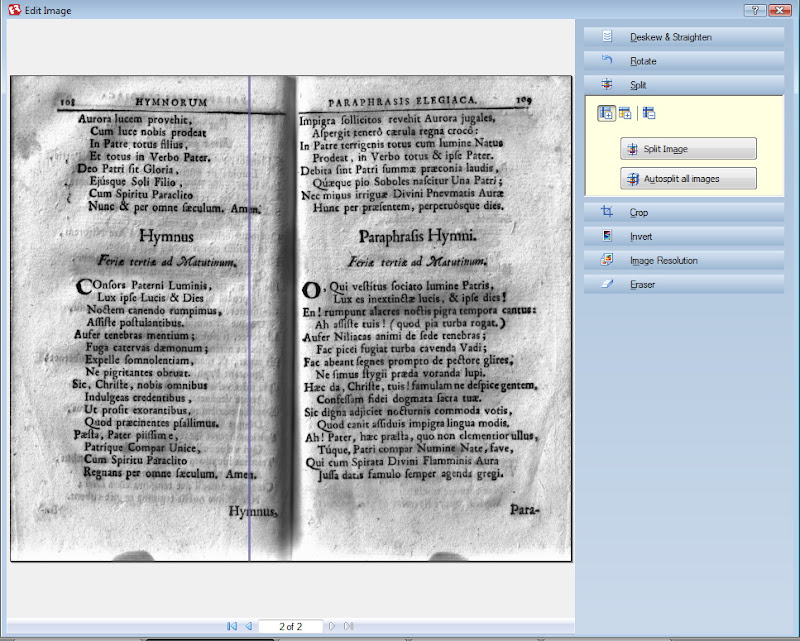
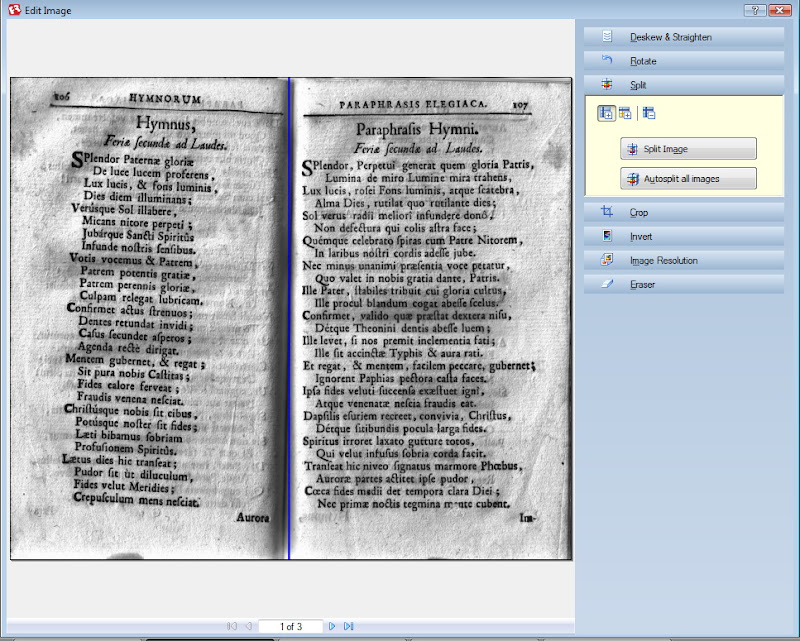
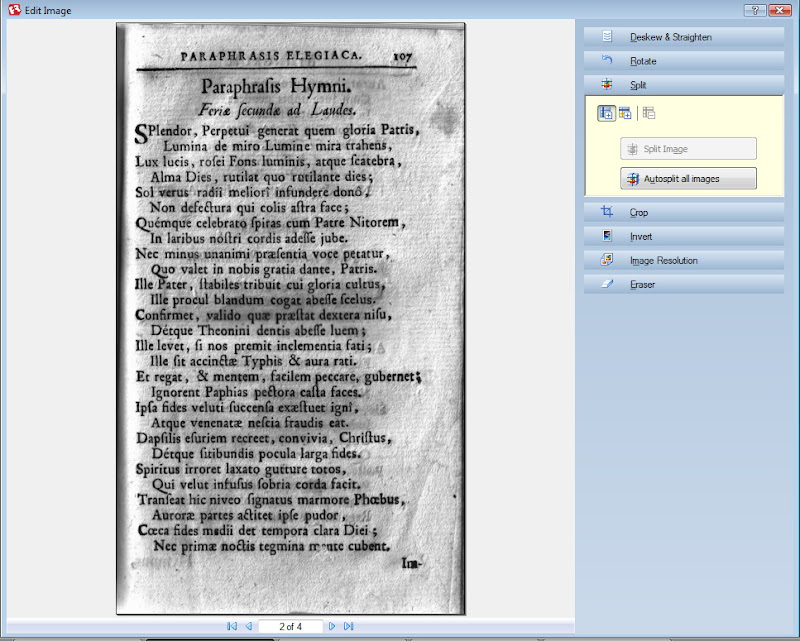
4. Select the Split Tool.
Move the splitter bar into the middle of the page and press "Split Image". Do this for all the pages.
5.Use the Deskew & Straighten Tool to straighten pages, and the Eraser Tool to remove any artifacts or blemishes from the page.
Close the "Edit Page Image" Window.
6. You now have two options:
Use ABBYY’s Optical Character Recognition function to convert the scanned image into digital text. This can then be exported as a PDF.
OR
Define each page as a “Picture” and then export as a PDF.
7. Using OCR (exporting as text):
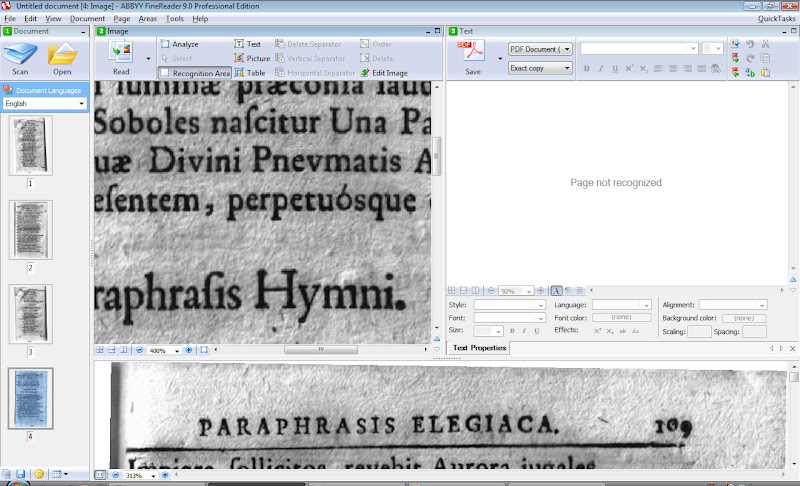
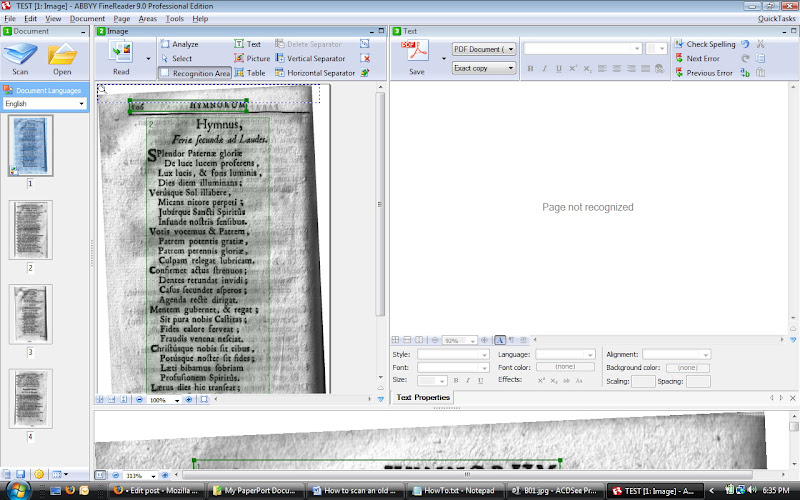
Click the Analyze button to define the area of text and pictures:
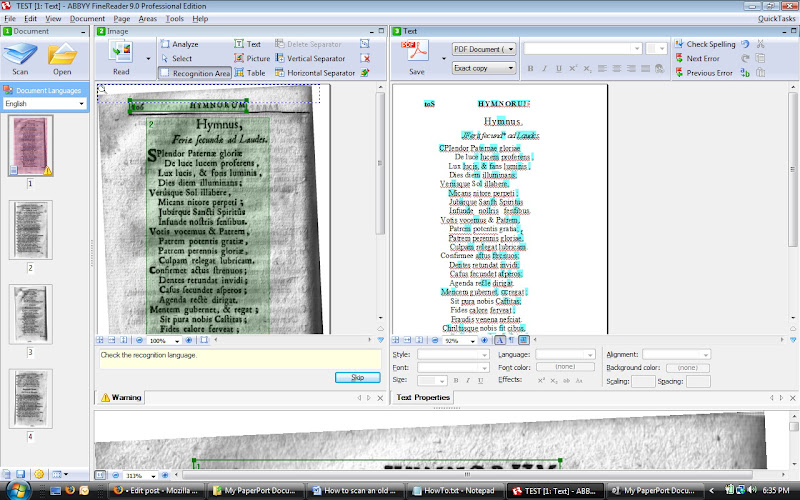
Click the Read button to OCR the text:
OCR is not perfect and it often introduces errors into the output texts. It is important to manually check each page for errors.
8. Not using OCR (exporting as a picture):
File Menu->Save As->PDF Document
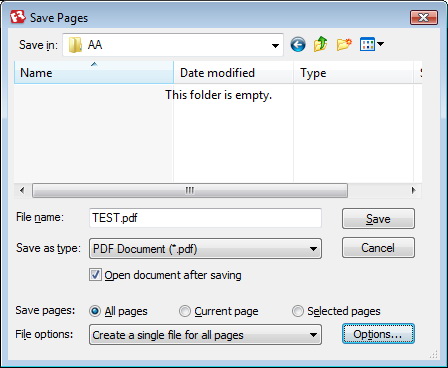
In the "Save Pages" window select these options:
File Name
Save as type: PDF
Save Pages: All Pages
File Options: Create a Single file for all pages
Click the Options... button
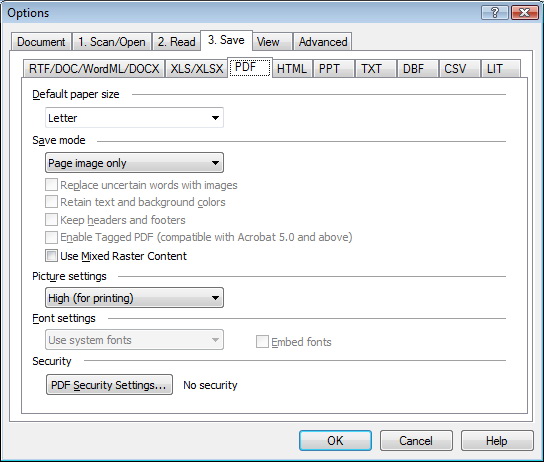
In the "Options" Window select these options:
Select Tab "3. Save"
Select Tab PDF
Default Paper Size: whatever is appropriate for your document
Save Mode: Page Image Only
Click off "Use Mixed Raster Content" (otherwise you get really bad quality results).
Picture Settings: High (for Printing)
Security: No Security
Press OK to exit the "Options" Window.
In the "Save Pages" window press SAVE to generate a PDF file!
Finishing Touches to the PDF File
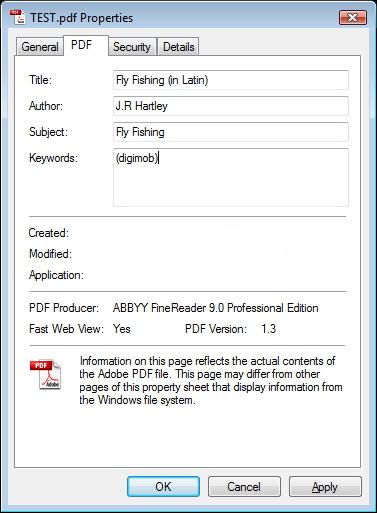
Make sure you set the meta-data tags in the PDF file to include the book's title and the author's details. This may seem trivial but can be of great use if you have a huge library of PDF files. Right Mouse Click on the PDF file and select Properties:

 Pure VPN - Up to 27 Months
 Gemini AI PRO 18 months Offer