


MTS format is a high-definition MPEG, AVC, H.264 transport stream video file format which commonly used by HD camcorders such as Sony, Canon, Panasonic.But most of the time, we would like to enjoy the camcorder videos on PSP, Zune,iPod,etc; and want to share them on Yotube,myspace,etc.Then we need to convert them into the formats that we need.
Now 4Easysoft MTS Converter can meet all of the converting needs. It can not only convert MTS, but also TS, MOD, and various HD videos to regular videos.
This following are the detailed guide:
Preparation: Download and install 4Easysoft MTS Converter
Step 1: Import video files
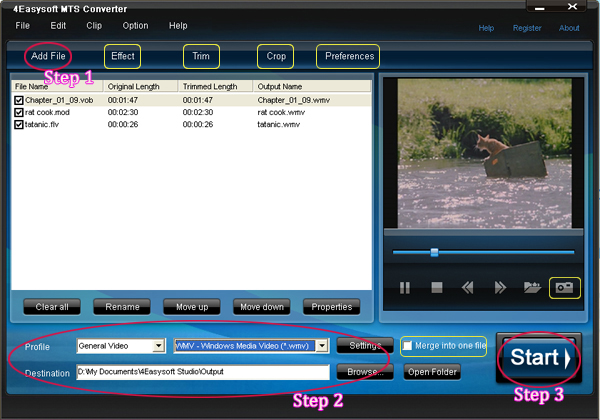
Click “Add File” button, you can add the video files that you want to convert.
Step 2: Set output settings
You can choose the output video format from the drop-down list button.
You can set Encoder, Bitrate, Channels, Resolution and so on by clicking “Settings” button.
You can choose the output folder by clicking “Browse”, or the defalt folder is D:\My Documents\4Easysoft Studio\Output.
Step 3: Start conversion
Click “Start” button, you are allowed to start conversion. All the tasks of conversion will be finished at fast speed and high output quality.
Editting Tips:
1. Adjust video effect
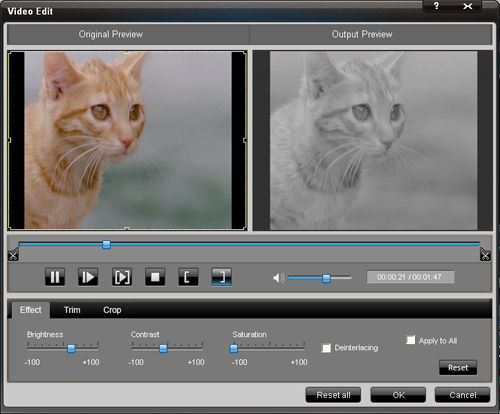
Click “Effect” button, you can set the video Brightness, Contrast, Saturation and check the Deinterlacing which helps you to optimize the video effect.
2. Trm video
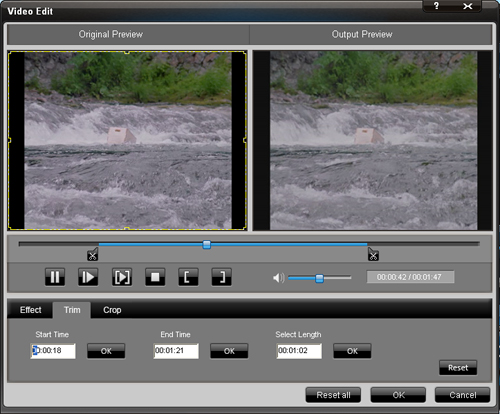
Click “Trim” button, then you can trim the videos by dragging the slider bar, click "Start Time" and "End Time" button, or setting the values
3.Crop video
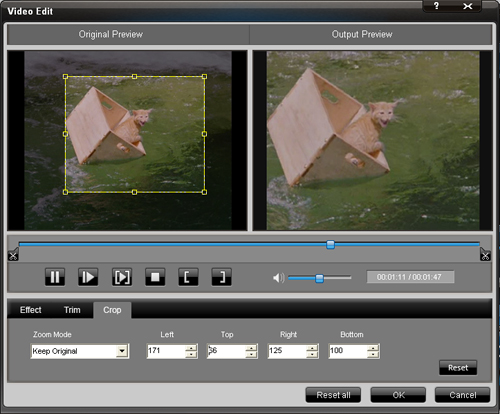
Click “Crop” button and you can crop videos by selecting a crop mode, adjusting the crop frame, or setting the crop values.
4. Select preference
Click the “Preference” button you can select the output destination, the Snapshot foler, the format of the snapshot image,etc.
5.Take snapshot
Just click the "Snapshot" button, you can save any picture you like when you are previewing vdieos.
6.Merge your files
If you want to merge several files into one file you can choose them and click the "Merge into one file" to do it.
Related tools:
4Easysoft TS Converter:
This is an outstanding TS Video Converter, TS Video Creator, and TS file editor, so it owns the ability to convert TS to other videos, create TS file from all popular videos, and edit your TS file easily.
4Easysoft Total Video Converter:
This converter can help you convert among all mainstream video and audio formats and help you take videos easily on PSP, PS3, iPod, iPhone, Apple TV, Xbox or other digital devices.
Now 4Easysoft MTS Converter can meet all of the converting needs. It can not only convert MTS, but also TS, MOD, and various HD videos to regular videos.
This following are the detailed guide:
Preparation: Download and install 4Easysoft MTS Converter
Step 1: Import video files
Click “Add File” button, you can add the video files that you want to convert.
Step 2: Set output settings
You can choose the output video format from the drop-down list button.
You can set Encoder, Bitrate, Channels, Resolution and so on by clicking “Settings” button.
You can choose the output folder by clicking “Browse”, or the defalt folder is D:\My Documents\4Easysoft Studio\Output.
Step 3: Start conversion
Click “Start” button, you are allowed to start conversion. All the tasks of conversion will be finished at fast speed and high output quality.
Editting Tips:
1. Adjust video effect
Click “Effect” button, you can set the video Brightness, Contrast, Saturation and check the Deinterlacing which helps you to optimize the video effect.
2. Trm video
Click “Trim” button, then you can trim the videos by dragging the slider bar, click "Start Time" and "End Time" button, or setting the values
3.Crop video
Click “Crop” button and you can crop videos by selecting a crop mode, adjusting the crop frame, or setting the crop values.
4. Select preference
Click the “Preference” button you can select the output destination, the Snapshot foler, the format of the snapshot image,etc.
5.Take snapshot
Just click the "Snapshot" button, you can save any picture you like when you are previewing vdieos.
6.Merge your files
If you want to merge several files into one file you can choose them and click the "Merge into one file" to do it.
Related tools:
4Easysoft TS Converter:
This is an outstanding TS Video Converter, TS Video Creator, and TS file editor, so it owns the ability to convert TS to other videos, create TS file from all popular videos, and edit your TS file easily.
4Easysoft Total Video Converter:
This converter can help you convert among all mainstream video and audio formats and help you take videos easily on PSP, PS3, iPod, iPhone, Apple TV, Xbox or other digital devices.


