This article can not only help you put the free games on your iPod, but also catch the troubleshooting of iPod games.
Syncing iPod Games:
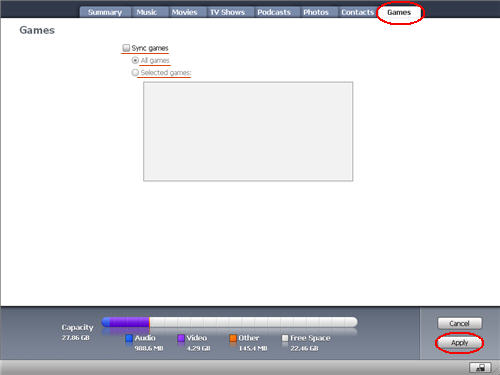
1. In iTunes, select iPod in the source list and click the Games tab.
2. Select "Sync games."
3. Click "All games" or "Selected games." If you click "Selected games," also select the games you want to sync.
4. Click Apply.
If you just load the free iPod games, the four simple steps are perfect for you to put the games on your iPod. While if you have an issue with any game purchased from the iTunes Store, first verify basic functionality and then follow basic troubleshooting below.
Note: Games available on iTunes are designed specifically for the iPod nano (3rd generation), iPod classic, and iPod (5th generation). They cannot be played on your computer, nor are they compatible with other iPod models or iPhones.
Verify Functionality
1. Verify that you have the latest version of iTunes.
2. Verify that you have the correct iPod model. To use games, you need an iPod nano (3rd generation), iPod classic, or iPod (5th generation). [Note: Games purchased for iPod (5th generation) do not sync to iPod classic or iPod nano (3rd generation). If a game that you already purchased is available, you must repurchase the compatible iPod game to function on iPod nano (3rd generation) and iPod classic. For a list of iPod Games, visit the iTunes Store.]
3. Verify that you are using the latest version of iPod software.
4. Verify that the Game tab appears when you click on iPod under Devices in the source list of the iTunes window. If a game title does not appear in the sync list but does appear in the iPod Games Library then the game is not compatible with your iPod model.
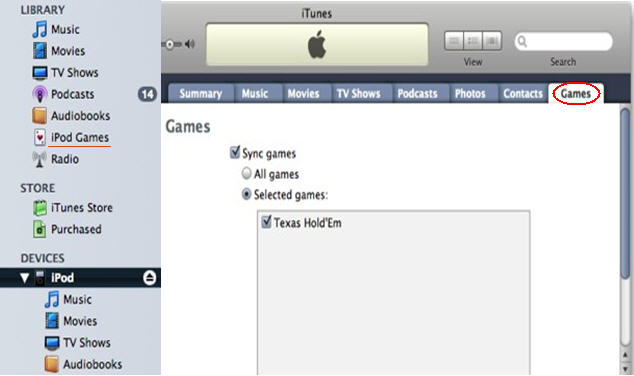
5. Verify that iTunes is authorized to use the account you used to purchase the game. If iTunes is not authorized for your iTunes Store account, you may see a message stating that "The game was not copied to the iPod because you are not authorized to play it on this computer."
6. Verify that the game syncs to iPod.
7. Verify that the game title appears in Extras > Games.
8. Verify that the game launches from Extras > Games.
Troubleshooting
1. Use iTunes to update iPod with the latest iPod software.
2. Sync just the respective game title. To do this:
1). Select your iPod and click the Games tab.
2). Select the Sync games checkbox.
3). Click the "Selected games" button.
4). Select only the game title you are currently troubleshooting.
3. Click the Apply button.
4. Eject iPod and verify that the game launches from Extras > Games.
5. If this does not resolve the issue, restore iPod with the latest iPod software and then resync the game as described in steps 2-4."
PS:
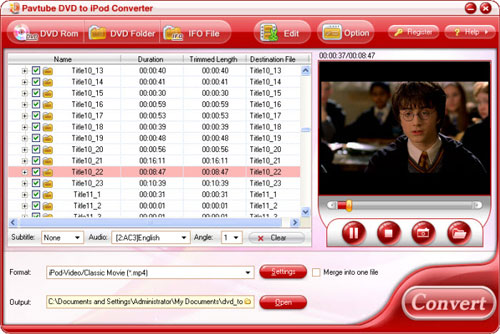
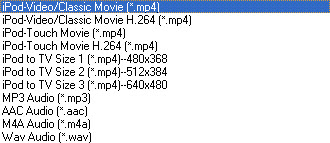
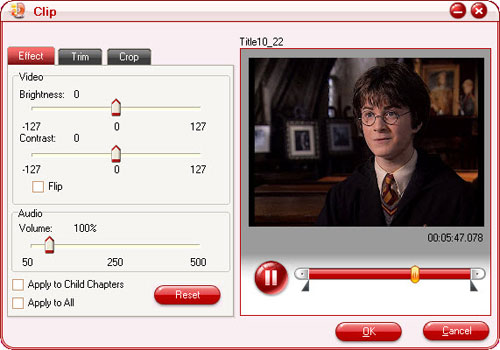
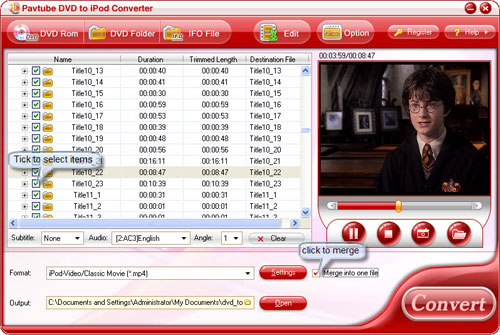
Hope above information could be of some help to you. If you would like to convert DVD to H.264, MP3, WAV, M4A, and AAC compatible with iPod, please refer to Pavtube DVD to iPod Converter.
Moreover, there are some free iPod Touch Games to download.
Syncing iPod Games:
1. In iTunes, select iPod in the source list and click the Games tab.
2. Select "Sync games."
3. Click "All games" or "Selected games." If you click "Selected games," also select the games you want to sync.
4. Click Apply.
If you just load the free iPod games, the four simple steps are perfect for you to put the games on your iPod. While if you have an issue with any game purchased from the iTunes Store, first verify basic functionality and then follow basic troubleshooting below.
Note: Games available on iTunes are designed specifically for the iPod nano (3rd generation), iPod classic, and iPod (5th generation). They cannot be played on your computer, nor are they compatible with other iPod models or iPhones.
Verify Functionality
1. Verify that you have the latest version of iTunes.
2. Verify that you have the correct iPod model. To use games, you need an iPod nano (3rd generation), iPod classic, or iPod (5th generation). [Note: Games purchased for iPod (5th generation) do not sync to iPod classic or iPod nano (3rd generation). If a game that you already purchased is available, you must repurchase the compatible iPod game to function on iPod nano (3rd generation) and iPod classic. For a list of iPod Games, visit the iTunes Store.]
3. Verify that you are using the latest version of iPod software.
4. Verify that the Game tab appears when you click on iPod under Devices in the source list of the iTunes window. If a game title does not appear in the sync list but does appear in the iPod Games Library then the game is not compatible with your iPod model.
5. Verify that iTunes is authorized to use the account you used to purchase the game. If iTunes is not authorized for your iTunes Store account, you may see a message stating that "The game was not copied to the iPod because you are not authorized to play it on this computer."
6. Verify that the game syncs to iPod.
7. Verify that the game title appears in Extras > Games.
8. Verify that the game launches from Extras > Games.
Troubleshooting
1. Use iTunes to update iPod with the latest iPod software.
2. Sync just the respective game title. To do this:
1). Select your iPod and click the Games tab.
2). Select the Sync games checkbox.
3). Click the "Selected games" button.
4). Select only the game title you are currently troubleshooting.
3. Click the Apply button.
4. Eject iPod and verify that the game launches from Extras > Games.
5. If this does not resolve the issue, restore iPod with the latest iPod software and then resync the game as described in steps 2-4."
PS:
Hope above information could be of some help to you. If you would like to convert DVD to H.264, MP3, WAV, M4A, and AAC compatible with iPod, please refer to Pavtube DVD to iPod Converter.
Moreover, there are some free iPod Touch Games to download.