(This is an alternative to configure your laptop as a Wi-Fi hotspot via laptop Wi-Fi card).
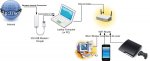
Check the attached image for network diagram.
Ever wonder how to share your Windows 7 Laptop or PC 3G internet connection through your laptop or pc Ethernet port to a router, so that any device connect to the router wireless or wired can assess internet ? Then this tutorial is for you.
1. Connect your Laptop or PC (host computer) to the internet using the 3G dongle.
2. To enable ICS (Internet Connection Sharing), Open Network Connections by clicking the Start button , clicking Control Panel, clicking Network and Internet, clicking Network and Sharing Center, and then clicking Manage network connections.
3. Right-click the connection that you want to share (In this case it’s your mobile 3G connection), and then click Properties. If you are prompted for an administrator password or confirmation, type the password or provide confirmation.
4. Click the Sharing tab, and then select the Allow other network users to connect through this computer’s Internet connection check box.
5. Optionally, to allow other network users to use services running on your network, click Settings and select the services you want to allow. (you may select HTTP, HTTPS, FTP and any other service you desired)
6. When you enable ICS, your local area network (LAN) connection gets a new static IP address and configuration, so you'll need to reestablish any TCP/IP connections between your host computer and the other network computers (disconnect and reconnect the 3G mobile internet connection). (Ref: Microsoft Info on ICS)
7. Connect your laptop or PC to the wireless router using an Ethernet cable. One end of the cable to laptop or PC Ethernet port, other end to the WAN port (uplink) of the router.
8. To find out the static IP address assign to the local area network (LAN), Click the Start button , click Run, type cmd and press enter.
9. In the command window, type ipconfig /all and press enter.
10. Now scroll up to the section Ethernet adapter Local Area Connection :, and note the IPv4 address and Subnet Mask (example: IPv4 Address. . . . . . . . . . . : 192.168.2.1(Preferred) Subnet Mask . . . . . . . . . . . : 255.255.255.0)
11. If any chance IPv6 is enabled in your Laptop or PC, if needs to be disabled. To disable IPv6, navigate to HKEY_LOCAL_MACHINE > SYSTEM > CurrentControlSet > services >TCPIP6 > Parameters key, right-click Parameters in the left sidebar and choose New > DWORD (32-bit) Value, specify name it as DisabledComponents, set the value to 0 and click OK, Restart computer. (Ref: How To Disable IPv6 In Windows 7)
12. Connect to your router configuration page (in most routers this configuration can be done through a web browser). Select static IP configuration. Set LAN IP address (from step 10 above) as the Gateway IP address and DNS IP address of the router.
13. Set LAN subnet mask as the router subnet mask.
14. Set router IP address in the same IP range (example: if your LAN IP, 192.168.2.1, then set your router IP address to 192.168.2.40)
15. Set your router lease IP address to in the range of 192.168.X.X.
16. Apply changes and restart the router.
17. Wola !!! Now all the devices connected to the router wireless or wired should able to access the internet.
Check the attached image for network diagram.
Ever wonder how to share your Windows 7 Laptop or PC 3G internet connection through your laptop or pc Ethernet port to a router, so that any device connect to the router wireless or wired can assess internet ? Then this tutorial is for you.
1. Connect your Laptop or PC (host computer) to the internet using the 3G dongle.
2. To enable ICS (Internet Connection Sharing), Open Network Connections by clicking the Start button , clicking Control Panel, clicking Network and Internet, clicking Network and Sharing Center, and then clicking Manage network connections.
3. Right-click the connection that you want to share (In this case it’s your mobile 3G connection), and then click Properties. If you are prompted for an administrator password or confirmation, type the password or provide confirmation.
4. Click the Sharing tab, and then select the Allow other network users to connect through this computer’s Internet connection check box.
5. Optionally, to allow other network users to use services running on your network, click Settings and select the services you want to allow. (you may select HTTP, HTTPS, FTP and any other service you desired)
6. When you enable ICS, your local area network (LAN) connection gets a new static IP address and configuration, so you'll need to reestablish any TCP/IP connections between your host computer and the other network computers (disconnect and reconnect the 3G mobile internet connection). (Ref: Microsoft Info on ICS)
7. Connect your laptop or PC to the wireless router using an Ethernet cable. One end of the cable to laptop or PC Ethernet port, other end to the WAN port (uplink) of the router.
8. To find out the static IP address assign to the local area network (LAN), Click the Start button , click Run, type cmd and press enter.
9. In the command window, type ipconfig /all and press enter.
10. Now scroll up to the section Ethernet adapter Local Area Connection :, and note the IPv4 address and Subnet Mask (example: IPv4 Address. . . . . . . . . . . : 192.168.2.1(Preferred) Subnet Mask . . . . . . . . . . . : 255.255.255.0)
11. If any chance IPv6 is enabled in your Laptop or PC, if needs to be disabled. To disable IPv6, navigate to HKEY_LOCAL_MACHINE > SYSTEM > CurrentControlSet > services >TCPIP6 > Parameters key, right-click Parameters in the left sidebar and choose New > DWORD (32-bit) Value, specify name it as DisabledComponents, set the value to 0 and click OK, Restart computer. (Ref: How To Disable IPv6 In Windows 7)
12. Connect to your router configuration page (in most routers this configuration can be done through a web browser). Select static IP configuration. Set LAN IP address (from step 10 above) as the Gateway IP address and DNS IP address of the router.
13. Set LAN subnet mask as the router subnet mask.
14. Set router IP address in the same IP range (example: if your LAN IP, 192.168.2.1, then set your router IP address to 192.168.2.40)
15. Set your router lease IP address to in the range of 192.168.X.X.
16. Apply changes and restart the router.
17. Wola !!! Now all the devices connected to the router wireless or wired should able to access the internet.