


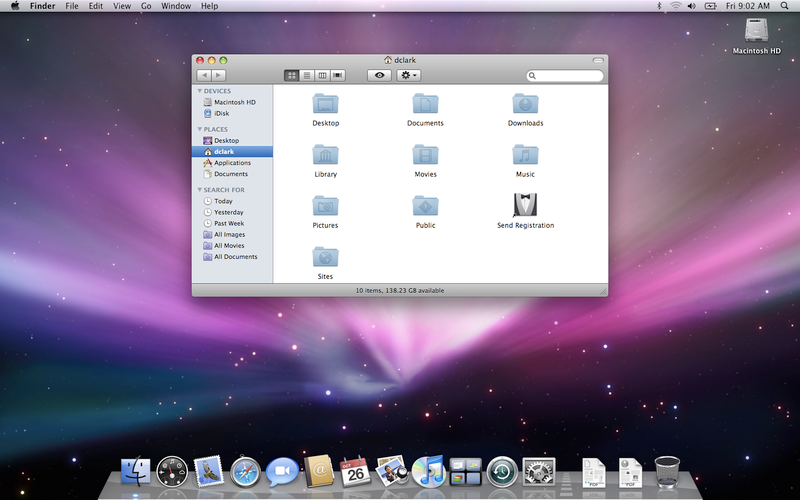
Mac OS X Leopard for AMD and Intel v10.5.1
Works on AMD and Intel PC's Processors

Code: 1. How to Dual-Boot Video Tutorial Added On Bottom.
2. Acronis Disk Director Suite Updated (Keygen Separate upload added)
3. Everest Ultimate Uploaded ( Needed in Video to Check CPU and PC Specs )


Code: http://www.apple.com/macosx/




HowTo OSX
DISK IS PREPATCHED this is ISO Format so burn image to a disk and your ready to install simply.
Install Leopard
Now lets install Leopard.
The Bootfix patch
After reboot, if the system boots into Leopard fine, ignore this part and head to next section to setup multi boot. Otherwise, you might encounter blinking cursor or “HFS+ Error”, follow the steps below then
If you install Leopard without Tiger first, the system might still boot into Windows instead or leave a system unbootable at all. Even the tboot loader trick(see below) wouldn’t work. In this case, you need to repair the installation and setup boot property for it.
reboot
Post Installation: setup multi-boot
Works on AMD and Intel PC's Processors

Code: 1. How to Dual-Boot Video Tutorial Added On Bottom.
2. Acronis Disk Director Suite Updated (Keygen Separate upload added)
3. Everest Ultimate Uploaded ( Needed in Video to Check CPU and PC Specs )


Code: http://www.apple.com/macosx/


HowTo OSX
DISK IS PREPATCHED this is ISO Format so burn image to a disk and your ready to install simply.
Install Leopard
Now lets install Leopard.
Code:
1. Optional but Highly recommend: install Tiger first. This can be done by inserting Tiger DVD on your computer and make sure you boot from it. Usually that’s done if you press F8 or F12 or whatever key combination to give you the option to choose what disk/cd drive you want to boot from. Or you can always change boot device in BIOS setup. Select your CD/DVD drive. And

Select your language and when the welcome screen shows up

   1. Select Utilities -> Disk Utility
   2. Select your partition that you want to be OSX and go to the Erase tab
   3. For Volume Format, select Mac OS Extended (Journaled), set volume name as “Leopard“(no quotes, case sensitive)
   4. Click Erase. Now the partition should not be grey, it should be black to indicate that it is active.
   5. Close out of the Disk Utility and move onwards with installation.

Use “Customize” option and unselect all packages there. Just install base system. By installing Tiger first, the partition would be properly formatted and activated, which eliminate any potential problem. Now reboot and remove the Tiger DVD.

2. Install Leopard.

Insert Leopard DVD, and make sure to select booting from DVD. The installer will load(it will take a while, be patient). If you have Tiger installed, don’t format the partition, just install it over the Tiger partition. Otherwise, same approach as Tiger installation, use Disk Utility to setup the partition.

Important: Use Customize… button and unselect all packages there. Then proceed to installation. When it’s done, reboot. And make sure that your USB/Pen Drive is connected to your PC.

Patch Leopard Installation

After the reboot, also make sure you do the same step above: Press whatever key combination to give you the option to choose your boot device: Now Select your CD/DVD drive.

Once the setup is loaded(again, long wait, be patient), select your language. When the welcome screens shows up, select UTILITIES-TERMINAL. The terminal will now open. We will now browse to our Thumb Drive;

In the command line, type:

cd /Volumes/123/files

Lets now run the script. This will patch the installation so it will boot properly:

./9a581PostPatch.sh

Let it run. You can answer yes when removing the ACPUPowerManagement.kext

Reboot.
The Bootfix patch
After reboot, if the system boots into Leopard fine, ignore this part and head to next section to setup multi boot. Otherwise, you might encounter blinking cursor or “HFS+ Error”, follow the steps below then
If you install Leopard without Tiger first, the system might still boot into Windows instead or leave a system unbootable at all. Even the tboot loader trick(see below) wouldn’t work. In this case, you need to repair the installation and setup boot property for it.
Code:
1. Reboot using the Leopard DVD, make sure the USB pen drive is connected.
   2. Open a terminal after everything finally loads.
   3. Find out what disk your leopard was installed on by issuing this command (my machine was rdisk0s2, will use rdiskXsY below, substitute accordingly)

      diskutil list

   4. Active the partition

      fdisk -e /dev/rdiskX
      fdisk: 0>update
      fdisk:*0> f Y
      “Partition 2 marked active”
      fdisk:*0> w
      Device could not be accessed exclusively.
      A reboot will be needed for changes to take effect. OK? [n]y
      Writing MBR at offset 0.
      fdisk: 0> q

   5.

      Now goto bootfix directory by typing:

      cd /Volumes/123/files/bootfix

      and do the following

      ./dd if=/usr/standalone/i386/boot1h of=/dev/rdiskXsY bs=512 count=1
      umount /Volumes/Leopard
      ./startupfiletool -v /dev/rdiskXsY /usr/standalone/i386/boot
      ./bless -device /dev/diskXsY -setBoot -verbose
reboot
Post Installation: setup multi-boot


