OpenDNS - increase internet speed & more

bird123

Banned
  • Sep 25, 2007
    221
    33
    28
    OpenDNS - increase internet speed & more

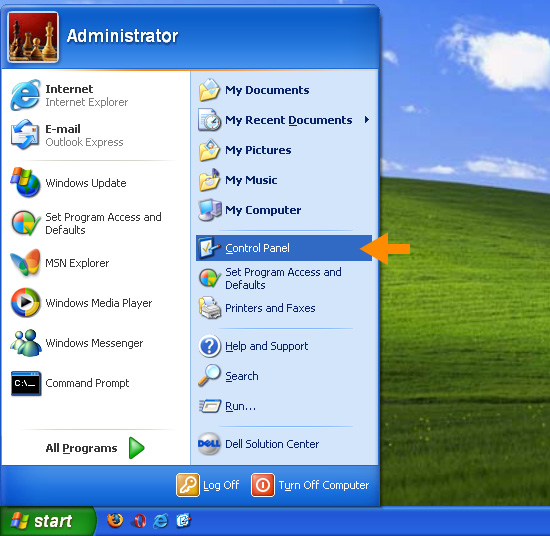
    1. Select Control Panel from the Start menu.
    start_win1.jpg


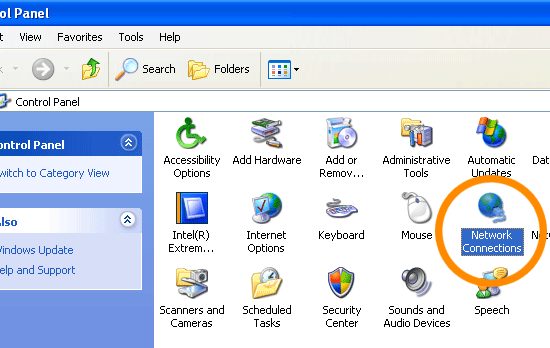
    2. Click Network Connections from the Control Panel choices.
    start_win2.gif


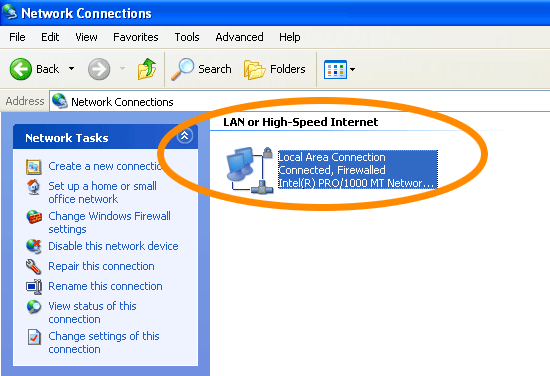
    3. Choose your connection from the Network Connections window.
    In this screenshot, LAN or High-Speed Internet is the only choice. If you have more than one, choose your default/current connection.

    start_win3.gif


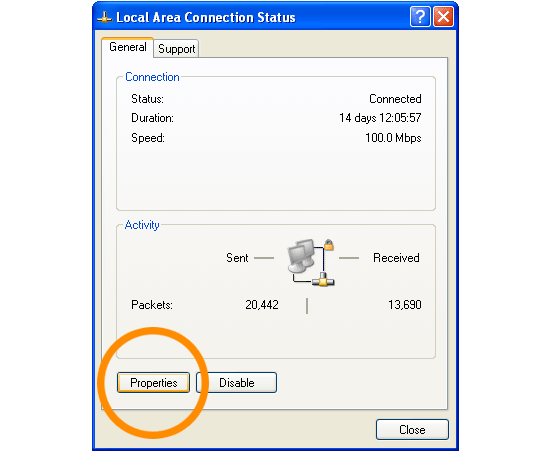
    4. Click Properties button.

    start_win4.gif


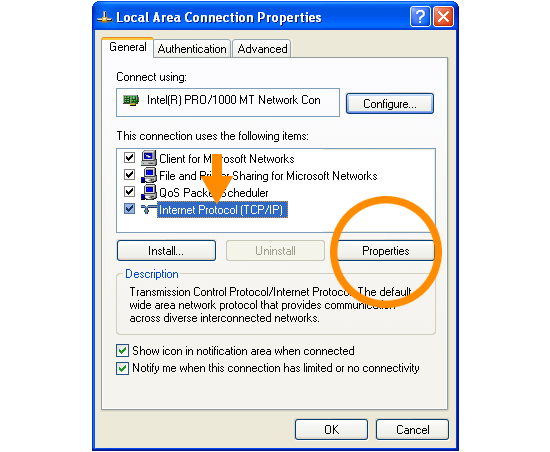
    5. Select Internet Protocol (TCP/IP) and click Properties.
    start_win5.gif


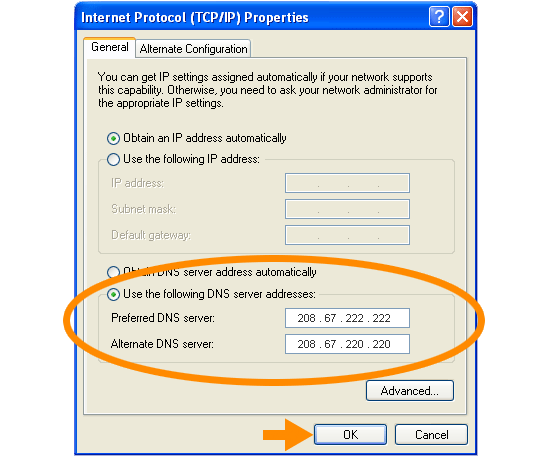
    6. Click the radio button Use the following DNS server addresses
    and type in OpenDNS addresses in the Preferred DNS server
    and Alternate DNS server fields.

    Please write down your current DNS settings before switching to OpenDNS, in case you want to return to your old settings for any reason.

    Preferred DNS server address for Open DNS is:

    208.67.222.222

    Alternate DNS server address for Open DNS is:

    208.67.220.220

    7. Click OK.

    start_win6.gif


    8. Restart your computer.
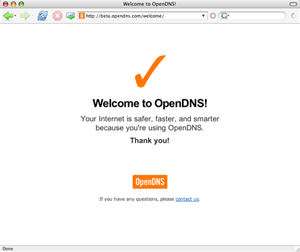
    http://welcome.opendns.com to test your new settings.

    You should see the Welcome page from OpenDNS, as shown below.
    start_success.gif


    4 more Info go to
    www.opendns.com

    Have Fun ;)
     

    joejas

    Member
    May 19, 2014
    44
    0
    0
    OpenDNS - increase internet speed & more

    1. Select Control Panel from the Start menu.

    start_win1.jpg


    2. Click Network Connections from the Control Panel choices.

    start_win2.gif


    3. Choose your connection from the Network Connections window.
    In this screenshot, LAN or High-Speed Internet is the only choice. If you have more than one, choose your default/current connection.


    start_win3.gif


    4. Click Properties button.

    start_win4.gif


    5. Select Internet Protocol (TCP/IP) and click Properties.

    start_win5.gif


    6. Click the radio button Use the following DNS server addresses
    and type in OpenDNS addresses in the Preferred DNS server
    and Alternate DNS server fields.

    Please write down your current DNS settings before switching to OpenDNS, in case you want to return to your old settings for any reason.

    Preferred DNS server address for Open DNS is:

    208.67.222.222

    Alternate DNS server address for Open DNS is:

    208.67.220.220

    7. Click OK.


    start_win6.gif


    8. Restart your computer.
    http://welcome.opendns.com to test your new settings.

    You should see the Welcome page from OpenDNS, as shown below.

    start_success.gif


    4 more Info go to
    www.opendns.com


    Have Fun ;)


    Thanks for your information. I followed your steps then increased my internet. After i have checked my internet speed from this site Scanmyspeed.com
     
    Last edited: