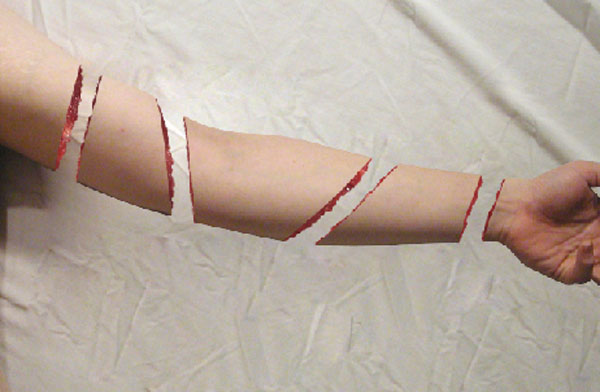
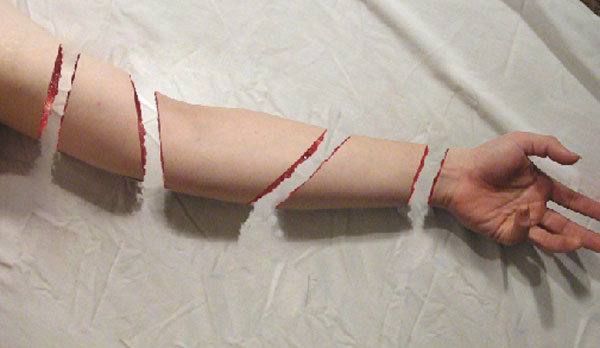
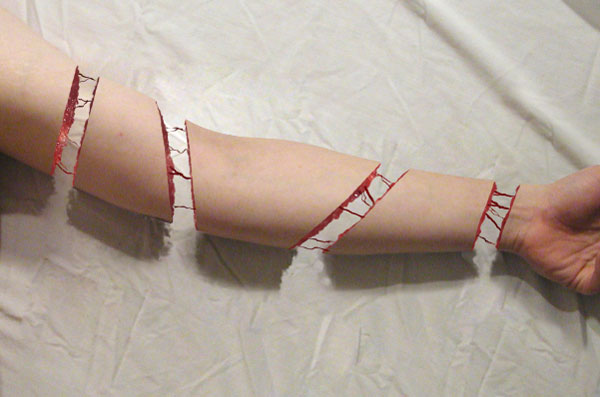
!!!!!!!!!!!!!! Photoshop Tutorials !!!!!!!!!!!!!!

sharki333

Well-known member
  • Feb 7, 2008
    6,280
    294
    83
    mal waththe!!!
    Onna Ithin Mama Ayeth Wade Patan Gaththa

    Machanzzzlaaa Photoshop gana Danna aya innawanam Me wadeta Set Wenna
    Ethakota Kastiya Danna Dewal Share Karaganna Puluwam
    :):):):):):):)
     

    sharki333

    Well-known member
  • Feb 7, 2008
    6,280
    294
    83
    mal waththe!!!
    Dark Book of Photoshop

    Dark_Book_Of_Photoshop_by_subcity.jpg
     

    sharki333

    Well-known member
  • Feb 7, 2008
    6,280
    294
    83
    mal waththe!!!
    How to Create a Flaming Photo Manipulation
    Final Image Preview


    final.jpg


    Step 1

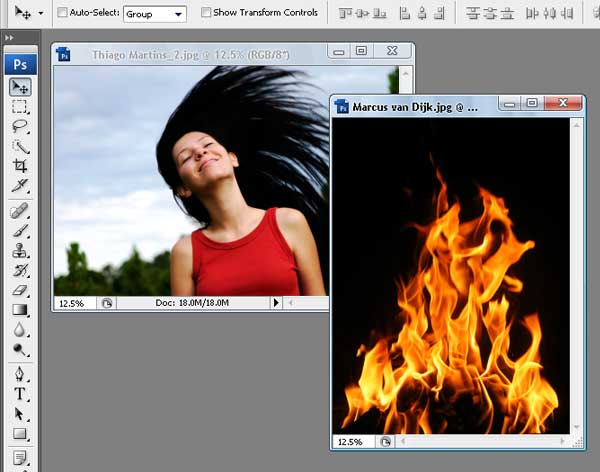
    For this project, I used two nice images that suits for the manipulation; image1, image2. I would like to thank the author of this two great pictures, which is thiquinho and huibidos from sxc.hu. And before we continue with the steps, I need to inform you that this tutorial is written using Photoshop CS3.
    01.jpg

    Step 2

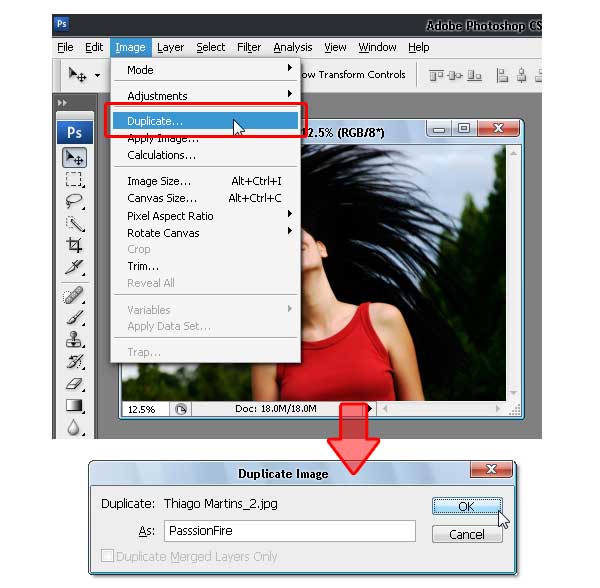
    Let's start with image1, open and duplicate this image by using the Image > Duplicate command from the menu bar. In the Duplicate Image dialog box, you can name it anything you like, but to follow this tutorial reference, name it "PassionFire" and hit OK. By doing this, we kept the original image. Be sure to save.
    02.jpg

    Step 3

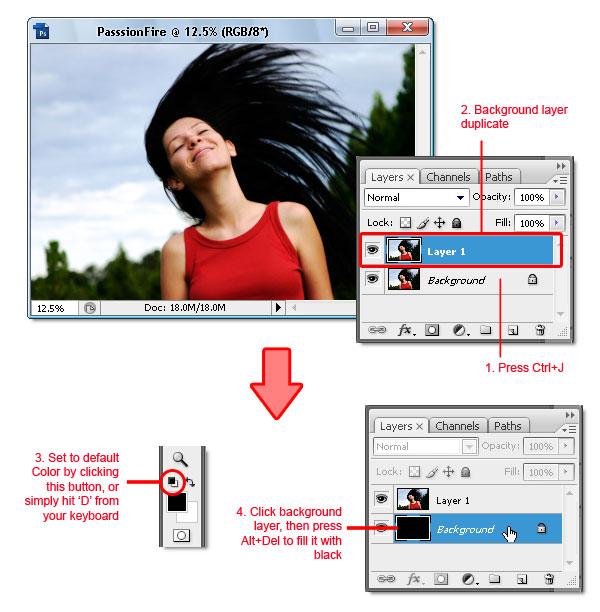
    With the "PassionFire" image active, duplicate the "background" layer. Set the foreground and background color to black and white by pressing D on the keyboard. Click the "background" layer again and fill it with the foreground color ~ which is set to black. See the images below.
    03.jpg

    Step 4

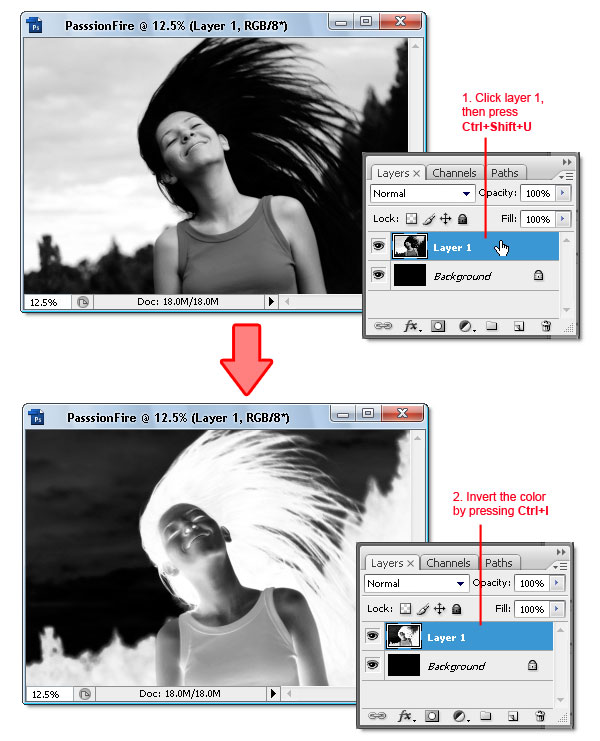
    Reactivate "Layer 1," then press Command + Shift + U to apply desaturate command. Now invert the color by pressing Command + I. Your image should look like a film's negative now.
    04.jpg

    Step 5

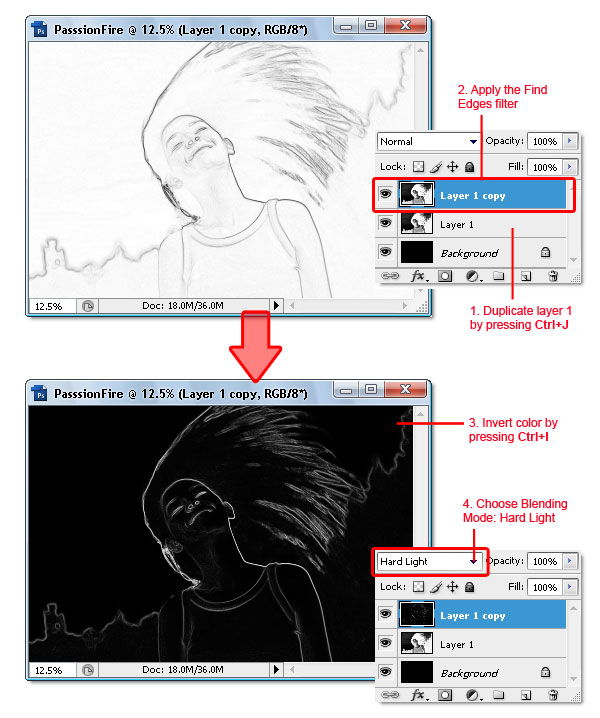
    Duplicate "Layer 1," then apply the find edges filter from Filter > Stylized > Find Edges. Next, invert the color by pressing Command + I and change the Blending Mode to Hard light. There, your image now has contrast white line and a very dark background.
    05.jpg

    Step 6

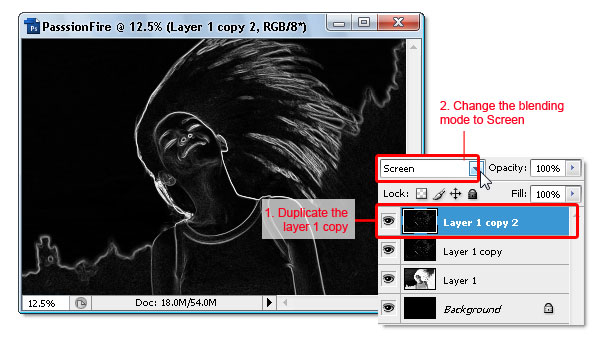
    To give the white line more contrast, duplicate the "Layer 1" copy then change the Blending Mode to Screen.
    06.jpg

    Step 7

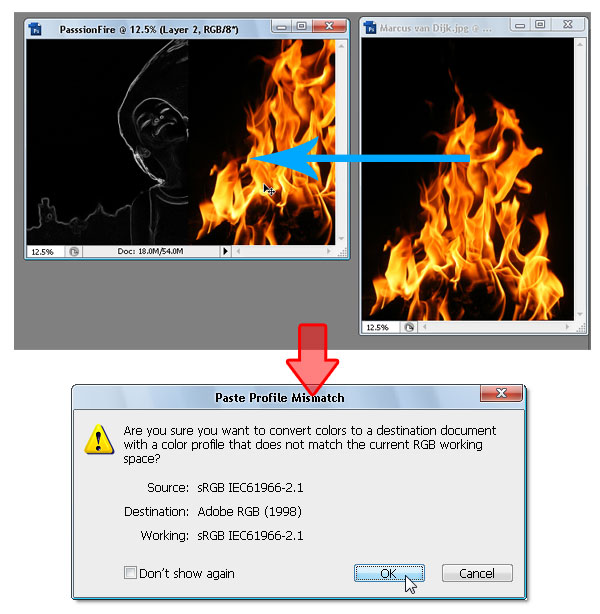
    Now we move to the second image. Drag image2 into "PassionFire" document image window using the Move tool. If the Paste profile mismatch dialog appears, just click OK to fix it.
    07.jpg

    Step 8

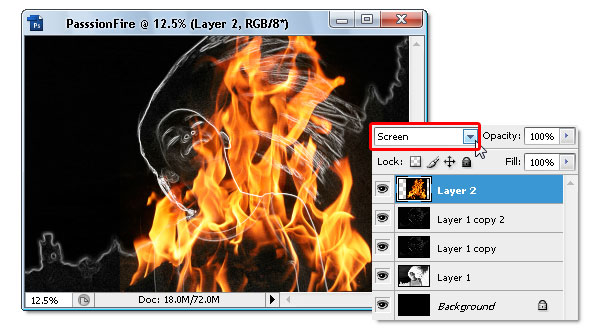
    The fire image from "image2" should be in "Layer 2" now. Change its Blending Mode to screen, this will hide all the black colors in "Layer 2." If done right, your image should be similar to the one below.
    08.jpg

    Step 9

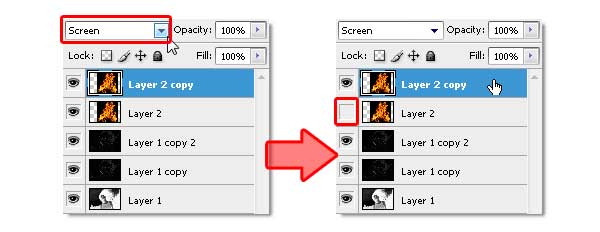
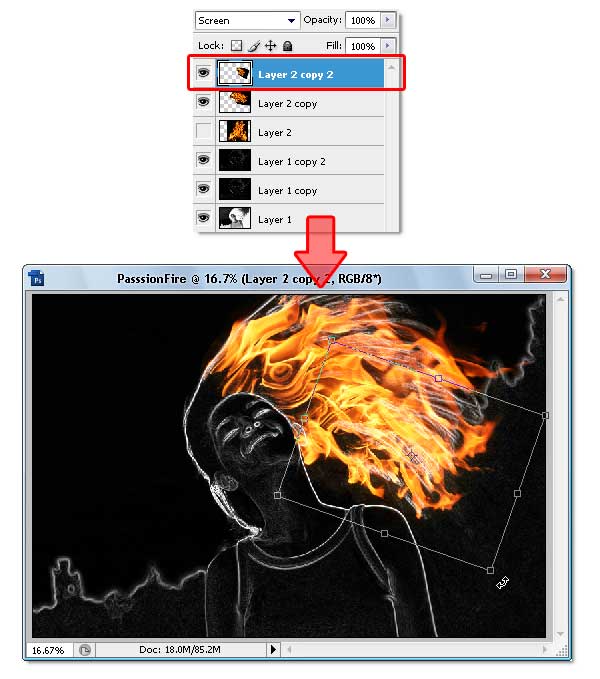
    Duplicate "Layer 2" by pressing Command + J. Make sure you use the Screen Blending mode, same as the original "Layer 2." Next, make "Layer 2" become invisible by hiding it from the layers panel.
    09.jpg

    Step 10

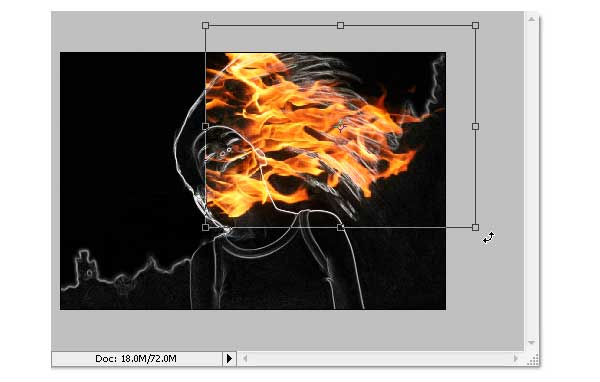
    Click the "Layer 2 copy" to make it active, then use the Free Transform command ( Edit > Free Transform) to rotate and resize the fire image like shown below. Don't forget to press Enter when you're done transforming.
    10.jpg

    Step 11

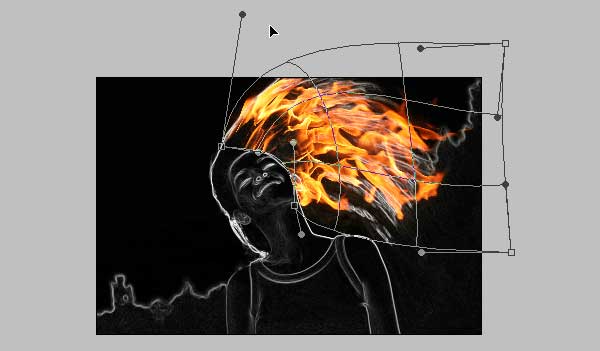
    Still in the same layer, now use the warp command (Edit > Transform > Warp) to bend the fire image - so it following the hair flow. Press Enter when done. See the example below as a reference.
    11.jpg

    Step 12

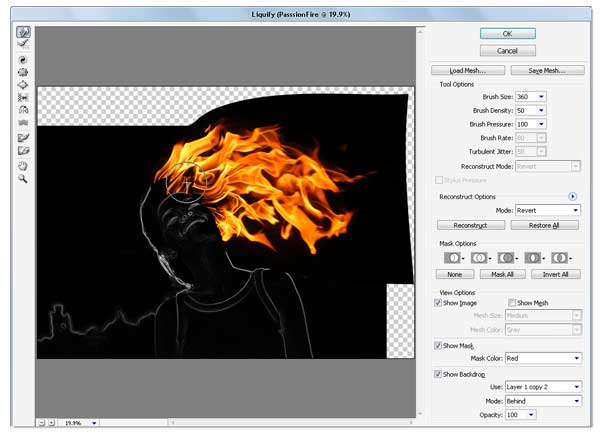
    If you feel the result is not quite good enough, simply use the Liquify filter to fix it. I assume you already know how to use the liquify filter; the Forward Warp tool and Twirl Clockwise tool is the only tool I used to get this result (see image below).
    12.jpg

    Step 13

    Duplicate the "Layer 2" copy, then use the Free Transform command to resize and rotate the fire image in the current layer. Don't forget to reposition the fire image too. Once you get this composition (see image below), hit Enter.
    13.jpg

    Step 14

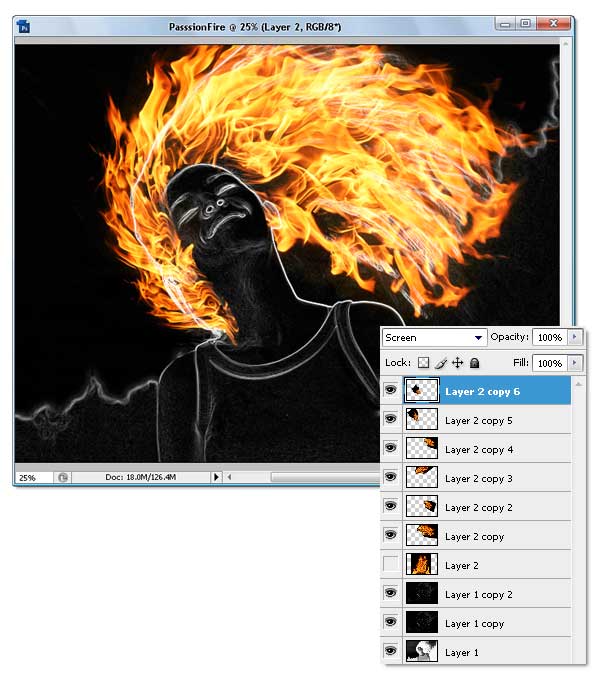
    Repeat the previous process to get the hair covered with fire. Just duplicate and modify the layer until you get all the hair part covered. If needed, use the Liquify Filter again. The end result of this process should look like the image below, notice how many layers are used.
    14.jpg

    Step 15

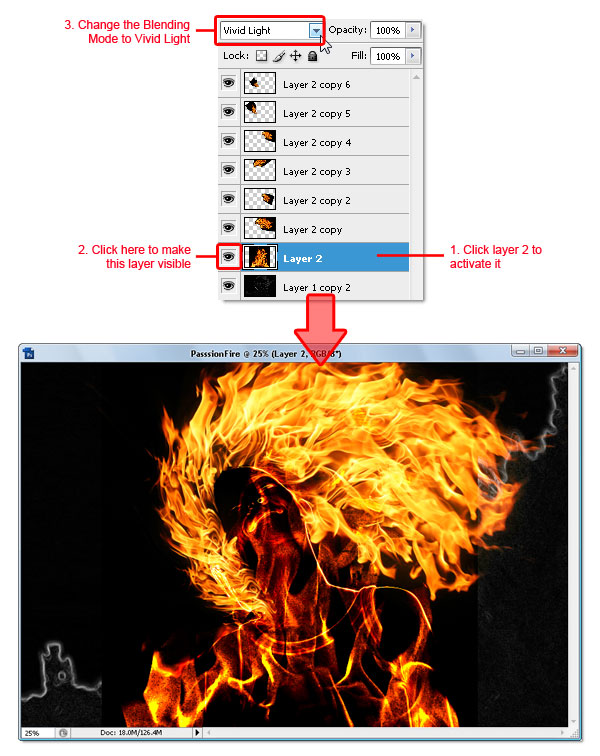
    Okay, now activate "Layer 2" and make it visible again. Then Change the Blending Mode to Vivid Light. This step will colorize only the white line in the layer below it.
    15.jpg

    Step 16

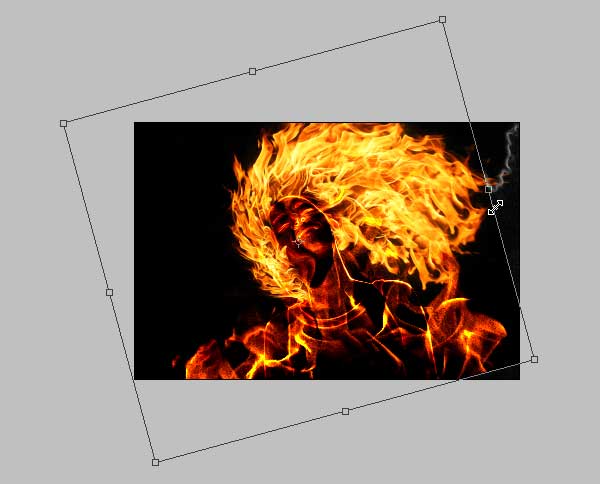
    Still in "Layer 2," apply the Free Transform command to resize and rotate the fire image like shown below. The purpose is to cover up the girl's body and hair with the fire texture. Press Enter when you're done transforming.
    16.jpg

    Step 17

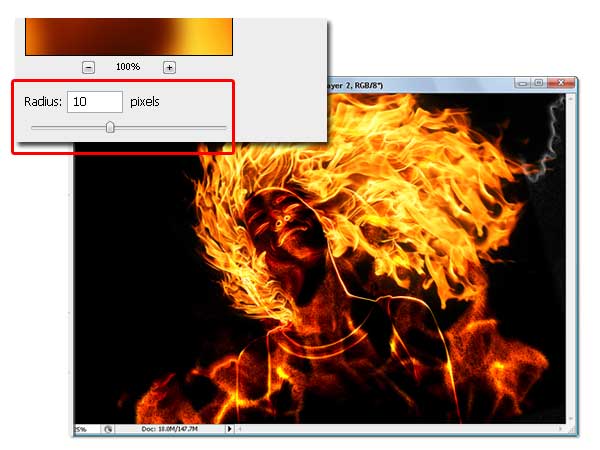
    We're gonna blur the fire image in "Layer 2," To do so, apply the Gaussian Blur filter from the Filter > Blur > Gaussian Blur menu. Fill the Radius around 10 to 15 pixels, then click OK when done. Blurring the fire image will cause its texture to blend smoother with the layer below it.
    17.jpg

    Step 18

    Now add a layer mask to "Layer 2." Then use a soft round Brush tool with Opacity at 100%. Set the brush size according to your need, then just mask until the fire outside becoming hidden. See the process below.
    box.gif

    Step 19

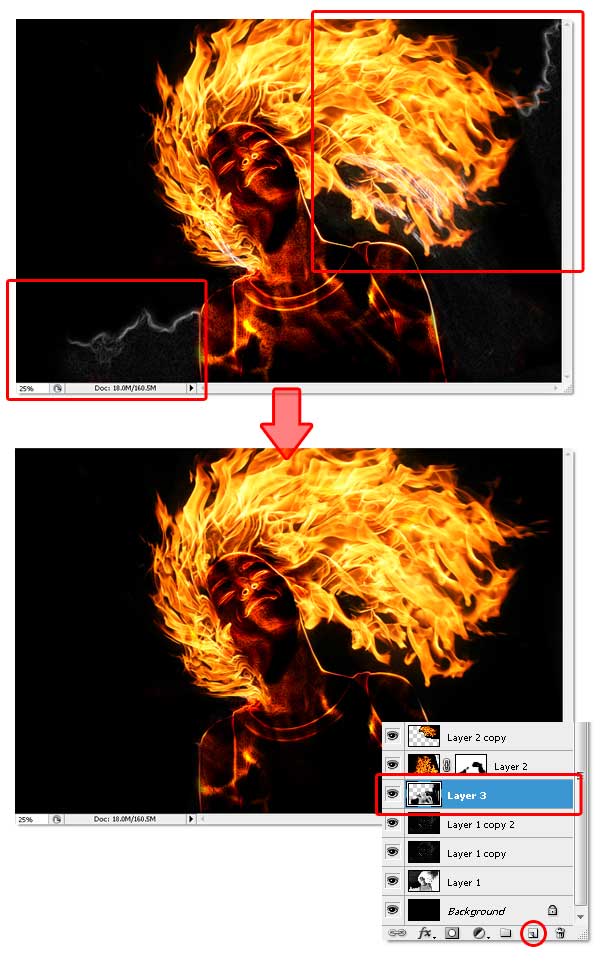
    Sure we will remove the white line shown in the image (marked in red rectangle below). First, add a new blank layer below "Layer 2." Then simply paint it with black using the soft round brush tool.
    19.jpg

    Step 20

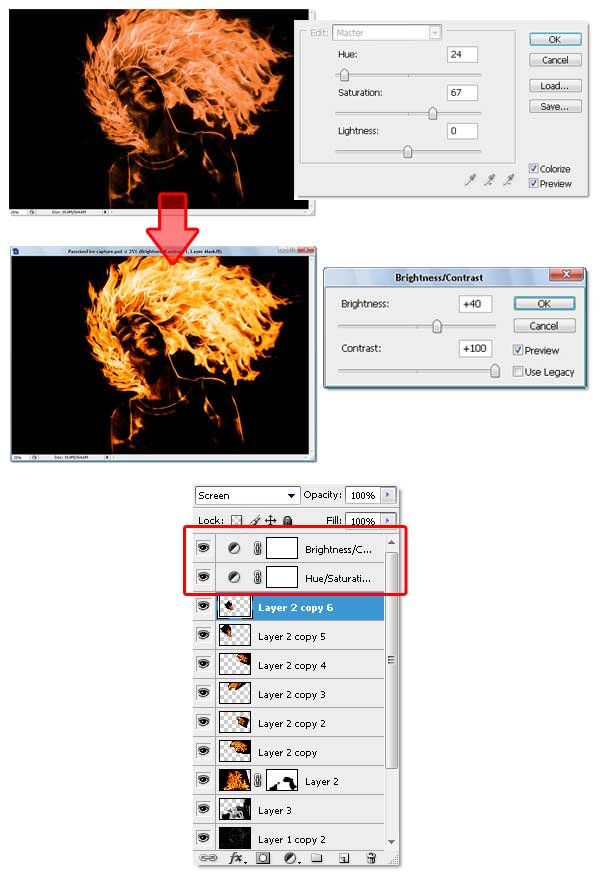
    Now go to the top most layer (mine is: "Layer 2 copy 6"), add two adjustment layers which is Hue/Saturation and Brightness/Contrast. Careful not to change the layer adjustment order, or the color effect will be wrong. Below you can see the setting I used to complete this step, also pay attention to the adjustment layer order.
    By adding a Hue/Saturation adjustment layer, we unify all colors. The Brightness/Contrast adjustment layer brings more color contrast and makes sure the image color's looks like real fire.
    20.jpg

    Step 21

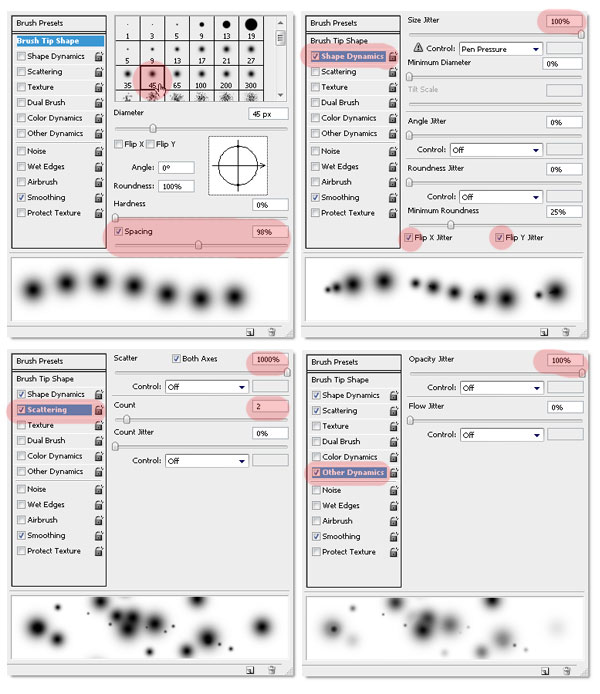
    I'm sure you notice the fire sparks effect. I create it using the Brush tool with this simple setting. No special brush needed, but if you have one that will be useful then feel free to use it. Below you can see all the settings I used within the Brush palette, of course you can change the setting as you like. Just make sure the brush spatter enough and vary the size.
    21.jpg

    Step 22

    Now to use the modified brush, create a new blank layer below the adjustment layers ( mine is named "Layer 4"). Choose 50% gray from the swatches palette, then you can start creating the fire sparks. Remember not to be monotone, resize the brush size if needed. I start using a big sized brush, then reduce it to smaller size (you can change brush size faster by pressing the bracket keys on the keyboard ).
    If you're not sure how to do this steps, just imagine where and how the fire sparks will flow if it was real fire. For me, imagining stuff is very helpful.
    box.gif

    Step 23

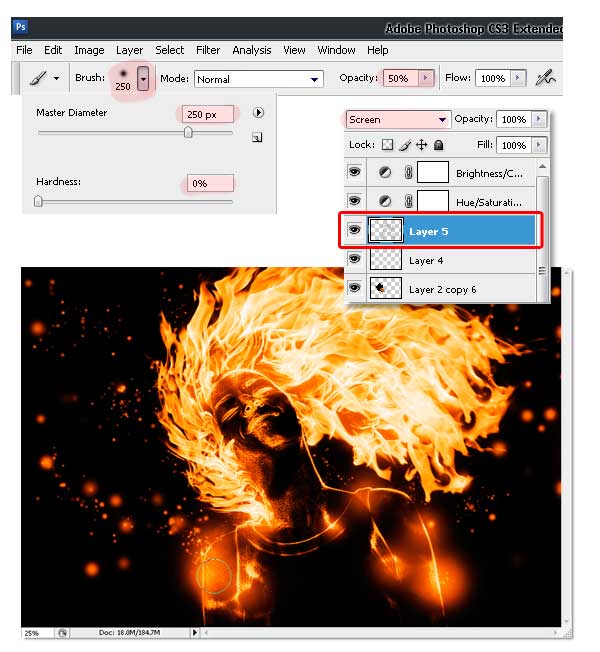
    To make it more interesting, create a new layer and change the Blending Mode to Screen. Then use a normal soft round brush (not the one we modified earlier), with an Opacity of 50%. Just click in the part of body, neck, and hair. I'm not sure how to explain this, but you can see the difference between the above and below images.
    23.jpg

    Conclusion

    And that's all of it! Hope you learned something new and had fun. You can view the final image below or view a larger version here.
    final.jpg


    sharki333

    Well-known member
  • Feb 7, 2008
    6,280
    294
    83
    mal waththe!!!
    Realistic water running on tap

    Realistic water running on tap

    Through this tutorial, we will learn how to use a combination of photoshop filters to create a realistic effect of water running from a tap..

    _1.jpg
    Let's start with a new document 500x500 pixels

    Press "D" to reset your color palletes to black and white.
    Create a new layer, then apply the following filter:
    Filter » Render » Clouds

    _2.jpg

    Apply: Filter » Blur » Gaussian Blur
    Set: 6


    Apply: Filter » Blur » Motion Blur
    Set: Angle: 90, Distance: 80


    _3.jpg

    Now go to Image » Image Size
    Set: width: 300pixels (UNTICK the "Constrain Proportions" option ) then click ok.
    So now your document should be 300 width and 500 high.


    4.jpg

    Next, go to Filter » Artistic » Plastic Wrap
    Set: Highlight Strength: 15, Detail:10, Smoothness:10

    Apply Filter » Sketch » Chrome
    Set: Detail:0, Smoothness: 8


    5.jpg

    Go to Edit » Fade Chrome
    Set: Opacity:100%, Mode: Hard Light
    6.jpg

    Now go to Image » Image Size
    Set: height:800 pixels, leave all other settings, and make sure the "Constrain Proportions" is NOT checked.
    _4.jpg

    Now go to Edit » Transform » Warp
    Move the anchors around, inward, up and down, just play with it to shape it like running water.

    8.jpg

    Now, just add some gradient color to the background layer, and change it's water layer's blending mode to "Hard Light"


    final.jpg
     
    Last edited:

    thimal3000

    Well-known member
  • Oct 19, 2008
    4,052
    81
    48
    Colombo
    The process is very easy and we will be using the super powerful Brush Engine, one of the coolest things in Photoshop. Step 1

    Create a new document in Photoshop. As usual I will use a nice scree resolution, 1920x1200 pixels. Fill the background layer with a very dark grey, not black. If you fill it with black the effect won't work. The color I used was #262626.
    Step_1.jpg

    Step 2

    Select the Ellipse Tool (U), and create a circle. Use black for the color, and go to Layer>Layer Style>Blending Options. Change the Fill Opacity to 50%. After that select Stroke. Use 10 pixels for the size, Inside for the Position and Black for the color.
    Step_2.jpg

    Step 3

    Select the ellipse and go to Edit>Define Brush. Name your brush and that's done. Now we have a new brush ;)
    Step_3.jpg

    Step 4

    Go to Window>Brushes (F5). The first thing to do in the Brush Engine is to select our new Brush. The size won't matter because you will change that when you use it. The Spacing, however, is very important. Chage the value to 100%. After that, select the Shape Dynamics, then Scattering and Other dynamics. For the values use the image below.
    Step_4.jpg

    Step 5

    Before we start painting our bokehs let's create a new layer and fill it with a colorful gradient. I created a new layer and used the layer styles to do that but feel free to do the way you are used to. My gradient settings are as follows: Blend Mode is Overlay, Opacity is 100%, Style is Linear, and the Angle is 45º. The colors I used are: Yellow (#00085), Cyan (#1bdaeb), Purple (#9b3b81), Orange (#d27e34).
    Step_5.jpg

    Step 6

    Let's create a new Folder in our Layer Palette. Rename the folder to Bokehs and change the Blend Mode to Color Dodge. Then create a new layer, choose white for the color and select the Brush Tool (B). Now just paint some ellipses with our custom brush. For this first layer use a big size, like 500-600px.
    Step_6.jpg

    Step 7

    Go to Filter>Blur>Gaussian Blur. For this first layer use 20 pixels for the Radius.
    Step_7.jpg

    Step 8

    Create another layer and paint more brushes. This time however use a smaller size for the brush. After that go to Filter>Blur>Gaussian Blur. Use 4 pixels for the Radius.
    Step_8.jpg

    Step 9

    Create another layer and repeat the previous step, this time however use a much smaller brush. Apply the Gaussian Blur to this layer as well, but use only 1 pixel for the Radius.
    Step_9.jpg

    Conclusion

    Now just add your logo and that's it. We have a nice wallpaper. The idea of this tutorial was once again to show the power of the Brush Engine. You can try different shapes for this same effect, like hexagons for example. Also you can play a bit with the blurs to add more depth to the final design. Now it's up to you.

    Click on the image for a full preview
     

    thimal3000

    Well-known member
  • Oct 19, 2008
    4,052
    81
    48
    Colombo
    The Vista Window at a Glance

    Before you try to design something, it’s almost always a good idea to examine the way something should look first. Let’s take a look at a Vista “Window”.
    vista_window_example.jpg
    Making note of all the important parts of this design will help us remake the design ourselves. Let’s start with the Main Window
    .
    The Main Window

    The main window makes up the entire frame of the window, and holds all of the windows smaller components. Therefore, it seems like a good place to start. We’ll begin by creating a new document (Choose the document size based on how large you want your window to be). The background I’ll be using is shown below.
    background_example.jpg
    We’re going to place the main window in the center of this new document. To create the box, select the Rounded Rectangle Tool from the toolbar, and then set the radius of the rectangle to 5px in the Options Bar. Select a foreground color of Black, and create a nice sized rectangle across your canvas.
    black_rectangle.jpg
    Set the Blending Mode of this shape layer to “Lighten“. Doing this will keep the shape intact, and make blending options 100% visible, while making the black shape invisible. Go into the Blending Options (Right Click Layer > Blending Options) and apply the following:
    framedropshadow.png
    frameborder.png
    frameinnerglow.png
    framebevel.png
    framecolor.png
    framegradient.png
    customgradient.png

    Phew… That’s a lot of styles…
    mainframe.jpg


    It sure does come out looking nice though!


    The Light Rays


    As we’ve seen in the real Vista Window, there are some nice rays of light that appear to be passing through the main window. We’re going to recreate that effect now. Turn your Main Window Layer into a selection (Ctrl + Left Click Layer Thumbnail). Create a New Layer Set above this layer. While this layer set is selected, create a new layer mask to reveal the selection (Layer > Layer Mask > Reveal Selection). Any layers placed inside of this layer set will only be visible now inside of this mask.
    lightlayermask.gif
    Create a new layer, and place it inside of this Layer set. Using the Rectangular Marquee Tool, make a thin selection extending from the top to the bottom of your canvas, and then using the Paint Bucket Tool, fill the selection with White.

    lightrayselection.jpg


    Deselect everything (Ctrl + D), and then Rotate this layer using Transform (Ctrl + T, or Edit > Transform > Rotate). Try to make it angle out a bit, to about -45*. You can enter in this value in the options bar, or hold shift, and rotate the layer in intervals (default of 15* intervals).

    transformray.jpg


    Apply a Gaussian Blur (Filter > Blur > Gaussian Blur) with a value somewhere between 2-5. Using the Eraser Tool (Large, Soft default brush 200-250px, 0% hardness), go just slightly over the right edge. Decrease the layer opacity to the 10-30% range.

    singleray.jpg


    Complete this series of steps several more times to create a few similar light rays. Try to overlap some, and change the blur value & opacity to get a nice collection of rays.

    lightrayscomplete.jpg


    At long last, the Main Window is completed! Now to move onto the Inner Window.
    Creating the Inner Window

    Be sure to be working above all other layers & layer sets at this point. To begin, we need to create a shape for the inner window. Draw out a rounded rectangle shape, just as you did to create the shape for the main window.

    innerwindowframe.jpg


    Set this layers Blending Mode to lighten, as you did with the original. Apply the following blending options to this shape layer:
    inner_window_outer_glow.png
    inner_window_stroke.png


    Create a new Layer Set
    , and create a layer mask based off the inner window. In this set, you’ll have your Window’s contents. You’re window might look something like shown below:

    vista_inner_window_complete.jpg


    That’s a pretty slick lookin’ Vista Window if you ask me!

    Final Remarks


    This is an excellent design technique for interface & layout design when used in moderation. I’ve seen it used in website designs for blogs, forums, and of course Microsoft new Operating System. There are a few notable “Extras” tacked onto the Windows Vista version of the design (such as the “Minimize”, “Maximize”, and “Exit” buttons, as well as the title), but those probably aren’t quite as practical in everyday design. With your new knowledge in blending options, you could probably replicate the exact look yourself!

    vista_window_final.jpg


    sharki333

    Well-known member
  • Feb 7, 2008
    6,280
    294
    83
    mal waththe!!!
    How to Create a Severed Arm in Photoshop

    How to Create a Severed Arm in Photoshop


    Step 1

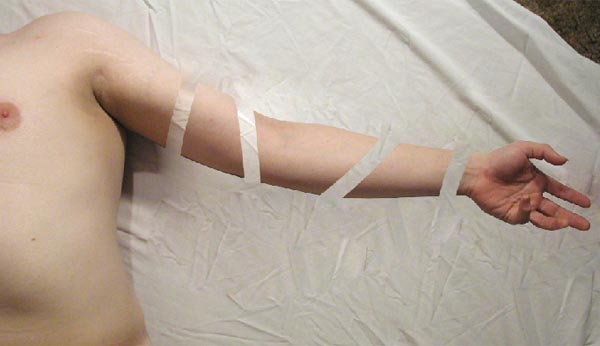
    We will be using two different stock items for this project - first, the arm from cobweb-stock (use "Arm08.jpg" from the zip file) and a lump of meat from stock xchng. Please remember to follow these artists rules and credit them where appropriate.
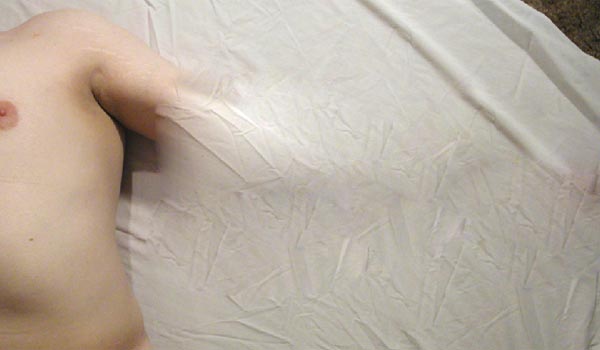
    We start by opening the arm picture in Photoshop and duplicating the "Background" Layer by clicking Command + J. We want to preserve the background layer for later on. Hold the Alt key + double-click the duplicate layer, then rename it "Arm."
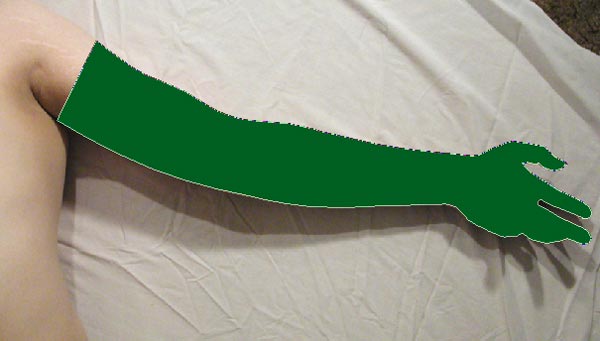
    Choose the Pen Tool (set to Shape Layer) to cut out the arm from its background. Its important to have a clean cut, so first zoom into the picture using the Magnifying Glass and carefully trace around the edge cutting across the top of the arm, as in the picture below. If you set the Fill in the Layer Palette to a 0% you will be able to see the arm, but still manipulate the path.
    pentool1.jpg

    Step 2

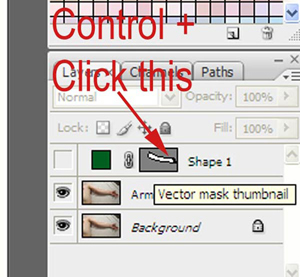
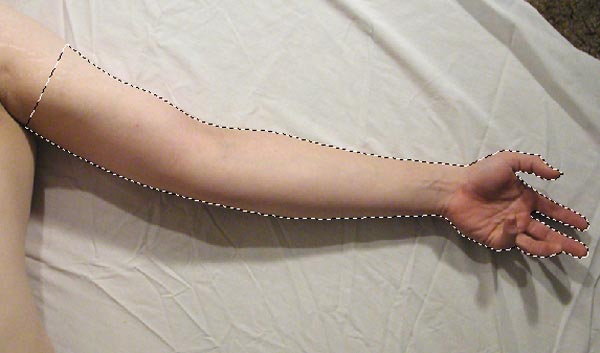
    Once you have completed your path and you are happy with it, click the Eye Icon in the Layer Palette next to the Shape Layer to hide it. Follow this by holding Command + Clicking the Shape Layer. This puts a Selection around the "Arm" Layer, now press Command + J on the keyboard to create a copy of the arm onto a new Layer, rename this Layer "Arm Prime" and hide it by clicking the Eye Icon.
    shapeselection.jpg

    selection.jpg

    Step 3

    We are now going to remove the arm and shadow from the "Arm" Layer. Choose the Heal Tool from the Toolbox with mode set to normal in the options bar. Sample some of the sheet around the arm by Holding Alt + Clicking the sheet. Luckily the sheet is quite creased so making it look convincing will be easy.
    Start painting over the arm and resample different parts of the sheet to keep the texture from repeating. Activate "Arm Prime" from time to time to make sure you don't go to far up the arm. Eventually the arm and shadow will be removed leaving you with a stump and a clean sheet as in the picture below.
    armgone.jpg

    Step 4

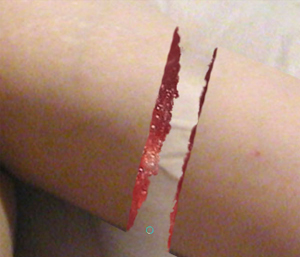
    Reactivate the "Arm Prime" layer by pressing the Eye Icon next to it in the Layer Palette. Next we want to add a Layer Mask (Layer > Layer Mask > Reveal All) to this Layer so we can mask out some of the arm. Choose a Hard Edged brush from the Brush Picker setting the size to 80 pixels, Opacity of 100% and Flow of 100%. Next set your Foreground color to black (#000000) and on the Layer Mask draw four cutting lines as in the picture below.
    cuts.jpg

    Step 5

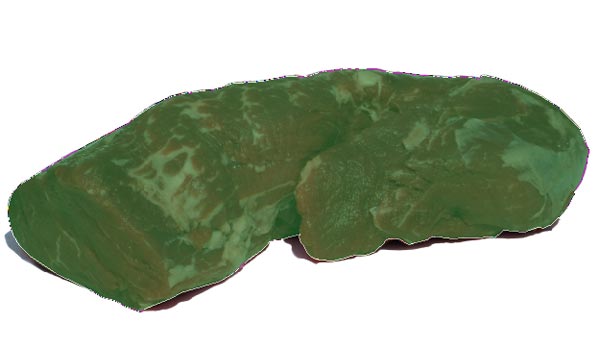
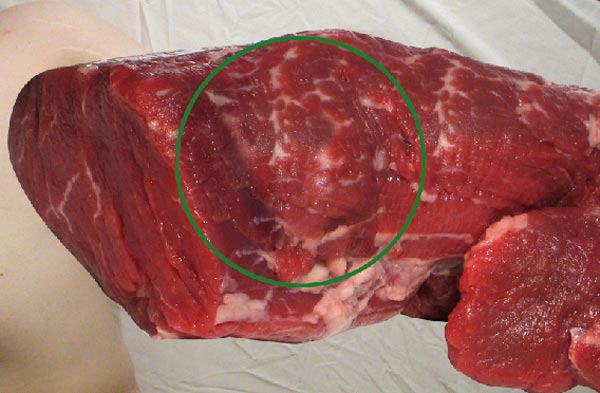
    Save your progress and open the meat texture file that we downloaded earlier. Once again cut it out from its background. You don't need to be as careful with this as we want to rough it up a bit soon anyway. Use your Pen Tool as before to trace around the edge - be careful not to select the shadow.
    meat1.jpg

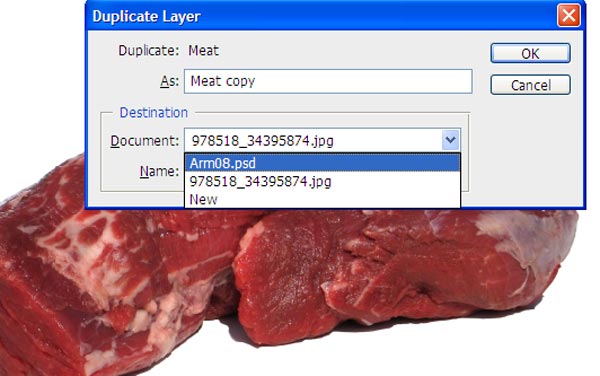
    As in Step 2 copy this to a new Layer by pressing Command + J, and rename this layer "Meat." We now want to copy it to the working document, we do this by holding the Alt key and dragging the "Meat" layer to the "Create a New Layer" Icon within the Layer Palette . This will open a dialog asking you what document you want to copy it too. Choose "Arm08" (which is our working document) from the list, and Click OK. Finally, go back to the "Arm08" document.
    altcopy.jpg

    Step 6

    Move the "Meat" layer to the top of the Layer Stack. Use the Healing Brush to remove some of the larger white patches of fat on top of the meat with other sampled texture. If you don't have the Healing Brush then feel free to use the Clone Stamp. Position the Meat Layer so it totally covers the arm and hand, move the Meat Layer below the "Arm Prime" Layer.
    meat2.jpg

    Step 7

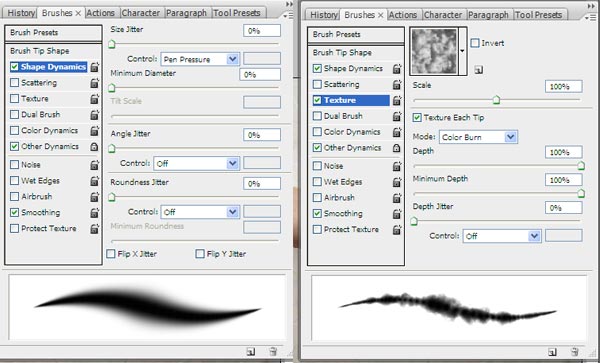
    We are now going to draw the flesh back onto the arm stumps, we begin by adding a Hide All Layer Mask to the "Meat Layer" (Layer > Layer Mask > Hide All). Next we want to choose a Soft Edge Brush from the Brush Picker with a size of around 10-20 pixels, Opacity 100% and Flow 100%, the settings then need to be adjusted.
    Press F5 or go to Window > Brushes to open the Brush dialog window. If you are using a pressure sensitive tablet then, your first stop is the Shape Dynamics, under Size Jitter locate the Command Drop Down List and select Pen Pressure.
    brushsd.jpg

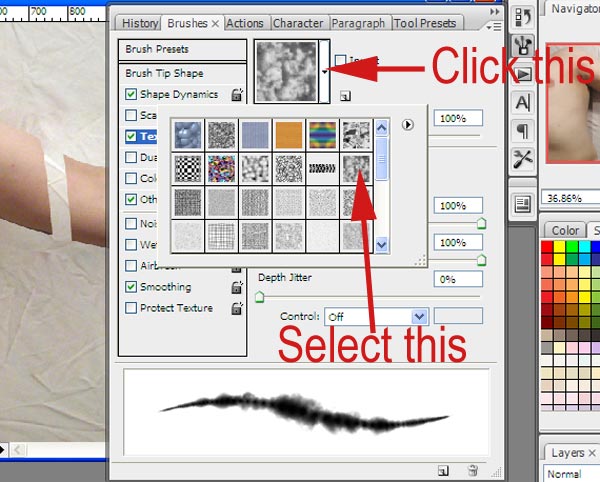
    We then want to change the Texture of the Brush to give it a nice rough look, choose Clouds from the provided list of textures, with Scale 100% also tick Texture Each Tip.
    texture.jpg

    Step 8

    We are now ready to paint the meat back on, Select the Meat Layer's Mask and with the Brush's Foreground Color set to White (#FFFFFF) gradually build up the arm as in the picture below. Repeat this for each section of arm.
    flesh1.jpg

    armcuts.jpg

    Step 9

    The shadow of the arm is used to ground the image and make it look less fake. We use the shadow from the original photo we preserved as the background layer. Locate the "Arm" Layer and Add as Reveal all Layer Mask (Layer > Layer Mask > Reveal all).
    We will now mask out some of the "Arm" layer revealing the shadow below, try and follow the shape of the arm. Once again we will be using a Soft edge brush, or you can continue to use the textured brush we created in the last step if you wish. This will add a rough edge to your shadow especially around the stumps.
    shadows.jpg

    Step 10

    The project is almost complete. The final steps are to draw some veins and strings of flesh onto the stumps and make some shadows. We shall reuse the "Meat" layer for this step.
    First we need to copy this layer, either press Command + J or drag it to the new Layer Icon within the Layer Palette. The new layer will be called "Meat Copy." Drag this above the "Arm Prime" layer and delete its Layer Mask by right-clicking on the Mask and selecting Delete Layer Mask. Once again the whole slab of meat should be visible.
    The meat needs to be a little darker for the strings - so we adjust it with Levels (Image > Adjustments > Levels) setting the Input Levels to 0, 0.64, and 255. We are then going to add another Hide All Layer Mask to this Layer (Layer > Layer Mask > Hide All>).
    Choose the Brush Tool again, the textured brush should still be active. If not, then set it again as in Step 7, adjust the size so it is very small around 4 or 5 pixels. On the Layer Mask draw some strings of flesh joining the stumps together. Draw it from flesh to flesh - not skin to flesh.
    strings.jpg

    Step 11

    The strings of flesh will cast shadows down onto the cloth beneath, we can easily fake this by choosing the "Meat Copy" layer Mask and holding Command while Clicking it. This will put a selection around the strings.
    Next we make a new Layer called "Shadow" and fill the selection with black (Edit > Fill > Black). Using the Move Tool adjust the shadow slightly so it is away from the strings. The black will be too dark so we reduce the Opacity to around 50%. You can also add a 2 pixel Gaussian Blur if you feel it is still too sharp. Finally, drag it below the "Meat" layer.
    smallshadows.jpg

    Step 12

    Choose the Burn Tool from the Toolbox and set the Range to Midtones. Next set the Exposure to 20% and click the Airbrush option. Select the "Meat" layer and add some dark edges where the meat is exposed. Select "Arm Prime" and change the range to shadows, then burn the flesh where the arm has been severed.
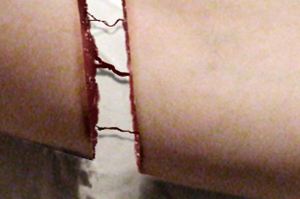
    burn.jpg

    Conclusion

    The final and probably the easiest step is to create a Black And White Adjustment Layer at the top of the layer stack and change the Blending Mode to Soft Light. This makes the picture darker and more washed out. If you don't have the Black and White Adjustment Layer option, then create a Hue/Saturation Adjustment Layer and reduce the Saturation to -100.
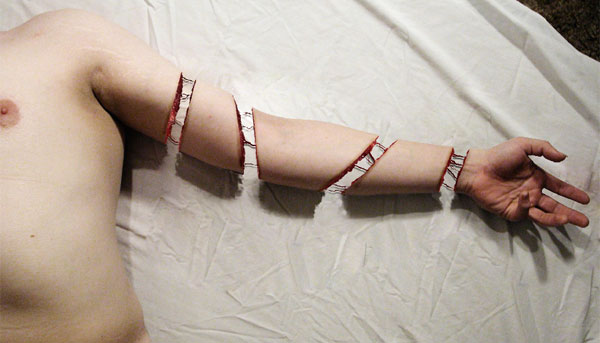
    Have fun cutting up your own meaty images. The final image is below.
    final.jpg
     

    pradeeplk1025

    Well-known member
  • May 23, 2007
    7,537
    3,641
    113
    Mata mage photo ekak Edit karanna kiyala dennoooo...... All i want to do is Add a Frame, Skin care and some beautiKACHAL things... Please, anik ayatath godak wedagath wei kiyala hithanawa thaman ge photo eka Edit karanna denaganna eka... Teach us please! :)