

Latest ads
-
 RHCSA, RHCE, AWS, Docker, Kubernetes Training
- Sanjeewani95
- Updated:
-
 🛡️ Kaspersky Antivirus – 1 Year / 1 Device | Rs. 2,300 | Only 9 Left
- KSPathirana
- Updated:
-
Professional CCTV Installation Service
- Techguy231
- Updated:
-
I'll research & write an article - Rs. 2000 onwards
- Blogerwiki
- Updated:
-
 House Plan
- lenura
- Updated:
!!!!!!!!!!!!!! Photoshop Tutorials !!!!!!!!!!!!!!
- Thread starter sharki333
- Start date
You are using an out of date browser. It may not display this or other websites correctly.
You should upgrade or use an alternative browser.
You should upgrade or use an alternative browser.
elakiri machan ona una gaman help illanawa....
ela ela wedeeeeeeeeeeeee


~!!! Watercolor !!!~
~!!! Watercolor !!!~

 if u like my post plz rep+ me
- Open a picture inside Adobe Photoshop.

- Press Ctrl+J to duplicate the layer and then change the blending mode to Multiply.

- Go to Filter> Stylize> Find Edges and you should start seeing the watercolor Photoshop effect.

- Now go to Filter> Noise> Median and play around with the settings to get the effect you like.

- Here's the final result from this Watercolor Photoshop effect.


 if u like my post plz rep+ me


~!!!Age Progression !!!~
~!!!Age Progression !!!~
[FONT=arial, verdana, helvetica]Preface[/FONT]
[FONT=arial, verdana, helvetica] I've been asked several times by different members to post a tutorial on how I age-progress a person. So, here it is!

Men and women age a little bit differently but since I've only aged female celebrities thus far, I'll just focus on women for this tutorial. I’ll be using the image of Katie Holmes that I did for a past W1K contest, as an example. [/FONT]
[FONT=arial, verdana, helvetica]Step 1: Choosing an Appropriate Photo[/FONT]
[FONT=arial, verdana, helvetica] When deciding to age-progress a celebrity’s face, I try to select a picture that is touched-up as little as possible.

I find that candid shots, or any shots that have not been taken in a studio, work best because the resulting harsh lighting reveals more of the skin’s details i.e. slight bags under the eyes and faint wrinkles. The appearance of such details makes it all that much easier to visualize how your subject will age. Visualizing what the end result will look like brings you one step closer to aging her face realistically.

In Katie’s case, we can see very faint horizontal lines on her forehead, fairly obvious lines under her eyes and lines bracketing her mouth. [/FONT]
[FONT=arial, verdana, helvetica]Step 2: Collecting Reference Material[/FONT]
[FONT=arial, verdana, helvetica] Reference material is key in my method of aging. Keeping Katie’s face in mind, I scoured the Web, looking for faces of old women who either resemble Katie and/or share the same facial expression. Here, Katie is smiling with her face positioned at a 3/4 angle so I tried to gather as many pictures of old women who are smiling in the same manner or close to that. I then opened up the picture of Katie in Photoshop and pasted the found images around her face on a separate layer, spread out to provide easy visual access.

Another kind of reference I like to use but is usually hard to find, is pictures of the subject’s parents. I managed to find a couple of reference pictures of Katie’s mother online and they really helped me to decide whether or not to give Katie a double chin. Since her mom has quite a bit of mass under her chin, I decided I would apply that to Katie too. [/FONT]
[FONT=arial, verdana, helvetica]Step 3: Thinning Brows[/FONT]
[FONT=arial, verdana, helvetica] Now the fun begins! The first thing I like to do is to thin out the subject’s eyebrows and eyelashes. The older people get, the thinner their hair gets - either because hair falls out and/or because it dries out as it greys.

So to achieve this, I like to use the Clone Stamp tool at 100% with a relatively small brush size depending on the size and resolution of the image. I sampled the surrounding skin to thin and reduce the number of hairs. [/FONT]
[FONT=arial, verdana, helvetica]Step 4: Mold the Face[/FONT]
[FONT=arial, verdana, helvetica] Next, I like to add the basic sags to the skin. I do this in the Liquify mode. I tried to create sagging effects to the cheeks, jowls and the cliff just above the eyes by using the Push tool. For the eyes, I tried to be subtle; otherwise she may end up looking somewhat ghoulish.

From what I’ve learned about the aging process, I know that while bones cease to grow, and in fact shrink, cartilage does continue to grow. As a result, the end of a nose may appear larger as a person grows older. So while I was still in the Liquify mode, I used the Push tool to extend the length of the nose slightly. Then I used the Bloat tool to also enlarge it slightly, being careful not lose the essential quality or character of the nose. Go too far and it may not look like Katie anymore.
[/FONT]
[FONT=arial, verdana, helvetica]Step 5: The Aforementioned Double Chin[/FONT]
[FONT=arial, verdana, helvetica]

Based on her mother’s pictures, I then added a fairly massive double chin. I initially used the Airbrush tool with some fairly broad strokes, sampling the colors that were already in the area of her neck. I then worked in the details with a finer brush size. Also, keep in mind that I was also using the other reference photos of older women to guide me. [/FONT]
[FONT=arial, verdana, helvetica]Step 6: Wrinkle Up the Eyes[/FONT]
[FONT=arial, verdana, helvetica] For me, the most important parts to get right are the eyes. They can make or break the project. Done wrong and the picture may no longer be identifiable as one of Katie Holmes anymore. I sought out the fine lines around the eyes and I tried to imagine how they would progress into wrinkles. I then extended them in length and width accordingly. Referencing the pictures of old women helped a lot with this step.

I used a combination of the Stamp tool and Brush tool. I wish I could explain my technique at this point in a more clinical manner but mostly I relied on my artistic instincts. I emphasized the wrinkles around the eyes by widening and deepening the lines slightly and increasing the contrast by darkening the recesses and lightening the edges. Also, I extended wrinkles to the cheekbone areas. I then applied the same technique to the wrinkles around the mouth and to the forehead. [/FONT]
[FONT=arial, verdana, helvetica]Step 6: Reducing the Lips[/FONT]
[FONT=arial, verdana, helvetica] In this step, I work on the lips. As people grow older, the outline of the lips tends to recede. Using the Stamp tool, I sampled the skin surrounding the lips and thinned them out.

While I was at it, I also added a few vertical wrinkles above the lips to give her a bit of a "prune" effect. We just want a hint of that, so don’t carve out deep lines; deep lines would only be necessary if she was puckering her lips. [/FONT]
[FONT=arial, verdana, helvetica]Step 7: Planning Out More Wrinkles[/FONT]
[FONT=arial, verdana, helvetica]

Here, on a separate layer, I faintly outlined or sketched, with a relatively thin brush size, areas that I may or may not add more lines and wrinkles to. It’s easy to get carried away with the addition of wrinkles. So, I stopped, took a step back and assessed where to take to image. For me, it's essential and a great test to see what best works. [/FONT]
[FONT=arial, verdana, helvetica] Step 8: Touching Up the Wrinkles[/FONT]
[FONT=arial, verdana, helvetica] Based on the previous step, I added wrinkles where I thought they were needed most.

Overall, I found that the wrinkles and lines seemed a little flat in comparison to the rest of Katie’s features. They needed more definition so that they could pop out more. So, I highlighted the raised edges of the individual lines with the Brush tool and with a lighter skin tone. [/FONT]
[FONT=arial, verdana, helvetica]Step 9: Hairy Lips[/FONT]
[FONT=arial, verdana, helvetica] Facial hair becomes an issue with most women as they age. For some strange reason they lose it in the brow area and grow it back around the mouth area. I didn’t want Katie to be the exception so with a very fine brush size and the Brush tool, I added hairs to her upper lip.

I tried to make it as subtle as possible. Hairs too thick or dark would draw the viewer’s attention straight to her mustache and I didn’t want that. I also added more wrinkles to the area below the corners of her mouth. [/FONT]
[FONT=arial, verdana, helvetica]Step 10: Refining the Neck[/FONT]
[FONT=arial, verdana, helvetica]

I decided that the neck was too smooth for a woman of 75 years of age. So I added finer wrinkles to that area. Also, I added more mass and weight to her jowls with the airbrush by increasing the value of the tones in those areas thus creating more contrast between surface planes. [/FONT]
[FONT=arial, verdana, helvetica]Step 11: Adding Age Spots[/FONT]
[FONT=arial, verdana, helvetica] A key component to effective aging of a face is the addition of age spots.

So at this point, I sampled one of the darker skin tones on her face, and on a separate layer that was set to Multiply and 30% opacity, I brushed them in and tried to create irregular shapes (there IS no perfect age spot). You can add as many as you like; the amount varies from person to person. I decided to be conservative with Katie. [/FONT]
[FONT=arial, verdana, helvetica]Step 12: More Refinements[/FONT]
[FONT=arial, verdana, helvetica] I took a little break from it and came back to it later to possibly get a better perspective on it. When I looked at it, at this point, I decided that certain areas needed refining and added detail. This is the beauty of working with a high-resolution file; I can zoom in real close and deal with a wrinkle up-close and personal.

Unless their teeth were subjected to regular whitening, most people’s teeth yellow with age. Gums also recede, showing less gum and more bone. And so with that in mind, I sampled a yellowish-brown color and on a new layer that was set to Multiply and 30% opacity and painted that color to the teeth with the Brush tool. Her gums didn’t show to begin with, so receding the gums here wasn’t necessary. [/FONT]
[FONT=arial, verdana, helvetica]Step 13: Preparing the Hair[/FONT]
[FONT=arial, verdana, helvetica]

The finishing touch here is greying the hair. I began by creating a mask defining the area of the hair. I used the brush for this and tried my best to define as many loose strands of hair that I could.

With this mask as a selection, I then created a Hue/Saturation adjustment layer and reduced the saturation to –63.

I then created a new adjustment layer based on the same mask and adjusted the Brightness/Contrast to brightness +9 and contrast –36. As a result, I found that the darker areas were too pale and caused a loss of depth and so to adjust that, I then selected the mask and scratched out the darker areas with a 5px brush size at 50% opacity so that they could show through from the original image. [/FONT]
[FONT=arial, verdana, helvetica]Step 14: Hair Raising[/FONT]
[FONT=arial, verdana, helvetica] The next step was to raise the hairline and thin out the hair. Hair loss is common with both sexes.

I sampled the area at the top of the forehead and extended the skin area above the original hairline. [/FONT]
[FONT=arial, verdana, helvetica]Step 15: Greying the Hair[/FONT]
[FONT=arial, verdana, helvetica] A lot of details of the hair were lost in the previous step so with a thin brush size at 80 percent opacity I drew in fine grey hairs, sparsely laid out.

Patiently, slowly, stroke by stroke I added more and more hairs until I was happy with the amount of grey I had added. [/FONT]
[FONT=arial, verdana, helvetica]Step 16: Finishing Touches[/FONT]
[FONT=arial, verdana, helvetica] Finally, I took a step back, refined a few wrinkles here and there ET VOILA!

I hope this tutorial was insightful. It may not be the most technically detailed tutorial but it gives you a good idea of the process I go through to get the job done. Hopefully, it will help you create your own trophy-winning images for future Fountain of Age contests! [/FONT]
if u like my post plz rep+ me
[FONT=arial, verdana, helvetica]Preface[/FONT]
[FONT=arial, verdana, helvetica] I've been asked several times by different members to post a tutorial on how I age-progress a person. So, here it is!

Men and women age a little bit differently but since I've only aged female celebrities thus far, I'll just focus on women for this tutorial. I’ll be using the image of Katie Holmes that I did for a past W1K contest, as an example. [/FONT]
[FONT=arial, verdana, helvetica]Step 1: Choosing an Appropriate Photo[/FONT]
[FONT=arial, verdana, helvetica] When deciding to age-progress a celebrity’s face, I try to select a picture that is touched-up as little as possible.

I find that candid shots, or any shots that have not been taken in a studio, work best because the resulting harsh lighting reveals more of the skin’s details i.e. slight bags under the eyes and faint wrinkles. The appearance of such details makes it all that much easier to visualize how your subject will age. Visualizing what the end result will look like brings you one step closer to aging her face realistically.

In Katie’s case, we can see very faint horizontal lines on her forehead, fairly obvious lines under her eyes and lines bracketing her mouth. [/FONT]
[FONT=arial, verdana, helvetica]Step 2: Collecting Reference Material[/FONT]
[FONT=arial, verdana, helvetica] Reference material is key in my method of aging. Keeping Katie’s face in mind, I scoured the Web, looking for faces of old women who either resemble Katie and/or share the same facial expression. Here, Katie is smiling with her face positioned at a 3/4 angle so I tried to gather as many pictures of old women who are smiling in the same manner or close to that. I then opened up the picture of Katie in Photoshop and pasted the found images around her face on a separate layer, spread out to provide easy visual access.

Another kind of reference I like to use but is usually hard to find, is pictures of the subject’s parents. I managed to find a couple of reference pictures of Katie’s mother online and they really helped me to decide whether or not to give Katie a double chin. Since her mom has quite a bit of mass under her chin, I decided I would apply that to Katie too. [/FONT]
[FONT=arial, verdana, helvetica]Step 3: Thinning Brows[/FONT]
[FONT=arial, verdana, helvetica] Now the fun begins! The first thing I like to do is to thin out the subject’s eyebrows and eyelashes. The older people get, the thinner their hair gets - either because hair falls out and/or because it dries out as it greys.

So to achieve this, I like to use the Clone Stamp tool at 100% with a relatively small brush size depending on the size and resolution of the image. I sampled the surrounding skin to thin and reduce the number of hairs. [/FONT]
[FONT=arial, verdana, helvetica]Step 4: Mold the Face[/FONT]
[FONT=arial, verdana, helvetica] Next, I like to add the basic sags to the skin. I do this in the Liquify mode. I tried to create sagging effects to the cheeks, jowls and the cliff just above the eyes by using the Push tool. For the eyes, I tried to be subtle; otherwise she may end up looking somewhat ghoulish.

From what I’ve learned about the aging process, I know that while bones cease to grow, and in fact shrink, cartilage does continue to grow. As a result, the end of a nose may appear larger as a person grows older. So while I was still in the Liquify mode, I used the Push tool to extend the length of the nose slightly. Then I used the Bloat tool to also enlarge it slightly, being careful not lose the essential quality or character of the nose. Go too far and it may not look like Katie anymore.
[/FONT]
[FONT=arial, verdana, helvetica]Step 5: The Aforementioned Double Chin[/FONT]
[FONT=arial, verdana, helvetica]

Based on her mother’s pictures, I then added a fairly massive double chin. I initially used the Airbrush tool with some fairly broad strokes, sampling the colors that were already in the area of her neck. I then worked in the details with a finer brush size. Also, keep in mind that I was also using the other reference photos of older women to guide me. [/FONT]
[FONT=arial, verdana, helvetica]Step 6: Wrinkle Up the Eyes[/FONT]
[FONT=arial, verdana, helvetica] For me, the most important parts to get right are the eyes. They can make or break the project. Done wrong and the picture may no longer be identifiable as one of Katie Holmes anymore. I sought out the fine lines around the eyes and I tried to imagine how they would progress into wrinkles. I then extended them in length and width accordingly. Referencing the pictures of old women helped a lot with this step.

I used a combination of the Stamp tool and Brush tool. I wish I could explain my technique at this point in a more clinical manner but mostly I relied on my artistic instincts. I emphasized the wrinkles around the eyes by widening and deepening the lines slightly and increasing the contrast by darkening the recesses and lightening the edges. Also, I extended wrinkles to the cheekbone areas. I then applied the same technique to the wrinkles around the mouth and to the forehead. [/FONT]
[FONT=arial, verdana, helvetica]Step 6: Reducing the Lips[/FONT]
[FONT=arial, verdana, helvetica] In this step, I work on the lips. As people grow older, the outline of the lips tends to recede. Using the Stamp tool, I sampled the skin surrounding the lips and thinned them out.

While I was at it, I also added a few vertical wrinkles above the lips to give her a bit of a "prune" effect. We just want a hint of that, so don’t carve out deep lines; deep lines would only be necessary if she was puckering her lips. [/FONT]
[FONT=arial, verdana, helvetica]Step 7: Planning Out More Wrinkles[/FONT]
[FONT=arial, verdana, helvetica]

Here, on a separate layer, I faintly outlined or sketched, with a relatively thin brush size, areas that I may or may not add more lines and wrinkles to. It’s easy to get carried away with the addition of wrinkles. So, I stopped, took a step back and assessed where to take to image. For me, it's essential and a great test to see what best works. [/FONT]
[FONT=arial, verdana, helvetica] Step 8: Touching Up the Wrinkles[/FONT]
[FONT=arial, verdana, helvetica] Based on the previous step, I added wrinkles where I thought they were needed most.

Overall, I found that the wrinkles and lines seemed a little flat in comparison to the rest of Katie’s features. They needed more definition so that they could pop out more. So, I highlighted the raised edges of the individual lines with the Brush tool and with a lighter skin tone. [/FONT]
[FONT=arial, verdana, helvetica]Step 9: Hairy Lips[/FONT]
[FONT=arial, verdana, helvetica] Facial hair becomes an issue with most women as they age. For some strange reason they lose it in the brow area and grow it back around the mouth area. I didn’t want Katie to be the exception so with a very fine brush size and the Brush tool, I added hairs to her upper lip.

I tried to make it as subtle as possible. Hairs too thick or dark would draw the viewer’s attention straight to her mustache and I didn’t want that. I also added more wrinkles to the area below the corners of her mouth. [/FONT]
[FONT=arial, verdana, helvetica]Step 10: Refining the Neck[/FONT]
[FONT=arial, verdana, helvetica]

I decided that the neck was too smooth for a woman of 75 years of age. So I added finer wrinkles to that area. Also, I added more mass and weight to her jowls with the airbrush by increasing the value of the tones in those areas thus creating more contrast between surface planes. [/FONT]
[FONT=arial, verdana, helvetica]Step 11: Adding Age Spots[/FONT]
[FONT=arial, verdana, helvetica] A key component to effective aging of a face is the addition of age spots.

So at this point, I sampled one of the darker skin tones on her face, and on a separate layer that was set to Multiply and 30% opacity, I brushed them in and tried to create irregular shapes (there IS no perfect age spot). You can add as many as you like; the amount varies from person to person. I decided to be conservative with Katie. [/FONT]
[FONT=arial, verdana, helvetica]Step 12: More Refinements[/FONT]
[FONT=arial, verdana, helvetica] I took a little break from it and came back to it later to possibly get a better perspective on it. When I looked at it, at this point, I decided that certain areas needed refining and added detail. This is the beauty of working with a high-resolution file; I can zoom in real close and deal with a wrinkle up-close and personal.

Unless their teeth were subjected to regular whitening, most people’s teeth yellow with age. Gums also recede, showing less gum and more bone. And so with that in mind, I sampled a yellowish-brown color and on a new layer that was set to Multiply and 30% opacity and painted that color to the teeth with the Brush tool. Her gums didn’t show to begin with, so receding the gums here wasn’t necessary. [/FONT]
[FONT=arial, verdana, helvetica]Step 13: Preparing the Hair[/FONT]
[FONT=arial, verdana, helvetica]

The finishing touch here is greying the hair. I began by creating a mask defining the area of the hair. I used the brush for this and tried my best to define as many loose strands of hair that I could.

With this mask as a selection, I then created a Hue/Saturation adjustment layer and reduced the saturation to –63.

I then created a new adjustment layer based on the same mask and adjusted the Brightness/Contrast to brightness +9 and contrast –36. As a result, I found that the darker areas were too pale and caused a loss of depth and so to adjust that, I then selected the mask and scratched out the darker areas with a 5px brush size at 50% opacity so that they could show through from the original image. [/FONT]
[FONT=arial, verdana, helvetica]Step 14: Hair Raising[/FONT]
[FONT=arial, verdana, helvetica] The next step was to raise the hairline and thin out the hair. Hair loss is common with both sexes.

I sampled the area at the top of the forehead and extended the skin area above the original hairline. [/FONT]
[FONT=arial, verdana, helvetica]Step 15: Greying the Hair[/FONT]
[FONT=arial, verdana, helvetica] A lot of details of the hair were lost in the previous step so with a thin brush size at 80 percent opacity I drew in fine grey hairs, sparsely laid out.

Patiently, slowly, stroke by stroke I added more and more hairs until I was happy with the amount of grey I had added. [/FONT]
[FONT=arial, verdana, helvetica]Step 16: Finishing Touches[/FONT]
[FONT=arial, verdana, helvetica] Finally, I took a step back, refined a few wrinkles here and there ET VOILA!

I hope this tutorial was insightful. It may not be the most technically detailed tutorial but it gives you a good idea of the process I go through to get the job done. Hopefully, it will help you create your own trophy-winning images for future Fountain of Age contests! [/FONT]
if u like my post plz rep+ me
~!!! Phoenix Hair Effect !!!~
~!!! Phoenix Hair Effect !!!~
With some simple brushing techniques, and a bit of color tweaking, you can spice up your photos with this flaming hair tutorial.
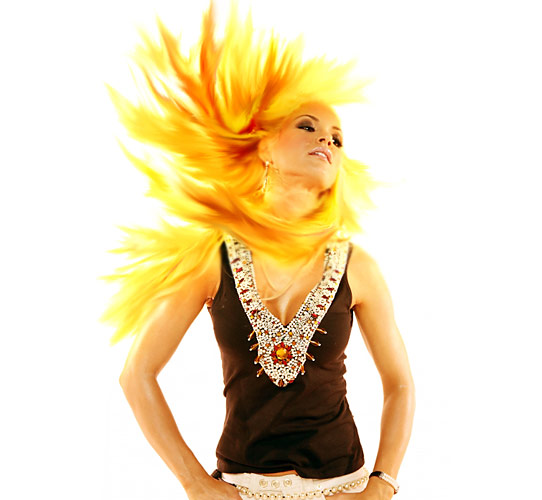
This effect relies on a good photo. You're going to a shot of some long hair, preferably flowing in the wind or tossed in the air. Blonde hair is going to work best, so if your model has darker locks, try changing it to blonde in Photoshop.
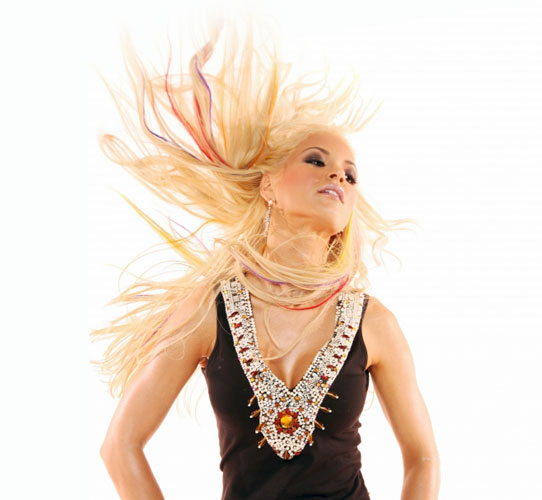

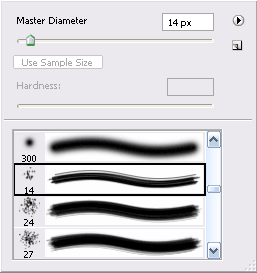
The majority of the work in this involves brushing the hair with the Smudge Tool. Use a grungy brush, with a small diameter and 50% strength to start. Begin towards the head and brush outwards, creating organic flowing movements.
Follow the hair's natural direction as shown in the illustration below (notice the wavy black strokes). Once you've touched every strand, duplicate your layer and use a larger diameter brush to go over the hair again. Be careful not to touch the ears or skin.
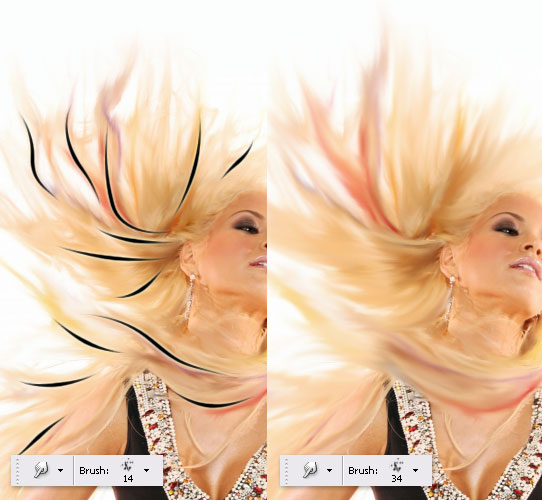
When your satisfied with your wispy hair, use the Polygonal Lasso Tool to select the hair -- you don't need to be exact here. Now Feather your selection by 15 pixels.
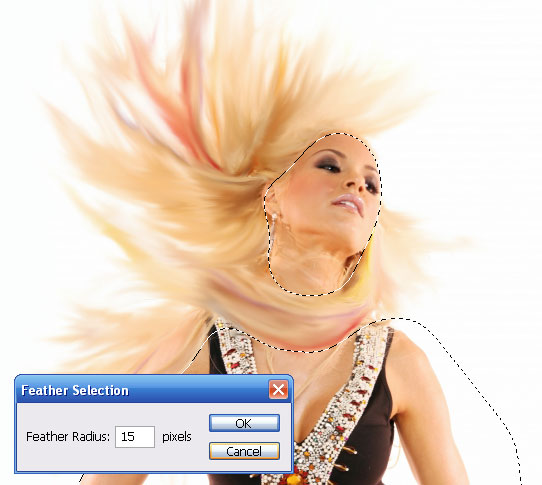
With your hair selected, bump up the brightness by +9, and the contrast by +41. These settings will vary depending on your image -- we're just trying to intensify the hair. Now comes the color correction. Make the hair glow by adding yellow shadows and highlights. Play with the settings until you've got your fire.
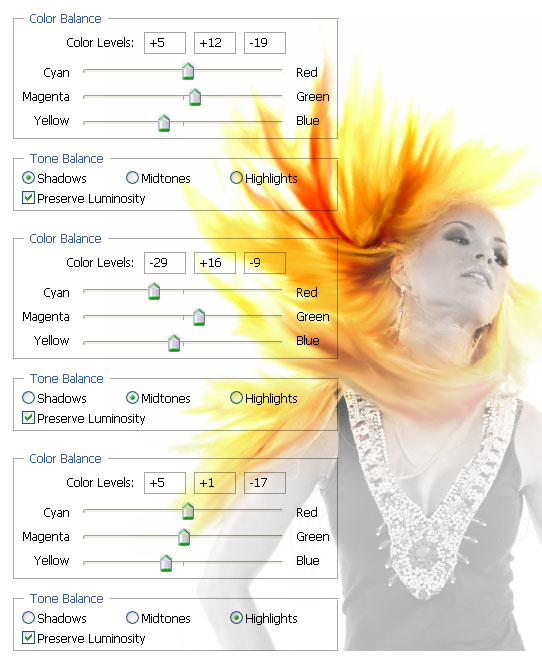
All of this fire will create heat, so take the Blur Tool and add some blurry spots to the edges of the face and neck.
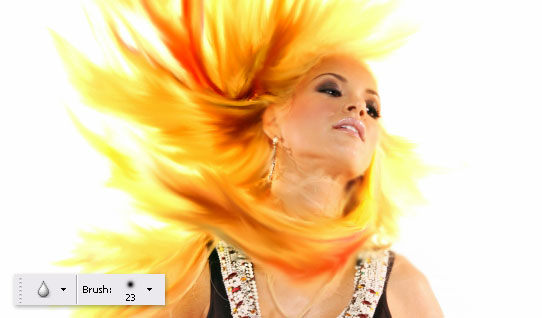
For some final enhancements, use the brush tool with a bright yellow and feather in a few hot spots on a new layer. Blur this layer and change the Blending Mode to Overlay.
That should do it. Add an overall yellow hue to your final image and put on your shades!
if u like my post plz rep+ me
With some simple brushing techniques, and a bit of color tweaking, you can spice up your photos with this flaming hair tutorial.
This effect relies on a good photo. You're going to a shot of some long hair, preferably flowing in the wind or tossed in the air. Blonde hair is going to work best, so if your model has darker locks, try changing it to blonde in Photoshop.

The majority of the work in this involves brushing the hair with the Smudge Tool. Use a grungy brush, with a small diameter and 50% strength to start. Begin towards the head and brush outwards, creating organic flowing movements.
Follow the hair's natural direction as shown in the illustration below (notice the wavy black strokes). Once you've touched every strand, duplicate your layer and use a larger diameter brush to go over the hair again. Be careful not to touch the ears or skin.
When your satisfied with your wispy hair, use the Polygonal Lasso Tool to select the hair -- you don't need to be exact here. Now Feather your selection by 15 pixels.
With your hair selected, bump up the brightness by +9, and the contrast by +41. These settings will vary depending on your image -- we're just trying to intensify the hair. Now comes the color correction. Make the hair glow by adding yellow shadows and highlights. Play with the settings until you've got your fire.
All of this fire will create heat, so take the Blur Tool and add some blurry spots to the edges of the face and neck.
For some final enhancements, use the brush tool with a bright yellow and feather in a few hot spots on a new layer. Blur this layer and change the Blending Mode to Overlay.
That should do it. Add an overall yellow hue to your final image and put on your shades!
if u like my post plz rep+ me
Last edited:


Patta patta patta Machan Maxxa
You must spread some Reputation around before giving it to sharki333 again.
You must spread some Reputation around before giving it to sharki333 again.

thanx machan. aulak nahaPatta patta patta Machan Maxxa
You must spread some Reputation around before giving it to sharki333 again.
elazz
thanxxrep add....

nice thread.
mata prashnayak thiyanawa godak kal idala.
Layers dekak ekata ekathu karanne kohomada?eka parama dekama edit karanna puluwan wena widiyata.
mata prashnayak thiyanawa godak kal idala.
Layers dekak ekata ekathu karanne kohomada?eka parama dekama edit karanna puluwan wena widiyata.

Adobe Photoshop CS3: Top 100 Simplified Tips & Tricks

Photoshop®: Top 100 Simplified Tips & Tricks provides adventurous Photoshop users with a visual reference on how to use the bells and whistles found in the latest version of Photoshop. Broken out in 10 chapters, with 10 tasks per chapter, Photoshop®: Top 100 Simplified Tips & Tricks covers 100 cool and useful tips and tricks that can be performed in the newest release of Photoshop. Full-color screen shots and numbered, step-by-step instructions show you how to take their Photoshop skills to new heights. Order the latest edition today and make your pictures pop.
Customizing Photoshop for Your Projects
#1 Select the Color Settings for Your Projects
#2 Set the Preferences for the Way You Work
#3 Customize Your Personal Workspace
#4 Personalize Your View of the Bridge
#5 Add Your Own Keyboard Shortcut for a Favorite Filter
#6 Create a Custom Action to Increase Your Efficiency
#7 Design a Customized Brush with Your Settings
#8 Make a Special Gradient to Suit Your Design
#9 Calibrate and Profile Your Monitor for Better Editing
#10 Turn on the Full Power of Photoshop with a Pen Tablet
Working with Layers, Selections, and Masks
#11 Duplicate and Change the Background Layer to Fix Problems Such As Overexposure
#12 Using an Adjustment Layer to Adjust a Photo Nondestructively
#13 Blend Two Photos Together with a Layer Mask
#14 Using Custom Shape Layers to Add Designs to Photos
#15 Accentuate a Sky Easily with a Gradient Fill Layer
#16 Using the Quick Selection Tool and Refine Edge Palette for Selections
#17 Using a Quick Mask to Make a Detailed Selection
#18 Extract the Main Subject from the Background
#19 Open or Add Layers As Smart Objects for Nondestructive Changes
#20 Apply Filters As Smart Filters for Dynamic Adjustmentsvi
Straightening, Cropping, and Resizing
#21 Crop Your Images and Use a Rule-of-Thirds Grid to Improve Composition
#22 Create a Level Horizon
#23 Try a Reverse Crop to Expand the Canvas
#24 Crop and Straighten in Camera Raw
#25 Straighten Crooked Scans Quickly
#26 Crop Multiple Images from One Original to Create a Triptych
#27 Change Your Perspective with the Crop Tool
#28 Straighten Buildings with the Lens Correction Filter
#29 Create a Panorama from Multiple Photos
#30 Maximize Your Image Size with Minimal Visible Loss
Retouching Portraits
#31 Remove Blemishes and Improve the Skin
#32 Remove Red Eye to Quickly Improve Any Photo
#33 Change Eye Color Digitally
#34 Reduce Wrinkles with a Soft Touch
#35 Whiten Teeth to Improve a Smile
#36 Brighten the Eyes by Lightening the Whites
#37 Add Depth to Eyes to Emphasize Them
#38 Add a Catch Light to Make the Eyes Come Alive
#39 Sharpen Just the Eyes to Add Focus
#40 Add a Soft-Focus Effect to Make a Portrait Glow
Changing and Enhancing Colors and Tone
#41 Improve an Underexposed Photo in Two Steps
#42 Improve an Overexposed Photo in Three Steps
#43 Remove a Colorcast to Improve the Overall Color
#44 Colorize an Old Black-and-White Photograph
#45 Make a Quick Change to Grayscale
#46 Give a New Photo an Old Colorized Look
#47 Using Camera Raw to Recover Highlights
#48 Improve a Sky with HSL Values in Camera Raw
#49 Go from Color to Grayscale with the New Black & White Adjustment
#50 Create a Split Tone for a Special Effect in Camera Raw
Making Magic with Digital Special Effects
#51 Apply a Smart Digital Photo Filter for Dynamic Adjustments
#52 Add a Quick Dark Vignette Effect to Direct the Focus on the Subject
#53 Add Action with a Simulated Motion Blur
#54 Using the New Blend Mode to Stylize an Image
#55 Align and Blend Separate Photos for the Best Group Shot
#56 Merge Multiple Raw Photos to 32-Bit HDR
#57 Apply a Split-Neutral Density Filter Using Smart Objects
#58 Adjust Depth of Field with a Lens Blur Filter
#59 Create a Silhouette for a Custom Design
#60 Become a Digital Architect with the Vanishing Point Filter
Designing with Text Effects
#61 Add a Double-Neon Glow to Text for a Unique Design
#62 Create a Custom Watermark to Protect Your Images
#63 Fill Any Shape with Text to Create Unique Effects
#64 Warp Type to Emphasize the Words
#65 Add Perspective to Type and Keep It Sharp
#66 Make Your Text Follow Any Path
#67 Create Eye-Catching Photo-Filled Titles
#68 Blend Text into a Photograph Creatively
#69 Create an Amazing Colored Shadow
#70 Weave Text and Graphics for Intriguing Designs
Creating Digital Artwork from Photographs
#71 Give Any Photo a Sketched Look
#72 Add Your Own Signature to Any Artwork
#73 Create a Digital Pen-and-Ink Drawing
#74 Give a Photograph a Woodcut Look
#75 Turn a Photo into a Colored-Pencil Illustration
#76 Posterize a Photo for a Warhol-Style Image
#77 Create a Pen-and-Colored-Wash Drawing from a Photograph
#78 Compose a Photo Collage
#79 Turn a Photo into a Hand-Painted Oil Painting
#80 Paint a Digital Watercolor
Giving Your Images a Professional Presentation
#81 Add Traditional Photo Corners
#82 Make a Frame from a Photograph
#83 Make a Contact Sheet of Your Photos
#84 Create a PDF Slideshow Presentation
#85 Create a Web Photo Gallery with Your Copyright
#86 Give a Photo an Artistic Edge
#87 Create a Custom Slide Template
#88 Create Your Own Custom Edge
#89 Make One Photo Look Like Many Combined Snapshots
#90 Make a Photo Look Like a Gallery Print
Plugging into Photoshop CS3
#91 Embellish a Photo Effortlessly with Graphic Authority Frames and Photo Ornaments
#92 Make a Digital Engraving with Andromeda’s Screens Filter
#93 Enlarge Images with Maximum Quality with Alien Skin BlowUp
#94 Change Your Photo into Art with Alien Skin Snap Art
#95 Colorize a Black-and-White Photo with AKVIS Coloriage
#96 Easily Select the Subject and Remove the Background with Vertus Fluid Mask
#97 Control Digital Noise with Nik Dfine 2
#98 Sharpen Photos with Finesse Using Nik Sharpener Pro 2
#99 Apply Traditional Photo Filters Such As the Sunshine Filter Using Nik Color Efex
#100 Travel Beyond the Bridge with Extensis Portfolio 8
Download
http://rapidshare.com/files/121831160/Visual.Adobe.Photoshop.CS3.Top.100.Simplified.Tips.and.Tricks.pdf.rar

machan mekatanam rommbar tnx.....

මගෙනුත් සප් එකක් දුන්නේ නෑත්තම් ඉතින් හොද නෑහෑනේ!!!
ඔන්න මගෙන් පොඩි තෑග්ගක්..
කවුද ආස නෑත්තේ ගින්නෙන් තමන්ගේ නම ලියන්න
මෙන්න මේ වගේ

Start a new RGB document (size around 600x600) filled with black background.
- Use the type tool and create a new text in WHITE and position the text centered in the lower half of the document.

Now create a new empty layer by clicking on the create new layer icon.

Now Press CTRL+ALT+SHIFT+E, this will combine all layers to the new layer.

Now roate the new layer 90CCW. (Edit » Transform » Rotate 90CCW)
Now apply the Wind Filter to this new layer (Filter » Styleize » Wind)
Method: Wind, Direction: From the Right.
Press CTRL+F 2 times to reapply the filter 2 more times.

Now rotate the image back to normal: Edit » Transform » Rotate 90CW
Now go to Filter » Blur » Gaussian Blur: enter 5.0 px
Now go to Image » Hue/Saturation
Check the "Colorize" Box. Set Hue to 40 and Saturation to 100

Now Duplicate this layer, to do this, right click on the layer and choose "Duplicate Layer"
You should now have this:

Now apply some Hue saturation to the new duplicated layer:
Image » Adjustments » Hue Saturation:
Set Hue: -40

Now set the duplicated layer's blending mode to: Color Dodge
Now go to Layer » Merge Down To merge the 2 layers together.

Now to create our flames, we go to Filter » Liquidfy. Now with the Warp tool selected, set brush size to between 40 and 50, and brush pressure to around 40 to 45.
Now just click and drag from the white edge of the text to wiggle your way into the orange to create the flame.

Next, change your brush size to about 30, and pressure to about 30, and go for 2nd round of creating your flame.
Once your happy with your flame, hit OK.

Now move the original text layer to the top on the layers pallete, and change it's color to black.

Now go to Layer » Rasterize » Type to rasterize the text layer. Now use the Eraser tool and select the 200px SOFT brush, and erase out the top half of the text.

Press CTRL+SHIFT+C to copy, then CTRL+P to paste this as a new layer.
Now go to Edit » Transform » Flip Vertical, Then use the move tool to move the layer down just below the text. Set this layer's opacity to 20%. You can use the eraser tool with 200px soft brush to erase out the bottom part of the reflection.
HERE IS MY FINAL
ඔන්න මගෙන් පොඩි තෑග්ගක්..
කවුද ආස නෑත්තේ ගින්නෙන් තමන්ගේ නම ලියන්න
මෙන්න මේ වගේ

Start a new RGB document (size around 600x600) filled with black background.
- Use the type tool and create a new text in WHITE and position the text centered in the lower half of the document.

Now create a new empty layer by clicking on the create new layer icon.

Now Press CTRL+ALT+SHIFT+E, this will combine all layers to the new layer.

Now roate the new layer 90CCW. (Edit » Transform » Rotate 90CCW)
Now apply the Wind Filter to this new layer (Filter » Styleize » Wind)
Method: Wind, Direction: From the Right.
Press CTRL+F 2 times to reapply the filter 2 more times.

Now rotate the image back to normal: Edit » Transform » Rotate 90CW
Now go to Filter » Blur » Gaussian Blur: enter 5.0 px
Now go to Image » Hue/Saturation
Check the "Colorize" Box. Set Hue to 40 and Saturation to 100

Now Duplicate this layer, to do this, right click on the layer and choose "Duplicate Layer"
You should now have this:

Now apply some Hue saturation to the new duplicated layer:
Image » Adjustments » Hue Saturation:
Set Hue: -40

Now set the duplicated layer's blending mode to: Color Dodge
Now go to Layer » Merge Down To merge the 2 layers together.

Now to create our flames, we go to Filter » Liquidfy. Now with the Warp tool selected, set brush size to between 40 and 50, and brush pressure to around 40 to 45.
Now just click and drag from the white edge of the text to wiggle your way into the orange to create the flame.

Next, change your brush size to about 30, and pressure to about 30, and go for 2nd round of creating your flame.
Once your happy with your flame, hit OK.

Now move the original text layer to the top on the layers pallete, and change it's color to black.

Now go to Layer » Rasterize » Type to rasterize the text layer. Now use the Eraser tool and select the 200px SOFT brush, and erase out the top half of the text.

Press CTRL+SHIFT+C to copy, then CTRL+P to paste this as a new layer.
Now go to Edit » Transform » Flip Vertical, Then use the move tool to move the layer down just below the text. Set this layer's opacity to 20%. You can use the eraser tool with 200px soft brush to erase out the bottom part of the reflection.
HERE IS MY FINAL
machan layer dekak eka ekathu karanna puluwan. ekathu karanna ona layer deka select karala e layer uda right click karala merge layers diyan.nice thread.
mata prashnayak thiyanawa godak kal idala.
Layers dekak ekata ekathu karanne kohomada?eka parama dekama edit karanna puluwan wena widiyata.
habai machan eka merge unain passe ai layers deka wen karnna baha. eka nisa hondata hithala merge karapan. habai eka edit karanna puluwa.
 elazzzzmachan mekatanam rommbar tnx.....

මගෙනුත් සප් එකක් දුන්නේ නෑත්තම් ඉතින් හොද නෑහෑනේ!!!
ඔන්න මගෙන් පොඩි තෑග්ගක්..
thanx machan

Me kattiyata Click 2 Learn Photoshop,3D Max Sinhala learning videos ehema one nam mekenn Ganna puluwan 
Maxxa Work Sharki ............ keep this up
Code:
http://www.elakiri.com/forum/showthread.php?t=450639&page=16Maxxa Work Sharki ............ keep this up


