


Download and Install
Initial Setup
Speed test
Connection Type and Speed Setting
Port Check and Forwarding
Protocol Encryption
Web UI

Choose a language and Click "OK"

Click "Next" to continue.

"Browse..." to a "Destination Folder", or accept the default, then Click "Next".

Choose a "Start" menu folder, or Choose "Do not create shortcuts", then Click "Install"


Click "Finish" to close the Wizard.

When given the option to add "Shortcuts"; choose as desired.

When prompted to make µTorrent the default application for .torrent files,
Click "Yes" and torrent files (.torrent) will be automatically opened with µTorrent.

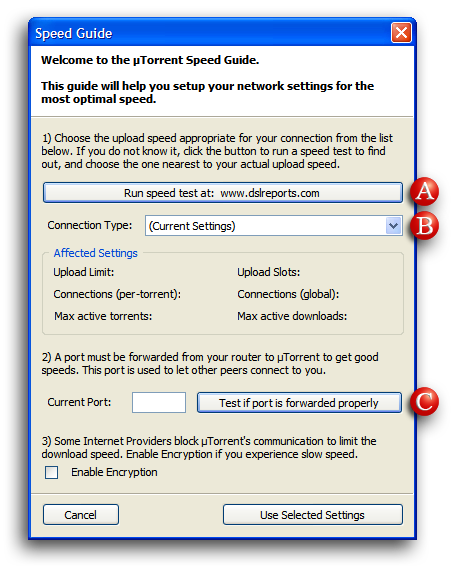
When µTorrent is "Opened" for the first time, the "Speed Guide" is displayed.
The Speed Guide will help you set your network for optimal speeds.

After the initial "Installation Start", when "Run", the µTorrent icon will appear at bottom right of the screen,
in the Windows System Tray. Double Click the µTorrent Icon
******Initial Setup
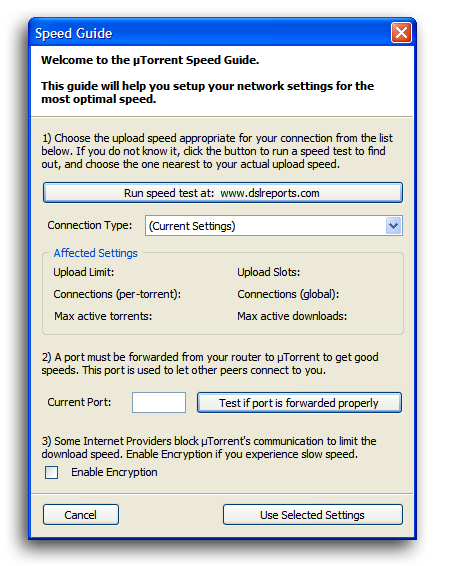
After installation, µTorrent will open to the "Speed Guide" Window. The µTorrent “Speed Guide” will help you setup the
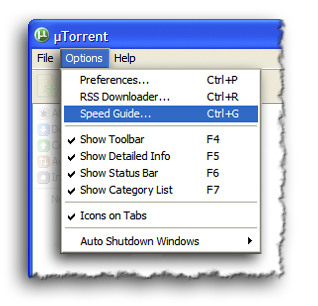
network settings, for optimal speed. The "Speed Guide" can be accessed at any time by navigating to
µTorrent > Options > Speed Guide (Ctrl + G)
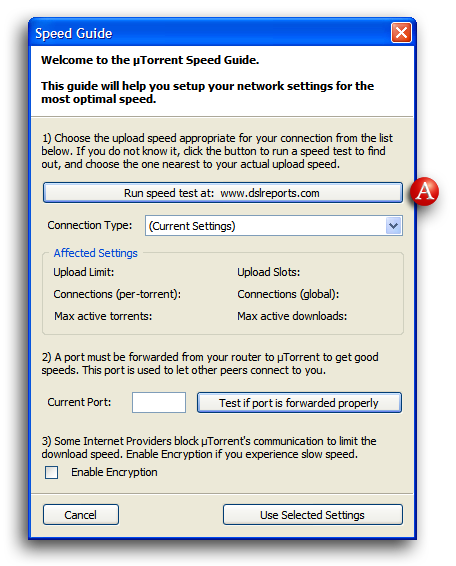
1) Stop all internet traffic before proceeding with the test.
2) Visit one of the numerous speed testing sites such as DSL Reports, Speakeasy or Speedtest.net.
3) Perform the test several times. Select a good median result (neither the highest nor the lowest).
4) The value needed to proceed with the initial settings is the Max Upload Rate, expressed in kilo bits per second (kb/s)
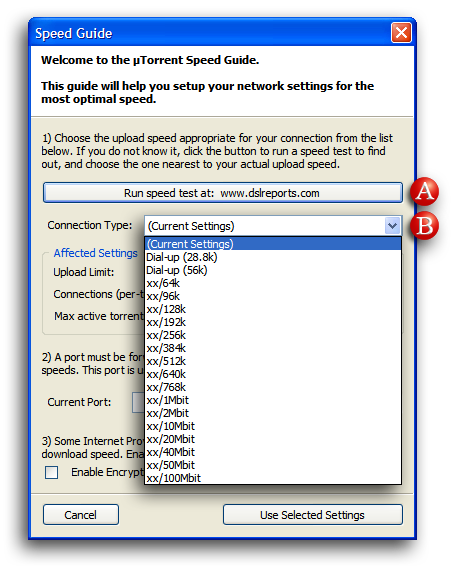
B) Connection Type and Speed Setting
1) Expand the "Connection Type" Drop Down Menu and using the "Advertised" (claimed), or Tested Maximum Upload Rate.
Select the listing closest to your Upload Rate in kilo bits per second, rounding down as necessary.
2) Speed tests may not be 100% accurate due to factors outside your control, if the closest speed option
is only slightly higher than your Maximum Upload Rate (within 10%), it's generally safe to select that option.
3) You will notice that the "Affected Settings" have adjusted to match the selected speed.
Higher settings will not yield better speeds, and may in fact make speeds worse.
C) Port Check and Forwarding
When you have port forwarding rules set up, the router takes the data from the external IP Address / port number and sends that data
to an internal IP Address / port number.
Pick any random port between 49152 and 65535, the "Unassigned" port range and enter that port number
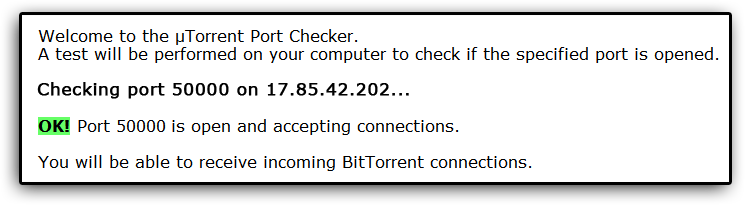
If the µTorrent Port Checker displays this message, congratulations your port is open and accepting connections.
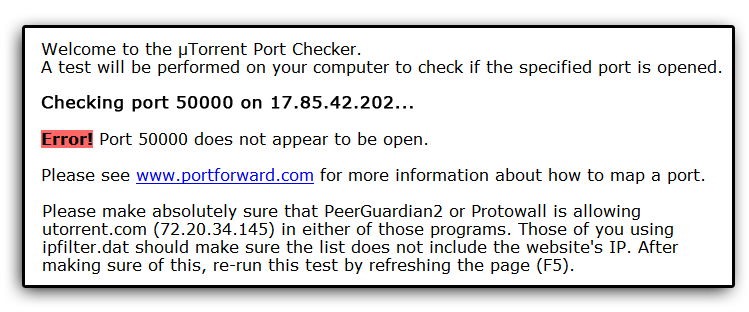
If the µTorrent Port Checker displays this message, the port is not "Open", go to Portforward.com and allow the site to guide you
through the forwarding process. You will need to know the Router and/or Modem manufacturer, Model and the Username and Password;
check the manual if the passwords suggested by Portforward.com don’t work.
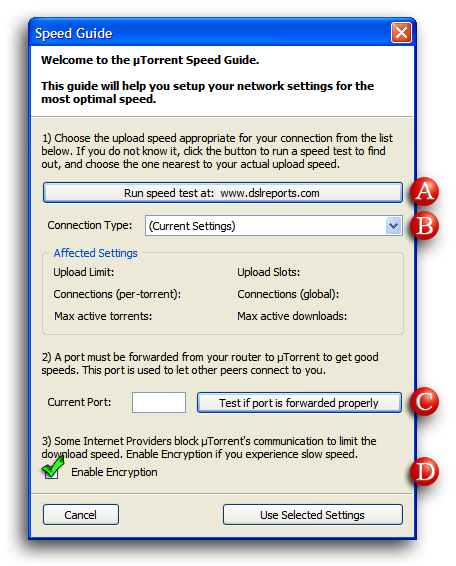
D) Protocol Encryption

Optimizing the Internet Connection
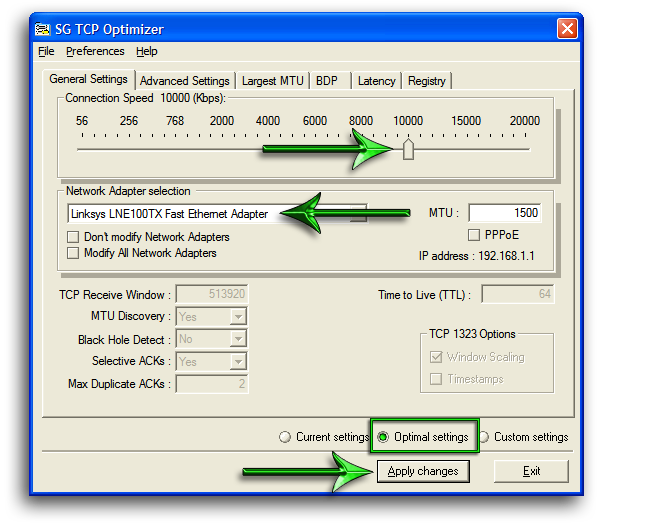
Tweaking the Network Settings
1 ) Select the Maximum "Advertised" (claimed), or Maximum Tested Download Rate, from the "Connection Speed" slider bar.
(The maximum available bandwidth, in kilobits per second [kb/s]).
2 ) Choose your "Network Adapter", or check to "Modify All Network Adapters".
3 ) Check "Optimal settings"
4 ) Click "Apply changes", and reboot when prompted by the program.
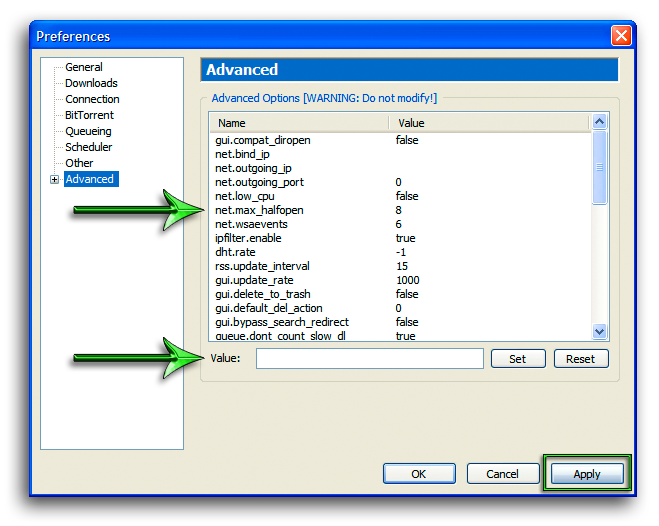
The Event ID 4226 Patch
µTorrent “Preferences”
This section provides descriptions of options available in the µTorrent Preferences dialog. Nearly all of µTorrent's internal settings can be configured here.
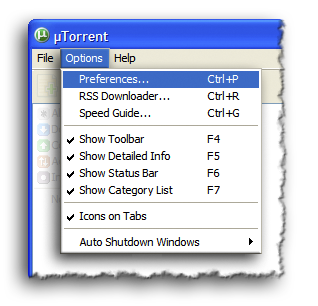
This section will make recommendations for µTorrent “Preferences”. Many settings deal simply with usability issues,
while others can greatly affect the program’s ability to transfer files, and the speed at which µTorrent, downloads.
To make this guide easier to use, where applicable, the recommended settings will have a green checkmark in the illustrations.
When a calculation or other options are available, they will be explained below the relevant “Preferences” image.
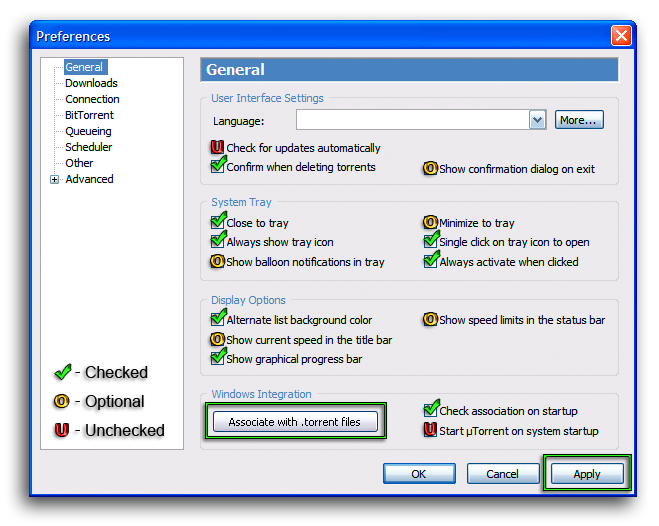
General
Language - There are numerous languages included with the µTorrent installation; additional languages can be easily added,
by clicking the “More” button, downloading and then installing the µTorrent Language Pack. To install the µTorrent Language Pack,
copy the file into directory with the µTorrent executable and the program will install it automatically. The default µTorrent location is:
Always show tray icon - When enabled, µTorrent will display the µTorrent icon in System Tray
Show balloon notifications in tray - When enabled, µTorrent will display a “Balloon Notification” upon errors and other designated events
Minimize to tray - When enabled, µTorrent will “Minimize” to the System Tray if the program is closed using the

on the upper right window frame; otherwise the program will “Minimize” to the Taskbar.
Single Click on tray icon to open - When enabled, µTorrent opens from the system tray with a single click.
Always activate when clicked - When enabled, µTorrent is activated when tray icon is clicked
Display Options
Alternate list background color - When enabled, to help differentiate between torrents,
the µTorrent application window background will alternate between white and grey.
Show graphical progress bar - When enabled, instead of the percentage numbers alone,
a blue graphical Progress Bar along with the percentage numbers, will be displayed.


Windows Integration
Associate with .torrent files - Clicking this button will associate torrent files (.torrent) with the µTorrent Client.
Check association on startup - When enabled, µTorrent will ensure torrent files (.torrent) are associated with µTorrent, when started.
Start µTorrent on system startup - When enabled, µTorrent will start when the system is started, or rebooted.
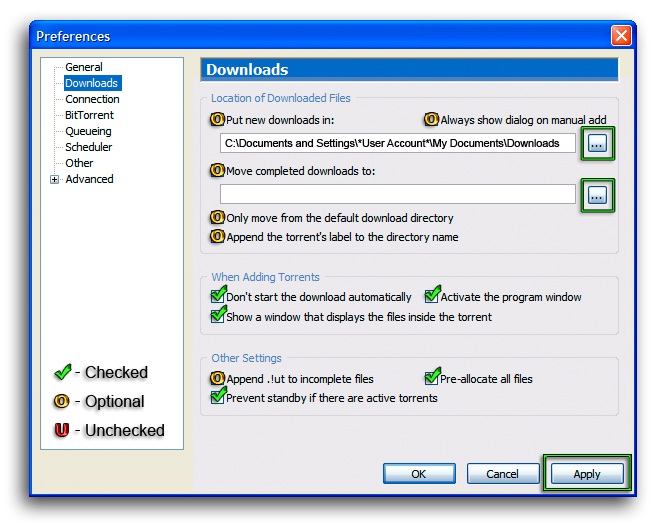
Downloads
Download Preferences provide options for torrent storage, file structure and manipulation.
Location of Downloaded Files
Put new downloads in: - Enabling this setting will provide the opportunity to change the directory into which, the torrent is downloaded. The directory location is selected, using the “Browse Button” indicated above in green. The default µTorrent location is:
C:\Documents and Settings\*User Account*\My Documents\Downloads
Always show dialog on manual add - When enabled, the “Choose where to save…” window is displayed. In this window, the user can “Browse” to a storage location other than indicated by “Put new downloads in:” or the default location.
Move completed downloads to: - Enabling this setting will provide the opportunity, to move torrent files when completed. The directory location is selected, using the “Browse Button” indicated above in green.
Only move from the default download directory - If this setting is enabled, only files saved to the default location will be moved.
Append the torrent’s label to the directory name - When enabled, the torrents label is applied to the directory name.
When Adding Torrents
Don’t start the download automatically - When enabled, an “Added” torrent will NOT automatically start.
Show a window that displays the files inside the torrent - When enabled and a torrent is opened, the “Add New Torrent” window will open and display the files contained in the torrent. This gives the user numerous options including which files to download.
Activate the program window - When enabled, µTorrent will activate (Open), when a torrent file (.torrent) is opened.
Other Settings
Append .!ut to incomplete files - When enabled, the extension “.!ut” will be added to incomplete file names; this will provide a visual queue for incomplete files.
Prevent stand-by if there are active torrents - When enabled and there is an active torrent, µTorrent will prevent your PC from entering the Standby (Sleep) mode (turns off all nonessential hardware, including the monitor, hard drives, and removable drives).
Pre-allocate all files - When enabled, the space required for the complete torrent download, is reserved on the hard drive.
"Pre-allocate all files" cannot be used in conjunction with "bt.compact_allocation", or "diskio.sparse_files". This option does not have an impact on fragmentation of your hard drive, as µTorrent already allocates each file upon writing to disk even without this option.

Connection
Connection Preferences allow the user to properly configure the connections port, proxy and bandwidth settings. To optimize a given connection it is vital to have an open port and that it is properly mapped (forwarded) through the Modem and/or Router
Listening Port
Port used for incoming connections: - Specifies the port µTorrent uses to listen for incoming connections; this port must be open to firewalls.
If you have manually forwarded the µTorrent port, enter that port number in the field provided.
Random port button - Selects a random port between 10000 and 65000
Randomize port each time µTorrent starts - When enabled, µTorrent will select a random port between 1024 and 5000 to use at startup.
This option may conflict with manual port forwarding; If you have manually forwarded the µTorrent port, disable this option.
Enable UPnP port mapping - When enabled, µTorrent will use the "Universal Plug and Play Device Host" Windows Service (UPnP) to communicate with the router and automatically forward a port. Some devices do not support UPnP, therefore it may still be necessary to manually forward the µTorrent port. Disable UPnP if this is the case.
Enable NAT-PMP port mapping - Network Address Translation - Port Mapping Protocol allows a computer in a private network (LAN and Local IP Address) to automatically configure a router, or modem, to allow parties outside the private network to make contact with µTorrent through UDP.
Add µTorrent to Windows Firewall exceptions - Allows µTorrent to add an entry to the Windows Firewall exceptions list that lets it bypass the firewall. This is useful only if you actually have Windows Firewall enabled. Note that this option works only on Windows XP with at least Service Pack 2 (SP2) installed.
Proxy Server
While a Viable option, the use of a Proxy Server will inhibit Peer-to-Peer (P2P) file transfers
Type - Choose the Proxy Server type from the drop down menu. "HTTP" proxies cannot be used for Peer-to-Peer connections.
Proxy - Enter the proxy's URL or IP address.
Port - Enter the proxy's port.
Authentication - When enabled, this setting allows for automatic log in on Secure Proxy Servers.
Username - Enter the "User Name" as required for authentication.
Password - Enter the "Password" as required for authentication.
Use proxy server for peer-to-peer connections - When enabled, µTorrent will communicate and transfer data with peers through the proxy. By default, this option is disabled, and µTorrent only uses the proxy, to communicate with trackers.
Note: Peer-to-Peer communication cannot be used with HTTP proxies.
Global Bandwidth Limiting
The settings in µTorrent are directly proportional to the Maximum Upload Rate (MUR). To properly optimize µTorrent, or “Set for Best Speeds” it is vital to have an accurate measurement of the MUR.
To get the most accurate reading on your system, do numerous tests, from various testing sites, to diverse testing servers, at different times of the day. After getting these speeds, take an average and use this average, expressed in kilo bits per second (kb/s), as your MUR.
Maximum Upload Rate (kb/s) = ( test1 + test 2 + test 3 +… test n ) / n
Where "n" is the number of tests in the "Average"
To do a “Speed Test”, Stop all internet traffic before proceeding and use one of the numerous speed testing sites such as DSL Reports, Speakeasy or Speedtest.net. Please note, Internet Service Providers (ISP) “Advertise” speeds in kilo bits / sec (kb/s) and µTorrent speeds are set and reported in kilo Bytes / sec (kB/s). 1 kilo Byte / sec (kB/s) = 8 kilo bits / sec (kb/s)
Global maximum upload rate (kB/s): [0: unlimited] - The maximum upload rate for all active torrents combined. If this speed setting is too high, the internet connection can quickly become choked. 75% of MRU (rounding down) is generally accepted as "Optimal". This setting is the upper limit, all adjustments should be made downward.
Global maximum upload rate (kB/s) = 0.75 ( Maximum Upload Rate (kb/s) / 8 )
Alternate upload rate when not downloading (kB/s): - When enabled, allows the user to define an alternate upload rate, when no torrents are in downloading mode (only uploading). Other than the context in which it is active, this upload rate limit behaves exactly like the "Global Maximum upload rate".
Global maximum download rate (kB/s): [0: unlimited] - The maximum download rate for all active torrents combined. While 0, or "Unlimited" is the default and usual setting, it is suggested that 95% of the maximum download rate in kB/s will result in a more stable network connection
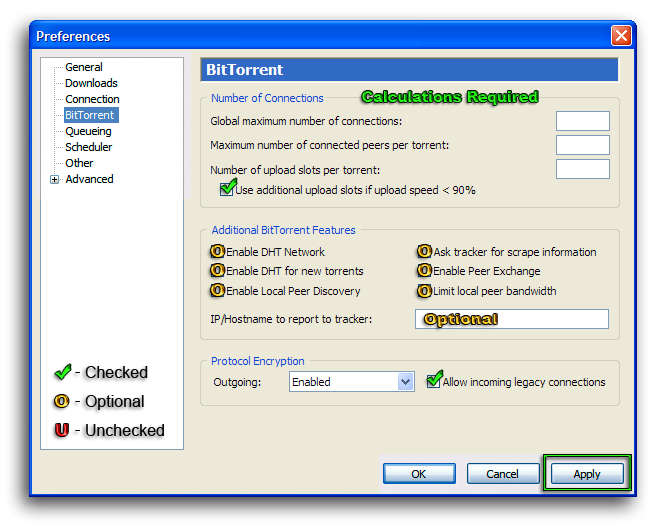
BitTorrent
Number of Connections
Global maximum number of connections - The maximum number of connections µTorrent will make at any given moment for all active torrents. The optimal setting is by coincidence the Maximum Upload Rate (MUR) expressed in (kb/s)
Global maximum number of connections = Maximum Upload Rate (kb/s)
Maximum number of connected peers per torrent - The maximum number of peers µTorrent will connect to, at any given moment for each separate torrent. The optimal setting is the Maximum Upload Rate (MUR) expressed in (kb/s) divided by eight ( 8 )
Maximum number of connected peers per torrent = Maximum Upload Rate (kb/s) / 8
Number of upload slots per torrent - The maximum number of peers µTorrent will upload to, at any given moment for each separate torrent. This setting is always at the very least, one (1) and can be expressed as the Global Maximum Upload Rate in (kB/s) divided by four (4).
Number of upload slots per torrent = Global Maximum Upload Rate (kB/s) / 4
Use additional upload slots if upload speed < 90% - When enabled, µTorrent will open more upload slots if the current total upload speed is less than 90% of the ”Global maximum upload rate”.
Additional BitTorrent Features
Distributed Hash Table (DHT) and Peer Exchange (PEX), are an alternate means of getting peers, from other peers instead of through the tracker; this is particularly useful on poorly seeded torrents, or when the tracker is unavailable.
DHT and PEX should always be disabled when using a private tracker, since they can become problematic. Some problems which may occur are the leakage of personal information and connecting to “unregistered” clients, which will result in invalid statistics.
Enable DHT Network - When selected, the Distributed Hash Table (DHT), will be enabled.
Enable DHT for new torrents - When selected, µTorrent will check for peers from the DHT network on each newly added torrent. This option only works if the DHT Network is enabled, and if the 'Private' flag is not set in the .torrent file.
Enable Local Peer Discovery - When selected, µTorrent will attempt to discover local peers via multicast. If a peer is considered local, transfer rates with the peer will not be limited unless Limit local peer bandwidth is also enabled. Local peers will not be added to the peer list for .torrent files with the 'Private' flag set.
Ask tracker for scrape information - When enabled, µTorrent will “scrape t


