


Latest ads
-
 Pure VPN - Up to 27 Months
- vgp
- Updated:
-
 Gemini AI PRO 18 months Offer
- Hawaka
- Updated:
-
koko account
- DasunEranga
- Updated:
You are using an out of date browser. It may not display this or other websites correctly.
You should upgrade or use an alternative browser.
You should upgrade or use an alternative browser.


I got that
Vista - Disable the UAC (User Account Control)
Stage 1) Preliminary task:
Our first task is simply to launch the Local Security Policy snap-in. You have the choice of two methods:
Method A) Begin by clicking on Vista's Start button, then type secpol.msc in the Start Search dialog box. Note: you must include the .msc extension.Turn Off Vista User Account Control UAC
Method B) Display Vista's Administrative Tools. Right click the Taskbar, select Properties, Start Menu, Customize, Advanced; scroll to the bottom and find System Administration Tools, place the radio button next to 'Display on the All Programs menu'.
Stage 2) Configure the Security Options
1. Open the Local Security Policy (See Method A or B above)
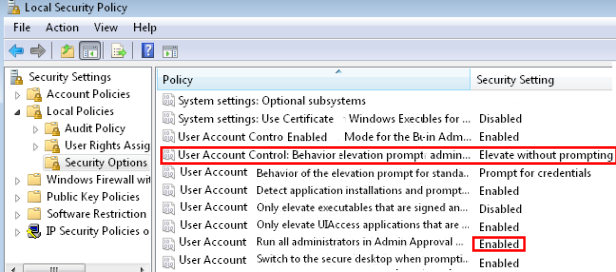
2. Expand the Local Polices Folder See the screenshot opposite.

3. Drill down to Security Options folder.
4. Scroll down, and locate the family of settings beginning with 'User Account Control'.
5. Focus on: User Account Control: Behaviour elevation prompt for administrator. Double click and set to: Elevate without prompting. Check the screenshot to the right.

6. Restart you Vista computer.
7. When the computer restarts, try to configure a tasks that needs UAC. For example, change the computer's display name. Press the Windows Key + Pause / Break. Select the 'Change Settings' shield..
8. UAC should now be turned off, thus you should not see the 'Continue' box.
Vista - Disable the UAC (User Account Control)
Stage 1) Preliminary task:
Our first task is simply to launch the Local Security Policy snap-in. You have the choice of two methods:
Method A) Begin by clicking on Vista's Start button, then type secpol.msc in the Start Search dialog box. Note: you must include the .msc extension.Turn Off Vista User Account Control UAC
Method B) Display Vista's Administrative Tools. Right click the Taskbar, select Properties, Start Menu, Customize, Advanced; scroll to the bottom and find System Administration Tools, place the radio button next to 'Display on the All Programs menu'.
Stage 2) Configure the Security Options
1. Open the Local Security Policy (See Method A or B above)
2. Expand the Local Polices Folder See the screenshot opposite.

3. Drill down to Security Options folder.
4. Scroll down, and locate the family of settings beginning with 'User Account Control'.
5. Focus on: User Account Control: Behaviour elevation prompt for administrator. Double click and set to: Elevate without prompting. Check the screenshot to the right.

6. Restart you Vista computer.
7. When the computer restarts, try to configure a tasks that needs UAC. For example, change the computer's display name. Press the Windows Key + Pause / Break. Select the 'Change Settings' shield..
8. UAC should now be turned off, thus you should not see the 'Continue' box.
buddhika19 said:I got that
Vista - Disable the UAC (User Account Control)
Stage 1) Preliminary task:
Our first task is simply to launch the Local Security Policy snap-in. You have the choice of two methods:
Method A) Begin by clicking on Vista's Start button, then type secpol.msc in the Start Search dialog box. Note: you must include the .msc extension.Turn Off Vista User Account Control UAC
Method B) Display Vista's Administrative Tools. Right click the Taskbar, select Properties, Start Menu, Customize, Advanced; scroll to the bottom and find System Administration Tools, place the radio button next to 'Display on the All Programs menu'.
Stage 2) Configure the Security Options
1. Open the Local Security Policy (See Method A or B above)
2. Expand the Local Polices Folder See the screenshot opposite.
3. Drill down to Security Options folder.
4. Scroll down, and locate the family of settings beginning with 'User Account Control'.
5. Focus on: User Account Control: Behaviour elevation prompt for administrator. Double click and set to: Elevate without prompting. Check the screenshot to the right.
6. Restart you Vista computer.
7. When the computer restarts, try to configure a tasks that needs UAC. For example, change the computer's display name. Press the Windows Key + Pause / Break. Select the 'Change Settings' shield..
8. UAC should now be turned off, thus you should not see the 'Continue' box.
you asked for a simple way or an advanced way?

buddhika19 said:machan, I want to know, when we apply that, any effect for PC?

if you disable it, any application (including suspicious) execute without prompting for your accept

that's it


if u enable it. there will b a msg box asking most of the application whether to install or not. kinda like a firewall. but i never tried. coz i dont have Vista 
ahhhhhhhhhh, ok thank, I installed motor bike game, so it ask for disable UAC, so that why I want to know about it, thanks machan
Lich said:if u enable it. there will b a msg box asking most of the application whether to install or not. kinda like a firewall. but i never tried. coz i dont have Vista
thanks Lich, Good Morning

Lich said:if u enable it. there will b a msg box asking most of the application whether to install or not. kinda like a firewall. but i never tried. coz i dont have Vista
VISTA ORIGINAL EKAK DENNADA?


Similar threads
- Replies
- 1
- Views
- 122


- Replies
- 4
- Views
- 119
- Replies
- 12
- Views
- 371
