ethod 1 (if you know this method, try the second method) - You can add the Language bar in control panel by following steps, Go to Control Panel -> Regional and Language Option -> Keyboards and Languages -> press Change Keyboards..
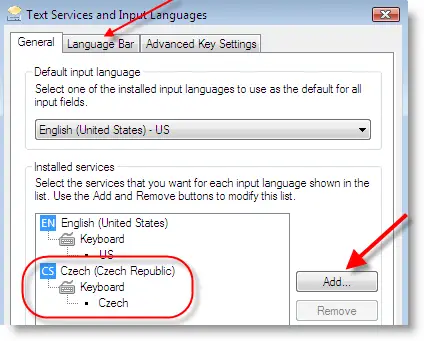
The following dialog box will be appeared,
 Note:
Note: Language bar will be displayed either on taskbar or Desktop only if you selected more than one language as input language.
Make sure your second language is listed in the input language list. If not you can add it by pressing Add button.
Still if language bar is missing in vista or
Windows 7 after more than one language listed; go to ‘Language Bar’ as arrow mark pointing in above sample.
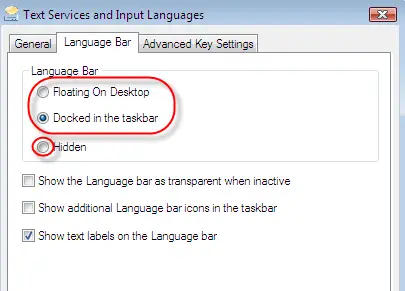
Here you can select where the language bar should be appeared or hidden. Make sure ‘Hidden’ is not selected. Select the appropriate option and press OK.
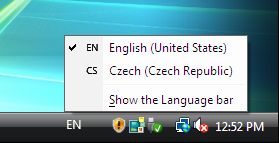
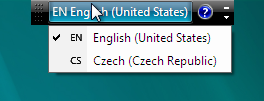
If you cannot see the language bar is vista or Windows 7 computer after above all settings are correct. Here is the tricky part and try this.
Method 2
This method will enable the startup service required for language bar, when your all settings are correct as mentioned above.
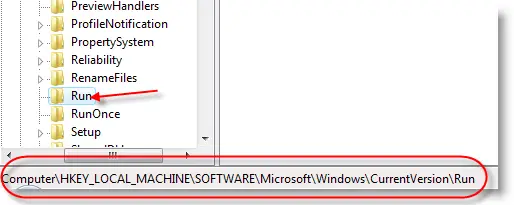
Go to Registry editor by typing ‘ regedit’ in Run dialog box. Go to the following location,
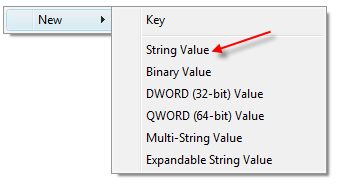
Right Click on blank space in right side, select New String Value.
Again right click on newly created value and press modify, then type as below.
“ctfmon”=”CTFMON.EXE”
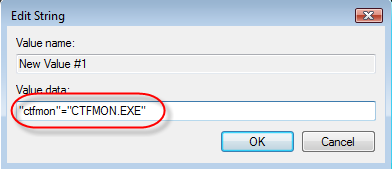
Press OK, restart your computer. Now you can see the language bar in vista or Windows 7.


 Gemini AI PRO 18 months Offer


