Windows 8 desktop for windows 7 - Cool

d4elakiri

Member
Jun 17, 2011
15
5
0
Convert your desktop to a cool Windows 8 desktop (Omnimo V4 + Rainmeter V 2.1 included)
rainmeter-skin-5.jpg


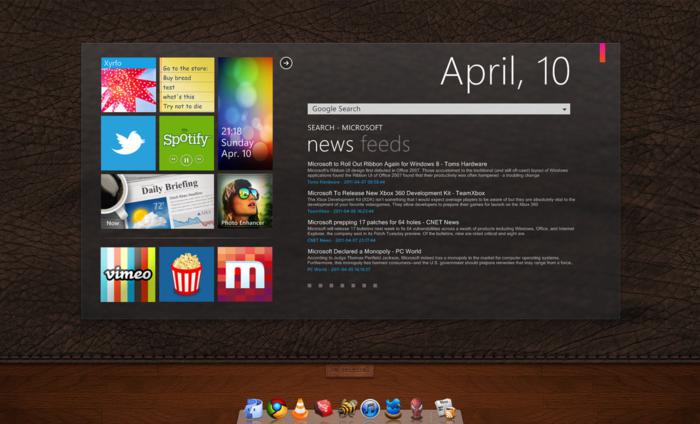
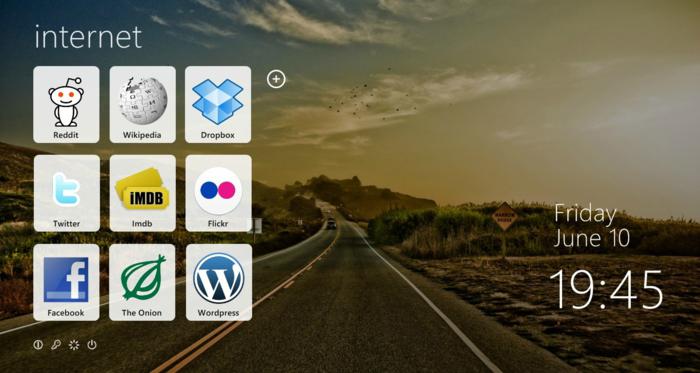
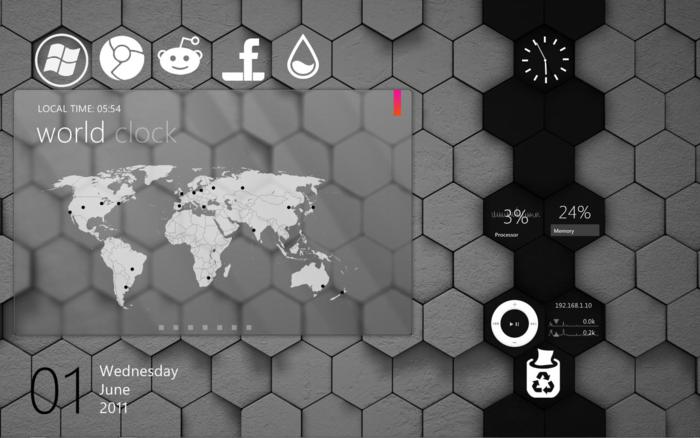
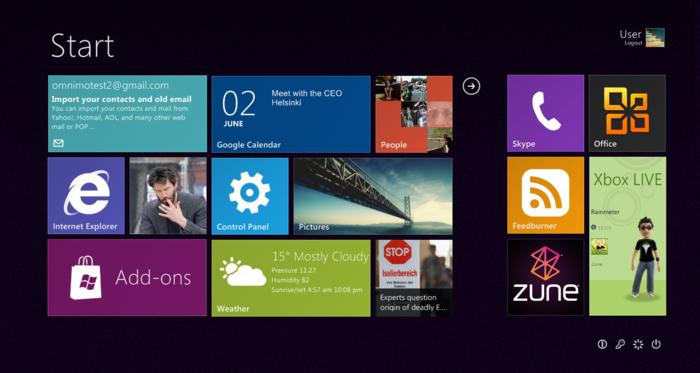
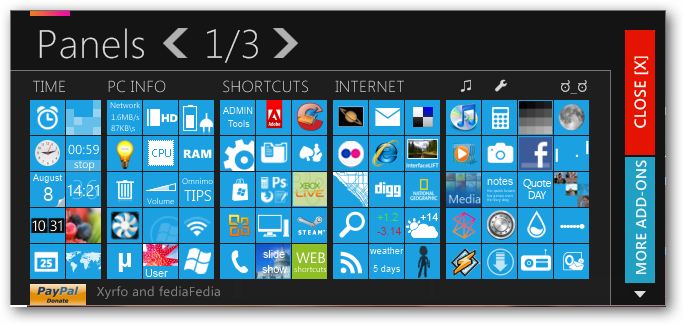
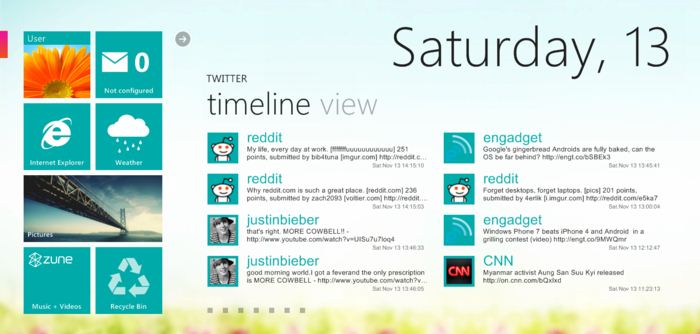
Thanks to the powerful "Rainmeter" desktop customization platform, Omnimo theme suite will convert your desktop into a productive and attractive work area with elegant eye-candy, delivering only the information you need. Every interactive tile gives you various information/settings at a glance, and can be easily customized to your needs.


What is Omnimo?

It’s a Windows 8 inspired multifunctional interactive desktop information center based on Rainmeter. This suite will turn your desktop into a productive and attractive work area, delivering only the information you need. Every interactive tile gives you various information/settings at a glance, and can be easily customized to your needs. Unlike the initial Metro design, Omnimo gives you limitless customization potential, you can customize just about every aspect of it!
windows-8-ui-3.jpg


rainmeter-skin-6.jpg


rainmeter-skin-4.jpg


rainmeter-skin-3.jpg


rainmeter-skin-1.jpg


How to install and use Omnimo suite :

1. install Rainmeter 2.1

2. After installing Rainmeter, install Omnimo (Double click on the Setup.rmskin file to install the theme), and follow onscreen instructions.


Download Omnimo Here

www.wupload.com/file/62366946
www.filesonic.com/file/1481153304

File serve - Uploading...
 
Last edited:
  • Like
Reactions: maheshlakshan

d4elakiri

Member
Jun 17, 2011
15
5
0
How to install

After you've downloaded it, you'll need to open Rainmeter at least once before proceeding to the Omnimo installation, because there's a number of first-time initialization routines that create the appropriate configuration files necessary to install Omnimo.

Now it's time to install Omnimo UI

If you don't already have the Segue UI Light font installed on your computer, you'll need to install the included font file via the right-click menu, or by dragging it into the Fonts folder. On my Windows 7 test machine, this font was already there, but it doesn't hurt to double-check, or just re-install it to make sure. Windows will warn you if it's already installed, so you can just stop the installation if you get that warning.

Now that you have all of that out of the way, you can launch the Rainstaller utility included in the Omnimo download; it will add the skins and themes to the appropriate Rainmeter folders. You'll want to make sure you have Rainmeter closed before running through this process.

340x_sshot-2010-03-29-_02-48-49_-_1_.jpg


When it fires up, click on the Custom Install button if you need to adjust where it installs the skins; the Express Install should work for most people (if you installed Rainmeter with all the defaults, for example, you should be fine choosing the Express Install). When the installation is done, keep the Launch Rainmeter on exit checkbox ticked and click Finish (well, there's a typo, so technically you're clicking Finnish).

Rainmeter will fire back up, and this time you're looking at your newly installed Omnimo desktop—which should look very similar to the screenshot below:

500x_welcome.jpg


Tweaking Omnimo

Once you've launched Rainmeter with the Omnimo skin, you'll be presented with the welcome screen (above), and then the Gallery view (below), where you can choose between loads of different panels, skins, and backgrounds.

500x_sshot-2010-03-29-_02-55-26_-_1_.jpg


Simply click the icons to add the widgets to the screen, and then drag them wherever you'd like; the skins change the background color of the squares, and the backgrounds put an overlay over your wallpaper, if you have one. If you want to get back to the gallery later, you can just click the little plus symbol to open it again.

340x_sshot-2010-03-29-_02-15-00_-_1_.jpg


Now that you have the widgets on the desktop, it's time to configure them by hovering over the widget until the tiny icons appear in the upper right-hand corner, and then using the wrench to open the configuration screen. Not all widgets have configuration, and you should note that if you use the X to close a widget, you can always add it back from the gallery.

Using the wrench icon launches you into the EnigmaConfigure utility built into Rainmeter-each widget will have separate configuration parameters that you can set, like this one for choosing your Yahoo! Weather location.

340x_sshot-2010-03-29-_02-15-39_-_1_.jpg


Some of the widgets don't have configuration at all, but instead have an arrow that will let you rotate between views or functions. For instance, on the web browser widget, you can use the arrow to switch the default from Internet Explorer to a browser that isn't quite as lame—or on the calendar widget, using the arrow switches between views.

340x_sshot-2010-03-29-_02-56-16_-_1_.jpg


Readers should note that using the Win+D shortcut key combination to show the desktop will also hide Rainmeter, and all of your widgets, so you'll probably want to resort to using the Win+M shortcut key combination to minimize all windows. Omnimo is a free download for Windows, requires Rainmeter 1.1 or higher.
 

maxxiz6

Well-known member
  • Apr 29, 2008
    5,536
    474
    83
    ║█║™ - තමා
    already using rainmeter n nt interest with this theme :)
    btw nice post broo keep it up

    ah amathaka una dan oya theme eke 2.1version ekka out wela devainArt eke rainmeter group eke thibba