Follow this procedure:
1)Install “ffdshow_rev3562_20100907” (use the dafult settings) and restart the system. It\'s suggested ffdshow because offer good performances with a low CPU consumption.
to download the pack
click here
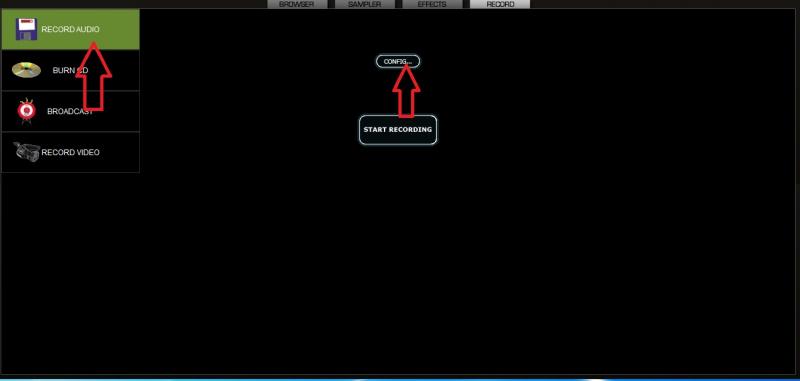
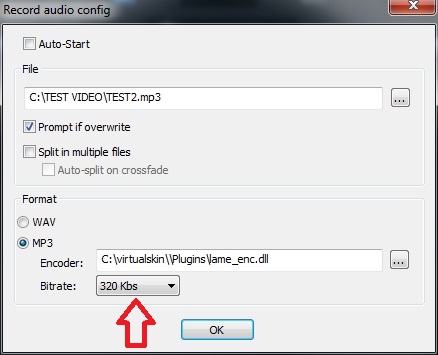
2)Open the recording configuration page and set the audio bit rate:
Click on “config” and choose the il bit rate. It\'s recommended the value from 192 to 320 Kbs to obtain a good audio quality.
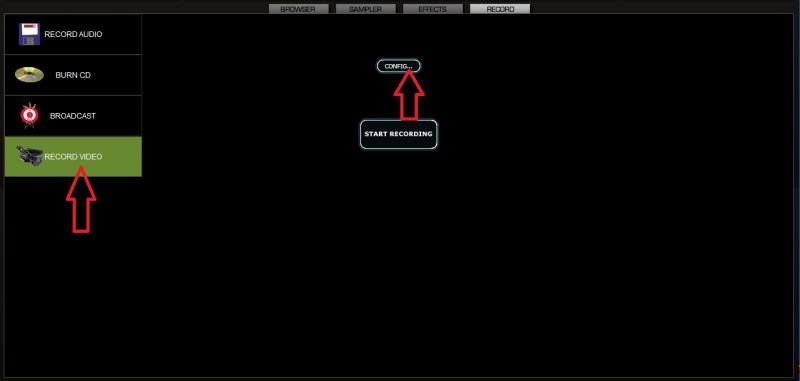
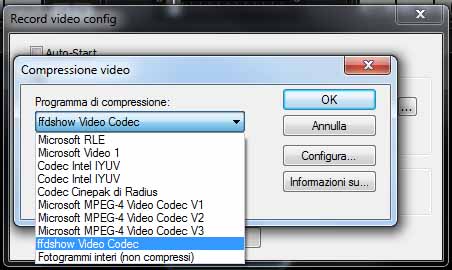
3)Now, let\'s go on with the video configuration:
Click on “config” and choose in the drop down menù ffdshow Video Codec, then click on “configure”
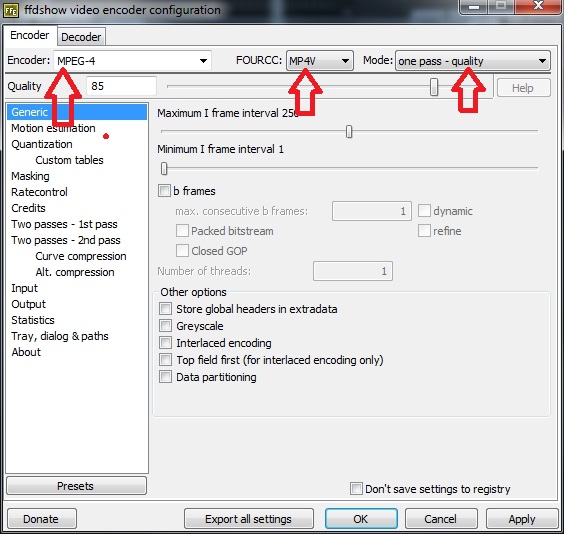
It\'s the time to setup the codec Mp4v:
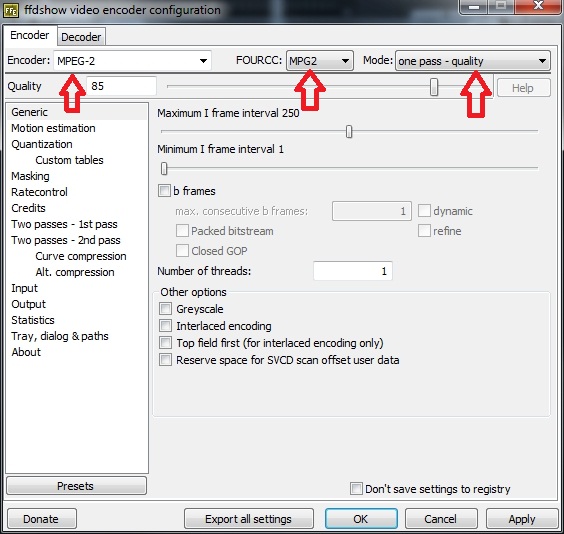
if you prefer the MPG2:
The pictures show a settings which gives a good quality for both codecs. If you want to save space on the hd, you can choose other settings by adjusting the parameters of the codec in particular by decreasing the bitrate (kbps).
This solution is not the most parsimonious in terms of space used in the hard disk but today should not be a big problem. Usually this configuration is very stable, do not overload the CPU and return a good quality audio and video.
Now we are ready to record our videos!

 Dating Website & Online Chat Room
 DJI Mini 4 Pro Drone Combo Plus