


Local media servers have gone out of style. Microsoft no longer makes Windows Home Server and is phasing out Windows Media Center. But there are still great solutions if you want to run a home media server and stream to all your devices.
Sure, you could just connect a PC to your TV, but these provide convenient interfaces across all your devices. That means apps for TV streaming boxes, smartphones, tablets, and web-based interfaces for everything else. They even work over the Internet.
Bring Your Own Media
There are some good free software packages for this, but you’ll need to bring your own media. If you have a large collection of local video and music files — perhaps videos ripped from DVDs and music ripped from audio CDs — this may be the ideal way to access that content on all your devices without relying on streaming services like Netflix and Spotify.
These apps often allow you to browse and access photos, too — perfect if you’re the type of person who keeps a local photo collection, too.
The two biggest solutions to recommend are probably Plex and Media Browser. Both work similarly, offering a server you install on a desktop PC, laptop, NAS device, or dedicated home server. You could also try Kodi, formerly known as XBMC — it can be a bit more complicated to set up and works a bit differently.
Plex and Media Browser both offer servers that run on Windows, Linux, Mac OS X, BSD, and various NAS devices. You can install it on a desktop computer, a dedicated server, or get a pre-made NAS device that supports the server software.
Plex offers clients for the Roku, Amazon Fire TV, Xbox, and PlayStation platforms — as well as Chromecast support. They offer mobile apps for iOS, Android, Windows Phone, and Windows 8. There’s also a web interface and powerful Plex application for computers, if you hook up a computer to your TV.
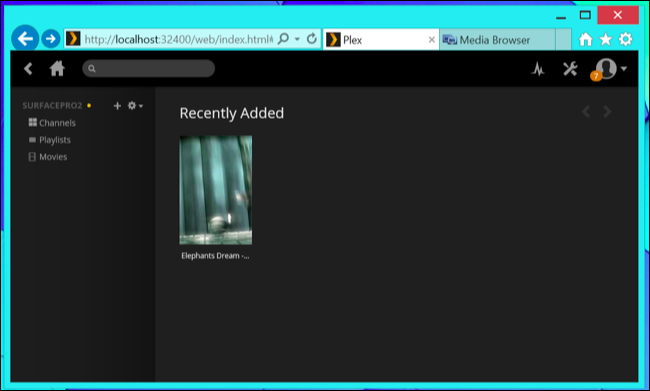
Media Browser offers clients for the Roku and some other TV-streaming devices, including Chromecast support. There are also mobile apps for for iOS, Android, Windows Phone, and Windows 8. Want to use it on a computer? There’s a convenient web-based interface.
Both have fairly similar features, although Plex definitely offers a more comprehensive suite of apps — PlayStation, Xbox, and Fire TV support, for example. However, some Plex services cost money. The iOS Plex app costs $5, and the Xbox and PlayStation app both require a “Plex Pass” subscription that will cost you $5 a month.
Media Browser and its apps are completely free, so there’s no monthly fee or per-app purchases you’ll have to deal with — then again, Media Browser doesn’t even offer PlayStation or Xbox support you could purchase if you wanted to. So, you’ll need to pick one — or, better yet, consider trying both and figuring out which one works best for you.
Source
Tutorial for setup plex server
edit:
Also there is a free and open source alternative called jellyfin
Sure, you could just connect a PC to your TV, but these provide convenient interfaces across all your devices. That means apps for TV streaming boxes, smartphones, tablets, and web-based interfaces for everything else. They even work over the Internet.
Bring Your Own Media
There are some good free software packages for this, but you’ll need to bring your own media. If you have a large collection of local video and music files — perhaps videos ripped from DVDs and music ripped from audio CDs — this may be the ideal way to access that content on all your devices without relying on streaming services like Netflix and Spotify.
These apps often allow you to browse and access photos, too — perfect if you’re the type of person who keeps a local photo collection, too.
Plex vs. Media Browser: Choose One
The two biggest solutions to recommend are probably Plex and Media Browser. Both work similarly, offering a server you install on a desktop PC, laptop, NAS device, or dedicated home server. You could also try Kodi, formerly known as XBMC — it can be a bit more complicated to set up and works a bit differently.
Plex and Media Browser both offer servers that run on Windows, Linux, Mac OS X, BSD, and various NAS devices. You can install it on a desktop computer, a dedicated server, or get a pre-made NAS device that supports the server software.
Plex offers clients for the Roku, Amazon Fire TV, Xbox, and PlayStation platforms — as well as Chromecast support. They offer mobile apps for iOS, Android, Windows Phone, and Windows 8. There’s also a web interface and powerful Plex application for computers, if you hook up a computer to your TV.
Media Browser offers clients for the Roku and some other TV-streaming devices, including Chromecast support. There are also mobile apps for for iOS, Android, Windows Phone, and Windows 8. Want to use it on a computer? There’s a convenient web-based interface.
Both have fairly similar features, although Plex definitely offers a more comprehensive suite of apps — PlayStation, Xbox, and Fire TV support, for example. However, some Plex services cost money. The iOS Plex app costs $5, and the Xbox and PlayStation app both require a “Plex Pass” subscription that will cost you $5 a month.
Media Browser and its apps are completely free, so there’s no monthly fee or per-app purchases you’ll have to deal with — then again, Media Browser doesn’t even offer PlayStation or Xbox support you could purchase if you wanted to. So, you’ll need to pick one — or, better yet, consider trying both and figuring out which one works best for you.
Source
Tutorial for setup plex server
edit:
Also there is a free and open source alternative called jellyfin
Last edited:


