

Latest ads
-
 Google Pixel 9 Pro
- vgp
- Updated:
-
Jobreceive.com for sale
- Blogerwiki
- Updated:
-
 Post Your Vehicle for Sale — FREE! - https://libro.lk
- Kalu_Puth
- Updated:
-
 ඔයාගෙ Assignment හෝ Thesis එක හරියට හදාගමු
- ErMurazor
- Updated:
-
BlackWall V2ray servers
- hu KANNA
- Updated:
You are using an out of date browser. It may not display this or other websites correctly.
You should upgrade or use an alternative browser.
You should upgrade or use an alternative browser.
- Status
- Not open for further replies.

huuuuuuuuuuuuuuuuuuu 2000 panna
2001
අර කෙල්ලෙක් කිවුවා නේද 2000 ගහන එකා මෝඩයෙක්ද බුරුවෙක්ද කියලා. යකෝ එතකොට එ මම නේද.

මඤ්ඤං thred eke 2000 gahana eka buruwa kiyala kiwwe nahaneඅර කෙල්ලෙක් කිවුවා නේද 2000 ගහන එකා මෝඩයෙක්ද බුරුවෙක්ද කියලා. යකෝ එතකොට එ මම නේද.

dan hodata nidaganna puluwan
සුබ රාත්රියක්. අයිත් හවසට හම්බ වෙමු. මෙච්චර වෙලා මාත් එක්ක මොනවා හරි කියව කියව හිටියට ගොඩක් ස්තුතියි.


සුබ රාත්රියක්. අයිත් හවසට හම්බ වෙමු. මෙච්චර වෙලා මාත් එක්ක මොනවා හරි කියව කියව හිටියට ගොඩක් ස්තුතියි.
elakiri..

ai hawasata set wemu...

suba rathiriyak wewaaaaaaaaaaaaa
How to edit Host file in Windows 7
Is as below
Windows 7 – Edit the Hosts File
Need to figure out how to edit the Hosts file in Windows 7? For the most part, it’s pretty much the same as Windows XP and Vista, but with a few extra hiccups!
Just if case you don’t know, the Hosts file is where you can manually enter a hostname and an IP address pair, thereby bypassing the DNS server. This can be pretty useful in certain situation, especially for anyone in IT.
The path to the Hosts file in Windows 7 is the same as usual:
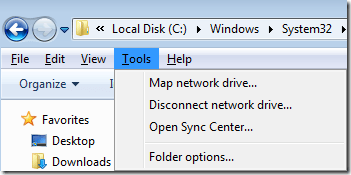
To show hidden folders in Windows 7, press the ALT key while in Explorer to bring up the File menu. Click on Tools and then Folder Options.
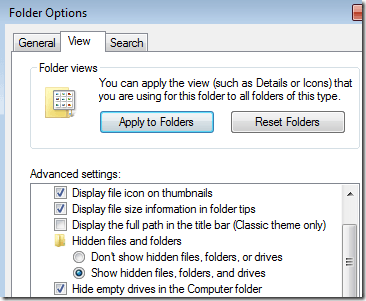
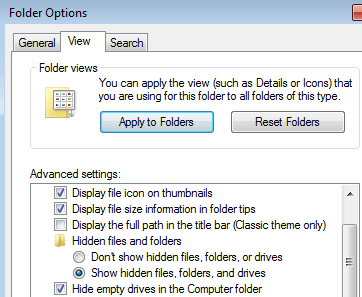
Click on the View tab and then click on the Show hidden files, folders, and drives radio button under Hidden files and folders.
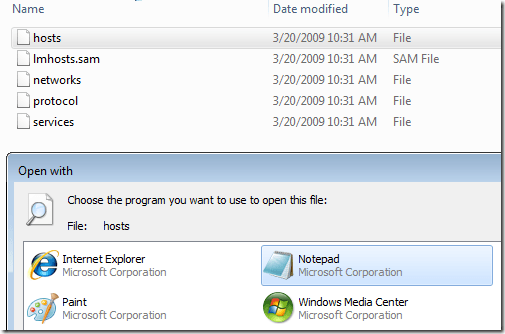
Now navigate to the directory above and open the hosts file and make your changes.
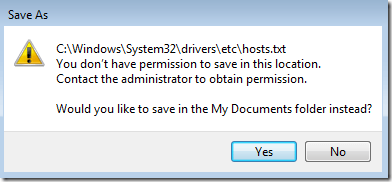
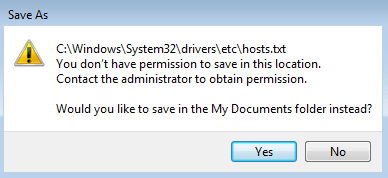
Note that this method for editing the Hosts file will not work. You will get a message saying you do not have permission to save in this location.
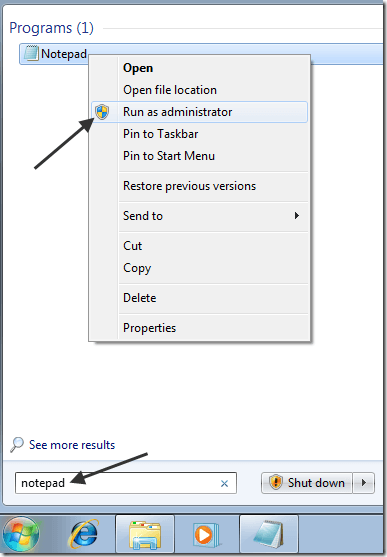
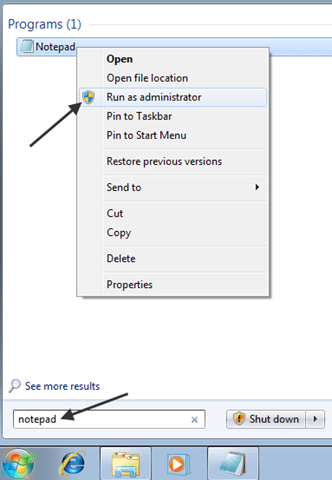
In order to edit it, you have to click on Start, type in Notepad and then right-click on Notepad and choose Run as Administrator.
Now navigate to the drivers/etc folder again and make sure to choose All files for File Types otherwise you won’t see the Hosts file.

Make your changes to the Hosts file and click File and Save to save all changes. Now you will not get the error about not being able to modify the Hosts file. Enjoy!
Is as below
Windows 7 – Edit the Hosts File
Need to figure out how to edit the Hosts file in Windows 7? For the most part, it’s pretty much the same as Windows XP and Vista, but with a few extra hiccups!
Just if case you don’t know, the Hosts file is where you can manually enter a hostname and an IP address pair, thereby bypassing the DNS server. This can be pretty useful in certain situation, especially for anyone in IT.
The path to the Hosts file in Windows 7 is the same as usual:
%systemroot%\system32\drivers\etc\
where %systemroot% is usually c:\windows unless you installed Windows on a different partition. By default, you cannot see these hidden folders since they are system folders.
To show hidden folders in Windows 7, press the ALT key while in Explorer to bring up the File menu. Click on Tools and then Folder Options.
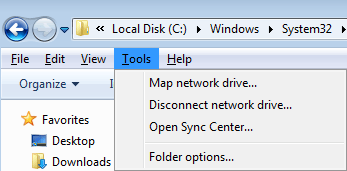
Click on the View tab and then click on the Show hidden files, folders, and drives radio button under Hidden files and folders.
Now navigate to the directory above and open the hosts file and make your changes.
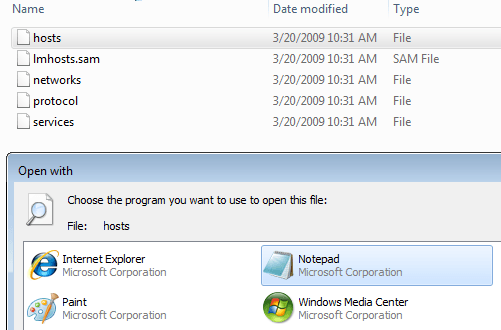
Note that this method for editing the Hosts file will not work. You will get a message saying you do not have permission to save in this location.
In order to edit it, you have to click on Start, type in Notepad and then right-click on Notepad and choose Run as Administrator.
Now navigate to the drivers/etc folder again and make sure to choose All files for File Types otherwise you won’t see the Hosts file.

Make your changes to the Hosts file and click File and Save to save all changes. Now you will not get the error about not being able to modify the Hosts file. Enjoy!

hikizzzzzzzzz..... un ude baladdi 2000 gihin
chinapatazzzzz ehema lasthida??


2000
අඩේ 2000 වෙනි පෝස්ටුව ලබු ගෙඩිය ගහල නේද එල එල මගෙන් සුභ පැතුම්!


- Status
- Not open for further replies.
Similar threads


- Replies
- 11K
- Views
- 334K
