

Latest ads
-
 ඕනම රටකට සෙට් වෙන CV එකක්
- ErMurazor
- Updated:
-
 Hambantota 7 Acres Beachfront Land For Sell DownSouth , PerPerch Price 420 000
- 1024 Digital
- Updated:
-
 Baseus PI LITE INDOOR CAMERA
- ErMurazor
- Updated:
-
Colombo Hard Disk For Sale
- mazza
- Updated:
-
 land for sale
- justasking
- Updated:
You are using an out of date browser. It may not display this or other websites correctly.
You should upgrade or use an alternative browser.
You should upgrade or use an alternative browser.


thama fully approve karala naha ekai. tikak iwasanna.
ah ehama matchn habai wenadata 10min yanakota adss watenewa bn

digatama post dana eka nawaththanna epa... digatama karagena yanna
elaa


Machan mama dan mage Website ekata adsence hada gattoth,e adsence eken mage youtube channel ekatath ads da ganna puluwanda.

Machan mama dan mage Website ekata adsence hada gattoth,e adsence eken mage youtube channel ekatath ads da ganna puluwanda.
productforums.google.com/d/topic/youtube/nUNFzPdGVCk
බකුනා;15023570 said:mage approve wenna sathi 2k giya
ehaamda ba kiyanay mekath ehamada kiyala

Machan mama dan mage Website ekata adsence hada gattoth,e adsence eken mage youtube channel ekatath ads da ganna puluwanda.
ow obata puluwan


sinhalaen tiyana youtube channle ekak unata aulak nadda ban??ow obata puluwan
manදman;15024079 said:sinhalaen tiyana youtube channle ekak unata aulak nadda ban??
english karana balanna
english karana balanna
language ekak nath nam mokada mage thinne wild life videos wage ewa

language ekak nath nam mokada mage thinne wild life videos wage ewa
own vids nam case ne.
 ara godak un sinhala vids walata adsense dala thiyanawa dakka
බකුනා;15024719 said:own vids nam case ne.
visitors la inne lankwe un neme mage nam mekai mata dan ganna ona .oya elka eka un kiyanawa ne un youtube & blogger walata witharak use karanna puluwan ewa hadala denawa kiyala .api ape web site ekata hada ganna ekenuth e wage puluwanda youtube walata ad ganna
Last edited:
visitors la inne lankwe un neme mage nam mekai mata dan ganna ona .oya elka eka un kiyanawa ne un youtube & blogger walata witharak use karanna puluwan ewa hadala denawa kiyala .api ape web site ekata hada ganna ekenuth e wage puluwanda youtube walata ad ganna
mamanam dala naha.
https://support.google.com/adsense/answer/2530958?hl=en
and
If you already have an approved AdSense account:
- Access the Monetization page in your Account Settings.
- From the AdSense Association page, you will be directed to AdSense.
- Select the option at the bottom of the page to choose the Google Account you wish to use.
- Enter the password for your Google Account.
- Accept the association and you will then be redirected back to YouTube
Enable ads on your videos
Upon Upload:
From your channel Video Manager:
Note that you may also enable monetization for multiple videos at once.
Disable ads on your videos
Upon Upload:
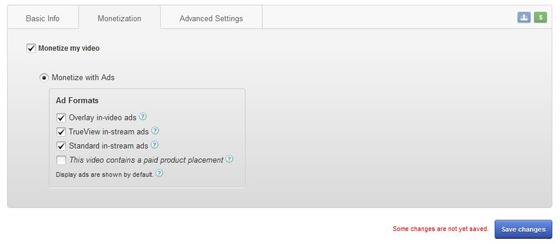
- As your video uploads, click the "Monetization" tab on the upload page and click the "Monetize my video" check box.
- Select which ad formats you want to enable for your video. To learn more about the different options available, click the "?" icons next to each ad format.
- Click the "Save changes" button.
- Your video will go through a standard review process before ads begin to appear. You may be asked to submit information proving you own all necessary commercial use rights to any or all content in your video. Note that if you enable monetization at the time of upload and your video is set to private or unlisted, it will remain so and without ads until you make it public.
From your channel Video Manager:
- Locate your video.
- Click the "Edit" or "$" button next to your video.
- On the "Monetization" tab of the video editor, click the "Monetize my video" check box.
- Select which ad formats you want to enable for your video. To learn more about the different options available, click the "?" icons next to each ad format.
- Click the "Save changes" button.
- Your video will go through a standard review process before ads begin to appear. You may be asked to submit information proving you own all necessary commercial use rights to any or all content in your video. Note that if you enable monetization at the time of upload and your video is set to private or unlisted, it will remain so and without ads until you make it public.
Note that you may also enable monetization for multiple videos at once.
Disable ads on your videos
- Locate your video within the "Monetized Videos" view in your account.
- On the "Monetization" tab of the video editor, uncheck the "Monetize my video" check box.
- Click the "Save changes" button.
- source

බකුනා;15025109 said:Enable ads on your videos
Upon Upload:
After Upload:
- As your video uploads, click the "Monetization" tab on the upload page and click the "Monetize my video" check box.
- Select which ad formats you want to enable for your video. To learn more about the different options available, click the "?" icons next to each ad format.
- Click the "Save changes" button.
- Your video will go through a standard review process before ads begin to appear. You may be asked to submit information proving you own all necessary commercial use rights to any or all content in your video. Note that if you enable monetization at the time of upload and your video is set to private or unlisted, it will remain so and without ads until you make it public.
From your channel Video Manager:
- Locate your video.
- Click the "Edit" or "$" button next to your video.
- On the "Monetization" tab of the video editor, click the "Monetize my video" check box.
- Select which ad formats you want to enable for your video. To learn more about the different options available, click the "?" icons next to each ad format.
- Click the "Save changes" button.
- Your video will go through a standard review process before ads begin to appear. You may be asked to submit information proving you own all necessary commercial use rights to any or all content in your video. Note that if you enable monetization at the time of upload and your video is set to private or unlisted, it will remain so and without ads until you make it public.
Note that you may also enable monetization for multiple videos at once.
Disable ads on your videos
- Locate your video within the "Monetized Videos" view in your account.
- On the "Monetization" tab of the video editor, uncheck the "Monetize my video" check box.
- Click the "Save changes" button.
- source
ela ela

Similar threads


- Replies
- 4
- Views
- 544

