C# project ekakata, crystal reports

amila.ela

Well-known member
  • Mar 24, 2010
    8,645
    626
    113
    මිහිමත
    CreatingCrystalReports.jpg


    2.jpg


    Create a Dataset

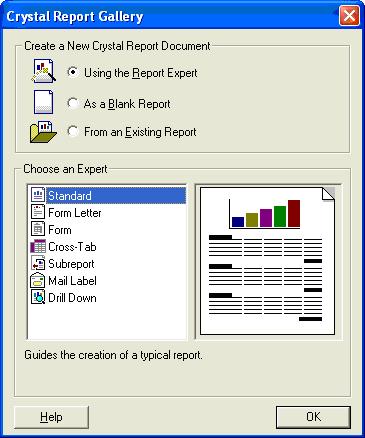
    First you should create a Dataset to get data from the DB. By clicking the “Add New Item” in the “Project” menu, you can add a Dataset. A picture of an added Dataset looks like the following window and you can add elements to the Dataset by dragging and dropping elements from the toolbox. This Dataset is used to fill the data, which it gets from the DB by using a query. Because of that, the names of the elements in this Dataset should be equal to the names of the elements in the DB. For an example, this Dataset can fill using the following query.

    String connString = @"Provider=Microsoft.Jet.OLEDB.4.0;_
    Data Source=..\\..\\myDB.mdb;User ID=Admin;Password=";

    OleDbConnection conn = new OleDbConnection(connString);
    conn.Open();
    string query = "SELECT studentID, firstName, lastName, birthDate, _
    address, contactNo FROM studentInfo";
    OleDbDataAdapter oleDA = new OleDbDataAdapter(query,conn);

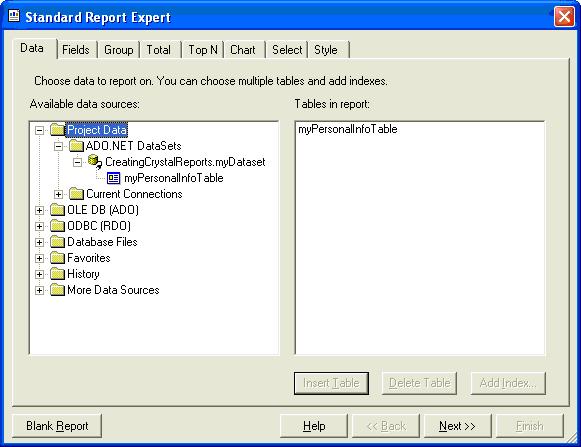
    The next window looks like the following and you have to select your created Dataset under “Project Data”, and click “Insert Table”, then click next.

    3.jpg


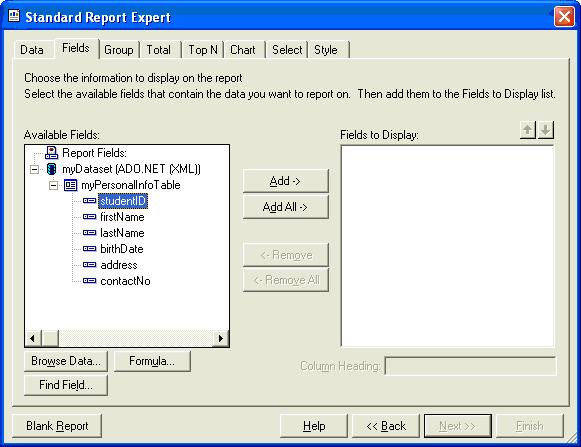
    Then you have to add the field, which you want to display in the report through the following window and click next.

    4.jpg


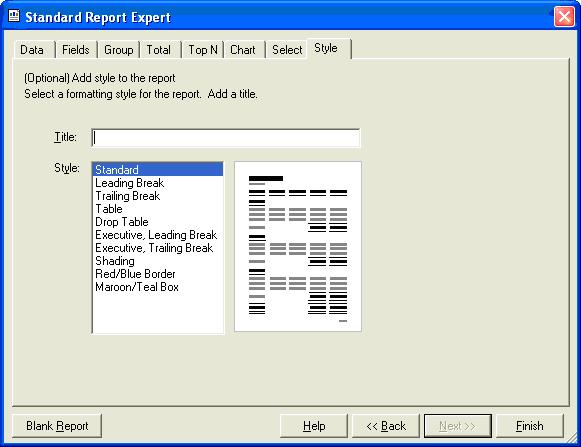
    You can also go to other tabs of this window and select/deselect your choices. Use the last tab “Style” to select the format of the report. You can also type a Report Title here and click finish


    5.jpg


    Set the Created Report to Display in the Form

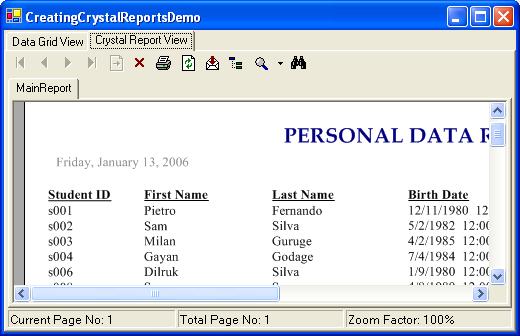
    Then you have to set a “crystalReportViewer” in your form to load the report that you created earlier. Moreover, you need to set the report source of this “crystalReportViewer” component, which falls in the properties panel or you can set the report source by using the code like the following:

    // code to get data from the DB
    DBConnection DBConn = new DBConnection();
    OleDbDataAdapter myDataAdapter = DBConn.getDataFromDB();

    // use the created Dataset to fill it with data got
    // from the DB by using the DataAdapter
    DataSet dataReport = new DataSet();
    myDataAdapter.Fill(dataReport,"myPersonalInfoTable");
    // create a new report from the created CrystalReport
    myDataReport myDataReport = new myDataReport();

    // set the data source of the report
    myDataReport.SetDataSource(dataReport);

    // set the report source of the created “crystalReportViewer”
    // component to the created report
    crystalReportViewer1.ReportSource = myDataReport;


    :P:P:P:P
     

    4viraj

    Junior member
  • Sep 2, 2008
    334
    2
    18
    CreatingCrystalReports.jpg


    2.jpg


    Create a Dataset

    First you should create a Dataset to get data from the DB. By clicking the “Add New Item” in the “Project” menu, you can add a Dataset. A picture of an added Dataset looks like the following window and you can add elements to the Dataset by dragging and dropping elements from the toolbox. This Dataset is used to fill the data, which it gets from the DB by using a query. Because of that, the names of the elements in this Dataset should be equal to the names of the elements in the DB. For an example, this Dataset can fill using the following query.

    String connString = @"Provider=Microsoft.Jet.OLEDB.4.0;_
    Data Source=..\\..\\myDB.mdb;User ID=Admin;Password=";

    OleDbConnection conn = new OleDbConnection(connString);
    conn.Open();
    string query = "SELECT studentID, firstName, lastName, birthDate, _
    address, contactNo FROM studentInfo";
    OleDbDataAdapter oleDA = new OleDbDataAdapter(query,conn);

    The next window looks like the following and you have to select your created Dataset under “Project Data”, and click “Insert Table”, then click next.

    3.jpg


    Then you have to add the field, which you want to display in the report through the following window and click next.

    4.jpg


    You can also go to other tabs of this window and select/deselect your choices. Use the last tab “Style” to select the format of the report. You can also type a Report Title here and click finish


    5.jpg


    Set the Created Report to Display in the Form

    Then you have to set a “crystalReportViewer” in your form to load the report that you created earlier. Moreover, you need to set the report source of this “crystalReportViewer” component, which falls in the properties panel or you can set the report source by using the code like the following:

    // code to get data from the DB
    DBConnection DBConn = new DBConnection();
    OleDbDataAdapter myDataAdapter = DBConn.getDataFromDB();

    // use the created Dataset to fill it with data got
    // from the DB by using the DataAdapter
    DataSet dataReport = new DataSet();
    myDataAdapter.Fill(dataReport,"myPersonalInfoTable");
    // create a new report from the created CrystalReport
    myDataReport myDataReport = new myDataReport();

    // set the data source of the report
    myDataReport.SetDataSource(dataReport);

    // set the report source of the created “crystalReportViewer”
    // component to the created report
    crystalReportViewer1.ReportSource = myDataReport;


    :P:P:P:P

    thanks machan