!======= ElaKiri Tips & Tricks by Dreamz =======!

Dreams001

Member
Dec 6, 2008
15,966
939
0
- ElaKiri Radio -
Make Computer Talk:shocked:


This is a visual basic script file that will pop up an msg which requires

1)Open Notepad

2) Copy the below text and paste on notepad...

Dim userInput


userInput = InputBox("Write a message for me to say")


Set Sapi = Wscript.CreateObject("SAPI.SpVoice")

Sapi.speak userInput
3) Be Sure To Save As .VBS

4) Now open it and you will see an place to write

5) When you write it and press OK

6) Your computer will tell what you typed

:yes::yes:

kp0s0.png

 
Last edited:
  • Like
Reactions: mdrc111

BEN TANNYSON

Well-known member
  • Dec 19, 2009
    12,459
    377
    83
    හෙන පරණ ට්‍රික් එකක් නේ අයියා
    කමක් නෑ දන්නේ නැති අයට හොදා
     

    Dreams001

    Member
    Dec 6, 2008
    15,966
    939
    0
    - ElaKiri Radio -
    Update Kaspersky Offline !

    Update Kaspersky Offline !:yes:


    Step 1 : Visit this Website
    http://support.kaspersky.com/updater?level=2

    and download latest KLUpdater.zip from there as it contains the GUI interface also.

    Step2 : Once you downloaded KLUpdater.zip , Just extract the files in a Folder.


    Step 3
    : Now you will get extracted files, Now run the KasperskyUpdater.exe.

    Step 5 :
    Now the Kaspersky Window will be appeared . Select the specific product for which you want to download the updates.

    Step 6:
    Check the boxes which I marked in the figure and select appropriate product. Once done . click on Apply and then press Start to start the downloading process.

    Step 7 :
    Downloading files will be start and a Command prompt will pop up and will show the status. All the required update files will be now downloaded to the folder “Updates

    Thats it. Once done, now you have the off-line

    update for that product of kaspersky which you have selected.

    How to use this downloaded files to update your Kaspersky product ??


    * Right click on system tray icon of the Kaspersky Antivirus.

    * Select the Update menu and click Settings .
    * Click the Add menu, and find the location of the folder containing the update file above (download the Updates folder above)
    * After added, remove the check for “Kaspersky Lab’s update server” and click OK.
    * DONE.


    Important:
    it's impossible to update manually when the keys are blacklisted.:nerd:
     
    Last edited:

    BEN TANNYSON

    Well-known member
  • Dec 19, 2009
    12,459
    377
    83
    Update Kaspersky Offline !:yes:


    Step 1 : Visit this Website

    and download latest KLUpdater.zip from there as it contains the GUI interface also.

    Step2 : Once you downloaded KLUpdater.zip , Just extract the files in a Folder.


    Step 3
    : Now you will get extracted files, Now run the KasperskyUpdater.exe.

    Step 5 :
    Now the Kaspersky Window will be appeared . Select the specific product for which you want to download the updates.

    Step 6:
    Check the boxes which I marked in the figure and select appropriate product. Once done . click on Apply and then press Start to start the downloading process.

    Step 7 :
    Downloading files will be start and a Command prompt will pop up and will show the status. All the required update files will be now downloaded to the folder “Updates

    Thats it. Once done, now you have the off-line

    update for that product of kaspersky which you have selected.

    How to use this downloaded files to update your Kaspersky product ??


    * Right click on system tray icon of the Kaspersky Antivirus.

    * Select the Update menu and click Settings .
    * Click the Add menu, and find the location of the folder containing the update file above (download the Updates folder above)
    * After added, remove the check for “Kaspersky Lab’s update server” and click OK.
    * DONE.


    Important:
    it's impossible to update manually when the keys are blacklisted.:nerd:

    :shocked:
    11.gif
    ;)
     

    Dreams001

    Member
    Dec 6, 2008
    15,966
    939
    0
    - ElaKiri Radio -
    Fake Warning Boxes

    her is what to do.......its very easy

    Open Notepad and put this in

    x = msgbox("box message",0+48 ,"box title")

    Simply replace the "Box message" with the message of your choise ,do the same with "box title"

    Now for the button selection......

    x = msgbox("box message",0+48 ,"box title")

    The 0 is where you want to select the buttons you have

    0 =OK Button

    1 = OK and Cancel

    2 = Abort Retry and ignore

    3 = Yes No and Cancel

    4 = Yes and No

    5 = Retry and Cancel

    and now for the logo.......

    x = msgbox("box message",0+48 ,"box title")

    The 48 is what you are going to be changing........


    16 = Critical Message

    32 = Warning Query

    48 = Warning Message

    64 = Information Message


    Now just save that as ******.vbs(replace *** with whatever you want)

    Now, if you want to trick someone into thinking it is there Internet Icon for exaple...........

    Move the file to any place that it will not be seen

    Right click on the file you have made and select "Creat Shortcut"
    16nr14.png


    Then when you have the shortcut to it

    bow plce this for example on the desktop

    Now right click on the shortcut.....

    Select Properties and click on the "Shortcut" tab

    vxepz9.png


    Now click the "Change Icon" button

    Now you can find an icon of your choise...
    2qwkf3b.png


    Now click "ok" and "ok" again

    Now you will have something that looks like this....

    2exxz45.png


    now when u click it you will get a error message
    Thats all there is too it...


    :yes::yes:
     
    • Like
    Reactions: Hayao

    Dreams001

    Member
    Dec 6, 2008
    15,966
    939
    0
    - ElaKiri Radio -
    NTFS or Fat32: Which should I choose?

    NTFS or Fat32: Which should I choose?


    A common questions when installing Windows XP on your computer is whether or not you should format your hard drives as NTFS or Fat32.

    The specifications for both systems are as follows:

    Fat32

    • Use it if your hard drive is 32GB or less.
    • Is slightly faster than NTFS, but not by much.
    • Can be used by other Operating Systems. If you plan on having multiple operating systems on your machine, you want FAT32.
    NTFS

    • Should be used if your hard drive is greater than 32GB
    • Has better compression allowing you to store more data.
    • Has file security.
    In generaly, with drive sizes being by default greater than 32GB, you should use NTFS. NTFS also gives you greater security on your hard drive to eliminate possible unauthorized access of your data.

    On the other hand, if you are using Windows 95,98, or ME, NTFS is not an option so you must use FAT32. You will also want to use FAT32 when you have multiple operating systems on one computer.

    :yes::yes:

    Thanks Goes to Original Uploader!:)
     

    Dreams001

    Member
    Dec 6, 2008
    15,966
    939
    0
    - ElaKiri Radio -
    **** Keyboard Disco :))) *****

    Keyboard Disco ;)

    This code when executed makes your Caps, Num, Scroll lock keys flash..
    very attractive...i have tried it..trust me

    Instructions:
    *paste the code in notepad Given Below
    *Save as disco.vbs
    *Run the file
    This piece of code makes your keyboard a live disco...

    Set wshShell =wscript.CreateObject("WScript.Shell")
    do
    wscript.sleep 100
    wshshell.sendkeys "{CAPSLOCK**"
    wshshell.sendkeys "{NUMLOCK**"
    wshshell.sendkeys "{SCROLLLOCK**"
    loop


    REMOVE:

    HOW TO REMOVE LIVE DISCO ON KEYBOARD WITHOUT CHANGING CODE.
    OPEN TASK MANAGER THEN IN PROCESSES DELETE WSCRIPT.EXE FILE


    Dreams001

    Member
    Dec 6, 2008
    15,966
    939
    0
    - ElaKiri Radio -
    How to join .001 movie files ??

    How to join .001 movie files ??

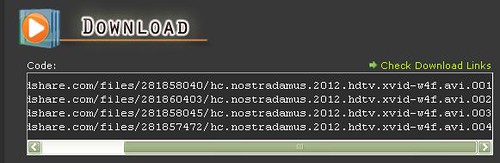
    For the sake of explanation lets say that you have downloaded "Nostradamus 2012 HDTV " from the board and you don't know how to join .001 files.

    4328000298_fd5458a961.jpg


    1. Go to http://www.freebyte.com/hjsplit/ and select the version of HJSPLIT compatible with your operating system.


    2. After dowloading HJsplit run it and click on join as shown below.

    2jb88s5.jpg


    3. Click input and go to the folder where the parts has been stored (here the folder name is "Nostradamus 2012") .


    8yujnm.jpg


    4. Don't worry ! it automatically shows only .001 file .Note that all parts should be stored in the same folder.After clicking on the .001 files click "open" .

    5. Then click "Start".

    121razr.jpg


    6. As you can see the files are being joined.

    2h2mvz8.jpg


    7. The joining process in complete.

    111q9nq.jpg


    8. See the Results.

    29wny86.jpg


    09. OK done lets move to the movie.

    2hyfcp5.jpg


    :yes::yes::yes: