This guide is created to help you use 4Videosoft DVD Converter Suite .
It offers you three specific procedural steps and some tips.
First: What can 4Videosoft DVD Converter Suite do?
Second: How to Rip Copyright DVD in the most convenient and fastest way
Third: How to convert special video tp popular video formats
Tips: How to make wonderful DVD/video editing (Merging, Trimming, Cropping, Effect adjusting, Capture picture)
Part 1: What can 4Videosoft DVD Converter Suite do?
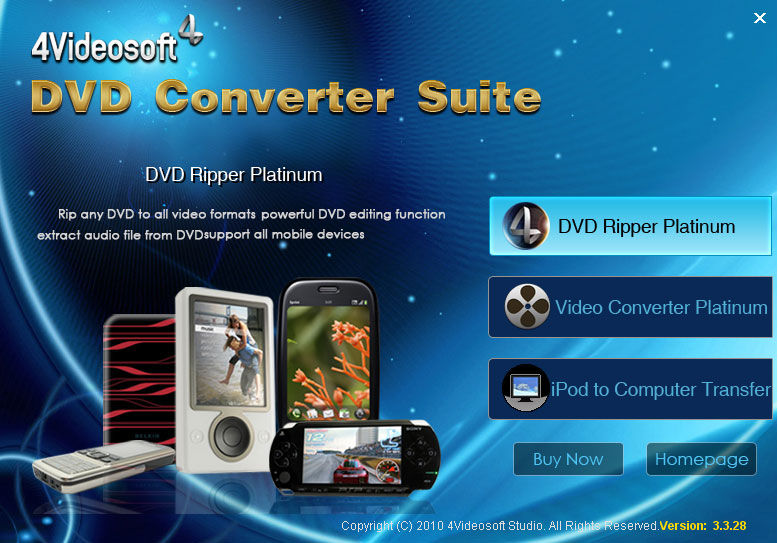
(1) Convert DVD movie to video/audio
Powerful DVD Converter to convert DVD movie to MP4, AVI, MPEG, WMV, 3GP, MP3, WMA etc by DVD Ripper Platinum.
(2) Convert video files to any other format you want
Versatile video file converter to convert videos between MPG, MPEG, MPEG2, VOB, MP4, M4V, RM, RMVB, WMV, etc and extract audio from these video by Video Converter Platinum.
(3) Merge, trim, crop – multifunctional editing functions
Merge several files into one for your successive enjoyment, get any time length segments from your DVD movie or video files, crop the DVD movie or video files play region and adjust the output aspect ratio with the help of 4Videosoft DVD Converter Suite.
(4) Customize output video files.
Adjust the DVD movie Brightness, Contrast, Saturation, and Volume. Set the video Encoder, Resolution, Frame Rate and Video Bitrate by using the DVD Converter Suite.
Part 2: How to rip DVD files into versatile video/audio formats for playback on iPhone/iPod/PSP/Zune/Apple TV/Phone/Xbox/Zen…
Step 0: Download and install 4Videosoft DVD Ripper
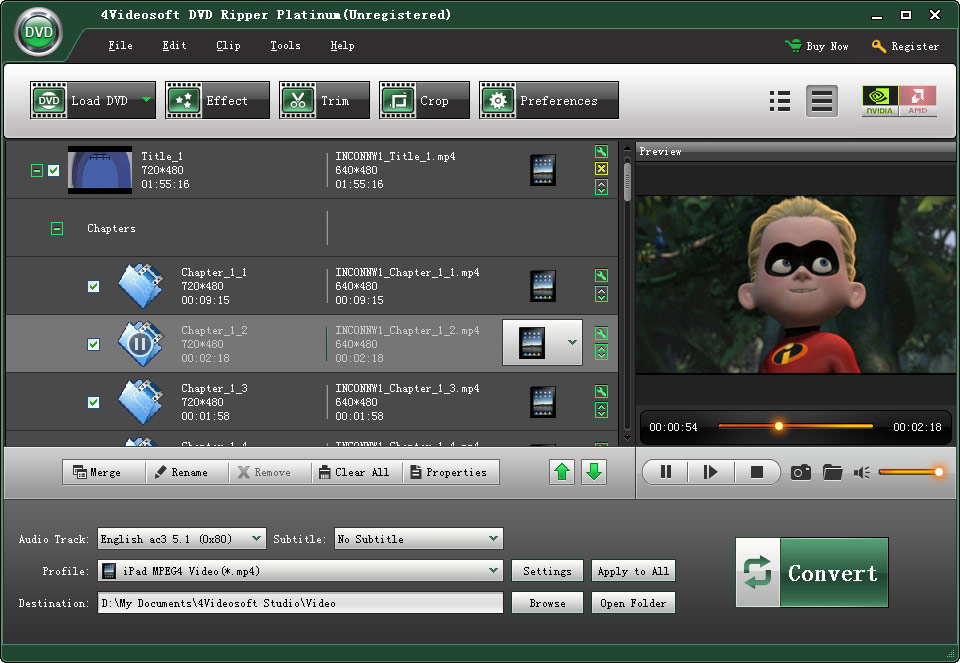
Step 1: Click “Load DVD” button to load your DVD.
This professional DVD Ripper can load three DVD source, you can load your DVD from DVD drive, DVD folder in your PC and also IFO file.
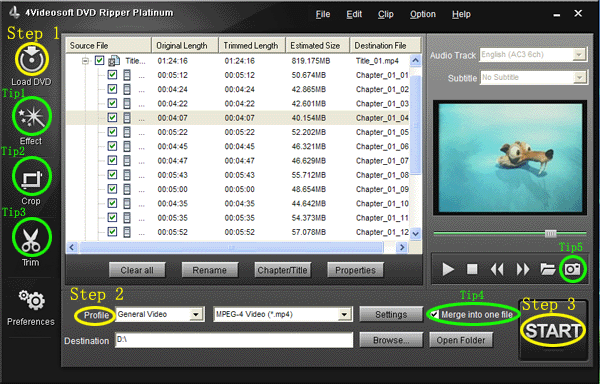
Step 2:Select the output video format you want from the “Profile” drop-down list.
Step 3:Click the “Start” button to begin your conversion.
You can have a coffee or have a walk now! In a short while the conversion will be finished.
Part 3: How to convert video files into versatile video/audio formats for playback on iPhone/iPod/PSP/Zune/Apple TV/Phone/Xbox/Zen …
Preparation: Download and install 4Videosoft Video Converter
After you download it, double click the file and follow the set-up instruction to install it.
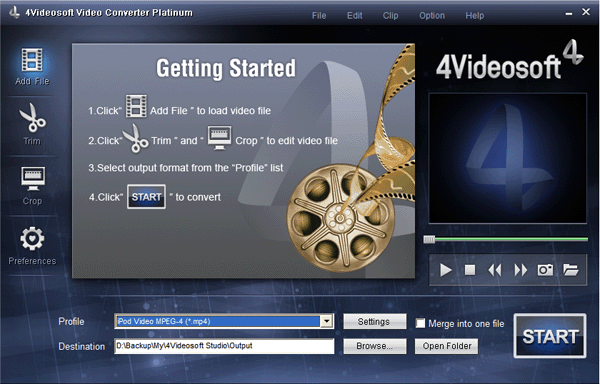
Step 1: After you finish the installation, the friendly user interface will appear on your desk. Click “Add File” to load your video sources.
http://www.4videosoft.com/guide/dvd-converter-suite/video-converter.gif[/FONT][FONT= ][[/FONT][FONT=Times New Roman]/img][/FONT][FONT=Times New Roman][/FONT][/LEFT]
[FONT=Times New Roman][/FONT]
[FONT=Times New Roman][b]Step 2: [/b] Set output video format[/FONT][FONT=Times New Roman][/FONT]
[FONT=Times New Roman]Click "Profile" button from the drop-down list to select the exact output video format that is the most suitable for your player. You can click the "Settings" button to set parameters of your output video such as such as Resolution, Video Bitrate, Frame Rate, Audio Channels, Sample Rate, etc. to get the best video quality as you want.[/FONT][FONT=Times New Roman][/FONT]
[FONT=Times New Roman][/FONT]
[FONT=Times New Roman][b]Step 3: [/b] Click the "Start" button to start the conversion.[/FONT][FONT=Times New Roman][/FONT]
[FONT=Times New Roman][/FONT]
[FONT=Times New Roman][b][/FONT][FONT= ]Tips[/FONT][FONT=Times New Roman]:How to make wonderful video editing (Merging, Trimming, Cropping, Effect adjusting, Capture picture) [/b][/FONT][FONT= ][/FONT]
[FONT= ][/FONT]
[FONT=Times New Roman][b] ([/FONT][FONT= ]1[/FONT][FONT=Times New Roman]) Effect adjusting [/b][/FONT][FONT=Times New Roman][/FONT]
[FONT=Times New Roman]Click “Effect”, you are allowed to adjust video effect such [b]as brightness, contrast and saturation [/b] etc to get the best video effects.[/FONT][FONT= ][/FONT]
[FONT= ][/FONT]
[FONT=Times New Roman][img]http://www.4videosoft.com/guide/video-edit/effect.gif[/FONT][FONT= ][[/FONT][FONT=Times New Roman]/img][/FONT][FONT= ][/FONT]
[FONT= ][/FONT]
[FONT=Times New Roman][b]([/FONT][FONT= ]2[/FONT][FONT=Times New Roman]) Cropping [/b][/FONT][FONT=Times New Roman][/FONT]
[FONT=Times New Roman]Click “Crop”, you are allowed to crop video by [b]selecting aspect ratio, dragging cropping frame or setting the values [/b] to make tailor-made video in the palm of your hands.[/FONT][FONT= ][/FONT]
[FONT= ][/FONT]
[FONT=Times New Roman][img]http://www.4videosoft.com/guide/video-edit/crop.gif[/FONT][FONT= ][[/FONT][FONT=Times New Roman]/img][/FONT][FONT= ][/FONT]
[FONT= ][/FONT]
[FONT=Times New Roman][b] ([/FONT][FONT= ]3[/FONT][FONT=Times New Roman]) Trimming [/b][/FONT][FONT=Times New Roman][/FONT]
[FONT=Times New Roman]Click “Trim”, you are allowed to make trimming of video by dragging the slider, controlling “Mark in” and “Mark out” button and setting start and end time to get your desired video clips.[/FONT][FONT= ][/FONT]
[FONT= ][/FONT]
[FONT=Times New Roman][img]http://www.4videosoft.com/guide/video-edit/trim.gif[/FONT][FONT= ][[/FONT][FONT=Times New Roman]/img][/FONT][FONT= ][/FONT]
[FONT= ][/FONT]
[FONT=Times New Roman][b] ([/FONT][FONT= ]4[/FONT][FONT=Times New Roman]) Merg[/FONT][FONT= ]ing[/FONT][FONT=Times New Roman], [/b][/FONT][FONT=Times New Roman][/FONT]
[FONT=Times New Roman]With Merge function you can merge several videos into file[/FONT][FONT= ].[/FONT][FONT= ][/FONT]
[FONT= ][/FONT]
[FONT=Times New Roman][b] ([/FONT][FONT= ]5[/FONT][FONT=Times New Roman]) SnapShot[/FONT][FONT= ]ing[/FONT][FONT=Times New Roman][/b][/FONT][FONT=Times New Roman][/FONT]
[FONT=Times New Roman]SnapShot [/FONT][FONT= ]give you the chance to [/FONT][FONT=Times New Roman]capture the current picture you like[/FONT][FONT= ].[/FONT][FONT= ][/FONT]
[FONT=Times New Roman][/FONT]
[FONT= ][/FONT]
[FONT= ][/FONT]
[FONT= ][/FONT]
[FONT= ][/FONT]
[FONT= ][/FONT]
[FONT= ][/FONT]
[FONT= ][/FONT]
[FONT= ][/FONT]
[FONT= ][/FONT]
[FONT= ][/FONT]
[FONT= ][/FONT]
[FONT= ][/FONT]
[FONT= ][/FONT]
[FONT= ][/FONT]
[FONT= ][/FONT]
[FONT= ][/FONT]
[FONT= ]
[/FONT]
It offers you three specific procedural steps and some tips.
First: What can 4Videosoft DVD Converter Suite do?
Second: How to Rip Copyright DVD in the most convenient and fastest way
Third: How to convert special video tp popular video formats
Tips: How to make wonderful DVD/video editing (Merging, Trimming, Cropping, Effect adjusting, Capture picture)
Part 1: What can 4Videosoft DVD Converter Suite do?
(1) Convert DVD movie to video/audio
Powerful DVD Converter to convert DVD movie to MP4, AVI, MPEG, WMV, 3GP, MP3, WMA etc by DVD Ripper Platinum.
(2) Convert video files to any other format you want
Versatile video file converter to convert videos between MPG, MPEG, MPEG2, VOB, MP4, M4V, RM, RMVB, WMV, etc and extract audio from these video by Video Converter Platinum.
(3) Merge, trim, crop – multifunctional editing functions
Merge several files into one for your successive enjoyment, get any time length segments from your DVD movie or video files, crop the DVD movie or video files play region and adjust the output aspect ratio with the help of 4Videosoft DVD Converter Suite.
(4) Customize output video files.
Adjust the DVD movie Brightness, Contrast, Saturation, and Volume. Set the video Encoder, Resolution, Frame Rate and Video Bitrate by using the DVD Converter Suite.
Part 2: How to rip DVD files into versatile video/audio formats for playback on iPhone/iPod/PSP/Zune/Apple TV/Phone/Xbox/Zen…
Step 0: Download and install 4Videosoft DVD Ripper
Step 1: Click “Load DVD” button to load your DVD.
This professional DVD Ripper can load three DVD source, you can load your DVD from DVD drive, DVD folder in your PC and also IFO file.
Step 2:Select the output video format you want from the “Profile” drop-down list.
Step 3:Click the “Start” button to begin your conversion.
You can have a coffee or have a walk now! In a short while the conversion will be finished.
Part 3: How to convert video files into versatile video/audio formats for playback on iPhone/iPod/PSP/Zune/Apple TV/Phone/Xbox/Zen …
Preparation: Download and install 4Videosoft Video Converter
After you download it, double click the file and follow the set-up instruction to install it.
Step 1: After you finish the installation, the friendly user interface will appear on your desk. Click “Add File” to load your video sources.
http://www.4videosoft.com/guide/dvd-converter-suite/video-converter.gif[/FONT][FONT= ][[/FONT][FONT=Times New Roman]/img][/FONT][FONT=Times New Roman][/FONT][/LEFT]
[FONT=Times New Roman][/FONT]
[FONT=Times New Roman][b]Step 2: [/b] Set output video format[/FONT][FONT=Times New Roman][/FONT]
[FONT=Times New Roman]Click "Profile" button from the drop-down list to select the exact output video format that is the most suitable for your player. You can click the "Settings" button to set parameters of your output video such as such as Resolution, Video Bitrate, Frame Rate, Audio Channels, Sample Rate, etc. to get the best video quality as you want.[/FONT][FONT=Times New Roman][/FONT]
[FONT=Times New Roman][/FONT]
[FONT=Times New Roman][b]Step 3: [/b] Click the "Start" button to start the conversion.[/FONT][FONT=Times New Roman][/FONT]
[FONT=Times New Roman][/FONT]
[FONT=Times New Roman][b][/FONT][FONT= ]Tips[/FONT][FONT=Times New Roman]:How to make wonderful video editing (Merging, Trimming, Cropping, Effect adjusting, Capture picture) [/b][/FONT][FONT= ][/FONT]
[FONT= ][/FONT]
[FONT=Times New Roman][b] ([/FONT][FONT= ]1[/FONT][FONT=Times New Roman]) Effect adjusting [/b][/FONT][FONT=Times New Roman][/FONT]
[FONT=Times New Roman]Click “Effect”, you are allowed to adjust video effect such [b]as brightness, contrast and saturation [/b] etc to get the best video effects.[/FONT][FONT= ][/FONT]
[FONT= ][/FONT]
[FONT=Times New Roman][img]http://www.4videosoft.com/guide/video-edit/effect.gif[/FONT][FONT= ][[/FONT][FONT=Times New Roman]/img][/FONT][FONT= ][/FONT]
[FONT= ][/FONT]
[FONT=Times New Roman][b]([/FONT][FONT= ]2[/FONT][FONT=Times New Roman]) Cropping [/b][/FONT][FONT=Times New Roman][/FONT]
[FONT=Times New Roman]Click “Crop”, you are allowed to crop video by [b]selecting aspect ratio, dragging cropping frame or setting the values [/b] to make tailor-made video in the palm of your hands.[/FONT][FONT= ][/FONT]
[FONT= ][/FONT]
[FONT=Times New Roman][img]http://www.4videosoft.com/guide/video-edit/crop.gif[/FONT][FONT= ][[/FONT][FONT=Times New Roman]/img][/FONT][FONT= ][/FONT]
[FONT= ][/FONT]
[FONT=Times New Roman][b] ([/FONT][FONT= ]3[/FONT][FONT=Times New Roman]) Trimming [/b][/FONT][FONT=Times New Roman][/FONT]
[FONT=Times New Roman]Click “Trim”, you are allowed to make trimming of video by dragging the slider, controlling “Mark in” and “Mark out” button and setting start and end time to get your desired video clips.[/FONT][FONT= ][/FONT]
[FONT= ][/FONT]
[FONT=Times New Roman][img]http://www.4videosoft.com/guide/video-edit/trim.gif[/FONT][FONT= ][[/FONT][FONT=Times New Roman]/img][/FONT][FONT= ][/FONT]
[FONT= ][/FONT]
[FONT=Times New Roman][b] ([/FONT][FONT= ]4[/FONT][FONT=Times New Roman]) Merg[/FONT][FONT= ]ing[/FONT][FONT=Times New Roman], [/b][/FONT][FONT=Times New Roman][/FONT]
[FONT=Times New Roman]With Merge function you can merge several videos into file[/FONT][FONT= ].[/FONT][FONT= ][/FONT]
[FONT= ][/FONT]
[FONT=Times New Roman][b] ([/FONT][FONT= ]5[/FONT][FONT=Times New Roman]) SnapShot[/FONT][FONT= ]ing[/FONT][FONT=Times New Roman][/b][/FONT][FONT=Times New Roman][/FONT]
[FONT=Times New Roman]SnapShot [/FONT][FONT= ]give you the chance to [/FONT][FONT=Times New Roman]capture the current picture you like[/FONT][FONT= ].[/FONT][FONT= ][/FONT]
[FONT=Times New Roman][/FONT]
[FONT= ][/FONT]
[FONT= ][/FONT]
[FONT= ][/FONT]
[FONT= ][/FONT]
[FONT= ][/FONT]
[FONT= ][/FONT]
[FONT= ][/FONT]
[FONT= ][/FONT]
[FONT= ][/FONT]
[FONT= ][/FONT]
[FONT= ][/FONT]
[FONT= ][/FONT]
[FONT= ][/FONT]
[FONT= ][/FONT]
[FONT= ][/FONT]
[FONT= ][/FONT]
[FONT= ]
[/FONT]