.::FULL FR33 DOWNLO@D HERE::.

dinukap4

Well-known member
  • Mar 18, 2008
    10,896
    274
    83
    AVG 8.0 Antivirus + serial (expires in 2018 ^^)


    Avglogo.PNG


    Quote:
    AVG is an umbrella term for a range of antivirus and internet security software for the Microsoft Windows, Linux, and FreeBSD computing platforms, developed by AVG Technologies.


    EmnAR_.gif
    Emn.gif


    dinukap4

    Well-known member
  • Mar 18, 2008
    10,896
    274
    83
    w9hd0y.png


    Info:
    Windows Media Player 12.0.7000.7000
    Windows Media Player (WMP) 12 which comes with lighter and brighter user interface as well as several new features, is scheduled to be shipped with [FONT=verdana,geneva,lucida,'lucida grande',arial,helvetica,sans-serif]Windows 7[/font]. Unfortunately Microsoft is not planning to release it sooner than the official launch of Windows 7 and this leaves people who are eager to use the latest version of Windows Media Player restless.

    While we only see WMP 12 is distant away from reaching, Mikasi2009, a user over at Devianart brings the lovely WMP 12 closer for grab by coming up with a way to install Windows Media 12 on Windows Vista. For what is worth, this guy is one of the lucky 1000 participants who got invitation for Windows 7 Beta 2 Closed Testers and has access to the Windows Media Player 12.0.7000.7000 original files from Windows 7 Build 7000.

    How to install Windows Media Player 12?
    1. Download this file and extract it.
    2. - copy wmploc.dll in C:WindowsSystem32
    - copy Windows Media Player folder to Crogram Files
    Windows Media Player 12.0.7000.7000
     

    dinukap4

    Well-known member
  • Mar 18, 2008
    10,896
    274
    83
    w9hd0y.png


    Quote:
    Windows Media Player 12 Release 2008
    Windows Media Player (WMP) is a digital media player and media library application developed by Microsoft that is used for playing audio, video and viewing images on personal computers running the Microsoft Windows operating system, as well as on Pocket PC and Windows Mobile-based devices. Editions of Windows Media Player were also released for Mac OS, Mac OS X and Solaris but development of these has since been discontinued
    Windows Media Player 12 portable
     

    dinukap4

    Well-known member
  • Mar 18, 2008
    10,896
    274
    83
    qnh4jvouxgk8ya0m44eg.jpg


    Note: This is a beta version of the documentation
    for Galleline MacAmp Win. They are to help you get a feel
    for the program
    Galleline MacAmp for Windows 2.0: Public Beta


    Player Window
    I. Buttons
    1.1 Minimize - Minimizes window
    1.2 Power - Quits application
    1.3 Recent IP’s – Shows the ten previous Internet streams to which you have been
    connected
    1.4 Previous/Rewind - Click to switch to previous track in playlist or previous station
    in Tracker window
    Click and hold – Scan backward through track
    1.5 Play/Pause – Pauses the current song or stream
    Alternately, replays the last item played from the Tracker or Playlist
    1.6 Stop – Stops the current track or stream
    1.7. Next/Fast Forward - Click to switch to next track in playlist or next station in
    Tracker window
    Click and hold – Scan forwards through track

    1.8 Show/Hide Playlist - Toggles visibility of Playlist
    1.9 Show/Hide Tracker – Toggles visibility of Tracker
    1.10 Show/Hide Plugins window - Toggles visibility of Plugins Window
    1.11 Random – Plays songs at random from the playlist
    1.12 Repeat – Loops the Playlist back to the beginning when the end is reached
    1.13 Record – Saves currently playing MP3 stream in MP3 format to the Hard Drive,
    in the location specified in the settings of the Millennium MPEG Decoder Plugin
    1.14 Mute – Mutes sound on currently playing audio
    II. Knobs
    -Adjust Volume, Bass, and Treble, from 0 to 100%
    -Toggle Realistic Knob behavior in the preferences
    III. MEEPs(MacAmp Embedded Eyecandy Plugins)
    -Right mouse button – Loads menu to select MEEPs plugins
    -If selected MEEP has settings, then last menu item "Settings" becomes active
    IV. Timer
    -Left mouse button (while over timer) toggles between normal mode and count down
    mode
    V. Info Scroller
    -Displays info about current track/station
    -Shows tooltips for main player window buttons if turned on in player popup menu
    (Options -> Show tooltips)
    VI. Position slider
    -When enabled, shows percentage of current song played
    -Click anywhere on slider bar to move song to that point
    -Drag slider to move forward or backward through the track
    VII. Player Popup Menu (activated by right-clicking over the Player window)
    7.1 "Open File..." - Opens audio or playlist file
    7.2 "Open Location" - Opens an Internet location, such as an Internet stream
    7.3 "Preferences" - Opens Preferences/Skins Dialog
    7.4 "Setup Plugins" -- Opens Plugins Window
    7.5 "Options" - Simple options which can be toggled:
    7.5.1 "Always on top" - all MacAmp windows float above all other application
    windows
    7.5.2 "Show tooltips" – Displays MacAmp tooltips in the Info scroller
    7.5.3 "Reverse Timer" – Toggles timer mode
    7.6 "Minimize" - Minimizes window , hiding it in the toolbar
    7.7 "About MACAMP" - Brings up About/Keyboard shortcuts help Dialog
    7.8 "Exit" - Quits MacAmp
    VIII. Player features
    8.1 A file may be dropped from Windows Explorer onto the main player window to
    begin playback.
    8.2 The appearance (skin) can be changed in the Preferences Dialog -> Skins tab.
    8.3 System shortcuts – These shortcuts may be accessed from within any Windows
    program. Set them in Preferences ->General tab, “System keyboard shortcuts.”
    Tracker
    I. Clicking Genre Folder
    -If folder is empty - automatically fills folder with stations by downloading from the
    net and opens folder
    -If folder has entries, just opens folder.
    -Folder content can be refreshed using the tracker popup menu item "Refresh".
    II. Columns
    2.1 Name – Displays name of genre/item
    2.2 Users
    For a folder – Displays the number of stations in this genre
    For a station - Displays number of users/max users
    2.3 Bitrate - Displays station bitrate
    2.4 Left click on the column header - sorts by clicked criteria
    III. Tracker Popup Menu (Right Click in the Tracker Window)
    3.1 Play - Connect to the station
    3.2 Refresh - Refresh selected folder content
    3.3 Info - Brings up Station Info window (Name, URL, Bitrate, Max Users), allows to
    edit Name and URL fields.
    3.4 Copy – Copies selected elements to clipboard, for pasting onto the Playlist
    3.5 Find... – Searches Tracker for text string
    3.6 Find Next – Finds the next instance of specifies string
    3.7 Options:
    3.7.1 Hilite Playing Folder – Highlights the parent folder of currently playing
    station
    3.7.2 Sort Whole List - When checked, sort affects all folders, else sort only
    affects active folder
    IV. Tracker Features
    4.1 Stations and folders can be dragged and dropped from the tracker to the playlist.
    4.2 Tracker content is cached at quit, and reloaded upon restart of MacAmp. To
    refresh this content, use the Tracker popup menu.
    4.3 Items can be sorted by clicking with the left mouse button on a column header.
    4.4 To hide and show Users/Bitrate columns, click with the right mouse button on a
    column and check/uncheck the appropriate item. The 'Name' column cannot be
    hidden.
    4.5 Double clicking with the left mouse button on a column separator expands the
    column width to the width of the largest item in that column.
    PlayList
    I. Columns
    1.1 Name - Displays name of item, either Artist-Title from the file’s ID3 tag, or the
    name of the file
    1.2 Time – Displays length of item
    1.3 Bitrate – Display bitrate of item
    1.4 Sample rate – Displays sample rate of item
    1.5 Track – Displays the Track ID3 tag from the item
    1.6 Album – Displays the Album ID3 tag from the item
    1.7 Year – Displays the Year ID3 tag from the item
    1.8 Genre – Displays the Genre ID3 tag from the item
    1.9 Comment – Displays the Comment ID3 tag from the item
    1.10 File size – Displays the size of item
    1.11 Left click on the column header - Sorts by clicked criteria
    II. Tool bar
    2.1 Open playlist - Opens MacAmp ('.arp' extension), MP3 URL ('.m3u' extension )
    and PLS ('.pls' extension) playlists.
    2.2 Save playlist - Saves Macamp ('.arp' extension), MP3 URL ('.m3u' extension )
    and PLS ('.pls' extension) playlists.
    2.3 New folder – Creates a new folder in the playlist
    2.4 Add file(s) – Opens the dialogue to add files
    2.5 Add location – Opens the dialogue to add a location (URL)
    2.6 Add directory (flat) - Adds a directory, ignoring hierarchy
    2.7 Add directory (keep hierarchy) - Adds a directory with hierarchy
    2.8. Add playlist - Creates a new folder with the playlist’s file name and adds the
    playlist’s items. Supported playlists are: MacAmp ('.arp' extension), MP3 URL ('.m3u'
    extension) and PLS ('.pls' extension) playlists
    2.9 File Info and ID3 Tag Editor - Brings up the Item Info editor window.
    2.10 Random mode - Same function as Random button in the player window
    2.11.Repeat playlist - Same function as Repeat button in the player window
    2.12 Show playing item – Shows the currently playing track in the playlist window
    2.13 Collapse played folder - Collapse item's parent folder after playing ends
    2.14 Find - Finds items in playlist, using the following search criteria: Item name,
    ID3 tags, and file name
    2.15 Find next - Finds next item
    2.16 Copy file(s) - Brings up the “Copy Disk Files” dialog
    2.17 Move file(s) - Brings up “Move Disk Files” dialog
    2.18 Delete file(s) - Deletes files from the hard drive (Warning: Permanent!)
    2.19 Preferences - Brings up the Preferences/Skins Dialog
    III. Playlist popup menu (Right mouse button click in the playlist window)
    Most of the items do the same functions as toolbar buttons, except for:
    3.1 Disable/Enable Folder - Disables/Enables folder playback
    If folder playback is disabled, all folder items are dimmed. You can play dimmed
    items by double-clicking them or hitting Enter on selected item, but they are skipped during
    sequential playback in normal and random mode
    3.2 Cut, Copy, Paste - Clipboard functions, you can also paste items copied from
    tracker, or copy/paste items between several running MacAmp instances
    3.3 Delete - Removes selected item from playlist
    3.4 All Folders->Expand All - Expand all folders in playlist
    3.5 All Folders->Collapse All - Collapse all folders in playlist
    3.6 Options:
    3.6.1 Show Toolbar - Show/hide toolbar
    3.6.2 Auto-change drive-letter - If a file is not found, MacAmp tries to change
    the drive letter for the track file path and if it succeeds, MacAmp saves changes
    automatically
    3.6.3 Check files on load playlist - MacAmp scans the playlist items on every
    playlist load, and if a file is not found, MacAmp draws a question mark over the icon.
    (Warning: Checking this option can greatly slow down playlist loading.)
    3.6.4 Sort whole list – When checked, mouse clicking on the column header
    sorts items in all folders. If unchecked, sorting affects only the focused folder.
    IV. Additional features
    1. Drag and dropping items in the playlist while the ctrl button is held will make
    copies of the selected items.
    2. Drag and drop files/folders from Windows Explorer to add them to the playlist
    3. Left mouse button clicking on a column header sorts the items.
    4. To show or hide playlist columns, right mouse button click on a column header,
    and check/uncheck the appropriate items in the menu. The "Name" column cannot
    be hidden.
    5. Left mouse button double-click on a column header separator to expand the
    column to the widest element in a list.
    6. The Name field of the playlist can be inline edited by pressing F2. This will ntot
    affect the file’s ID3 tags.
    'Plugins' Window
    To show – Click the "plugins" button in the main player window, from player popup menu
    ("Setup Plugins" menu item), or with F9 keyboard button. To view descriptions of a plugin,
    as well as the plugin’s options, highlight the plugin. Click autosize to adjust the window size
    to the plugin pane size.
    Preferences Dialog
    To show -- select "Preferences..." item in player popup menu, "Preferences" button on a
    toolbar, or with F10 keyboard button.
    It has two tabs: General and Skins.
    General Tab:
    1.Checkbox 'On start register file types' -- register supported file types with every
    launch of MacAmp.
    2. Checkbox 'Allow multiply instances' -- allows to run multiple instances of MacAmp.
    3. Checkbox 'Live windows' -- Draw window content while window dragging,
    otherwise just draw window frame.
    4. Checkbox 'Realistic knobs' -- realistic knobs.
    5. Proxy Settings: http proxy settings for tracker and streaming.
    6.System keyboard shortcuts - enable and edit system global keyboard shortcuts,
    they will work from any Windows application (Preferences -> 'System keyboard
    shortcuts'). Shortcuts are for: Play, Pause, Stop,Next track, Previous track,Increase
    Volume, Decrease Volume.
    Skins Tab:
    Change appearance of the main player window.
    About MacAmp Dialog
    To show: Select the 'About MacAmp' item from the player popup menu or press the F1
    keyboard button.
    The About dialog has two tabs: 'About' and 'Keyboard shortcuts'.

    Galleline MacAmp 2.0 Beta
     

    dinukap4

    Well-known member
  • Mar 18, 2008
    10,896
    274
    83
    2lk9shg.jpg

    BitDefender Total Security 2009 provides comprehensive proactive protection against all Internet security threats, along with system maintenance and backup, without slowing down your PCs.

    Confidently download, share and open files from friends, family, co-workers – and even total strangers!

    * Improved: Scans all web, e-mail and instant messaging traffic for viruses and spyware, in real-time
    * Proactively protects against new virus outbreaks using advanced heuristics

    Protect your identity: shop, bank, listen, watch privately and securely

    * Blocks attempted identity theft (phishing)
    * Improved: Prevents personal information from leaking via e-mail, web or instant messaging

    Guard your conversations with top-of-the line encryption

    * NEWInstant Messaging Encryption
    * NEWFile Vault securely stores personal information or sensitive files
    * Backs up files and folders locally
    * NEWProvides secure on-line storage

    Connect securely to any network at home, in the office or away

    * Automatically modifies firewall protection settings to suit location
    * Wi-Fi monitor helps prevent unauthorized access to your Wi-Fi network

    Protect your family and their computers!

    * Blocks access to inappropriate websites and e-mail
    * Schedules and limits kids’ access to Internet and to applications

    Play safe, play seamlessly!

    * Improved: Reduces the system load and avoids requesting user interaction during games

    Get fine-tuned performance from your computer !

    * Uses few system resources
    * NEWLaptop mode prolongs battery life
    * Removes unnecessary duplicates of files and registry entries
    * Irrecoverably erases unwanted files and "traces" of files

    Features and Benefits

    NEWFamily network protection
    Manage the security of your home network from a single location. BitDefender software from other computers in the network can be remotely configured, while tasks such as scans, backups tune-ups and updates can be run on-demand or scheduled to run during off-hours.

    Hassle - Free Hourly Updates
    Hourly updates ensure that you are protected against the latest threats without pushing a button. Lost program files are not a problem either. In the rare event of file damage due to PC problems, BitDefender automatically repairs and updates itself.

    FREE 24/7 Support
    Got a question? Our security experts are available to help you 24/7 via phone, email or chat at no additional cost.
    System Requirements
    top
    Windows XP with Service Pack 2 (32/64 bit) or higher

    * 800 MHz or higher processor
    * 256 MB of RAM Memory (512 MB recommended)
    * 300 MB available hard disk space


    Windows Vista (32/64 bit) and Windows Vista SP1

    * 800 MHz or higher processor
    * 512 MB of RAM Memory (1 GB recommended)
    * 300 MB available hard disk space

    Windows Home Server

    * 800 MHz or higher processor
    * 512 MB of RAM Memory (1 GB recommended)
    * 300 MB available hard disk space

    Internet Explorer 6.0 (or higher)
    .NET Framework 1.1 (also available in the installer kit)

    Supported IM Software (for IM encryption)
    Yahoo! Messenger v8
    Windows Live Messenger v8.5
    Bitdefender Total Security 2009 (100% Working), 14369 DAYS!
     

    dinukap4

    Well-known member
  • Mar 18, 2008
    10,896
    274
    83
    SpeedConnect Internet Accelerator v.7.5 just released!!!
    speedconnect.jpg

    Top internet accelerator (according to PC Magazine), a network settings optimizer to speed up your existing Dial-Up Modem, DSL, Cable, Wireless, LAN, High-speed internet connections.

    SpeedConnect Internet Accelerator is a powerful Windows application designed to optimize your network connection and speed up all your internet activities. This translates into a faster internet connection, faster browsing and email, faster downloads, faster online gaming, improved Skype connection.
    speedconnect1.gif

    The speed of your network connection doesn't just depend on the speed of your hardware. Windows is an operating system that is designed to work on a variety of different hardware and network setups. Because of the abstract nature of the operating system, it cannot be optimized for user-specific hardware setups.

    Depending on the type of network connection you have, you might be able to tweak your connection so that the speed of your Internet, as well as your local area network, will be faster. By changing the System Registry and optimizing the TCP/IP parameters, SpeedConnect can fine-tune the values to take advantage of more reliable, faster Internet connections.
    speedconnect2.gif

    speedconnect3.gif

    HOW IT WORKS
    SpeedConnect prevents fragmentation in data transfer using the TCP/IP protocols used on the Internet, greatly increasing the connection throughput and the download/upload speeds (Kbps).

    Because Windows default network settings have general values and are not optimized for a specific internet connection type, SpeedConnect software calculates, optimize and safely change several network related settings to known optimized values, in a recursive process, until it discovers the best settings for your specific connection. Basically, SpeedConnect applies optimized network settings values which will prevent the data packets fragmentation and will speed up your connection. All this translates into faster web browsing, faster e-mail, faster downloads and improved overall Internet performance.
    SPEED OPTIMIZATION
    SpeedConnect Internet Accelerator is designed to optimize the network tcp/ip settings and speed up all your internet related activities including browsing, downloading, uploading, streaming, online gaming, sending and receiving email. SpeedConnect Quick Optimizer mode provides the fastest way to speed up your connection. Experienced users get total control in advanced mode, which provides manual access to all settings.
    BENEFITS
    FASTER internet connection
    Browse FASTER
    Send and receive e-mail FASTER
    Download and upload files FASTER
    Play online games FASTER
    Improve Skype connection
    NO adware, NO hardware installation
    NO service subscription, NO monthly fees
    NO new hardware installation
    FEATURES
    Optimizes all internet connection types
    User friendly
    Quick Optimizer option
    Advanced Customization
    Tool and Wizards
    Load/Save Settings
    Optimization Report
    Connection Analyzer

    download.png

    SpeedConnect Internet Accelerator v.7.5 just released!!!
     

    dinukap4

    Well-known member
  • Mar 18, 2008
    10,896
    274
    83
    HOW TO DONWLOAD FROM (easy-share.com)
    1.CLICK the download link
    2.WAIT TILL THE DOWNLOAD TIMER GETS OK.
    3.PRESS (ALT) AND CLICK THE Free Download BUTTON
    4.AFTER THAT THERE WILL B A BUTTON DOWNLOAD FILE PRESS, IT PRESSING (ALT) YOUR DONE AND UR DOWNLOADING IT
     

    dinukap4

    Well-known member
  • Mar 18, 2008
    10,896
    274
    83
    USB-Disk-Security_1.png


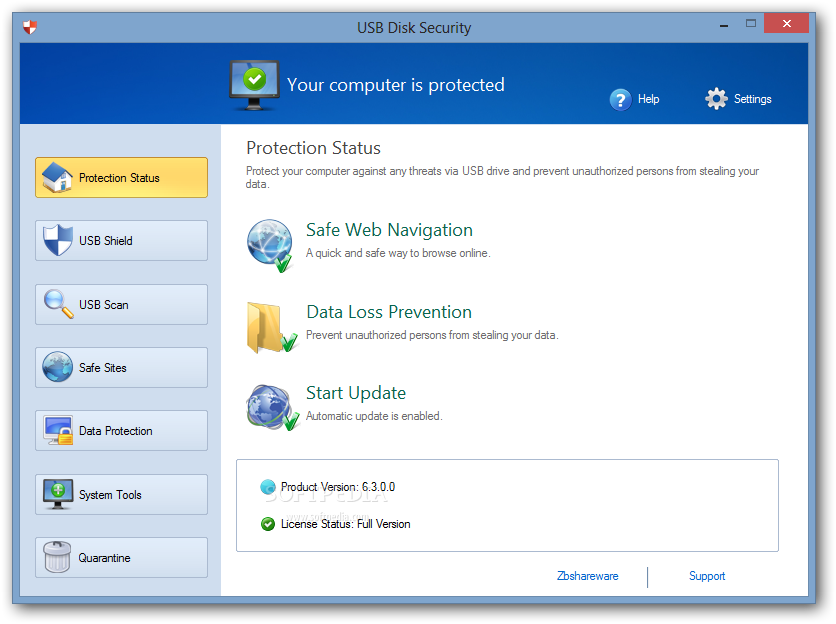
    1. USB Disk Security provides 100% protection against any threats via USB drive, however, the majority of other products are unable even to guarantee 90% protection.
    2. USB Disk Security is the best antivirus software to permanently protect offline computer without the need for signature updates, but other antivirus software should update signature database regularly, and they cannot effectively protect offline computer.
    3. This light and easy to use solution is 100% compatible with all software and doesn't slow down your computer at all.
    4. You pay USB Disk Security once and get it all, however, other antivirus products should be paid for updates every year.
    Download link:-
    USB DISK SECURITY 5.1.0.0
     

    dinukap4

    Well-known member
  • Mar 18, 2008
    10,896
    274
    83
    0009b0bd_medium.jpeg


    ESET SysRescue is Rescue CD on platform WinPE. A loading disk with the anti-virus utility for system check on viruses and their successful removal. A basis - ESET Smart Security 4.0.314. Base of virus signatures № 3984 from April, 02th, 2009.

    SysRescue make it easy to diagnose infected systems and create bootable rescue USB thumb drive or CD/DVD to clean them.

    Format: ISO
    Size: 219 Mb

    2r4k5c3.jpg


    Code:
    COMPUTER PROTECTION IS THE FIRST DUTY OF A USER
     

    dinukap4

    Well-known member
  • Mar 18, 2008
    10,896
    274
    83
    HDDlife Pro 3.1.164

    HDDlifePro_wm.JPG

    HDDlife Pro - it is very easy to use program that allows you to monitor the health and performance of your hard drive. Just run the program - and it will show a list of your disks, indicating their state of health, temperature and lifetime. HDDlife Pro can be run in the background, regularly monitoring disks. The program provides detailed information about the hard disk SMART parameters, adds support for external USB hard drives for containers, appeared indication read / write to disk, inserted hard disk power consumption management.
    Modern hard drives are much more reliable than the disks of yesterday. However, they still are extremely complex electronic devices with moving parts that are subject to amortization. The high density of data storage provided by the modern disks allows for greater storage capacities and higher access speeds. However, with densities and capacities pushed to the extreme you have much more to lose should the drive fail. The hard drive is the most important component in your entire PC because it holds all that is of real value: your documents, digital pictures, email messages, your work and private data.
    Size : 8 MB

    HDDlife Pro 3.1.164