


*Hate to read lengthy articles ?? if so refer to post #2 to read the short article of this post
1. Get the local time anywhere

or else type “time Sri lanka”
2. Track flight status
 Enter the airline and flight number into the Google search box and get back the arrival and departure times right inside Google's search results.
3. Convert currency, metrics, bytes, and more

Google's powerful built-in converter calculator can help you out whether you're cooking dinner, traveling abroad, or building a PC. Find out how many teaspoons are in a quarter cup (quarter cup in teaspoons) or how many seconds there are in a year (seconds in a year) or how many euros there are to five dollars (5 USD in Euro). For the geekier set, bits in kilobytes (155473 bytes in kilobytes) and numbers in hex or binary (19 in binary) are also pretty useful.
4. Search on a particular website:
If you want to search for something from a particular site using Google search then you can do so by using the “site:” feature. Here’s how you do it:
Let’s say you want to search for cloverfield DVD on Amazon, you can do so by typing “cloverfield DVD site:www.amazon.com”
Site:download.com Flashget
Site:digg.com free wallpapers
Site:elakiri.com original soundtracks

5. Google for Music, Videos, and Ebooks
Google can be used to conduct a search for almost any file type, including Mp3s, PDFs, and videos. Open web directories are one of the easiest places to quickly find an endless quantity of freely downloadable files. This is an oldie, but it’s a goodie! Why thousands of webmasters incessantly fail to secure their web severs will continue to boggle our minds.
Examples:
Find Music: -inurl htm|html|php) intitle:”index of” +”last modified” +”parent directory” +description +size +(wma|mp3) “Counting Crows”
Find Videos: -inurlhtm|html|php) intitle:”index of” +”last modified” +”parent directory” +description +size +(mpg|wmv) “chapelle”
Find Ebooks: -inurlhtm|html|php) intitle:”index of” +”last modified” +”parent directory” +description +size +(pdf|doc) “george orwell 1984″
Note: means : and ( together 
6. Different Types of Files at your will
How many times would you have asked for materials (PDF, PPT, DOC) for a particular topic from a friend? Its almost everyday that we might have the necessity to ask them either for knowledge, preparing a presentation, white-paper or for case studies. Such times it mostly difficult to look out what to exactly search for because most of the times you don’t know about the topic at hand. But this petty keyword unleashes its lethal power at such occasions.
Let’s say I want to implement a case study on SOA which means I have to read a lot of information for SOA. So I just have to find materials which might have already been uploaded on the web in the form of PDF’s, DOC’s or PPT’s. These materials can be easily obtained by doing a search for:
PDF - service oriented architecture filetype df
df
PPT - service oriented architecture filetypept
DOC - service oriented architecture filetype:doc

7. Meanings of any word in an instant
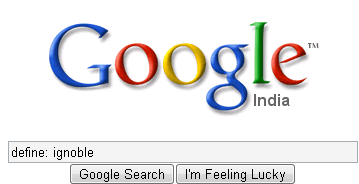
Now you do not have to carry a dictionary or install a dictionary software just for the purpose of finding out a meaning of a word. With the wealth of information in Google’s hands, its a piece of cake to find out the meaning of the word. Just use the define: keyword. The meaning would of course be displayed but also a set of other links which might have an alternative definition are also given out with the link to read more about it.
define:beureaucracy
define:lol
define:rofl
define:tbh
8. Weather Updates:
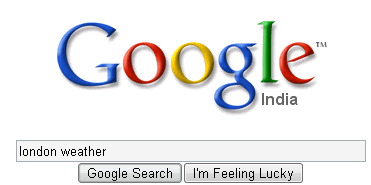
You can easily know the weather condition of a specific place. In order to find out, all you need to do is just enter the place name followed by “weather”. For ex: “london weather”
9. Google does live commentary too!
Indians are cricket fanatics. But its amusing to see the organizations here trying to put together tactics to devoid cricket lovers from wasting time to watch the cricket scores instead of doing their work. What I think they fail to understand is that by blocking the live cricket scoring sites they are actually making the employees more curios and provoking them to hunt for proxy networks or listen to the radio or chat with their friends elsewhere.
Jokes apart, you actually don’t need proxy networks to view the live cricket scores if you at least have access to Google. If you want to find the latest info about all the cricket matches then just type,
cricket
But if you want to find out only about a particular match then use only the names of the two playing nations,
India Australia
Remember that the scorecard will come only when the play is going on.
10. Calculate with your browser
Google search can be used as a calculator. It can calculate anything from the simplest math to the most complex equation. All you need to do is just enter the math in the search box and hit enter. You can use the following functions:
+ : add
- :subtract
* :multiply
/ :divide
^ :to the power of
sqrt : square root of a number
11. Remove unwanted search results:
Suppose you wanted to search a Harry potter book review but you ended up in getting reviews of the movie rather than the book. Well in this case you can make Google to exclude the movie results from the search. You can do so by adding “-movie” at the end of the term. For instance: “Harry potter Chamber of secrets -movie” This will give search results excluding the movie- The chamber of secrets.

12. Whois Lookup service:

You can also search for information on a particular domain name. Just type in “whois domain.com” and hit enter. You’ll get to see the creation and expiry dates of the domain.
13. Read Reviews -

If you're looking for reviews on a product and don't care to get bombarded with web results of sites trying to sell you the specific product, type "product name" sucks or whatever which related to bad or good quality.
14. What's the mass of planet earth?
Type mass of the earth. And also you can search for known figures such as distance from sun to earth etc....

Read More>>.
Source(s) –
http://lifehacker.com/339474/top-10-obscure-google-search-tricks
http://www.bizzntech.com/2008/04/14/15-handy-google-search-tricks
http://www.gilsmethod.com/11obscuregoogletricks
http://www.marcandangel.com/2007/07/25/7-clever-google-tricks-worth-knowing/
http://techtracer.com/2008/01/06/10-most-amazing-google-search-tricks/
1. Get the local time anywhere

or else type “time Sri lanka”
2. Track flight status

3. Convert currency, metrics, bytes, and more

Google's powerful built-in converter calculator can help you out whether you're cooking dinner, traveling abroad, or building a PC. Find out how many teaspoons are in a quarter cup (quarter cup in teaspoons) or how many seconds there are in a year (seconds in a year) or how many euros there are to five dollars (5 USD in Euro). For the geekier set, bits in kilobytes (155473 bytes in kilobytes) and numbers in hex or binary (19 in binary) are also pretty useful.
4. Search on a particular website:
If you want to search for something from a particular site using Google search then you can do so by using the “site:” feature. Here’s how you do it:
Let’s say you want to search for cloverfield DVD on Amazon, you can do so by typing “cloverfield DVD site:www.amazon.com”
Site:download.com Flashget
Site:digg.com free wallpapers
Site:elakiri.com original soundtracks
5. Google for Music, Videos, and Ebooks
Google can be used to conduct a search for almost any file type, including Mp3s, PDFs, and videos. Open web directories are one of the easiest places to quickly find an endless quantity of freely downloadable files. This is an oldie, but it’s a goodie! Why thousands of webmasters incessantly fail to secure their web severs will continue to boggle our minds.
Examples:
Find Music: -inurl
htm|html|php) intitle:”index of” +”last modified” +”parent directory” +description +size +(wma|mp3) “Counting Crows”Find Videos: -inurl
htm|html|php) intitle:”index of” +”last modified” +”parent directory” +description +size +(mpg|wmv) “chapelle”Find Ebooks: -inurl
htm|html|php) intitle:”index of” +”last modified” +”parent directory” +description +size +(pdf|doc) “george orwell 1984″Note:
means : and ( together 6. Different Types of Files at your will
How many times would you have asked for materials (PDF, PPT, DOC) for a particular topic from a friend? Its almost everyday that we might have the necessity to ask them either for knowledge, preparing a presentation, white-paper or for case studies. Such times it mostly difficult to look out what to exactly search for because most of the times you don’t know about the topic at hand. But this petty keyword unleashes its lethal power at such occasions.
Let’s say I want to implement a case study on SOA which means I have to read a lot of information for SOA. So I just have to find materials which might have already been uploaded on the web in the form of PDF’s, DOC’s or PPT’s. These materials can be easily obtained by doing a search for:
PDF - service oriented architecture filetype
dfPPT - service oriented architecture filetype
ptDOC - service oriented architecture filetype:doc
7. Meanings of any word in an instant
Now you do not have to carry a dictionary or install a dictionary software just for the purpose of finding out a meaning of a word. With the wealth of information in Google’s hands, its a piece of cake to find out the meaning of the word. Just use the define: keyword. The meaning would of course be displayed but also a set of other links which might have an alternative definition are also given out with the link to read more about it.
define:beureaucracy
define:lol
define:rofl
define:tbh
8. Weather Updates:
You can easily know the weather condition of a specific place. In order to find out, all you need to do is just enter the place name followed by “weather”. For ex: “london weather”
9. Google does live commentary too!
Indians are cricket fanatics. But its amusing to see the organizations here trying to put together tactics to devoid cricket lovers from wasting time to watch the cricket scores instead of doing their work. What I think they fail to understand is that by blocking the live cricket scoring sites they are actually making the employees more curios and provoking them to hunt for proxy networks or listen to the radio or chat with their friends elsewhere.
Jokes apart, you actually don’t need proxy networks to view the live cricket scores if you at least have access to Google. If you want to find the latest info about all the cricket matches then just type,
cricket
But if you want to find out only about a particular match then use only the names of the two playing nations,
India Australia
Remember that the scorecard will come only when the play is going on.
10. Calculate with your browser
Google search can be used as a calculator. It can calculate anything from the simplest math to the most complex equation. All you need to do is just enter the math in the search box and hit enter. You can use the following functions:
+ : add
- :subtract
* :multiply
/ :divide
^ :to the power of
sqrt : square root of a number
11. Remove unwanted search results:
Suppose you wanted to search a Harry potter book review but you ended up in getting reviews of the movie rather than the book. Well in this case you can make Google to exclude the movie results from the search. You can do so by adding “-movie” at the end of the term. For instance: “Harry potter Chamber of secrets -movie” This will give search results excluding the movie- The chamber of secrets.
12. Whois Lookup service:
13. Read Reviews -

14. What's the mass of planet earth?
Type mass of the earth. And also you can search for known figures such as distance from sun to earth etc....

Read More>>.
Source(s) –
http://lifehacker.com/339474/top-10-obscure-google-search-tricks
http://www.bizzntech.com/2008/04/14/15-handy-google-search-tricks
http://www.gilsmethod.com/11obscuregoogletricks
http://www.marcandangel.com/2007/07/25/7-clever-google-tricks-worth-knowing/
http://techtracer.com/2008/01/06/10-most-amazing-google-search-tricks/


 <Bump>


