


Archos gives the world a new daily way to enjoy all music,video, but you can sadly find that it doesn’t accept most of your videos, especially your DVD collections.
Now with 4Easysoft DVD to Archos Converter and 4Easysoft Archos Video Converter, you can put any video on your archos more easily!
This article includes two parts:
Part 1: How to put any DVD on Archos
Part 2: How to put any music/video on Archos
Part 1: How to put any DVD on Archos
Preparation: Down load and install 4Easysoft DVD to Archos Converter
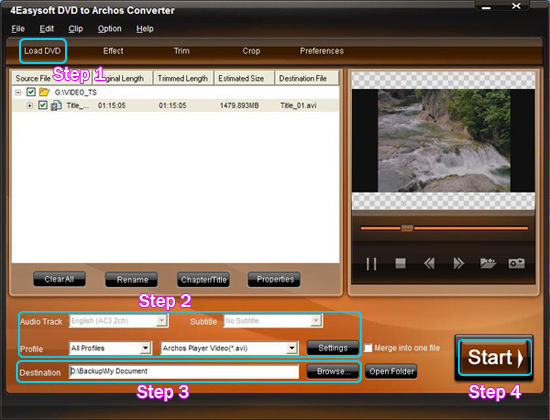
Step 1: Load DVDs.
This converter can support all commercial DVDs, including DVD with the restriction of CSS, Region, RCE, Sony ARccOS. And just[FONT=宋]“[/FONT]Load DVD” button, you can load your DVD from DVD drive, DVD folder in your PC or IFO file.
Step 2: Select output settings
From the profile drop-down list, you can choose the output video format you need.
And you can click “Settings” button to set the Video Encoder, Resolution, Frame Rate, Video Bitrate, etc.
You can also choose the audio track and subtitle you need.
Step 3: Choose the output folder.
Click “Browse” button, you can select the output path or you can choose the default path of the program.
Step 4: Start the conversion.
Completely supporting dual core CPU, the conversion can be finished with fastest conversion speed and highest output quality.
Editing tips:
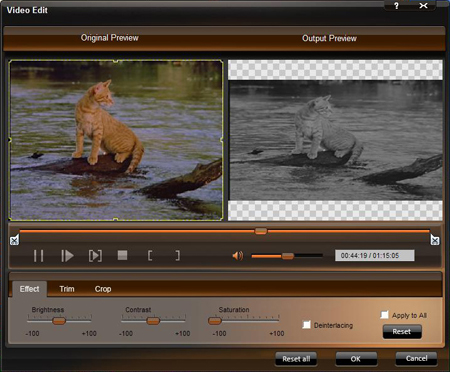
1.Effect
Click “Effect” button, and a dialogue pops up. You can drag each effect adjustment slider to set the video brightness, contrast, saturation and check deinterlacing for better video quality.
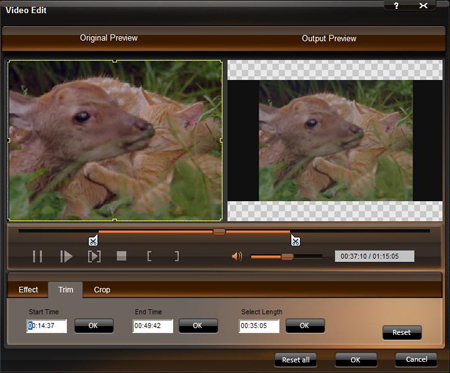
2.Trim
Click the “Trim” button, you can set the Start Time and End Time or just drag the slide bar to the position you want and then click “OK” to get any clip you want.
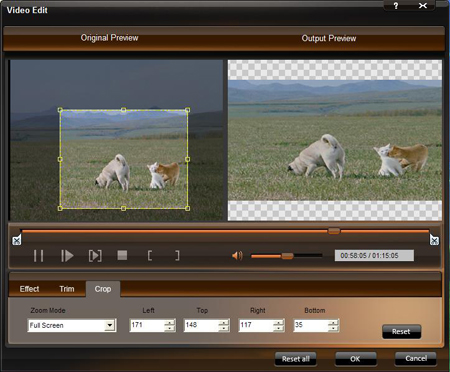
3.Crop
Clik “Crop” button and a dialogue-box pops up, you can crop your videos by selecting a crop mode; setting the crop values; dragging the frame.
4.Snapshot
This converter gives you access to snapshot you favourite picture when you preview the DVD videos by clicking the "Snapshot " on the right preview window.
And click the button next to Snapshot, you can open the folder where the captured pictures are saved
5.Merge
If you want to merge several files into one file you can choose them and click the "Merge into one file" to do it.
6.Preferences
Click the “Preference” button you can select the output destination, the Snapshot foler, the format of the snapshot image,etc.
Part 2: How to put any music/video on Archos
Preparation:Download and install 4Easysoft Archos Video Converter
Step 1:Run 4Easysoft Archos Video Converter and add your video files
4Easysoft Archos Video Converter can convert almost all the video format for archos, such as wmv, mp4, mov, m4v, avi, flv, 3gp, vob, mpg, asf, mod, mkv, rm,etc
You can also preview your videos in the preview wondiow.
Step 2:Selectthe output format from the profile drop-down list and the output destination by click “Browse”.
Step 3: Click “Start” to begin the conversion.
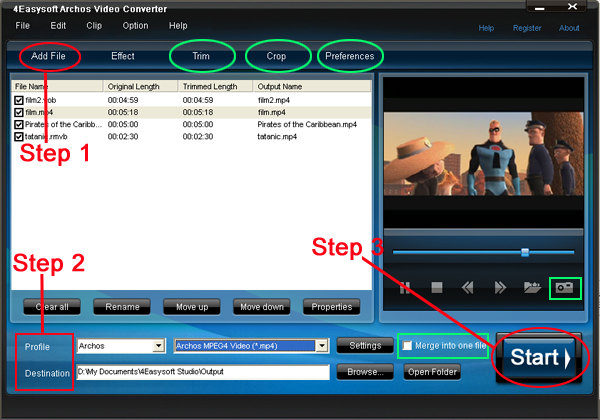
Other powerful editing functions are also available, such as effect, trim, crop, snapshot, merge to help you make more enjoyable videos.
Just try now! They will not let you down.
4Easysoft MTS Converter
4Easysoft DVD to XviD Converter
Now with 4Easysoft DVD to Archos Converter and 4Easysoft Archos Video Converter, you can put any video on your archos more easily!
This article includes two parts:
Part 1: How to put any DVD on Archos
Part 2: How to put any music/video on Archos
Part 1: How to put any DVD on Archos
Preparation: Down load and install 4Easysoft DVD to Archos Converter
Step 1: Load DVDs.
This converter can support all commercial DVDs, including DVD with the restriction of CSS, Region, RCE, Sony ARccOS. And just[FONT=宋]“[/FONT]Load DVD” button, you can load your DVD from DVD drive, DVD folder in your PC or IFO file.
Step 2: Select output settings
From the profile drop-down list, you can choose the output video format you need.
And you can click “Settings” button to set the Video Encoder, Resolution, Frame Rate, Video Bitrate, etc.
You can also choose the audio track and subtitle you need.
Step 3: Choose the output folder.
Click “Browse” button, you can select the output path or you can choose the default path of the program.
Step 4: Start the conversion.
Completely supporting dual core CPU, the conversion can be finished with fastest conversion speed and highest output quality.
Editing tips:
1.Effect
Click “Effect” button, and a dialogue pops up. You can drag each effect adjustment slider to set the video brightness, contrast, saturation and check deinterlacing for better video quality.
2.Trim
Click the “Trim” button, you can set the Start Time and End Time or just drag the slide bar to the position you want and then click “OK” to get any clip you want.
3.Crop
Clik “Crop” button and a dialogue-box pops up, you can crop your videos by selecting a crop mode; setting the crop values; dragging the frame.
4.Snapshot
This converter gives you access to snapshot you favourite picture when you preview the DVD videos by clicking the "Snapshot " on the right preview window.
And click the button next to Snapshot, you can open the folder where the captured pictures are saved
5.Merge
If you want to merge several files into one file you can choose them and click the "Merge into one file" to do it.
6.Preferences
Click the “Preference” button you can select the output destination, the Snapshot foler, the format of the snapshot image,etc.
Part 2: How to put any music/video on Archos
Preparation:Download and install 4Easysoft Archos Video Converter
Step 1:Run 4Easysoft Archos Video Converter and add your video files
4Easysoft Archos Video Converter can convert almost all the video format for archos, such as wmv, mp4, mov, m4v, avi, flv, 3gp, vob, mpg, asf, mod, mkv, rm,etc
You can also preview your videos in the preview wondiow.
Step 2:Selectthe output format from the profile drop-down list and the output destination by click “Browse”.
Step 3: Click “Start” to begin the conversion.
Other powerful editing functions are also available, such as effect, trim, crop, snapshot, merge to help you make more enjoyable videos.
Just try now! They will not let you down.
4Easysoft MTS Converter
4Easysoft DVD to XviD Converter


