How to make your iphone ringtone

Monical

Member
May 19, 2010
4
0
0
Songs will sound more emotional if it is fixed on a specific scene. Movie music often recalls me the people, stories, scenes in the movie, and its music sounds pretty good. That is why I often trim video music and makes the music my iPhone Ringtone. Well, trimming music needs specific software. I use ImTOO iPhone Ringtone Maker.:lol:
It is a smart iPhone ringtone creator. It can trim video/audio to get audio segment and make it my ringtone.
Furthermore, it provides an all-in-one solution to create my own ringtone for iPhone, iPhone 3G, iPone 3GS from all popular video and audio files including AVI, MPEG, WMV, MOV, MP4, FLV, DivX, MP3, WMA, WAV, RA, M4A, AAC, AC3, OGG, etc. in my library and transfer them to my iPhone directly.
If you also want to trim video/audio to get audio segment and make it ringtone, why not try it?
 

Kandinei

Member
May 21, 2010
2
0
0
People want to show their individuality anytime and anywhere with their inimitable hairstyle, clothing, and other things. Your phone's ringtone is also really important to show your difference from others. So how to make your own unique ringtone for your incoming calls, clock alarms, clock timer becomes a really important thing.

Today I will show you how to make your own iPhone ringtones from your DVD/video/music. Someone will say that you can buy them on itunes. Yes, everybody can buy it. It is not unique and special. Let's make our own iPhone ringtone together.

Things you need:
1. DVD/video/audio files that contains the music you want
2.iPhone Ringtone Maker
3. Computer(Windows/Mac)

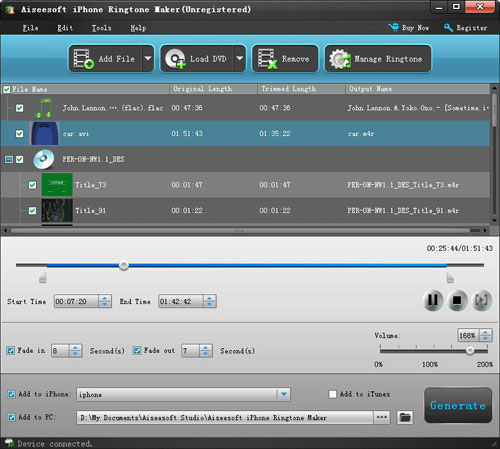
iphone-ringtone-maker-new.jpg


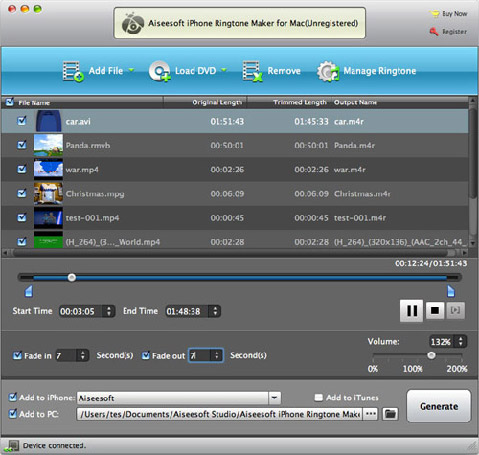
Step 1: Load File/DVD
Load your video/audio files or DVD to this iPhone Ringtone Maker

Step 2: Choose music
You need to choose which part you want to convert as your iPhone ringtone or you want to make the whole files as your iPhone ringtone. Just drag the bar to set the begin point and end point

Step 3: Pre-listening
You can pre-listening the ringtone, if you do not like it you can adjust the length of your ringtone.

Step 4: Make Ringtone
After you have done all the tings above, you can click “Generate” button to start the conversion.
Soon you will get your own ringtone.

Tips:
1. if you want to put your ringtone directly to your iPhone, please check the box before “import to iPhone”.

2. if you want to manage your ringtone, you can click “manage ringtone” button to do it easily.

For Mac users, you can use
iPhone Ringtone Maker for Mac to do this easily with the same operation as windows one.

iphone-ringtone-maker-for-mac1.jpg


To help you to make your iPhone and iPod more enjoyable here I also recommend you this
DVD to iPod Converter,
DVD to iPhone Converter and iPod Transfer