


This guide shows you how to rip DVD to MP4, AVI, MP3, WMV, WMA, FLV, MKV, MPG, RM, 3GP, and other video/audio formats supported by popular mp4 and mp3 players by using Best DVD Ripper.
Step 1: Install and run Aiseesoft DVD Ripper
Step 2: Import DVD.
Place the DVD into your DVD drive and click the “Load DVD” button to load DVD.
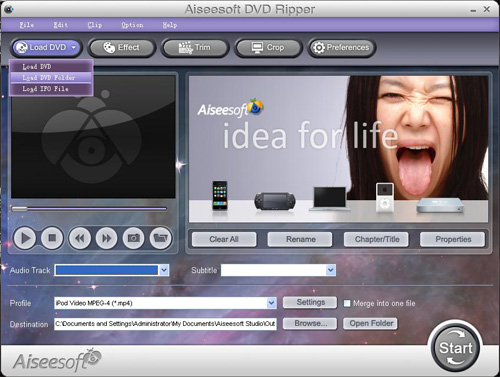
Tips: This DVD Ripper can load three DVD source, you can load your DVD from DVD drive, DVD folder in your PC and also IFO file.
Step 3: Video settings.
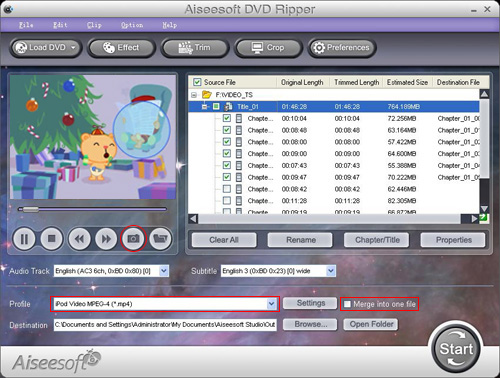
Select the output video format you want from the “Profile” drop-down list.
Tips:
1: You can also select Audio Track and Subtitle from their respectively drop-down list.
2: If you like the current image of the video you can use the “Snapshot” opinion. Just click the “Snapshot” button the image will be saved and you can click the “File” next to “Snapshot” button to open your picture. You can select the destination of the picture by clicking the “Preference” button. As default the captured image will be saved at:
C:\Documents and Settings\Administrator\My Documents\Aiseesoft Studio\Snapshot
3: If you want to merge the selected contents into one file you can check the “merge into one file” option. As default the merged file is named after the first selected file (either a title or a chapter)
4: You can click the “Settings” button to set your video parameters.
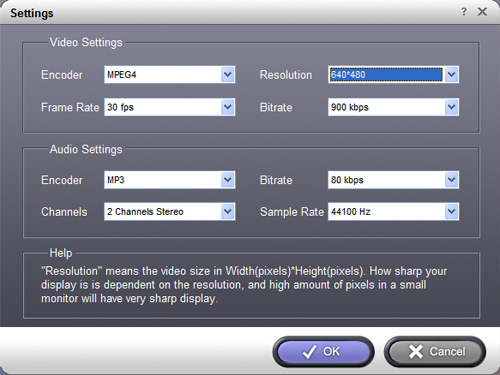
In the Video Settings, you can select Encoder, Frame Rate, Resolution and Bitrate for your movie
In the Audio Settings, you can select Encoder, Channels, Bitrate and Sample Rate for your movie.
when you choose the specific settings, the lower window will show the "help" to explain the meanings of each setting.
Step 4: Start conversion
Click the “Start” button to start your conversion and in a short while it will be finished.
Step 5: Click “Open” button to open your output destination file.
More tips:
1: Trim Movie
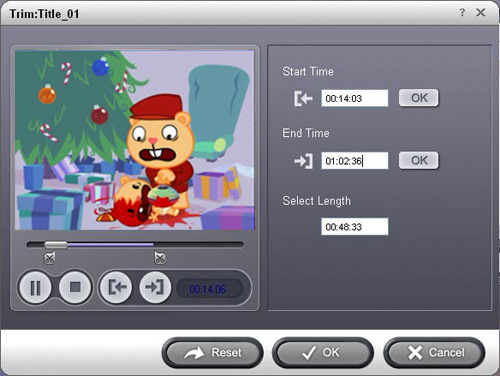
If you just want to convert a clip from your DVD movie, you can click the “Trim” button to open the Trim dialog, you can trim a duration of the selected title or chapter by either dragging the Start Time and End Time sliders or setting the time parameters in each corresponding field.
After you set the trimming time, the length of the captured clip will be shown in the Select Length box for your reference.
2. Movie Effect
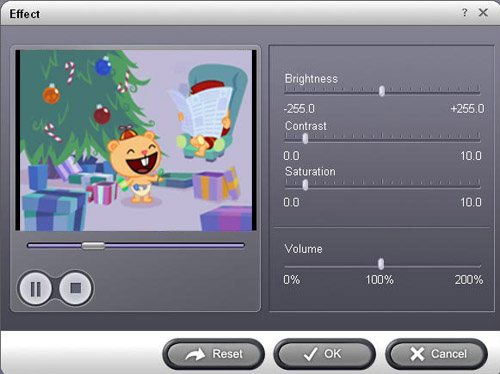
If you want to change the original video effect, you can click the Effect icon to set the video brightness, contrast, saturation, etc. You can also set the special effect for your movie to cater to your need.
3. Video Crop
With Aiseesoft DVD Ripper you can remove the black edges around your movie video by checking the “Crop” option, so you can watch your movie on your portable players in full screen.
There are three methods available to crop your video:
Method 1: Crop by selecting a crop mode
Select a crop mode in the crop mode drop-down list and click OK to save the crop. There are three pre-set crop modes
for your choice: No Crop, Cut off top and bottom black edges, Cut off top black edge.
Method 2: Crop by adjusting the crop frame
The crop frame is the dashed line around the movie video. There are four adjustment lines on the crop frame. Each line allows you to crop the movie video from a different position.
To crop your movie video, you can just move your mouse cursor to an adjustment box and drag the crop frame.
Method 3: Crop by setting the crop values
There are four crop values on the lower left part of the crop window: Up, Down, Left and right. You can set each value to crop your movie video, and the crop frame will move accordingly.
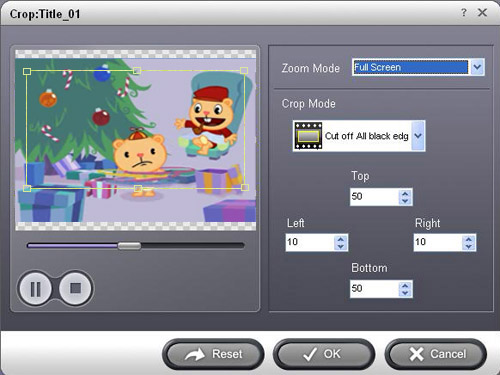
Before you start to crop your movie video, you can select an output aspect ratio from the Zoom list. There are four choices available: Full screen, Keep original, 16:9 and 4:3. After you select an output aspect ratio and finish the crop, the result can be previewed in the Preview window of the program main interface.
Step 1: Install and run Aiseesoft DVD Ripper
Step 2: Import DVD.
Place the DVD into your DVD drive and click the “Load DVD” button to load DVD.
Tips: This DVD Ripper can load three DVD source, you can load your DVD from DVD drive, DVD folder in your PC and also IFO file.
Step 3: Video settings.
Select the output video format you want from the “Profile” drop-down list.
Tips:
1: You can also select Audio Track and Subtitle from their respectively drop-down list.
2: If you like the current image of the video you can use the “Snapshot” opinion. Just click the “Snapshot” button the image will be saved and you can click the “File” next to “Snapshot” button to open your picture. You can select the destination of the picture by clicking the “Preference” button. As default the captured image will be saved at:
C:\Documents and Settings\Administrator\My Documents\Aiseesoft Studio\Snapshot
3: If you want to merge the selected contents into one file you can check the “merge into one file” option. As default the merged file is named after the first selected file (either a title or a chapter)
4: You can click the “Settings” button to set your video parameters.
In the Video Settings, you can select Encoder, Frame Rate, Resolution and Bitrate for your movie
In the Audio Settings, you can select Encoder, Channels, Bitrate and Sample Rate for your movie.
when you choose the specific settings, the lower window will show the "help" to explain the meanings of each setting.
Step 4: Start conversion
Click the “Start” button to start your conversion and in a short while it will be finished.
Step 5: Click “Open” button to open your output destination file.
More tips:
1: Trim Movie
If you just want to convert a clip from your DVD movie, you can click the “Trim” button to open the Trim dialog, you can trim a duration of the selected title or chapter by either dragging the Start Time and End Time sliders or setting the time parameters in each corresponding field.
After you set the trimming time, the length of the captured clip will be shown in the Select Length box for your reference.
2. Movie Effect
If you want to change the original video effect, you can click the Effect icon to set the video brightness, contrast, saturation, etc. You can also set the special effect for your movie to cater to your need.
3. Video Crop
With Aiseesoft DVD Ripper you can remove the black edges around your movie video by checking the “Crop” option, so you can watch your movie on your portable players in full screen.
There are three methods available to crop your video:
Method 1: Crop by selecting a crop mode
Select a crop mode in the crop mode drop-down list and click OK to save the crop. There are three pre-set crop modes
for your choice: No Crop, Cut off top and bottom black edges, Cut off top black edge.
Method 2: Crop by adjusting the crop frame
The crop frame is the dashed line around the movie video. There are four adjustment lines on the crop frame. Each line allows you to crop the movie video from a different position.
To crop your movie video, you can just move your mouse cursor to an adjustment box and drag the crop frame.
Method 3: Crop by setting the crop values
There are four crop values on the lower left part of the crop window: Up, Down, Left and right. You can set each value to crop your movie video, and the crop frame will move accordingly.
Before you start to crop your movie video, you can select an output aspect ratio from the Zoom list. There are four choices available: Full screen, Keep original, 16:9 and 4:3. After you select an output aspect ratio and finish the crop, the result can be previewed in the Preview window of the program main interface.


