If ur ADSL keep disconnecting.......

kandyan

Well-known member
  • Oct 1, 2006
    6,540
    966
    113
    Kandy
    Guyz follow these simple steps.After these tests u cn find out wherz the problem.......

    01.Check ur phone line (May be thrz a loose connection or leak)


    02.Check the splitter (Make a call when u r using ur connection.If ur connection speed is slowing down simultaneously the problem is in ur Splitter or the Micro-filter)


    03.Check ur Micro-Filter
    (Micro filter is using for filte ur phone line band.U must use filter for optimal connection.If u r nt using MF,ur ADSL connection might get disconnecting continuously)


    04.Check ur UPS if u r using UPS protected ADSL line.(Sumtimes if u r using those two built-in safety ports in ur UPS,they might nt work properly.Therefore connect phone line directly to the modem if the modem hs fusible protection)


    05.Check ur modem cables(Cable with RJ11 Male port [Ethernet cable] or USB cable.Plz check ur cables.They might nt work properly if they r C grade or hand made cables)


    06.Check ur modem firmware (If latest firmware is available.Download and install it)


    07.Reset ur modem and re-config ur modem
    (Insert ur username,password and other settings)


    08.TCP/IP connection (If ur modem configurations shows that DSL connection works without an interruption,logically we cn think that the problem is in ur TCP/IP)


    09.Check ur Services (Sum tweaking softwares stop services to reduce memory usage bt those services might be interact with networking connections.U cn find services Control panel-> Administrtive Tools->Services)


    If problem is still there,plz ask sumone to bring laptop and a ADSL modem.After that, connect ur modem into Laptop (or desktop) check if that problem happens again do it vice versa (ur PC and the other modem)

    I hope these information would help u to solve ur problem.......If nt plz contact technician for further help........
    Cheers......!
     

    kandyan

    Well-known member
  • Oct 1, 2006
    6,540
    966
    113
    Kandy
    cow_theboy said:
    yess... magenam thawam diconnect welama nehe..... thanks for the info aiya

    Ela ela........ehenum kamak naha,u r WC malli.
    Samahara ayata ADSL epa wela inne eyalage modem disconnect wena hinda......
    Mamath kaalaya e duka winda hinda dannawa eka amaruwa......:D :D :D :D :D
     

    harshafx

    Member
    Nov 8, 2007
    8,690
    7
    0
    ela ela godakma case thiyenne modem use karana ayata thamai:yes: matath issara me lede thibuna..router eka dammata passe kisima awulak na ;)
     

    kandyan

    Well-known member
  • Oct 1, 2006
    6,540
    966
    113
    Kandy
    harshafx said:
    ela ela godakma case thiyenne modem use karana ayata thamai:yes: matath issara me lede thibuna..router eka dammata passe kisima awulak na ;)


    Ow machan modem num maara waatha case ekak wenawa.mamath dan router use karanne.bt ADSL aluthin ganna godak aya cost eka nisa modems aragena me duka widinawa..........:(

    argan n hamish u r wc bro.......!
     

    kandyan

    Well-known member
  • Oct 1, 2006
    6,540
    966
    113
    Kandy
    shan_n95 said:
    tnxx....machn oyage sigiye thiena text effect eka gatte kohomada
    hehehehe..........:D :D :D :D

    Machan "sharki"th ahuwa okama.Mama utath kiyala dunna bt kollata wade amarui wage.......
    Mekata machan PS brushes n filters tikak download kara ganna ona.ita passe masks walin tamai wade thiyanne.font eka daala smoke brush eken design karala font eka hard light blend mode eka damma ma tamai oya effect eka ganna puluwan................

    Umba kamathi num mekata yanna......eke

    Oke thiyanawa brushes,layer styles,textures and many PS resources......
    hanganna deya naha,mamath godak siggys hadana kota oke thiynawa resources use kala.bt ewa use karanawa num ewage creator ta poddak thanx karala msg ekak danna........:yes: :yes: :yes: :yes: :yes:
    i think thats the ethical way to use those resources
     

    rasithcham

    Member
    Nov 3, 2008
    601
    1
    0
    modem walata witharak neme routers walatath meka wenawa.

    I bought a D-Link router first and it started disconnecting in about every 10 mins. After about 5 pm, the connection is totally down..
    .Then I bought a US robotics router and it works perfect...never disconnects.
    And I gave that D-Link thing to a friend of mine and at his place its working great without any prob...

    I still dont understand why is that..Do u guys have any idea?...and thanks for the info too.
     

    kandyan

    Well-known member
  • Oct 1, 2006
    6,540
    966
    113
    Kandy
    udesh1115 said:
    Matath mara wade...samahara dawas walata 2 min walin disconect wenawa.....samahara dawas walaka no prblms...


    Machan normally SLT ADSL connection wala num dawasta eka paaak withara IP refresh wena welawal thiyanawa.Bt ithin goda sarayak disconnect wenawanum case tamai.........:yes: :yes: :yes: :yes: :yes:
     

    shan_n95

    Member
    Feb 10, 2008
    10,228
    81
    0
    kandyan said:
    hehehehe..........:D :D :D :D

    Machan "sharki"th ahuwa okama.Mama utath kiyala dunna bt kollata wade amarui wage.......
    Mekata machan PS brushes n filters tikak download kara ganna ona.ita passe masks walin tamai wade thiyanne.font eka daala smoke brush eken design karala font eka hard light blend mode eka damma ma tamai oya effect eka ganna puluwan................

    Umba kamathi num mekata yanna......eke


    Oke thiyanawa brushes,layer styles,textures and many PS resources......
    hanganna deya naha,mamath godak siggys hadana kota oke thiynawa resources use kala.bt ewa use karanawa num ewage creator ta poddak thanx karala msg ekak danna........:yes: :yes: :yes: :yes: :yes:
    i think thats the ethical way to use those resources

    affaa..wade tikak barapathalai wage neda machn..mannan thaama ps igenagannawa....;)...try ekak denna one ehenan....tnxx 4 helping bro
     

    kandyan

    Well-known member
  • Oct 1, 2006
    6,540
    966
    113
    Kandy
    rasithcham said:
    modem walata witharak neme routers walatath meka wenawa.

    I bought a D-Link router first and it started disconnecting in about every 10 mins. After about 5 pm, the connection is totally down..
    .Then I bought a US robotics router and it works perfect...never disconnects.
    And I gave that D-Link thing to a friend of mine and at his place its working great without any prob...

    I still dont understand why is that..Do u guys have any idea?...and thanks for the info too.


    Bro.......am using D-link 4port router and i hd the same problem bt after i renew my firmware everything is working perfectly........

    Machan godak welawata D-link wala leda firmware upgrade kalama hariyanawa.Bt samahara D-link routers eka thanaka wada nokalath thawa thanaka hondata wada.
    Frankly.i also donno why the hell happens that kind of stupid problems that r nt logical.......;) :confused:
     

    kandyan

    Well-known member
  • Oct 1, 2006
    6,540
    966
    113
    Kandy
    shan_n95 said:
    affaa..wade tikak barapathalai wage neda machn..mannan thaama ps igenagannawa....;)...try ekak denna one ehenan....tnxx 4 helping bro


    Ela ela kolla keep up ur effort n sharpen ur skills..........
    try karanna.........ona hep ekak ilanna mam dennum.............

    Menna me e-book eka use karanna oyata maara useful wei................

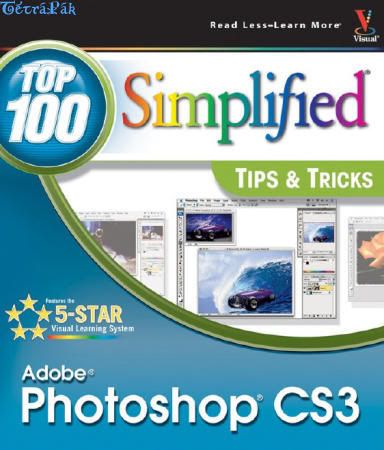
    Adobe Photoshop CS3 Top 100 Simplified Tips And Tricks

    apsttat1.jpg


    Language: English
    Author: Lynette Kent
    Released by: Wiley
    File type: PDF, 48MB
    RAR size: 32MB


    Photoshop: Top 100 Simplified Tips & Tricks provides adventurous Photoshop users with a visual reference on how to use the bells and whistles found in the latest version of Photoshop.
    Broken out in 10 chapters, with 10 tasks per chapter, Photoshop: Top 100 Simplified Tips & Tricks covers 100 cool and useful tips and tricks that can be performed in the newest release of Photoshop.
    Full-color screen shots and numbered, step-by-step instructions show you how to take their Photoshop skills to new heights.
    Take the latest edition today and make your pictures pop.


    You already know Photoshop CS3 basics.
    Now you'd like to go beyond with shortcuts, tricks, and tips that let you work smarter and faster.
    And because you learn more easily when someone shows you how, this is the book for you.
    Inside, you'll find clear, illustrated instructions for 100 tasks that reveal cool secrets, teach timesaving tricks, and explain great tips guaranteed to make you more productive with Photoshop CS3.

    1. Minimal text and maximum illustrations
    2. Task-oriented, step-by-step approach
    3. Navigational aids connect instructions to illustrations
    4. Self-contained, two-page lessons
    5. Uniform layout makes it easy to read less, learn more


    Customizing Photoshop for Your Projects

    #1 Select the Color Settings for Your Projects
    #2 Set the Preferences for the Way You Work
    #3 Customize Your Personal Workspace
    #4 Personalize Your View of the Bridge
    #5 Add Your Own Keyboard Shortcut for a Favorite Filter
    #6 Create a Custom Action to Increase Your Efficiency
    #7 Design a Customized Brush with Your Settings
    #8 Make a Special Gradient to Suit Your Design
    #9 Calibrate and Profile Your Monitor for Better Editing
    #10 Turn on the Full Power of Photoshop with a Pen Tablet

    Working with Layers, Selections, and Masks

    #11 Duplicate and Change the Background Layer to Fix Problems Such As Overexposure
    #12 Using an Adjustment Layer to Adjust a Photo Nondestructively
    #13 Blend Two Photos Together with a Layer Mask
    #14 Using Custom Shape Layers to Add Designs to Photos
    #15 Accentuate a Sky Easily with a Gradient Fill Layer
    #16 Using the Quick Selection Tool and Refine Edge Palette for Selections
    #17 Using a Quick Mask to Make a Detailed Selection
    #18 Extract the Main Subject from the Background
    #19 Open or Add Layers As Smart Objects for Nondestructive Changes
    #20 Apply Filters As Smart Filters for Dynamic Adjustmentsvi

    Straightening, Cropping, and Resizing

    #21 Crop Your Images and Use a Rule-of-Thirds Grid to Improve Composition
    #22 Create a Level Horizon
    #23 Try a Reverse Crop to Expand the Canvas
    #24 Crop and Straighten in Camera Raw
    #25 Straighten Crooked Scans Quickly
    #26 Crop Multiple Images from One Original to Create a Triptych
    #27 Change Your Perspective with the Crop Tool
    #28 Straighten Buildings with the Lens Correction Filter
    #29 Create a Panorama from Multiple Photos
    #30 Maximize Your Image Size with Minimal Visible Loss

    Retouching Portraits

    #31 Remove Blemishes and Improve the Skin
    #32 Remove Red Eye to Quickly Improve Any Photo
    #33 Change Eye Color Digitally
    #34 Reduce Wrinkles with a Soft Touch
    #35 Whiten Teeth to Improve a Smile
    #36 Brighten the Eyes by Lightening the Whites
    #37 Add Depth to Eyes to Emphasize Them
    #38 Add a Catch Light to Make the Eyes Come Alive
    #39 Sharpen Just the Eyes to Add Focus
    #40 Add a Soft-Focus Effect to Make a Portrait Glow

    Changing and Enhancing Colors and Tone

    #41 Improve an Underexposed Photo in Two Steps
    #42 Improve an Overexposed Photo in Three Steps
    #43 Remove a Colorcast to Improve the Overall Color
    #44 Colorize an Old Black-and-White Photograph
    #45 Make a Quick Change to Grayscale
    #46 Give a New Photo an Old Colorized Look
    #47 Using Camera Raw to Recover Highlights
    #48 Improve a Sky with HSL Values in Camera Raw
    #49 Go from Color to Grayscale with the New Black & White Adjustment
    #50 Create a Split Tone for a Special Effect in Camera Raw

    Making Magic with Digital Special Effects

    #51 Apply a Smart Digital Photo Filter for Dynamic Adjustments
    #52 Add a Quick Dark Vignette Effect to Direct the Focus on the Subject
    #53 Add Action with a Simulated Motion Blur
    #54 Using the New Blend Mode to Stylize an Image
    #55 Align and Blend Separate Photos for the Best Group Shot
    #56 Merge Multiple Raw Photos to 32-Bit HDR
    #57 Apply a Split-Neutral Density Filter Using Smart Objects
    #58 Adjust Depth of Field with a Lens Blur Filter
    #59 Create a Silhouette for a Custom Design
    #60 Become a Digital Architect with the Vanishing Point Filter

    Designing with Text Effects

    #61 Add a Double-Neon Glow to Text for a Unique Design
    #62 Create a Custom Watermark to Protect Your Images
    #63 Fill Any Shape with Text to Create Unique Effects
    #64 Warp Type to Emphasize the Words
    #65 Add Perspective to Type and Keep It Sharp
    #66 Make Your Text Follow Any Path
    #67 Create Eye-Catching Photo-Filled Titles
    #68 Blend Text into a Photograph Creatively
    #69 Create an Amazing Colored Shadow
    #70 Weave Text and Graphics for Intriguing Designs

    Creating Digital Artwork from Photographs

    #71 Give Any Photo a Sketched Look
    #72 Add Your Own Signature to Any Artwork
    #73 Create a Digital Pen-and-Ink Drawing
    #74 Give a Photograph a Woodcut Look
    #75 Turn a Photo into a Colored-Pencil Illustration
    #76 Posterize a Photo for a Warhol-Style Image
    #77 Create a Pen-and-Colored-Wash Drawing from a Photograph
    #78 Compose a Photo Collage
    #79 Turn a Photo into a Hand-Painted Oil Painting
    #80 Paint a Digital Watercolor

    Giving Your Images a Professional Presentation

    #81 Add Traditional Photo Corners
    #82 Make a Frame from a Photograph
    #83 Make a Contact Sheet of Your Photos
    #84 Create a PDF Slideshow Presentation
    #85 Create a Web Photo Gallery with Your Copyright
    #86 Give a Photo an Artistic Edge
    #87 Create a Custom Slide Template
    #88 Create Your Own Custom Edge
    #89 Make One Photo Look Like Many Combined Snapshots
    #90 Make a Photo Look Like a Gallery Print

    Plugging into Photoshop CS3

    #91 Embellish a Photo Effortlessly with Graphic Authority Frames and Photo Ornaments
    #92 Make a Digital Engraving with Andromeda’s Screens Filter
    #93 Enlarge Images with Maximum Quality with Alien Skin BlowUp
    #94 Change Your Photo into Art with Alien Skin Snap Art
    #95 Colorize a Black-and-White Photo with AKVIS Coloriage
    #96 Easily Select the Subject and Remove the Background with Vertus Fluid Mask
    #97 Control Digital Noise with Nik Dfine 2
    #98 Sharpen Photos with Finesse Using Nik Sharpener Pro 2
    #99 Apply Traditional Photo Filters Such As the Sunshine Filter Using Nik Color Efex
    #100 Travel Beyond the Bridge with Extensis Portfolio 8


    Download:
     

    rasithcham

    Member
    Nov 3, 2008
    601
    1
    0
    kandyan said:
    Bro.......am using D-link 4port router and i hd the same problem bt after i renew my firmware everything is working perfectly........

    Machan godak welawata D-link wala leda firmware upgrade kalama hariyanawa.Bt samahara D-link routers eka thanaka wada nokalath thawa thanaka hondata wada.
    Frankly.i also donno why the hell happens that kind of stupid problems that r nt logical.......;) :confused:

    Ehemada machan?...oya router eka hinda mama masayak withara maaara kattak kawe..however, firmware upgrade karana eka kokatath hodai neda......

    Thanks ..:)
     

    kandyan

    Well-known member
  • Oct 1, 2006
    6,540
    966
    113
    Kandy
    nasri123 and sirajstc
    u r wc guys...........:yes: :D


    rasithcham said:
    Ehemada machan?...oya router eka hinda mama masayak withara maaara kattak kawe..however, firmware upgrade karana eka kokatath hodai neda......

    Thanks ..:)

    Ow machan latest compatible firmware ekak thiyanawanum upgrade karana eka tamai honda.Bt firmware eka install karapu ayage comments balanna nath num eke bug ekak ehema thibunoth iwarai........
    :yes: :yes: :yes: :yes:
    Anyway u r wc bro.....!:) :)
     

    shan_n95

    Member
    Feb 10, 2008
    10,228
    81
    0
    kandyan said:
    Ela ela kolla keep up ur effort n sharpen ur skills..........
    try karanna.........ona hep ekak ilanna mam dennum.............

    Menna me e-book eka use karanna oyata maara useful wei................

    Adobe Photoshop CS3 Top 100 Simplified Tips And Tricks

    apsttat1.jpg


    Language: English
    Author: Lynette Kent
    Released by: Wiley
    File type: PDF, 48MB
    RAR size: 32MB


    Photoshop: Top 100 Simplified Tips & Tricks provides adventurous Photoshop users with a visual reference on how to use the bells and whistles found in the latest version of Photoshop.
    Broken out in 10 chapters, with 10 tasks per chapter, Photoshop: Top 100 Simplified Tips & Tricks covers 100 cool and useful tips and tricks that can be performed in the newest release of Photoshop.
    Full-color screen shots and numbered, step-by-step instructions show you how to take their Photoshop skills to new heights.
    Take the latest edition today and make your pictures pop.


    You already know Photoshop CS3 basics.
    Now you'd like to go beyond with shortcuts, tricks, and tips that let you work smarter and faster.
    And because you learn more easily when someone shows you how, this is the book for you.
    Inside, you'll find clear, illustrated instructions for 100 tasks that reveal cool secrets, teach timesaving tricks, and explain great tips guaranteed to make you more productive with Photoshop CS3.

    1. Minimal text and maximum illustrations
    2. Task-oriented, step-by-step approach
    3. Navigational aids connect instructions to illustrations
    4. Self-contained, two-page lessons
    5. Uniform layout makes it easy to read less, learn more


    Customizing Photoshop for Your Projects

    #1 Select the Color Settings for Your Projects
    #2 Set the Preferences for the Way You Work
    #3 Customize Your Personal Workspace
    #4 Personalize Your View of the Bridge
    #5 Add Your Own Keyboard Shortcut for a Favorite Filter
    #6 Create a Custom Action to Increase Your Efficiency
    #7 Design a Customized Brush with Your Settings
    #8 Make a Special Gradient to Suit Your Design
    #9 Calibrate and Profile Your Monitor for Better Editing
    #10 Turn on the Full Power of Photoshop with a Pen Tablet

    Working with Layers, Selections, and Masks

    #11 Duplicate and Change the Background Layer to Fix Problems Such As Overexposure
    #12 Using an Adjustment Layer to Adjust a Photo Nondestructively
    #13 Blend Two Photos Together with a Layer Mask
    #14 Using Custom Shape Layers to Add Designs to Photos
    #15 Accentuate a Sky Easily with a Gradient Fill Layer
    #16 Using the Quick Selection Tool and Refine Edge Palette for Selections
    #17 Using a Quick Mask to Make a Detailed Selection
    #18 Extract the Main Subject from the Background
    #19 Open or Add Layers As Smart Objects for Nondestructive Changes
    #20 Apply Filters As Smart Filters for Dynamic Adjustmentsvi

    Straightening, Cropping, and Resizing

    #21 Crop Your Images and Use a Rule-of-Thirds Grid to Improve Composition
    #22 Create a Level Horizon
    #23 Try a Reverse Crop to Expand the Canvas
    #24 Crop and Straighten in Camera Raw
    #25 Straighten Crooked Scans Quickly
    #26 Crop Multiple Images from One Original to Create a Triptych
    #27 Change Your Perspective with the Crop Tool
    #28 Straighten Buildings with the Lens Correction Filter
    #29 Create a Panorama from Multiple Photos
    #30 Maximize Your Image Size with Minimal Visible Loss

    Retouching Portraits

    #31 Remove Blemishes and Improve the Skin
    #32 Remove Red Eye to Quickly Improve Any Photo
    #33 Change Eye Color Digitally
    #34 Reduce Wrinkles with a Soft Touch
    #35 Whiten Teeth to Improve a Smile
    #36 Brighten the Eyes by Lightening the Whites
    #37 Add Depth to Eyes to Emphasize Them
    #38 Add a Catch Light to Make the Eyes Come Alive
    #39 Sharpen Just the Eyes to Add Focus
    #40 Add a Soft-Focus Effect to Make a Portrait Glow

    Changing and Enhancing Colors and Tone

    #41 Improve an Underexposed Photo in Two Steps
    #42 Improve an Overexposed Photo in Three Steps
    #43 Remove a Colorcast to Improve the Overall Color
    #44 Colorize an Old Black-and-White Photograph
    #45 Make a Quick Change to Grayscale
    #46 Give a New Photo an Old Colorized Look
    #47 Using Camera Raw to Recover Highlights
    #48 Improve a Sky with HSL Values in Camera Raw
    #49 Go from Color to Grayscale with the New Black & White Adjustment
    #50 Create a Split Tone for a Special Effect in Camera Raw

    Making Magic with Digital Special Effects

    #51 Apply a Smart Digital Photo Filter for Dynamic Adjustments
    #52 Add a Quick Dark Vignette Effect to Direct the Focus on the Subject
    #53 Add Action with a Simulated Motion Blur
    #54 Using the New Blend Mode to Stylize an Image
    #55 Align and Blend Separate Photos for the Best Group Shot
    #56 Merge Multiple Raw Photos to 32-Bit HDR
    #57 Apply a Split-Neutral Density Filter Using Smart Objects
    #58 Adjust Depth of Field with a Lens Blur Filter
    #59 Create a Silhouette for a Custom Design
    #60 Become a Digital Architect with the Vanishing Point Filter

    Designing with Text Effects

    #61 Add a Double-Neon Glow to Text for a Unique Design
    #62 Create a Custom Watermark to Protect Your Images
    #63 Fill Any Shape with Text to Create Unique Effects
    #64 Warp Type to Emphasize the Words
    #65 Add Perspective to Type and Keep It Sharp
    #66 Make Your Text Follow Any Path
    #67 Create Eye-Catching Photo-Filled Titles
    #68 Blend Text into a Photograph Creatively
    #69 Create an Amazing Colored Shadow
    #70 Weave Text and Graphics for Intriguing Designs

    Creating Digital Artwork from Photographs

    #71 Give Any Photo a Sketched Look
    #72 Add Your Own Signature to Any Artwork
    #73 Create a Digital Pen-and-Ink Drawing
    #74 Give a Photograph a Woodcut Look
    #75 Turn a Photo into a Colored-Pencil Illustration
    #76 Posterize a Photo for a Warhol-Style Image
    #77 Create a Pen-and-Colored-Wash Drawing from a Photograph
    #78 Compose a Photo Collage
    #79 Turn a Photo into a Hand-Painted Oil Painting
    #80 Paint a Digital Watercolor

    Giving Your Images a Professional Presentation

    #81 Add Traditional Photo Corners
    #82 Make a Frame from a Photograph
    #83 Make a Contact Sheet of Your Photos
    #84 Create a PDF Slideshow Presentation
    #85 Create a Web Photo Gallery with Your Copyright
    #86 Give a Photo an Artistic Edge
    #87 Create a Custom Slide Template
    #88 Create Your Own Custom Edge
    #89 Make One Photo Look Like Many Combined Snapshots
    #90 Make a Photo Look Like a Gallery Print

    Plugging into Photoshop CS3

    #91 Embellish a Photo Effortlessly with Graphic Authority Frames and Photo Ornaments
    #92 Make a Digital Engraving with Andromeda’s Screens Filter
    #93 Enlarge Images with Maximum Quality with Alien Skin BlowUp
    #94 Change Your Photo into Art with Alien Skin Snap Art
    #95 Colorize a Black-and-White Photo with AKVIS Coloriage
    #96 Easily Select the Subject and Remove the Background with Vertus Fluid Mask
    #97 Control Digital Noise with Nik Dfine 2
    #98 Sharpen Photos with Finesse Using Nik Sharpener Pro 2
    #99 Apply Traditional Photo Filters Such As the Sunshine Filter Using Nik Color Efex
    #100 Travel Beyond the Bridge with Extensis Portfolio 8


    Download:


    tnxx bro..tnk u very much..attatama meka hena useful....godaak dewal thienawa:)