


Java Karana Ayata Thamai meke watinne anyway try it
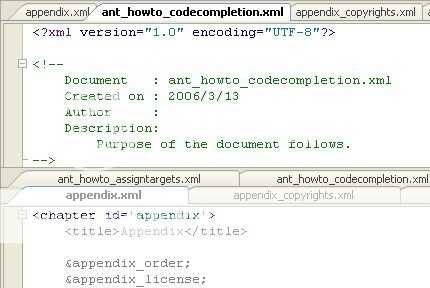

JCreator is the development tool for every programmer that likes to do what he does best: programming. It is faster, more efficient and more reliable than other IDE’s. Therefore it is the perfect tool for programmers of every level, from learning programmer to Java-specialist. JCreator provides the user with a wide range of functionality such as : Project management, project templates, code-completion, debugger interface, editor with syntax highlighting, wizards and a fully customizable user interface.
With JCreator you can directly compile or run your Java program without activating the main document first. JCreator will automatically find the file with the main method or the html file holding the java applet, then it will start the appropriate tool. JCreator is written entirely in C++, which makes it fast and efficient compared to the Java based editors/IDE's.
JCreator is a powerful interactive development environment (IDE) for Java technologies that provides more power at your fingertips than all the ordinary editors. What makes JCreator a cut above the rest? Just look at what JCreator can do for you:
* Manage projects with ease in an interface that is much like Microsoft Visual Studio.
* Define your own color schemes in XML for unlimited ways to organize your code.
* Use JCreator to wrap around your existing projects and use different JDK profiles.
* Get down to writing code quickly with our project templates.
* Make viewing your project a breeze with our class browser.
* Debug with an easy, intuitive interface. No need for silly DOS prompts!
* Walk through our wizards and cut to the chase of writing your project quickly and easily.
* Manage and exchange your code with our Ant and CVS integration.
* Save valuable time on Classpath configuration; let JCreator do it for you.
* Customize our user interface the way that you like it.
* Set up your own run-time environments to run your application as an applet, in a JUnit environment, or in a DOS window.
* Experience the satisfaction of faster speed, yet lower system requirements than with other IDEs.
Extend Your Power
Unlike most IDEs, JCreator has two types of tools that you can configure. The first type is the Java Development Kit (JDK) tools. You can use JDK tools to compile, debug, and run the project. You can attach these tools to your project using the Project Settings dialog box. If no project is available, JCreator runs the default projects. You can easily create your own tools for calling the JDK applications, such as the following:
Compiler
Ant builder
Interpreter
Applet viewer
Debugger
The second type of tool is more general and allows you to extend the capabilities of JCreator to fit your needs by allowing you to call external functions and utilities. You can assign these general tools to the Wrench buttons located on the Tools toolbar in the workspace. These buttons display tooltips, such as User Tool 1, User Tool 2, and so forth. These tools can have many uses, such as the following:
XML validator
RMI compiler
JAVA code formatter
Version control
Batch files
Version 4.50.010
- Solved: Correctly processing linefeeds in the general output view.(topic)
- Solved: Minor problem related to managing the Recent Workspace list.(topic)
- Solved: Cases were Ctrl-F1 opens the incorrect Javadoc Documentation.(topic)
- Solved: Problem related to printing colored wrapped lines. (topic)
- Solved: Working directly is now set to the output path when debugging. (topic)
- Solved: Problem related to handle duplicate class names when debugging. (topic)
- Solved: Code completion popup issue on secondary monitor. (topic)
- Solved: Code completion tweaks for handling generic types. - Solved: Debugger tooltip didn't work for 'this' object. - Solved: Incorrect Cursor location when using the up and down arrow keys for scrolling. - Solved: JCreator opened two instances of the external browser when clicking on an Url.
Download:

JCreator is the development tool for every programmer that likes to do what he does best: programming. It is faster, more efficient and more reliable than other IDE’s. Therefore it is the perfect tool for programmers of every level, from learning programmer to Java-specialist. JCreator provides the user with a wide range of functionality such as : Project management, project templates, code-completion, debugger interface, editor with syntax highlighting, wizards and a fully customizable user interface.
With JCreator you can directly compile or run your Java program without activating the main document first. JCreator will automatically find the file with the main method or the html file holding the java applet, then it will start the appropriate tool. JCreator is written entirely in C++, which makes it fast and efficient compared to the Java based editors/IDE's.
JCreator is a powerful interactive development environment (IDE) for Java technologies that provides more power at your fingertips than all the ordinary editors. What makes JCreator a cut above the rest? Just look at what JCreator can do for you:
* Manage projects with ease in an interface that is much like Microsoft Visual Studio.
* Define your own color schemes in XML for unlimited ways to organize your code.
* Use JCreator to wrap around your existing projects and use different JDK profiles.
* Get down to writing code quickly with our project templates.
* Make viewing your project a breeze with our class browser.
* Debug with an easy, intuitive interface. No need for silly DOS prompts!
* Walk through our wizards and cut to the chase of writing your project quickly and easily.
* Manage and exchange your code with our Ant and CVS integration.
* Save valuable time on Classpath configuration; let JCreator do it for you.
* Customize our user interface the way that you like it.
* Set up your own run-time environments to run your application as an applet, in a JUnit environment, or in a DOS window.
* Experience the satisfaction of faster speed, yet lower system requirements than with other IDEs.
Extend Your Power
Unlike most IDEs, JCreator has two types of tools that you can configure. The first type is the Java Development Kit (JDK) tools. You can use JDK tools to compile, debug, and run the project. You can attach these tools to your project using the Project Settings dialog box. If no project is available, JCreator runs the default projects. You can easily create your own tools for calling the JDK applications, such as the following:
Compiler
Ant builder
Interpreter
Applet viewer
Debugger
The second type of tool is more general and allows you to extend the capabilities of JCreator to fit your needs by allowing you to call external functions and utilities. You can assign these general tools to the Wrench buttons located on the Tools toolbar in the workspace. These buttons display tooltips, such as User Tool 1, User Tool 2, and so forth. These tools can have many uses, such as the following:
XML validator
RMI compiler
JAVA code formatter
Version control
Batch files
Version 4.50.010
- Solved: Correctly processing linefeeds in the general output view.(topic)
- Solved: Minor problem related to managing the Recent Workspace list.(topic)
- Solved: Cases were Ctrl-F1 opens the incorrect Javadoc Documentation.(topic)
- Solved: Problem related to printing colored wrapped lines. (topic)
- Solved: Working directly is now set to the output path when debugging. (topic)
- Solved: Problem related to handle duplicate class names when debugging. (topic)
- Solved: Code completion popup issue on secondary monitor. (topic)
- Solved: Code completion tweaks for handling generic types. - Solved: Debugger tooltip didn't work for 'this' object. - Solved: Incorrect Cursor location when using the up and down arrow keys for scrolling. - Solved: JCreator opened two instances of the external browser when clicking on an Url.
Download:


