Photoshop Text effects are requested in here

50Cent_SL

Member
Sep 4, 2008
556
1
0
colombo
Fire Text


pict1.gif

1.gif
Start by opening Photoshop and creating a new grayscale image. Go File>New and change the mode to grayscale. For this example, I chose dimensions of 400x400 pixels. In the channels palette create a new channel by clicking the
new.gif
. Then use the Text Tool to add white text to your channel. When you are finished, hit Ctrl+A to select the whole canvas. To make things easier, double click your new channel in the channels palette and rename it "Base."

pict2.gif

2.gif
Drag the "Base" channel to the
new.gif
to duplicate it. Go to Image>Rotate Canvas>90 CW. Deselect everything by going Ctrl+D. Then apply the wind filter by going to Filter > Stylize > Wind Choose the settings Blast and From the Left. Reapply the filter according to how tall you want your flames to be. I used the filter a total of three times in my example.

pict3.jpg

3.gif
Now select all by hitting Ctrl+Arotate your text back to normal by going Image>Rotate Canvas>90 CCW. Soften the streaks by using Filter>Blur>Gaussian Blur Pick a setting that looks good to you. I chose 3.0 pixels.

pict4.jpg

4.gif
Lengthen the flames by going Filter>Blur>Motion Blur Set the distance to 20 pixels and the angle to -79 or so. Then go Filter>Distort>Wave to add some waviness. I chose these settings. Next go Filter>Distort>Ocean Ripple to add some texture to your flame. Set the Ripple Size to 15 and the Ripple Magnitude to 2.

pict5.jpg

5.gif
Now you need to copy the contents of the "Base copy" channel into Layer 1. This can be accomplished with the following series of impressive keyboard shortcuts: Ctrl+A, Ctrl+C, Ctrl+~, Ctrl+V then swich back to they Layers Palette and merge Layer 1 into the background layer below by hitting Ctrl+E. Now it's time to colorize the image. Go to Image>Mode>Indexed Color. Then go Image>Mode>Color Table and choose Black Body. Next switch back to RGB Mode by going Image>Mode>RGB Color.

pict6.jpg

6.gif
Now select the "Base" channel by going to the Channels Palette and Ctrl+clicking the "Base" channel. Then return to the Layers Palette and click the
new.gif
to create a new layer. Fill the selection with black (It can quickly be done by pressing D followed by Alt+Backspace).

pict7.jpg

7.gif
As a final touch you may want to add an inner glow to your text to make it blend in with the fire a little smoother. Right click on the black text's layer and choose Blending Options. Then pick Inner Glow and play with the settings. If you would like to change the color or adjust it a little, click the background layer (the one with the flames) in the Layer Palette and explore the Image>Adjust>Hue/Saturation and Image>Adjust>Curves. You can click the image to the left to see the full view. Whewww, that's one hot tamale!
 

50Cent_SL

Member
Sep 4, 2008
556
1
0
colombo
Create a Spectacular Grass Text Effect in Photoshop

The End Effect

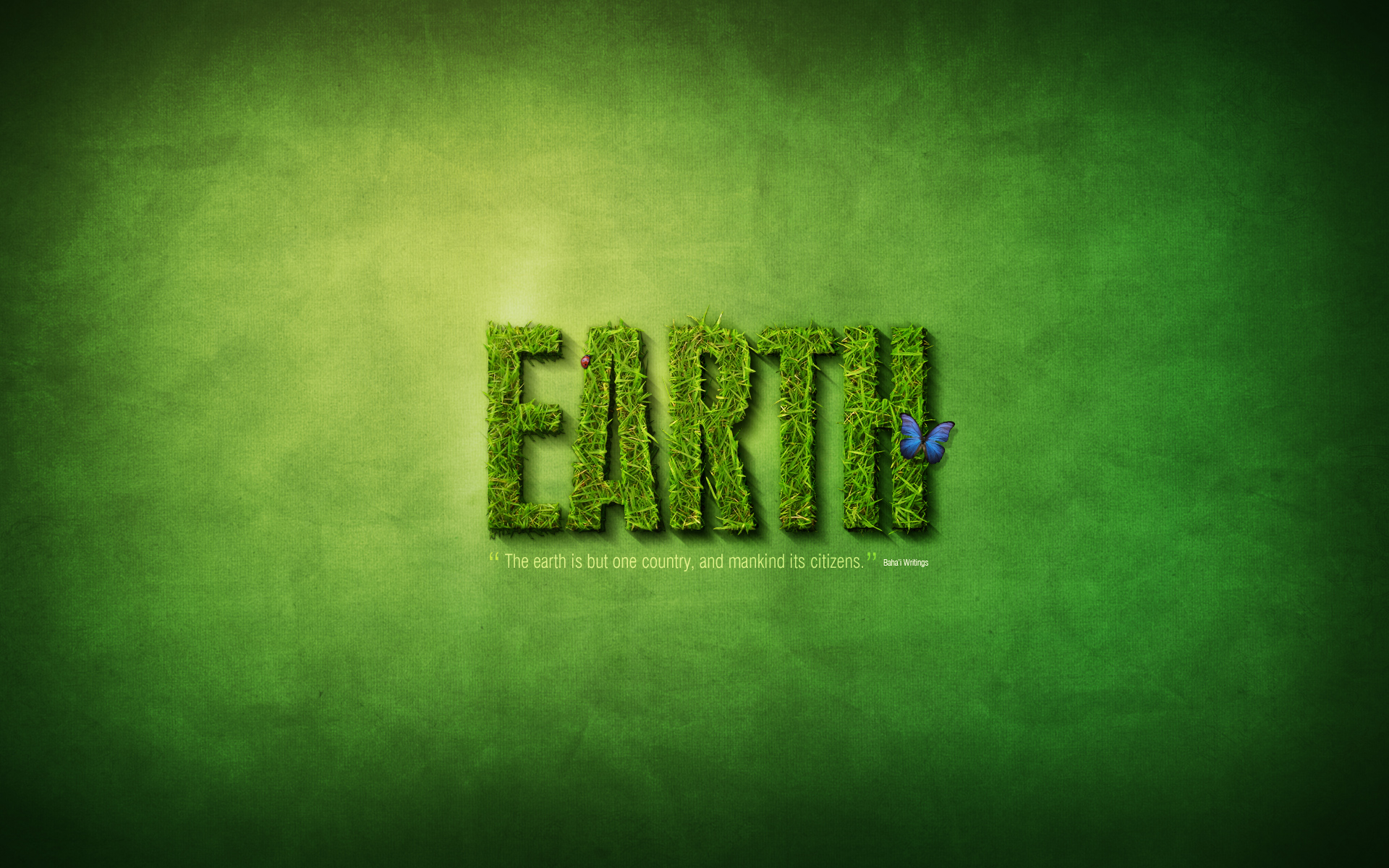
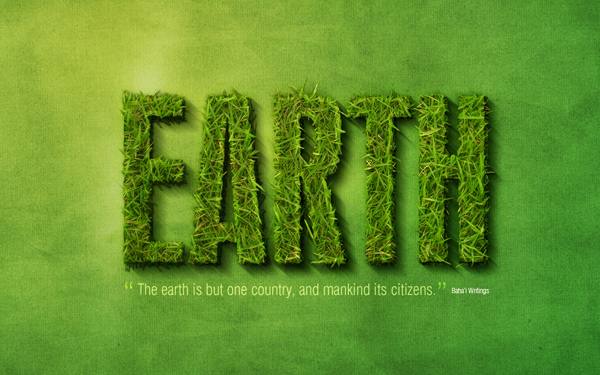
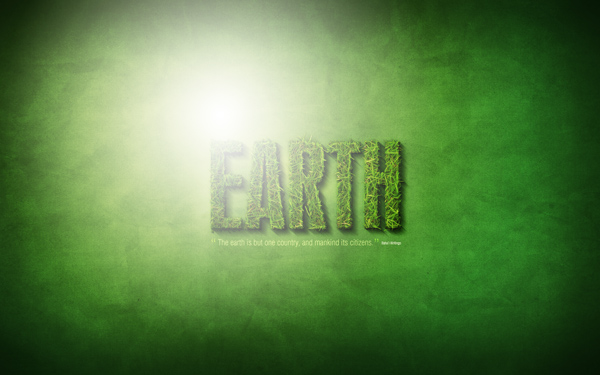
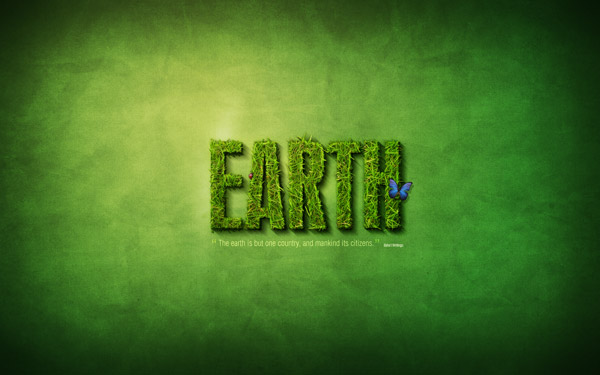
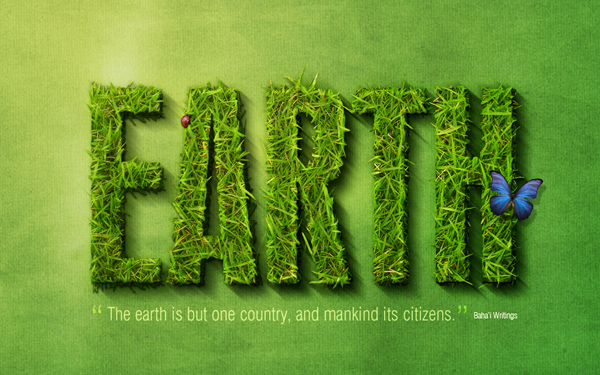
I like to begin tutorials by showing where we're going. So without further ado, here is the final grass-text image click to see the full 1920px x 1200px size.
Part 1—The Background

This tutorial is made up of three parts—the background, the text itself, and some final extra effects. So first of all we're going to make a background. To do this we create a new document in Photoshop. I made mine 1920 x 1200 because I want this image to sit on my laptop background.
We start by drawing a Radial Gradient with the Gradient Tool (G) going from a light yellow-green (#adbf41) to a mid-range green (#328a26). I wonder if I've ever written a tutorial that doesn't start with a radial gradient. :-)
1.jpg

Step 2

Now for this image we want to create a really textured background, faintly resembling paper. So the first thing we need is ... a paper texture!
Happily you can grab some really awesome grungy paper textures from Bittbox and they are nice and large too, which is good because this is a huge canvas.
So I can't remember which texture I used first, but grab one, desaturate it (Ctrl+Shift+U) and stretch it over the top to fit the canvas.
2.jpg

Step 3

Now we set the layer to Overlay and 70% Opacity to blend the texture with our nice green background.
3.jpg

Step 4

Now to get a really distressed look, I then copied this layer, spun it around 180' and set it to 20%. Then I brought in a few more layers of paper texture (using different textures, mostly from Bittbox) and set them all to faint overlays, one on top of the other.
This was partly for the extra distress, but also because I realised that the textures looked a bit grainy and not small and sharp. So by combining extra textures and then fading it all back, I can get a nicer, sharper overall look.
Anyhow as you can see in the screenshot there are six layers here. Don't forget if you are a Plus member you can download the PSD file for this tutorial and take a look in there yourself!
4.jpg

Step 5

Now I duplicated the original background gradient, placed the duplicate layer above all the textures and set it to 40% Opacity—this tones back the texture so it's not quite so grungy!
5.jpg

Step 6

Now we create a new layer over the top and using a large, soft, black brush, add some black to the edges. It's worth toning back the opacity to about 30% and Overlay. You can then duplicate the layer and run a heavy Gaussian Blur over it (set to about 32px). That way the edges really soften out.
6.jpg

Step 7

OK, we now have a nice background!
7.jpg

Part 2—Grass Text!

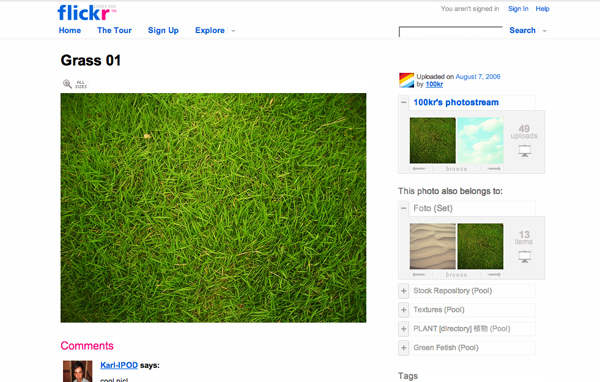
OK, we are now ready to make some grass text. To do that, we're going to need some nice pretty grass to cut. After a lot of searching, I finally found this lovely photo on Flickr of grass.
So download the image at full-size and copy it on to your canvas.
8.jpg

Step 9

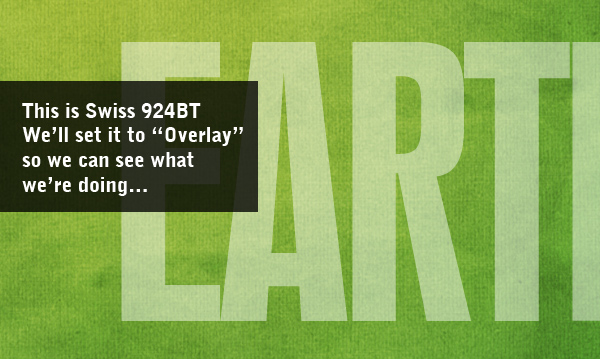
Next we need some type. So select a font you want to cut out with. I chose Swiss 924BT, which is fat and condensed type. I thought it looked nice and grand. And I've written the text "EARTH". That's because I'm making five of these wallpapers—earth, water, fire, air, spirit ... it's like that cartoon I used to watch as a kid, Captain Planet!
Anyways, so just set your text out in white and set it to Overlay and like 50% Opacity. This layer won't actually show in the end, it's just a guide layer.
9.jpg

Step 10

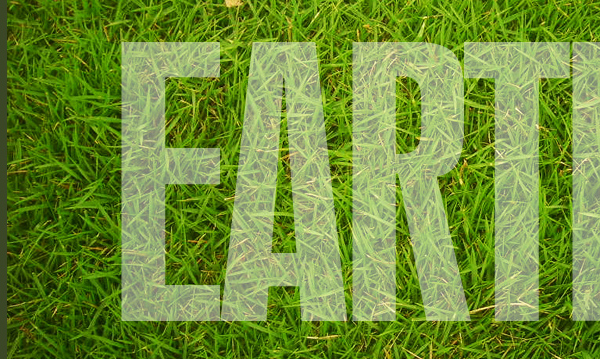
OK, so here's the text on top of the grass we got earlier.
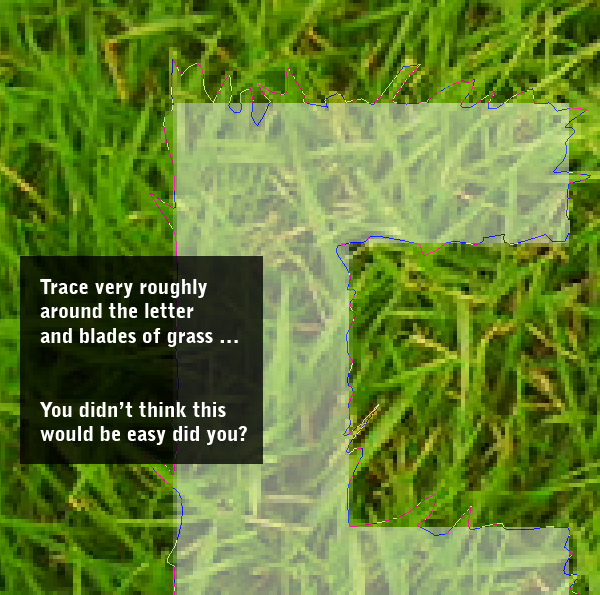
Now a bit of planning! To make text out of grass, it's not going to be enough just to stencil out the grass. Rather we need it to look all rough, with bits of grass sticking out the edges. To do that, we're going to use the letter shapes as a rough guide and then trace roughly around them and periodically jut out to trace around blades of grass.
I'll warn you now, it's very tiresome!
10.jpg

Step 11

OK, so here we are tracing. You should use the Pen Tool (P) and frankly, if you're not handy with it before you start, you will be by the end!
Notice how in the parts where my path juts out, it sort of follows individual blades of grass. That way when you have the final cut-out they will look like pieces of grass sticking out.
11.jpg

Step 12

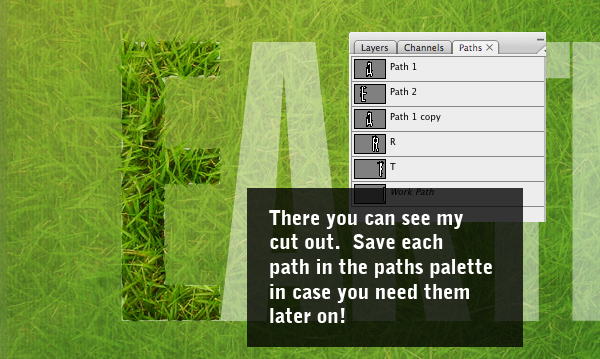
When you've finished your path, it's best to save it in the Paths Palette. You can do this by switching to that palette and then clicking the little down arrow and choosing Save Path. That way if you need the path again later, you can grab it.
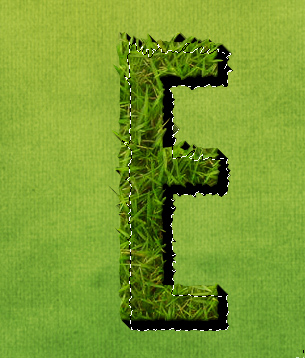
Anyhow, double-click the path to get the selection and go back to your grass layer. Duplicate the grass layer so you still have more grass for the other letters, then invert your selection (Ctrl+Shift+I) and cut away the excess grass. In the screenshot I've faded back the duplicate grass layer so you can see the cut out "E" part.
12.jpg

Step 13

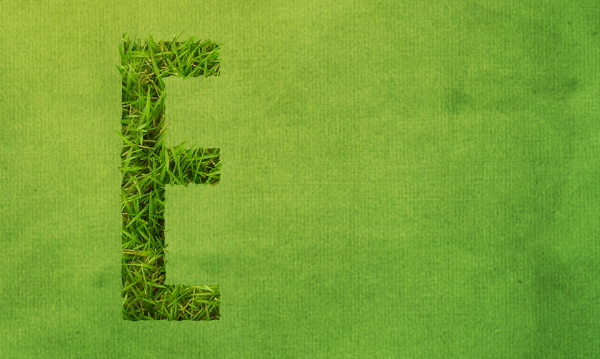
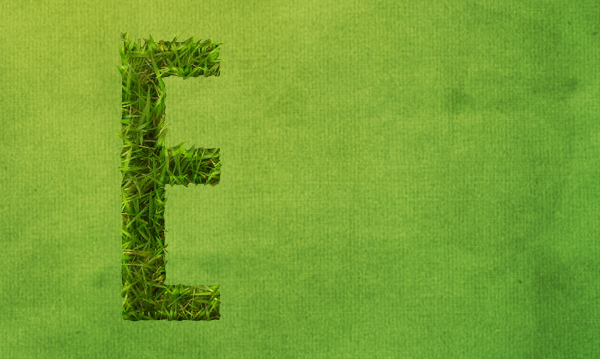
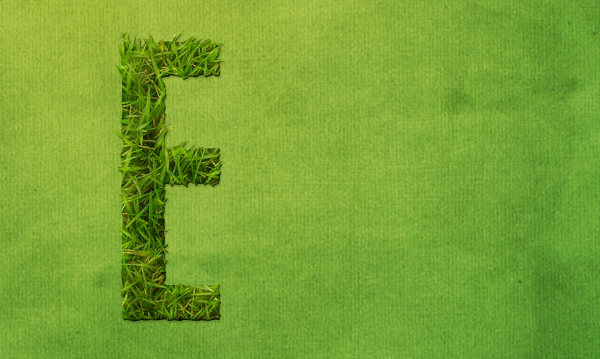
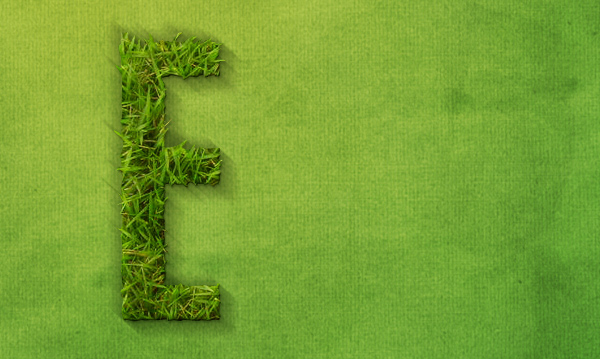
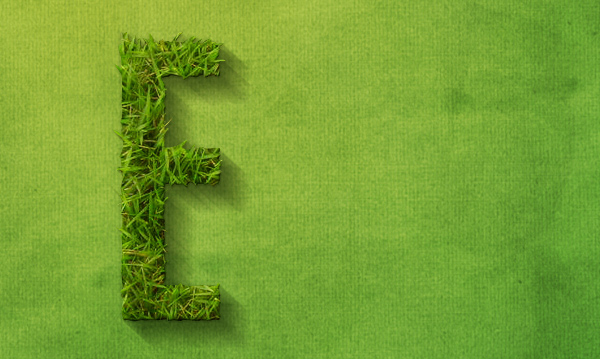
OK, so here we have our "E" on the final bakcground. As you can see, it looks only slightly better than if we'd just used the letter to stencil out the grass without bothering to trace. But that's OK, what it needs is a bit more depth. After all, if that letter was really sitting there, we should see some shadow and sides to it.
13.jpg

Step 14

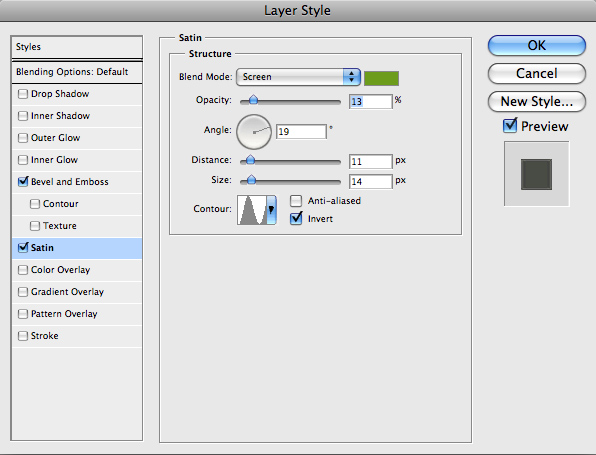
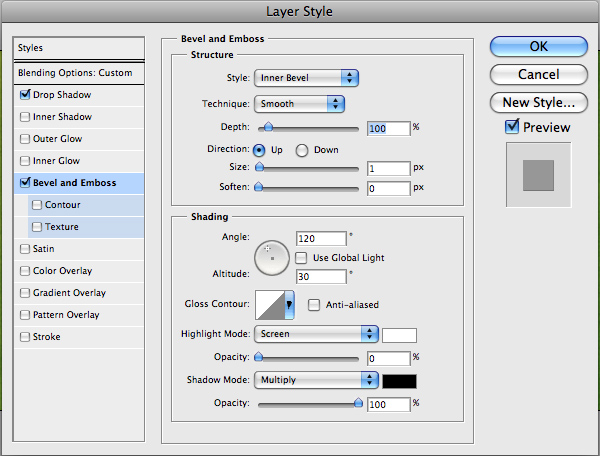
First of all though, we'll add some layer styling to give it a bit more of a three dimensional look. The styles are shown below.
14.jpg

Layer Style

Here's the first set of layer styles...
14_1.jpg

14_2.jpg

Step 15

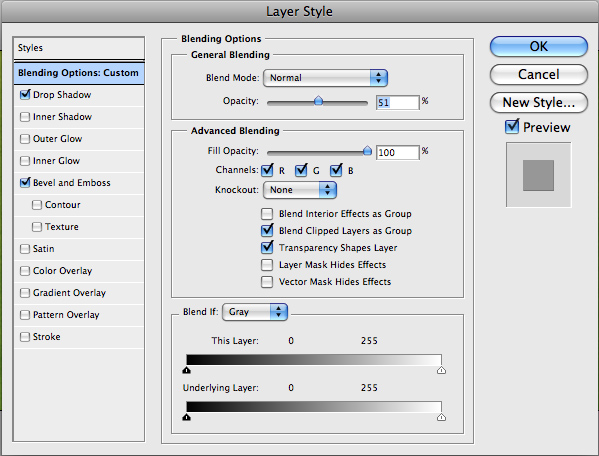
Now duplicate that layer, then clear the layer style off the duplicate, so we can add some more styles. This time add the styles shown below...
15.jpg

Layer Style

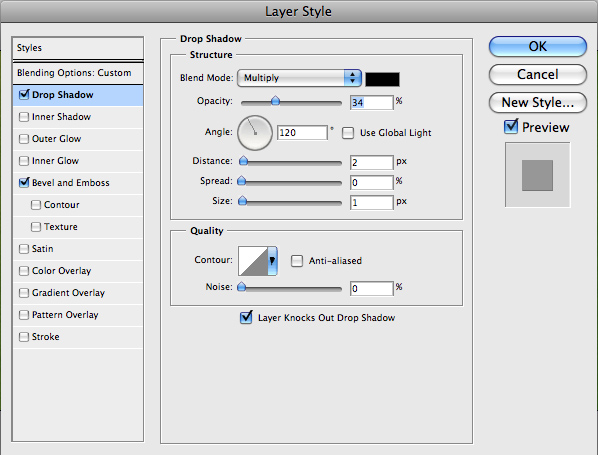
Here's the second set of layer styles... (Note that it's 51% Opacity so it'll blend in with the previous layer)
15_1.jpg

15_2.jpg

15_3.jpg

Step 16

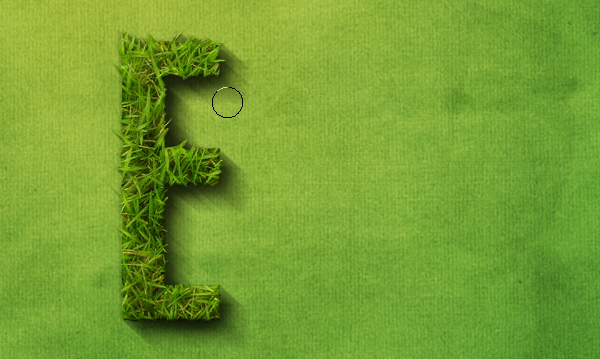
So this was all just experimental, and it kinda looks OK, but obviously has a long way to go. Now we'll add some shadow. For that we'll use a technique that I demonstrated in a previous tutorial, Using Light and Shade to Bring Text to Life
The idea is to make a three dimensional look. So Ctrl-click the grass layer and then in a new layer below, fill it with black. Then press the down arrow once and the right arrow once and fill it again, then repeat over and over until you get an effect like that shown. I think that was about 15 steps of filling.
16.jpg

Step 17

Now we run a Filter > Blur > Motion Blur on our shadow with a 45' angle and a distance of about 30. Then set the text to a low opacity of about 50%. You should have something that looks like the screenshot below.
17.jpg

Step 18

Now move the shadow layer down and to the right and magic happens! All of a sudden it looks like the letter is casting a shadow. Pretty neat!
18.jpg

Step 19

Now I duplicated this layer three times. Each time I erased a bit of it away so that as the shadow is closer to the text it gets darker. I set these layers to Multiply.
19.jpg

Step 20

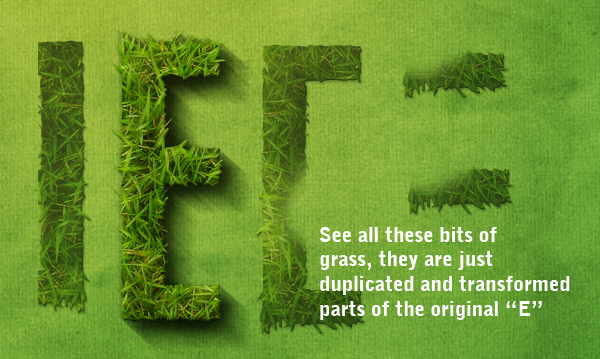
So this text is looking pretty cool, but for that extra bit of depth we should add some bits of grass in the background/shadow area. Rather than cutting out more grass, we can just use this current letter transformed about so that it's not obvious that we're hacking it together.
So as you can see below I created a few pieces of grass. They are just cut up bits of our main letter.
20.jpg

Step 21

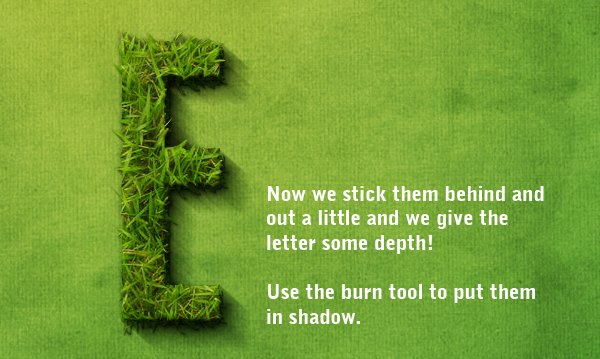
Now by moving those pieces into the shadow areas, we can make it look like there is grass sticking out and it's a real 3D object made from grass!
Because these new grass bits are in shadow, you might want to use the Burn Tool (O) to darken them appropriately.
21.jpg

Step 22

So yay, one letter down ... four to go! Good thing we didn't choose a long word like erm I don't know ... laborious!
22.jpg

Step 23

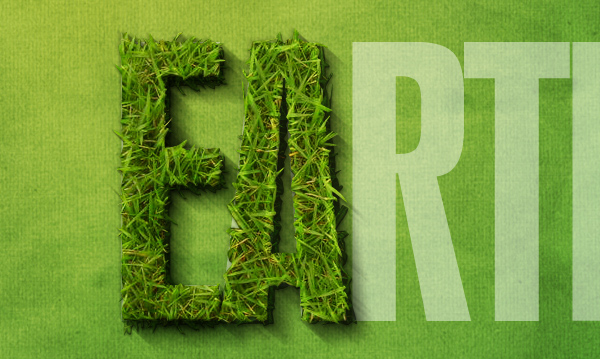
Using the exact same technique ... here is the A;
23.jpg

Step 24

and the R and T ... you get the picture.
24.jpg

Step 25

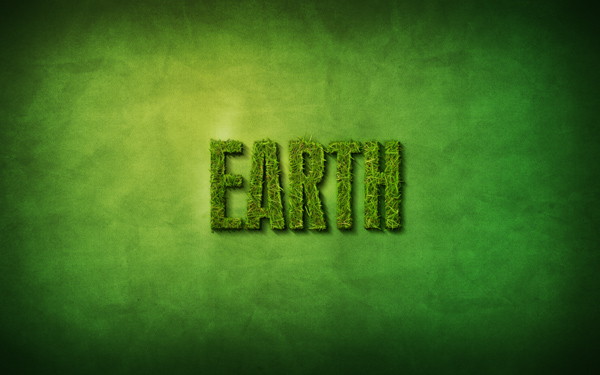
And finally, the whole word! The only extra thing I did here was to move the letters apart a little. Each letter is in its own Layer Group which makes moving it around much easier.
25.jpg

Part 3—The Finish!

Now nice as it's looking, our text is a little lonely and monotonous. So in this last section we'll add a few more elements to the design. Note we don't want to overdo it, though, because I want this to be a desktop background, so space it is important (for all my icons!).
So first up, let's add some extra text. Here I've placed a nice quote about the earth and unity taken from the Baha'i faith (that's my religion!). I love quotes, because it means we get three parts to decorate—the quote, the quotation marks and the source.
The text is in a variation of Swiss which is thinner, but still condensed. Using multiple fonts from the same family (heavy, light, etc) is a good, safe bet for keeping your type looking coherent.
So here I've set the quote to Overlay and 50%, then duplicated the text and set it to Screen and 50%. Then I've added quotation marks in the same Swiss font, but made them extra large and a bright shade of green. Finally, the source of the quote is in teeny letters and centered vertically. And, of course, the whole quote has been measured out so it's exactly the length of the main "EARTH" text.
26.jpg

Step 27

Next we'll add a bit of a highlight to the scene. To do this, create a new layer above all the rest, and using the Gradient Tool (G), draw a gradient of white -> transparent towards the top left. Then set this layer to Soft Light and 50%. This will turn it into a nice subtle bit of lighting.
27.jpg

Step 28

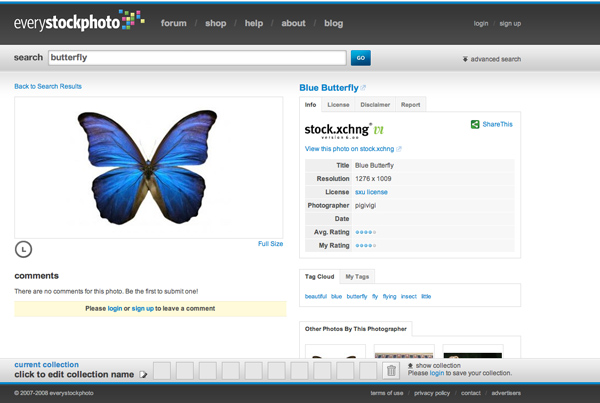
Now we'll add two eye-catching elements to offset all the green. These will be a brilliant blue butterfly and a little red ladybug. I used the excellent everystockphoto Web site that searches a ton of free stock Web sites for you to find two awesome images to use: Ladybug | Butterfly
28.jpg

Step 29

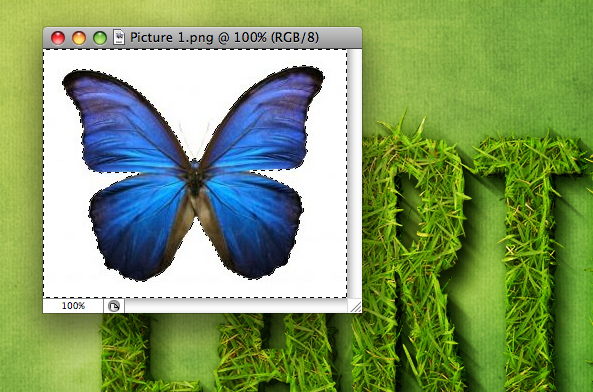
Placing the images is pretty easy. First the butterfly. We just open up the image in Photoshop, use the Magic Wand Tool (W) to select all the white area, then go to Select > Modify > Expand and expand the selection by 1px to make sure we've got it all. Then press Ctrl+Shift+I to invert the selection and copy the butterfly over to our main canvas.
The ladybug I selected needs to be cut out of it's image. To do that I used the Pen Tool (P) and traced around the little guy and then just cut him out that way.
29.jpg

Step 30

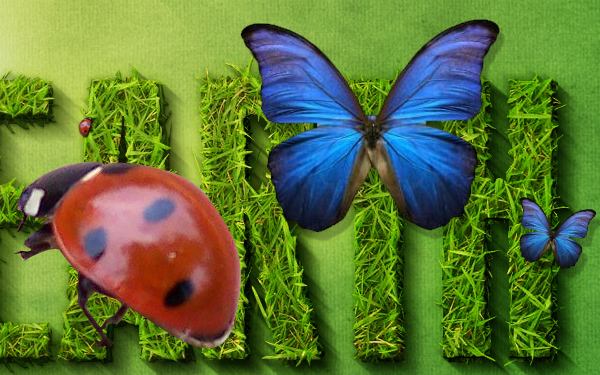
So here are our two extras. As you can see, the lady bug looks a bit weird actually because I did a quick'n'dirty job of cutting him out. But that's OK because he's going to be tiny so you won't be able to see the details anyway.
So paste them in and then shrink them down and place them appropriately. It's best if they aren't close together, because that way they'll balance each other.
I added a drop shadow to each. With the ladybug it's a very close shadow because he's small and walking on the grass. With the butterfly, I set the distance to about 10px because he's hovering in the air and therefore the shadow lands a little ways away.
30.jpg

Finished!

And there we have it, one neat little composition featuring text made out of grass! (Click for the full-size version)
 

50Cent_SL

Member
Sep 4, 2008
556
1
0
colombo
How To Create A Gold Text Effect In Photoshop

Step 1

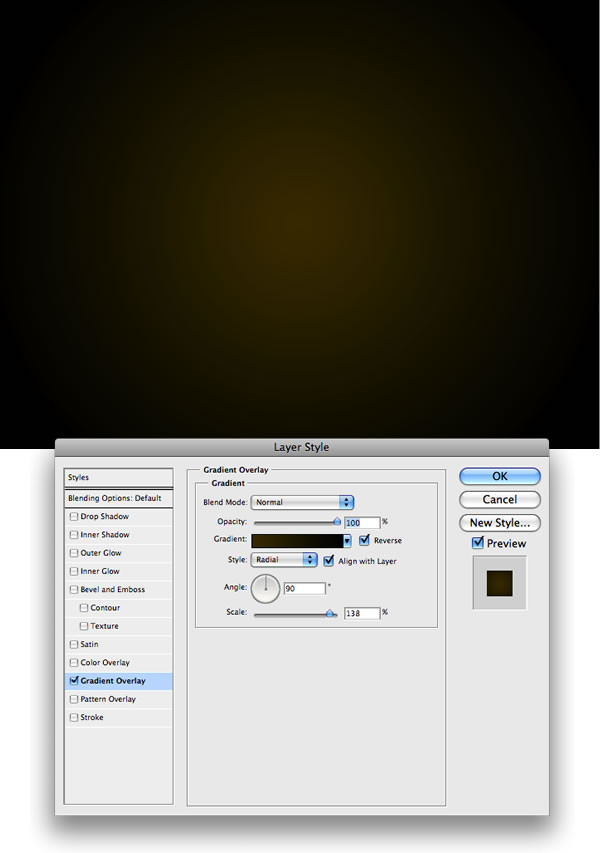
Create a new document, apply a Layer Style on the background layer. Add a Gradient Overlay from black to a dark brown (#443501).
gold_s1.jpg

Step 2

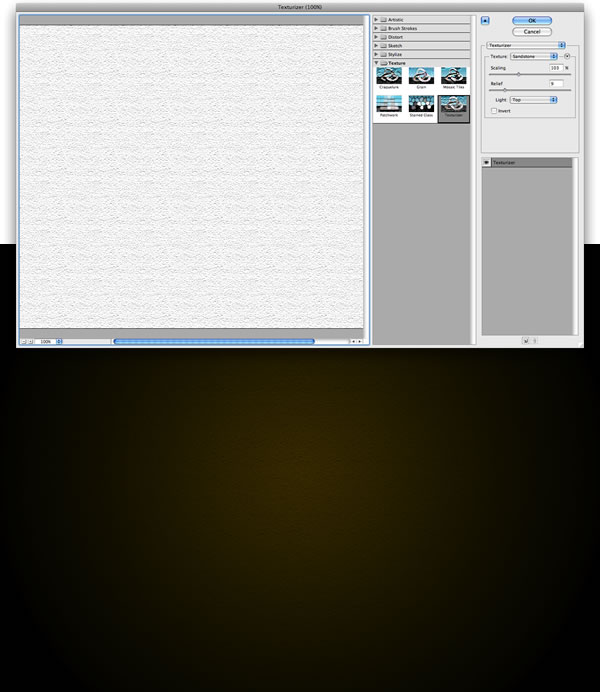
Create a new Layer and apply Filter>Texture>Texturizer. Make sure that the foreground color is white and the background is black. After that, change the Blend Mode to Multiply.
gold_s2.jpg

Step 3

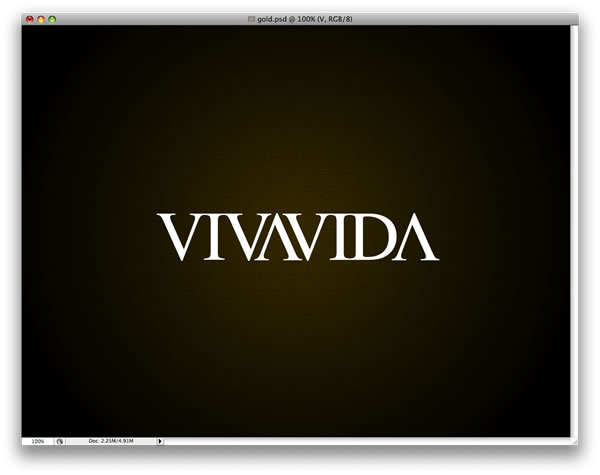
Add some text. I used Times New Roman, and for the "A" I used the "V" letter and flipped it vertically and horizontally.
gold_s3.jpg

Step 4

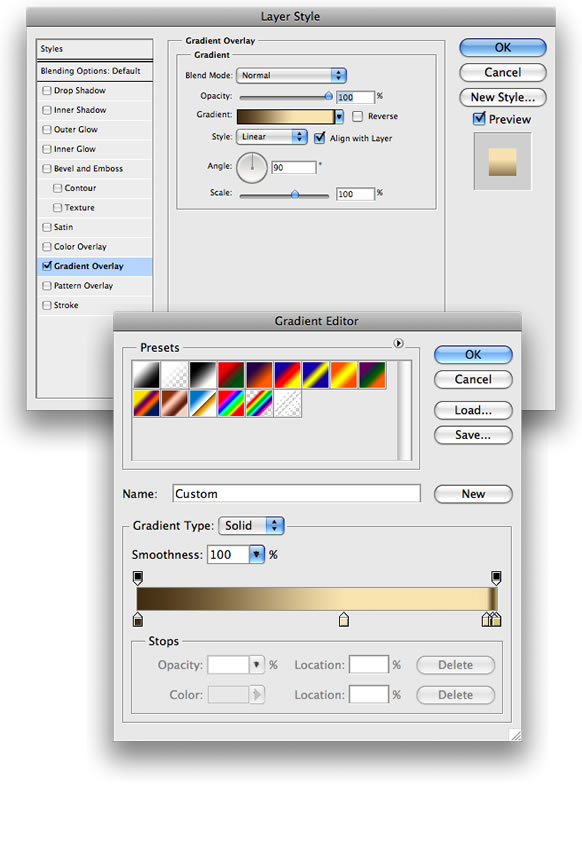
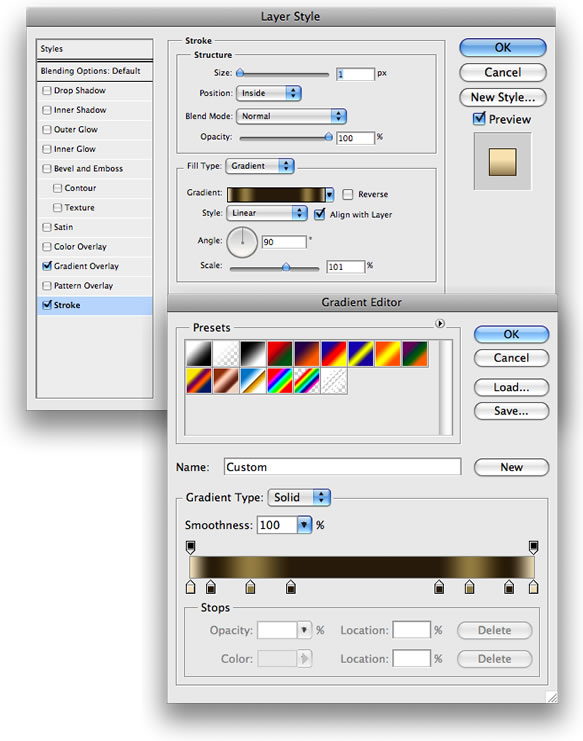
Now we start creating our gold layer style. We'll set up the Gradient Overlay first, as shown below.
gold_s4.jpg

Step 5

Now we'll add a Stroke. For the Fill Type use Gradient. The position of the gradient will vary for different typefaces, so experiment and see what looks good.
gold_s5.jpg

Step 6

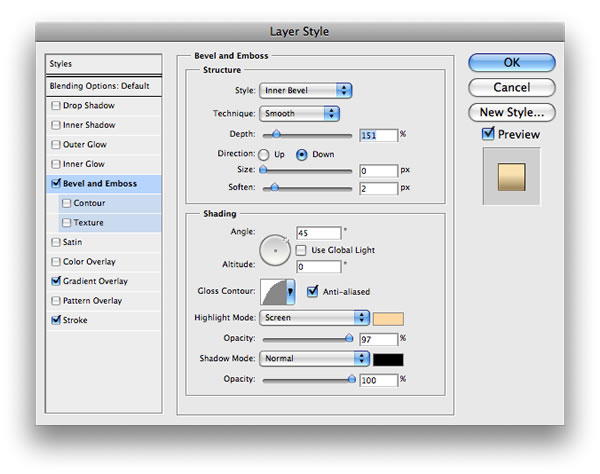
Add Bevel and Emboss, as shown below.
gold_s6.jpg

Step 7

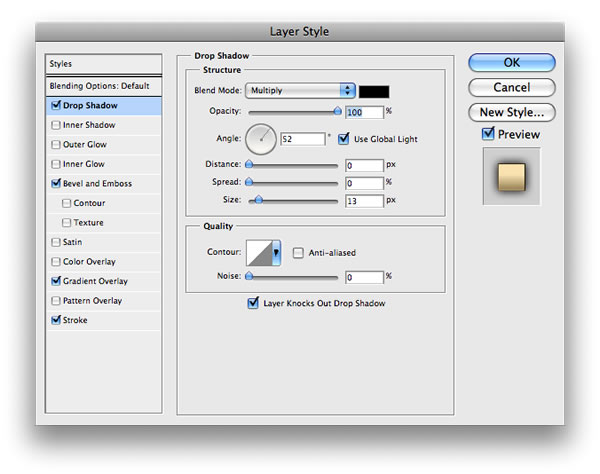
Finally, add some Shadow, again following the specs below.
gold_s7.jpg

gold_s8.jpg

Conclusion

This a very nice example of how powerful Layer Styles are in Photoshop. Sometimes just changing some values can create a totally different effect. For this tutorial I created gold, but if you change the gradient color to variations of grey you will have silver instead of gold.
gold_conclusion.jpg
 

50Cent_SL

Member
Sep 4, 2008
556
1
0
colombo
Aqua Text Photoshop Tutorial

Aqua Text Photoshop Tutorial

In this tutorial I will show you how to make that cool aqua text that is on my header. In the end you text will look like the O below. (based on the look of a text created by robouk.mchost.net )
aquatextFINAL.jpg

The fist step is to make your text. I chose the font : Times New Roman, with a size 450, and a light blue color.
aquatext1.jpg

With your text tool selected. right click on your picture and choose "rasterize layer" Now duplicate your layer, by pressing the arrow on the layers panel and selecting "duplicate layer"
aquatext2.jpg

Set your new layer mode to screen.
aquatext3.jpg

Position your new layer so that the light colored O is like the one below
aquatext4.jpg

Now set the opacity of this layer to around 30%
aquatext5.jpg

Now, select the outline of the original O. To do this, hold the control button, and click on your original text's layer. Now go to select, invers to inverse your selection. Now go to your top layer, and press delete. What we just did was deleted the part of your duplicated that was sticking outside your original text's boundires. Now go to your top layer, and press control + e to merge your two text layers together. To make sure you did this part right, hold control and click on your merged layer. If you did it correctly you should have a perfect outline of your O.
aquatext6.jpg

Now, take out your dodge tool. We are going to lighten some of your text to give it that aqua feel. So, lighten the areas that are marked below. If you are having trouble making it look right, then lower the exposer of your dodge tool to around 50%
aquatext7.jpg

You should now have an image like this, with a total of 2 layers in your picture.
aquatext8.jpg

Now again, hold control and click on your top layer, this should give you an outline of your text again. Now that we have things situated, we are going to save this selection for later use. So, while you have your text selected. go to select> save selection and save it as whatever you want. Now, load your selection. If you did it correctly, you should still have an outline of your big O text.

Now that we have that taken care of, while you have your text selected make a new layer. On your new layer, go to edit> stroke. We are going to outline our O with a nice dark blue. Use the settings below, with a color close to mine.
aquatext8.5.jpg

You should now have an image like the one below:
aquatext9.jpg

Now, make another layer. Again, go to edit> stroke, but this time choose a width of 2 px, and the color white. Use the settings below:
aquatext10.jpg

Now that we have our white outline, we are going to erase the white outline from the parts that the light would not be hitting your text. Suppose to the light is comming from the top left, in that case we are going to delete the white outline in left center of the O and the right outside.
To do this, take your polygon selection tool, and make a selection like the one below. And press delete.
aquatext11.jpg

Now make a selection like the one below, and again press delete.
aquatext12.jpg

Now you should have an image like the one below.
aquatext13.jpg

Now, we are going to move the white outline. Move your outline, just slightly to the right, so it looks like mine below:
aquatext14.jpg

Now we got it position right, but it still looks a little choppy doesnt it? So, we are going to smooth out the edges. Zoom in by press control & +
Use your eraser tool to blend in the white outline like I have done in my selection below.
Do this to all end of the line.
aquatext15.jpg

Now are text is starting to look good. You should have something very similar to the text below:
aquatext16.jpg

Now I went back down to the original text layer, and darken a few spots to add a little contrast. You can do this as you see fit, I just added some darkness were the light wouldnot be hitting the image. Most likely around the areas were we have deleted the white outlie.
aquatext17.jpg

Now, do give it just a little more life I have added a little reflection of white. Just to make it a little more glossy. It is barely noticeable now, but it does make a difference. To do this, make a new layer above all your previous ones. Load you saved selection and fill it with white. Lower the opacity of your layer to 15% and move it a little to the right.
aquatext18.jpg

Now, make a new layer under your first layer. Load your saved selection once again and fill it with a dark blue. Now position to like the picture below:
aquatext19.jpg

Now go to filter> blur> gaussian blur and set it to 4

You should now have an image like the one below.
aquatext20.jpg

Now I just added a little to the background to make it moreinteresting and we are all done!
aquatextFINAL.jpg
 

50Cent_SL

Member
Sep 4, 2008
556
1
0
colombo
Advanced Glow Effects

Step 1:

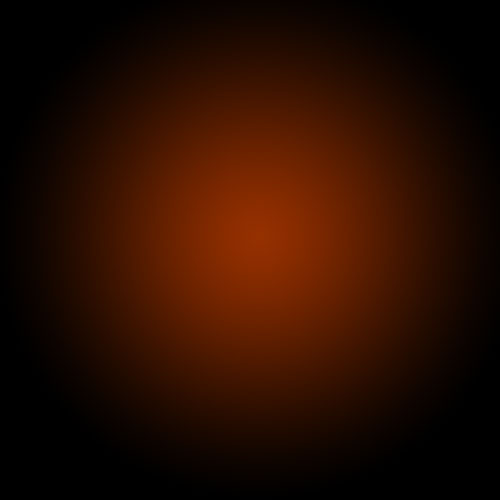
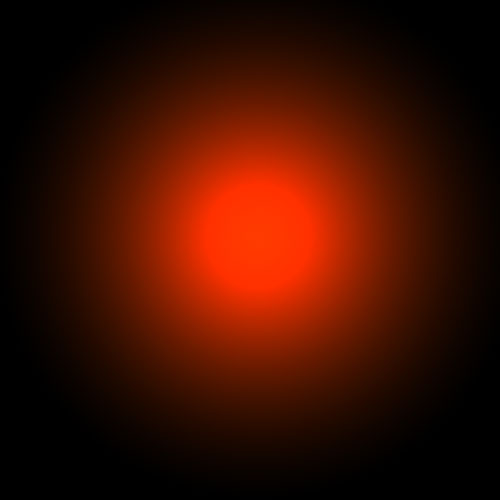
As with pretty much every tutorial I've ever written, we begin with a radial gradient. This one is pretty harsh and goes from a reddish brown color to black. Here are the exact color codes:
Foreground color - #922f00
Background color - #000000
1.jpg

Step 2:

In this tutorial, we actually need a pretty intense center, so what we'll do is duplicate the layer we just made and set the one above to a blending mode of Color Dodge. There are a few types of blending modes, darkening ones, lightening ones, colorizing ones and inverting ones. Color Dodge is probably the strongest of the lightening ones. As you can see in the screenshot, it produces a pretty full-on center.
2.jpg

Step 3:

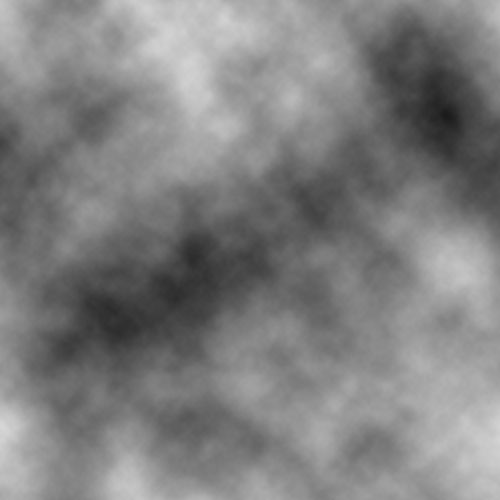
Now in our glow effect, it helps to have a nice textured background. So we are going to create a sort of smoky haze. To do this, create a new layer, then make sure you have white, #ffffff, and black, #000000, selected as your background and foreground colors.
Then go to Filter > Render > Clouds. This will give you the same random cloud pattern as above.
3.jpg

Step 4:

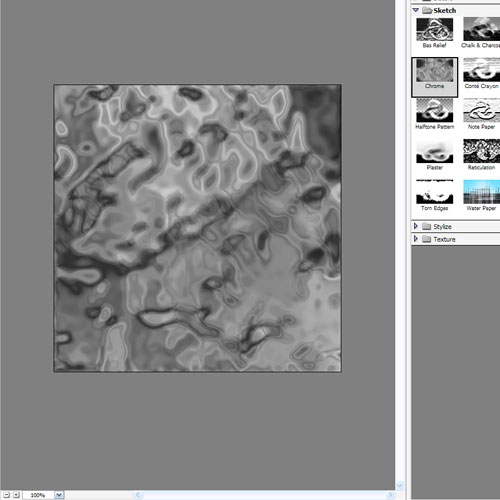
Now set the opacity of your layer to Overlay and 30% transparency. In some instances this would be enough, but for our needs we want it even smokier looking!
So go to Filter > Sketch > Chrome and use default settings of 4 and 7 for detail and smoothness respectively. Actually you can probably mess around with those if you want, but the defaults seem to be fine.
When you're done, the result should look a lot smokier (once its overlayed at 30% transparency that is). You can see the result in the background of the next screenshot.
4.jpg

Step 5:

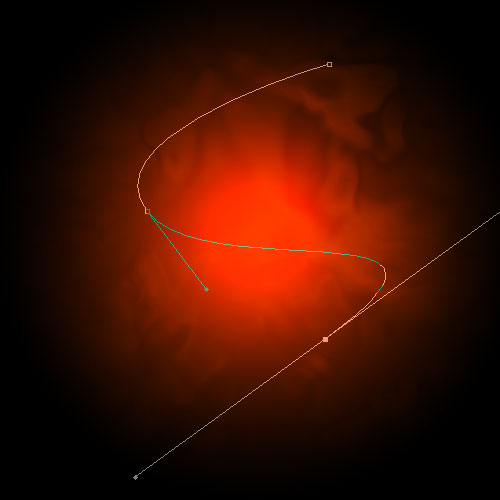
Now before we can start making glows, we need to have something to glow. Here's where we break out the pen tool. If you have used the pen tool much I suggest playing around with it a little. There are some tricky things you can do with shortcuts, but for this tutorial you don't need those.
In fact all we want to achieve are some nice curves. Fortunately this isn't too hard. I find the trick is not to use too many points. Instead rely on the Pen Tool's natural curving and drag the mouse out for each point so you get a big angle. In this S-curve shown above, I've only used three points, the starting point, the end point and one in between to give it the bend.
5.jpg

Step 6:

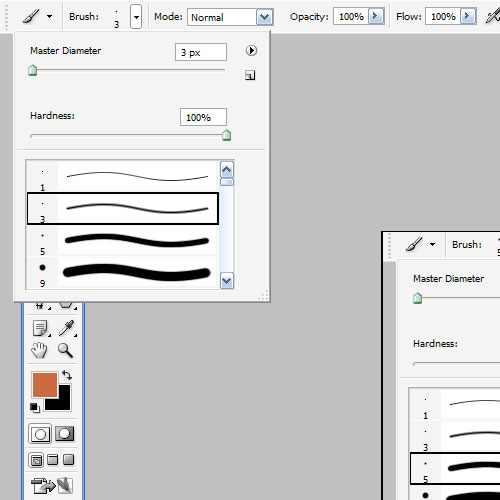
Once you have a nice curve, create a new layer. Then click on the Paintbrush Tool (B) and choose a very thin, hard brush. As you know, soft brushes are the blurry ones and hard brushes are more solid. In this case I suggest using a thickness of 3.
Note that you can have any color selected as your brush color because we'll go over it with a layer style shortly.
6.jpg

Step 7:

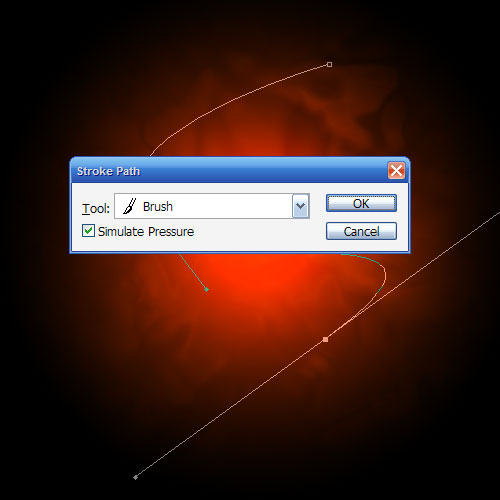
Now switch back to the Pen Tool. You must switch tools in order to do this next bit.
Then right-click and select Stroke Path. A little dialog box will appear as in the screenshot. Choose Brush and make sure there is a tick next to Simulate Pressure. This is important as it will give your curve tapered ends which will make it rock!
Next right click again and select Delete Path.
8.jpg

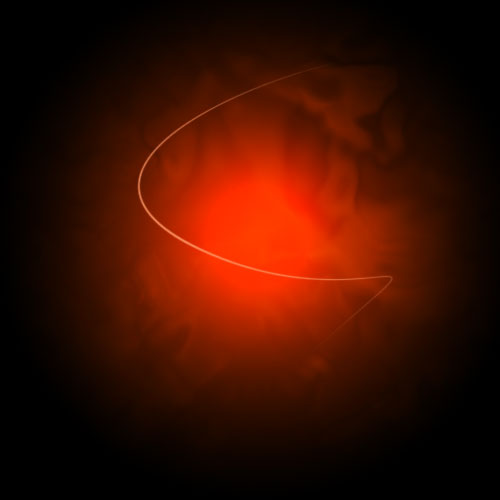
Step 8:

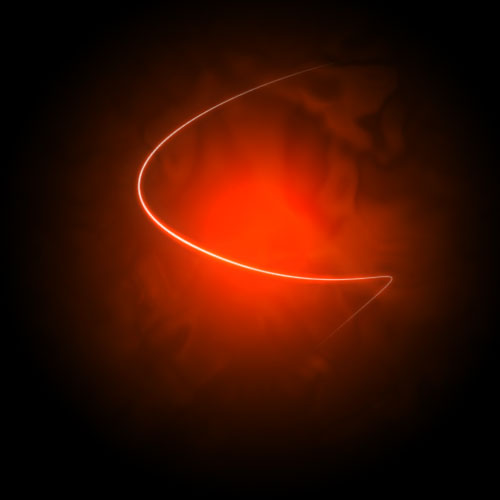
You should now have something like the above. Just a thin, cool swishy thing.
9.jpg

Step 9:

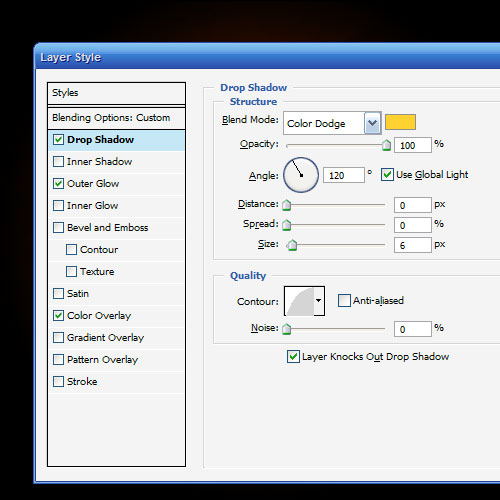
Now we add some glows. The easiest way to make our glows is to use layer styles. And the best way to tell you what layer styles to use is to tell you to download the sample Photoshop PSD from the bottom of this page and then open it up and look through them there.
In a nutshell, I've added two sets of glows. To do this I first use Outer Glow and then because I want a second glow, I change the Drop Shadow settings so that it becomes a glow (you can do this by reducing the Distance and changing the blend mode to something like Color Dodge)
Oh and also I've used a Color Overlay to make the item white so that its like the center of an intense glow.
10.jpg

Step 10:

So now you have the same line but with a cool glow coming off it. The beauty of using a layer style is that you can copy and paste it to other layers. To do this you just right-click the layer and select Copy Layer Style then create a new layer and right-click and choose Paste Layer Style.
11.jpg

Step 11:

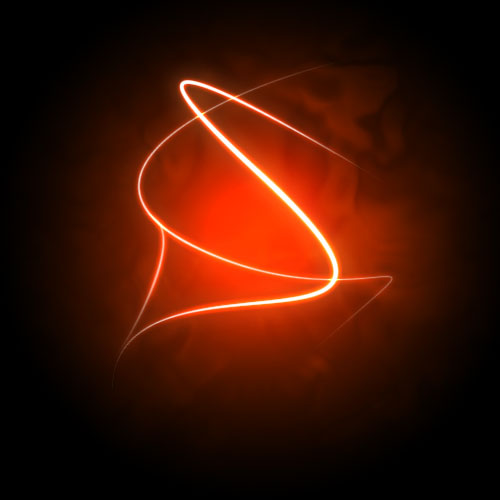
So now repeat the same process a couple of times to make more squiggly lines.
In this instance, I made one a little thicker by changing the paint brush size before I did the Stroke Path bit of the process. I also made a third line and erased part of it and sorta made it join the other two to look like a cool triangular shape.

12.jpg

Step 12:

Here I've added some text in and applied the same layer style to the text layers.
It's important to pay lots of care and attention to your text. When you're first starting out, use simple fonts and play with spacing between letters, words and sizes. You can achieve a lot with just some small tricks. Here I've contrasted the three words by making Glow a lot larger and in regular casing, then made Advanced and FX much smaller, with greater space between the letters and all caps.
You can control spacing with text using the Character window. If it isn't already open go to Window > Character and it should appear. Mess about with the different settings until you learn what each controls.
13.jpg

Step 13:

Now we add some particles. To do this, create a new layer then select a tiny paint brush - size 3 - and just paint some dots on. It helps if they are clustered towards the center of the glow so that it looks like they are emanating from there.
You can make some of the central ones larger by doubling over on them with a second paint brush dab.
Then paste our Glow layer style on to that layer too!
14.jpg

Step 14:

Now that's looking pretty cool, but it will look even cooler if we give it some subtle coloring instead of this super gaudy red.
So create a new layer, and using a radial gradient, draw a blue to white gradient as shown.
15.jpg

Step 15:

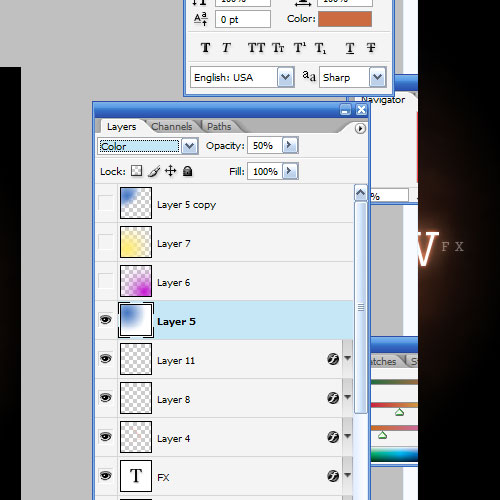
Then set that layer to a blending mode of Color and change the opacity to 50%.
You'll see that it turns the image kind of bluish. I think that's looking much cooler already, but just to go that extra step I also created a couple of extra layers, one with some faint yellow and one with faint purple. You can see them in the screenshot above.
I set each layer to blending mode of Color and thin opacities so that they all fade together.
16.jpg


Step 16:

And there you have it: advanced glow effects with a cool color blend and subtle smoky background combined make for a pretty great effect.
Just remember to experiment with settings and try applying the glow to different things to see how it turns out. And try different color combinations, some surprising combinations turn out really beautiful. Good luck!
17.jpg
 

50Cent_SL

Member
Sep 4, 2008
556
1
0
colombo
Burn Ice

Burn Ice
In this tutorial I would like to show you how to do the realistic flaming ice text.
Step 1.
Create a new 450X350 pixels document. Then create a new layer "Ice". Use Horizontal Type Tool and write the ice text, BURN ICE for example, with "DS SonOf" type and 85 pt and fill it with any color.
burn-ice-1.jpg
Step 2.
Apply Layer > Layer Styles > Blending Options with the following settings:
Stroke (color-> #6fbdf3)
burn-ice-2.jpg
Gradient Overlay (color-> #c8dbea)
burn-ice-3.jpg
Color Overlay (color-> #9ad6df)
burn-ice-4.jpg
Satin (color-> #a6d5f5)
burn-ice-5.jpg
Bevel and Emboss (color-> #76c0de)
burn-ice-6.jpg
Contour
burn-ice-7.jpg
Texture
burn-ice-8.jpg
Step 3.
Apply Filter > Stylize > Wind with the following settings: Method-> Wind,Direction -> From the Right.​
burn-ice-9.jpg
Step 4.
Create a new layer "Burn" with the same text with dark grey background for the burn text. Remove BURN text a little left from the Ice text.
Step 5.
Apply Filter > Stylize > Wind with the following settings: Method-> Wind, Direction -> From the Right. Then apply Edit > Transform > Rotate 90 CCW. Apply Filter -> Stylize -> Wind two times with the following settings: Method -> Wind, Direction -> From the Right. Then apply Edit > Transform > Rotate 90 CW. Duplicate this layer.
burn-ice-10.jpg
Step 6.
Go to "Burn copy" layer and apply Filter > Distort > Ripple with the following settings: Amount -> -258, Size -> Medium and then press Ctrl+E to merge down this layer with "Burn" layer.
burn-ice-11.jpg
Step 7.
Then apply Reflected Gradient Tool with dark orange and black color on half and run across your screen to color your image. Then set the blending mode 'color' for this layer.
burn-ice-12.jpg
Step 8.
Switch layers with ice and burn texts and you receive the burn ice, but for good result we need change the background on black color. And you can get something like that.
burn-ice-13.jpg
 

ahamednishadh

Active member
  • Sep 17, 2006
    4,896
    8
    38
    34
    Sri Lanka => Colombo => Colombo 06
    50Cent_SL said:
    Step 1:

    As with pretty much every tutorial I've ever written, we begin with a radial gradient. This one is pretty harsh and goes from a reddish brown color to black. Here are the exact color codes:
    Foreground color - #922f00
    Background color - #000000
    1.jpg

    Step 2:

    In this tutorial, we actually need a pretty intense center, so what we'll do is duplicate the layer we just made and set the one above to a blending mode of Color Dodge. There are a few types of blending modes, darkening ones, lightening ones, colorizing ones and inverting ones. Color Dodge is probably the strongest of the lightening ones. As you can see in the screenshot, it produces a pretty full-on center.
    2.jpg

    Step 3:

    Now in our glow effect, it helps to have a nice textured background. So we are going to create a sort of smoky haze. To do this, create a new layer, then make sure you have white, #ffffff, and black, #000000, selected as your background and foreground colors.
    Then go to Filter > Render > Clouds. This will give you the same random cloud pattern as above.
    3.jpg

    Step 4:

    Now set the opacity of your layer to Overlay and 30% transparency. In some instances this would be enough, but for our needs we want it even smokier looking!
    So go to Filter > Sketch > Chrome and use default settings of 4 and 7 for detail and smoothness respectively. Actually you can probably mess around with those if you want, but the defaults seem to be fine.
    When you're done, the result should look a lot smokier (once its overlayed at 30% transparency that is). You can see the result in the background of the next screenshot.
    4.jpg

    Step 5:

    Now before we can start making glows, we need to have something to glow. Here's where we break out the pen tool. If you have used the pen tool much I suggest playing around with it a little. There are some tricky things you can do with shortcuts, but for this tutorial you don't need those.
    In fact all we want to achieve are some nice curves. Fortunately this isn't too hard. I find the trick is not to use too many points. Instead rely on the Pen Tool's natural curving and drag the mouse out for each point so you get a big angle. In this S-curve shown above, I've only used three points, the starting point, the end point and one in between to give it the bend.
    5.jpg

    Step 6:

    Once you have a nice curve, create a new layer. Then click on the Paintbrush Tool (B) and choose a very thin, hard brush. As you know, soft brushes are the blurry ones and hard brushes are more solid. In this case I suggest using a thickness of 3.
    Note that you can have any color selected as your brush color because we'll go over it with a layer style shortly.
    6.jpg

    Step 7:

    Now switch back to the Pen Tool. You must switch tools in order to do this next bit.
    Then right-click and select Stroke Path. A little dialog box will appear as in the screenshot. Choose Brush and make sure there is a tick next to Simulate Pressure. This is important as it will give your curve tapered ends which will make it rock!
    Next right click again and select Delete Path.
    8.jpg

    Step 8:

    You should now have something like the above. Just a thin, cool swishy thing.
    9.jpg

    Step 9:

    Now we add some glows. The easiest way to make our glows is to use layer styles. And the best way to tell you what layer styles to use is to tell you to download the sample Photoshop PSD from the bottom of this page and then open it up and look through them there.
    In a nutshell, I've added two sets of glows. To do this I first use Outer Glow and then because I want a second glow, I change the Drop Shadow settings so that it becomes a glow (you can do this by reducing the Distance and changing the blend mode to something like Color Dodge)
    Oh and also I've used a Color Overlay to make the item white so that its like the center of an intense glow.
    10.jpg

    Step 10:

    So now you have the same line but with a cool glow coming off it. The beauty of using a layer style is that you can copy and paste it to other layers. To do this you just right-click the layer and select Copy Layer Style then create a new layer and right-click and choose Paste Layer Style.
    11.jpg

    Step 11:

    So now repeat the same process a couple of times to make more squiggly lines.
    In this instance, I made one a little thicker by changing the paint brush size before I did the Stroke Path bit of the process. I also made a third line and erased part of it and sorta made it join the other two to look like a cool triangular shape.

    12.jpg

    Step 12:

    Here I've added some text in and applied the same layer style to the text layers.
    It's important to pay lots of care and attention to your text. When you're first starting out, use simple fonts and play with spacing between letters, words and sizes. You can achieve a lot with just some small tricks. Here I've contrasted the three words by making Glow a lot larger and in regular casing, then made Advanced and FX much smaller, with greater space between the letters and all caps.
    You can control spacing with text using the Character window. If it isn't already open go to Window > Character and it should appear. Mess about with the different settings until you learn what each controls.
    13.jpg

    Step 13:

    Now we add some particles. To do this, create a new layer then select a tiny paint brush - size 3 - and just paint some dots on. It helps if they are clustered towards the center of the glow so that it looks like they are emanating from there.
    You can make some of the central ones larger by doubling over on them with a second paint brush dab.
    Then paste our Glow layer style on to that layer too!
    14.jpg

    Step 14:

    Now that's looking pretty cool, but it will look even cooler if we give it some subtle coloring instead of this super gaudy red.
    So create a new layer, and using a radial gradient, draw a blue to white gradient as shown.
    15.jpg

    Step 15:

    Then set that layer to a blending mode of Color and change the opacity to 50%.
    You'll see that it turns the image kind of bluish. I think that's looking much cooler already, but just to go that extra step I also created a couple of extra layers, one with some faint yellow and one with faint purple. You can see them in the screenshot above.
    I set each layer to blending mode of Color and thin opacities so that they all fade together.
    16.jpg


    Step 16:

    And there you have it: advanced glow effects with a cool color blend and subtle smoky background combined make for a pretty great effect.
    Just remember to experiment with settings and try applying the glow to different things to see how it turns out. And try different color combinations, some surprising combinations turn out really beautiful. Good luck!
    17.jpg


    bro first of all thx to all those tutorials.

    second i want to know how i get this effect done in After Effects. ive been searching for sumtime now but cudnt get it. do u know how to get dat effect in Adobe After Effects?

    thx in advance and keep posting more tutes bro!
     

    50Cent_SL

    Member
    Sep 4, 2008
    556
    1
    0
    colombo
    ahamednishadh said:
    bro first of all thx to all those tutorials.

    second i want to know how i get this effect done in After Effects. ive been searching for sumtime now but cudnt get it. do u know how to get dat effect in Adobe After Effects?

    thx in advance and keep posting more tutes bro!
    welcome bro
    chack this out http://movielibrary.lynda.com/html/modPage.asp?ID=441&cid=441
    i think you can find out effects in after effect cs3;)
     

    50Cent_SL

    Member
    Sep 4, 2008
    556
    1
    0
    colombo
    Reflective Liquid Type

    1

    image01.jpg
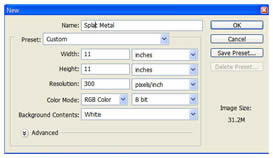
    Create a new image with the following attributes:
    • Width: 11 inches
    • Height: 11 inches
    • Resolution: 300 ppi, 8 or 16 bit
    • Background Color: White
    2

    image02.jpg
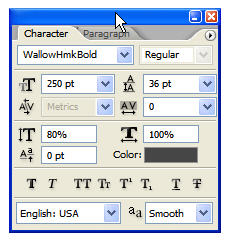
    Since the desired effect is to appear liquefied, a font that appears to have been made with a crayon or round brush will work perfectly. Select the Type tool and open the Character palette from the Options bar. The font I’ve chosen is called ‘WallowHmkBold’… if you do not have this installed on your system just use the font of your choice. The attributes for the characters are seen below:

    3


    image03.jpg
    Note that the color is gray in the #666666 range and NOT stark black.
    Type a word across the face of the image.

    4

    image04.jpg

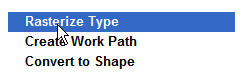
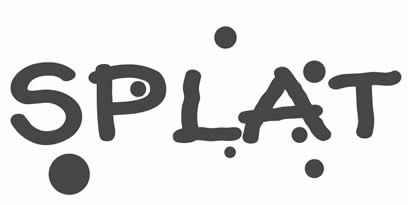
    Rasterize the type layer, then paint a few additional gray dots around the type.
    image05.jpg

    5

    image06.jpg
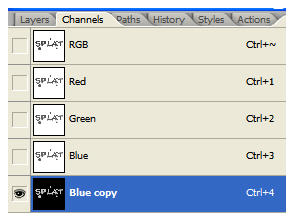
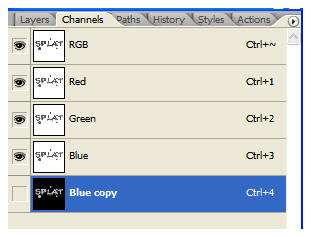
    Open the Channels palette and duplicate a channel… the Blue channel will work fine. Go to Image>Adjustments>Invert.

    6

    image08.jpg
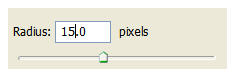
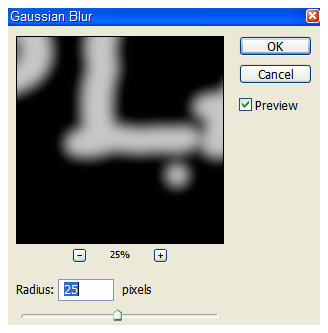
    Open the Filter menu and select Blur>Gaussian Blur. First, blur the channel at a 25 pixel radius. Blur the channel again at a radius of 15 pixels.
    image07.jpg


    7

    image09.jpg
    Turn off the Blue copy channel, but don’t delete it… you’ll need it in a moment or two.

    8

    image10.jpg
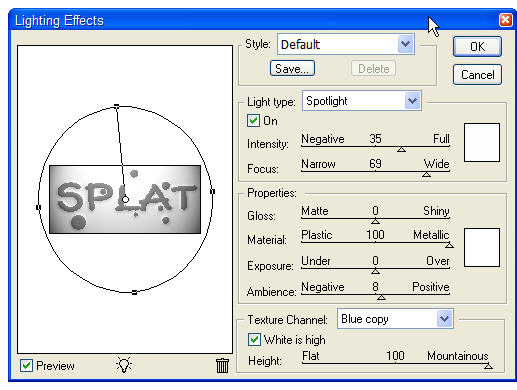
    Go to Filter>Render>Lighting Effects. Set it up as outlined in the image below… be sure to select the Blue copy channel as the Texture Channel.

    9

    image11.jpg
    The result of all that is a pretty basic bevel, and yes, you could do pretty much the same thing with a layer style. Some habits die hard, however, and I like the end result better when channels come into play. What can I say? I’ve been doing it this way since at least PS 6, and if it ain’t broke, don’t fix it!

    10


    image12.jpg
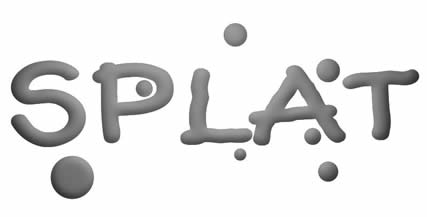
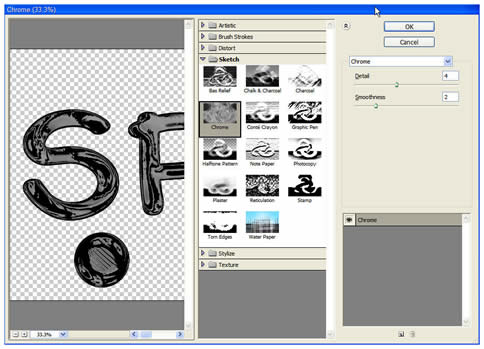
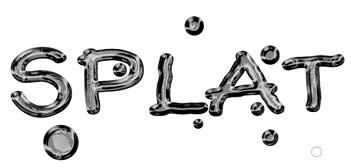
    Duplicate the text layer and go to Filter>Sketch>Chrome. Set up the reflections as seen in the dialog box below:

    11


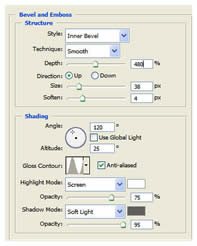
    Now you can play with Layer Styles a bit. Open the Layer Styles dialog box and select Bevel/Emboss. Enter the following settings… note that the Shadow color is again gray in the #666666 range and not black. Once done click OK.
    image13.jpg
    image14.jpg

    12


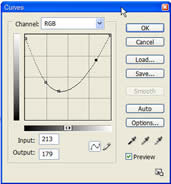
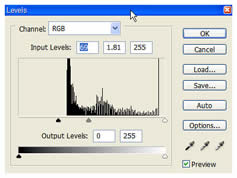
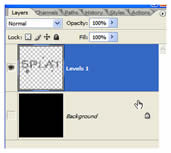
    Let’s shine this up a bit. Command/Control+Click the text layer to generate a selection, then make a Curves adjustment layer and Levels adjustment layer with the settings seen here:
    image15.jpg
    image16.jpg

    13


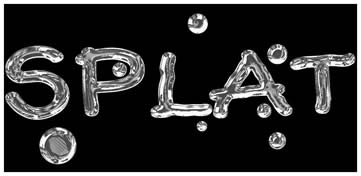
    Against a black background the shine really comes out.
    image17.jpg

    14

    image18.jpg
    Turn off the background layer or layers (if you added the black separately) and merge all the others together.

    15

    image19.jpg
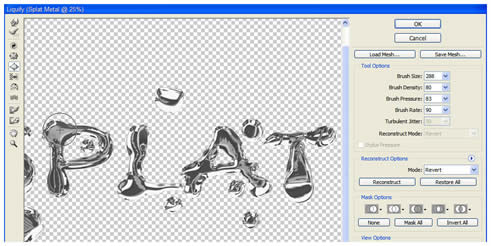
    To give the type an enhanced liquid quality, go to Filter>Liquify. Use the Bloat tool to expand or otherwise warp areas of the text as seen here. Once you are happy with the distortions, click OK.

    16

    image20.jpg
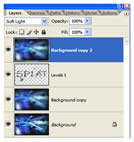
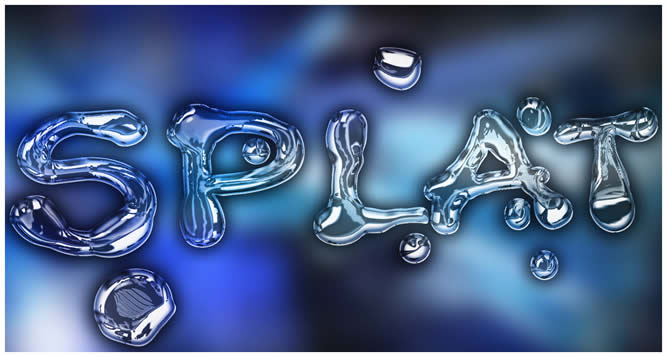
    You can now throw the text into any image you so choose. In the following example, I’ve blurred a tech-style background, placed the type in that document, then placed a duplicate of the blurred layer above the text. The Blend mode of the top layer is changed to Soft Light to serve as reflections off the type, or making the type appear transparent allowing you to see the background through it. I’ll let you decide what is actually happening.

    That’s it for now. Until next time, I’ll see you at ActionFx.com. Take care!


    image21.jpg
     

    50Cent_SL

    Member
    Sep 4, 2008
    556
    1
    0
    colombo
    Gold And Ruby Text

    Gold And Ruby Text


    In this tutorial you will be learning how to create gold text with a shiny ruby centre. Enjoy.

    final.gif


    Step 1


    Ok, to start off, we will need to open a new document. I have used 300x300px. I will be using a plain white background for this tutorial. Select a large fat or bold font, this gives for a better effect for the inner ruby filling. I have used the font AuntBertha, which you can download from Here

    Step 2


    Select the horizontal type tool and type your text in the centre of the canvas. I have mine below.

    1.gif


    Step 3

    In this step we will be applying the gold colour to the text. Select your text layer and apply the following style settings.
    2.gif

    4.gif

    5.gif

    6.gif

    7.gif

    8.gif

    9.gif

    10.gif

    11.gif

    12.gif

    Step 4

    We are now going to add the ruby filling, so here we go. Control click the text thumbnail in the layers pallet to select the text. Contract the selected area by about 5 pixels or what looks good on your font. It should look something like this.
    13.gif

    Step 5

    Create a new layer and fill in the area which should still be selected. Once that is done, apply the f ollowing style settings.
    14.gif

    15.gif

    16.gif

    17.gif

    18.gif

    Hit the "OK" button and hopefully you should end up with this.
    19.gif

    Final Image

    final.gif
     

    amilaudana

    Junior member
  • Jul 20, 2006
    735
    0
    16
    Sri Lanka we..
    50Cent_SL said:
    Gold And Ruby Text


    In this tutorial you will be learning how to create gold text with a shiny ruby centre. Enjoy.

    final.gif


    Step 1


    Ok, to start off, we will need to open a new document. I have used 300x300px. I will be using a plain white background for this tutorial. Select a large fat or bold font, this gives for a better effect for the inner ruby filling. I have used the font AuntBertha, which you can download from Here

    Step 2


    Select the horizontal type tool and type your text in the centre of the canvas. I have mine below.

    1.gif


    Step 3

    In this step we will be applying the gold colour to the text. Select your text layer and apply the following style settings.
    2.gif

    4.gif

    5.gif

    6.gif

    7.gif

    8.gif

    9.gif

    10.gif

    11.gif

    12.gif

    Step 4

    We are now going to add the ruby filling, so here we go. Control click the text thumbnail in the layers pallet to select the text. Contract the selected area by about 5 pixels or what looks good on your font. It should look something like this.
    13.gif

    Step 5

    Create a new layer and fill in the area which should still be selected. Once that is done, apply the f ollowing style settings.
    14.gif

    15.gif

    16.gif

    17.gif

    18.gif

    Hit the "OK" button and hopefully you should end up with this.
    19.gif

    Final Image

    final.gif


    thanks
     

    50Cent_SL

    Member
    Sep 4, 2008
    556
    1
    0
    colombo
    Chocolate Text

    [SIZE=+1]Chocolate Text
    [/SIZE]Make your text milk chocolate goodness without rasterizing.
    STEP 1
    Write your text on a new layer, your background can be any color, preferably a color that complements the style you want.​

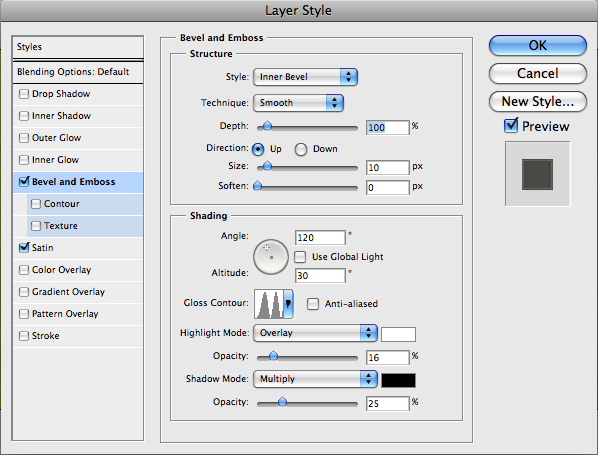
    STEP 2 Double click the layer to apply layer styles. Add a Bevel and Emboss layer. Set the style to Inner Bevel, technique to Smooth. You can try the chisel techniques if you want, but I like the little blur that smooth offers, almost like the chocolate has melted a little. Maximize the depth to 1000%. Direction Up. The Size will depend on your text size, but should be relatively low, and in this case (for an image width of approx 1000 pixels) I used 6 with soften set to 0. Uncheck the Global Light setting, then set the angle to 90 and the altitude to 45. For simplicity, you can try using screen and multiply modes with white and black and effect the opacity, but I like changing the highlight and shadow modes to normal and 100%, then select colors that complement the chocolate color. Highlight becomes a more yellow caramel and shadow is darker brown.

    STEP 3
    This looks pretty good, but we can take it a step further by adding a Satin layer. Set the angle to 90 and the color to a white with the blend mode set to screen of about 15% opacity. Set the distance and size to about 40 each. You can try a different contour if you'd like, but the effect will be subtle​


    STEP 4 Now add a Pattern Overlay. Set the pattern to "Satin" (looks chrome like). Set the blend mode to Overlay or Lighten with opacity of about 10%. Scale to fit your desires.

    That's pretty much it. To emphasize it more I added a quick light, outside stroke with a size of 5, and I added a slight drop shadow. Because we unchecked use global light on the bevel and emboss, the shadow can be positioned without impacting the effect.
     

    50Cent_SL

    Member
    Sep 4, 2008
    556
    1
    0
    colombo
    Tin Foil or Aluminum Foil

    [SIZE=+1]Tin Foil or Aluminum Foil
    [/SIZE]Wrap your text in tin/aluminum foil without using filters.
    STEP 1 Add a text layer with your text. Make its color middle gray. Note, you can make it any color you want, but the effect is best if is a mid tone color. For this example, I made gray text on a black background at 1024x256.
    STEP 2 Add a Bevel and Emboss layer style by double clicking next to the layer title in the Layer tab (or Layer>Layer Style>Bevel and Emboss).
    With the bevel style set to inner with smooth technique, set the depth to 1000%, the size to 50 (will depend on you text size, change to suit your image) and no soften, 0%.
    Adjust the shading by unchecking Use Global Light, then set the angle and altitude to 120 and 30 respectively. Change the Gloss Contour to the bumpy pattern. Change the highlight mode to normal at 100% opacity and the shadow mode to lighten at 90% opacity.
    tinFoil-02.gif

    STEP 3
    While still in the bevel and emboss layer style, check the texture sub option and set the pattern to "satin" (looks like chrome) with scale at about 75% and depth of 15%. These values will also vary depending on your text size.​
    tinFoil-03.gif

    And there you have it, the final version.​


    50Cent_SL

    Member
    Sep 4, 2008
    556
    1
    0
    colombo
    Grunged

    [SIZE=+1]Grunged
    [/SIZE]Make your text look like its beat up and worn by applying a simple grunge mask. This method will keep your text layer for optimal use.
    STEP 1 Start out with your text on a white background.
    STEP 2 Add a layer mask to your text layer.
    grunged-02.gif
    Some quick notes about using layer masks. When using layer masks, you can edit either the main layer or the layer mask. Which one you are working on will be outlined in the layer menu. The normal way to edit a layer mask is transparent to the user, in that changes made on the layer mask appear visually by the way they impact the main layer. The concept is that black areas on the layer mask represent areas of transparency in the main layer. To see the layer mask directly, click on it while holding down the alt key.
    STEP 3 Here's the fun part. With the layer mask selected use the Filter>Pixelate>Mezzotint... filter with the type set to long strokes. Repeat this filter a couple times. Do it again with the type set to Course Dots.
    grunged-03.gif

    STEP 4 Use a Gaussian Blur of 0.5 pixels to smooth out the grunge appearance some.
    And there you have it, the final version.​