Photoshop Text effects are requested in here

50Cent_SL

Member
Sep 4, 2008
556
1
0
colombo
Quick Rainbow

[SIZE=+1]Quick Rainbow
[/SIZE]An easy one step process to make your text multicolored.
STEP 1 Start a new image and add your text. Color wont matter because the rainbow will override it.
STEP 2 Open the layer styles menu and add a gradient overlay. Choose the default Spectrum or Rainbow gradient settings.
QuickRainbow-02.gif

And there you have it, the final version.​


50Cent_SL

Member
Sep 4, 2008
556
1
0
colombo
Sliced

[SIZE=+1]Sliced
[/SIZE]Slice your text in two with layer masks.
STEP 1 Start with your text.
STEP 2
Select the lower half the image with the Rectangular Marquee Tool (M) then add a layer mask, either from the layer's window (pictured) or via the layers menu (Layers>Add Layer Mask).​
sliced-02.gif

The text layer should now only display half of the text.​

STEP 3 Duplicate the text layer, then click on the layer mask thumbnail. Invert the image mask with Ctrl-I, or Layer>Adjustments>Invert.
sliced-05.gif
The text should now appear as it did originally, but now its two layers.

STEP 4 Transform the layers as you desire. I took the top layer and rotated it by 2 degrees, the bottom by 1 degree. To transform the layer, select the layer from the layer menu then hit Ctrl-T (or Layer>Transform>Rotate).
STEP 5 For my image I added a skewed gradient to the background to emphasize the slice.
And there you have it, the final version.​


50Cent_SL

Member
Sep 4, 2008
556
1
0
colombo
Triple Outline Stroke

[SIZE=+1]Triple Outline Stroke
[/SIZE]Add two quick and easy outlines to your text using photoshop layer styles. This preserves your text layer for easy text modification.
STEP 1 Start out with your text. Whatever your color scheme is shouldn't matter, but for this example I went with black on white.
STEP 2 Double click the text layer to open the layer styles menu and go to the stroke (or go to Layer>Layer Style>Stroke from the Menu bar).
The settings should ok almost from default, just change the color and the size to the thickness you want.
outlinestroke-02.gif

STEP 3
Now go to the Outer Glow style. We will modify this to add the second outline.​
Set the blend mode to normal and the opacity to 100%. Set the color to your choosing. Set the spread to 95%-100% (a little less than 100% will smooth edges a little but depends on the size you use). Finally set your size to be the thickness you desire.​
doubleOutline-04.gif
STEP 4
Now go to the Drop Shadow style. We will modify this to add the second outline.​
Set the blend mode to Normal and the opacity to 100%. Set the color to your choosing. Set the distance to 0, the spread to 95%-100% (same as Outer Glow) and the size appropriately.​
tripleOutline-06.gif
Note that the size of the Outer Glow, Drop Shadow and the Stroke are independent of each other. So if you want 5 px thickness for each outline, when you adjust the outer glow you'll need to add the stroke's thickness, and when you adjust the shadow you'll need to add the outer glow's thickness.​
And there you have it, the final version.​


50Cent_SL

Member
Sep 4, 2008
556
1
0
colombo
Army Camo

[SIZE=+1]Army Camo
[/SIZE]Camouflage your text using layer styles. This camo text is quick and easy.
STEP 1 Start with your text.
STEP 2 Add a bevel and emboss effect to the text layer (Layer>Layer Style>Bevel and Emboss).
Set the structure style to Inner Bevel with Smooth technique. Maximize the depth and size. Soften should be low, either 0 or 1. Direction up.
For the shading, set the highlight and shadow modes to normal and set the colors to your camouflage colors. The highlight mode color in this case can be considered the background base color. I used a medium tan. The angle and altitude settings won't play much in this effect, though they will change how the camo is presented.

A key to this effect however is the gloss contour. Adjust it so that it is a very hard edge. Basically, you can do this by adding a point and setting its input to 2%, output to 100%.

Enable the bevel and emboss texture. Just about any pattern will work, but experiment if you want. I like the effect the satin pattern produced.

STEP 3 Add the color overlay if you want to have further control over the color. The color overlay color will control the outlining color of the camo. You'll see if you try it.
And there you have it, the final version.​


50Cent_SL

Member
Sep 4, 2008
556
1
0
colombo
Wind Burn

[SIZE=+1]Wind Burn
[/SIZE]Set your text on fire with this wind blasted flame thrower effect.
The order of these instructions was designed to be very flexible and allow you lots of control over the effect.​
STEP 1 In a new photoshop file, create your text white on a black background. Duplicate your text layer and disable it, you'll use it in Step 8. Flatten the your text onto the black layer.
STEP 2 Create a new white layer, and use Filter>Render>Clouds on it. Perform Filter>Render>Difference Clouds about 5 times to bring out some details. (Note, render clouds and difference clouds behave differently at different resolutions. Higher resolutions give more detail.)
STEP 3 Put the text layer above the clouds layer, setting its opacity to 50.
STEP 4 Add a levels adjustment layer (Layer>New Adjustment Layer>Levels.) Adjust the minimum and maximum input levels so that the minimum is approximately in the middle of the "dead spot" and the maximum is "weight" centered in the right area. If that's confusing, see the image on the right. Since its an adjustment layer, you can come back to it later.
windBurn-04-levels1.jpg
STEP 5 This step is recommended to help with future adjustment since it will give some color to what you are doing. We'll use a levels adjustment layer (Layer>New Adjustment Layer>Levels) to get that white-yellow-orange-red flame.
Your going to adjust each of the RGB channels separately.
In the Red channel move the middle input level so its skewed left.
In the green channel, move the left input level so that it is centered.
In the Blue channel, move the left input level all the way right.

The result will be white text with sort of a vein like burn/fire appearance.
windBurn-05a-red.jpg

windBurn-05b-green.jpg

windBurn-05c-blue.jpg


STEP 6
And now the real fun starts, but its also a lot of filtering. Specifically, you are going to blur, wind, and wave. I'll outline a possible .​
Select the text layer then:​
Gausian Blur ~3.0 Wind
(Filter>Stylize>
Wind...) Set Method to Wind. Blur More Since the edges are rough with wind, lets soften them. Wave
(Filter>Distort>
Wave...)
windBurn-06-wave1.jpg
Wind (again) Wave (again) Be sure to hit the Randomize button. Also, try setting the horizontal scale to 0 and adjusting the other settings some.
That's the basic premise, though the order and methods could be altered. To achieve the image below I applied four wave filters with different wavelengths and amplitudes.​
STEP 7
Make another text layer using the same settings as step 1, but make the text black. Double click this layer and add an Outer Glow. Set the color by selecting one of the darker tones directly from your text effect layer.​
And there you have it, the final version.​

You can now go back to the adjustment layers to fine tune or adjust. I recommend it, since you can get some really neat effects that you may not expect.​
 

50Cent_SL

Member
Sep 4, 2008
556
1
0
colombo
Better Light Rays

[SIZE=+1]Better Light Rays
[/SIZE]Make better looking light rays on your text using a unique combination of Photoshop Filters.
STEP 1
Start a new image and add your text, assuming white text on black background. In this case, we want a square image so the filters work better. We will crop it down later. Center the text and make sure you have a decent margine around it for the rays to go.​

STEP 2 Duplicate the text layer and color it black. Hide this layer temporarily. STEP 3 With the lower, white text layer selected, apply a Polar Coordinate conversion. Go to Filter>Distort>Polar Coordinates... Accept that the layer will be rasterized. Set it to convert from Polar to Rectangular.
STEP 4 Since we want rays of light, we can achieve this effect with Wind. But because Wind only goes side to side, we need to rotate our canvas. Go to Image>Rotate Canvas>90 CW.
STEP 4 Apply Filter>Stylize>Wind..., Method Wind, Direction From the Right. Apply Wind 3 times. Apply a Motion Blur angle 0, Distance of 100. Rotate the canvas back 90 CCW like in step 3.
STEP 5 Apply Filter>Distort>Polar Coordinates... and convert from Rectangular to Polar. Turn the top, black text layer on.
STEP 6 Add a levels adjustment layer (Layer>New Adjustment Layer>Levels...) and adjust the blue channel to add some color.
And there you have it, the final version is easily cropped out. You may want to try blurring the layer a little, though I like the sharp rays in this case.​


50Cent_SL

Member
Sep 4, 2008
556
1
0
colombo
Ice

[SIZE=+1]Ice
[/SIZE]Freeze your text with this neat effect.
The order of these instructions was designed to be very flexible and allow you lots of control over the effect.​
STEP 1 In a new photoshop file, create your text white on a black background. Flatten the layer.
STEP 2 Create a new white layer, and use Filter>Render>Clouds on it. Perform Filter>Render>Difference Clouds about 5 times to bring out some details. (Note, render clouds and difference clouds behave differently at different resolutions. Higher resolutions give more detail.)
STEP 3 Put the text layer above the clouds layer, setting its opacity to 50.
STEP 4 Add a levels adjustment layer (Layer>New Adjustment Layer>Levels.) Adjust the minimum and maximum input levels to encompass the area on the right. The result you end up with should be your text with the clouds filling.
ice-04-levels1.jpg
STEP 5 Add a curves adjustment layer (Layer>New Adjustment Layer>Curves.) Adjust the shape of the curve so it resembles a bell or hill shape like pictured. The second and fourth control points are important. The resulting image wont look like much but a spotted outline.
ice-05-curves.jpg
STEP 6 This step is recommended to help with future adjustment. We'll use a levels adjustment layer (Layer>New Adjustment Layer>Levels) to add some frost blue color to our text.
Your going to adjust multiple channels, including the overall RGB channel.
Channel the RGB channel middle input level so its skewed left.
Move the Red channel minimum input level right.
Move the Blue channel maximum input level all the way left.
ice-06-levelsRGB.jpg

ice-06b-levelsRed.jpg

ice-06c-levelsBlue.jpg

STEP 7
And now the real fun starts. Select your text layer you created in step 1 a apply a Gaussian filter on it. I used a setting of 4, but it will depend on your image size. The real fun here is since we did the adjustment layers already, you can see what the effect will look like with different amounts of blur.​
STEP 8
One last thing to make the image a little more ice like is to effect the cloud layer. Select the cloud layer from step 2 and use the ripple filter, Filter>Distort>Ripple. I used about 500% ripple with the size set to large. I applied the ripple filter 10 times.​
You can now go back to the adjustment layers and continue to fine tune or adjust if you desire.​
And there you have it, the final version.​


50Cent_SL

Member
Sep 4, 2008
556
1
0
colombo
Electric Arcs

[SIZE=+1]Electric Arcs
[/SIZE]Add electrical arcs to your text.
The order of these instructions was designed to be very flexible and allow you lots of control over the effect.​
STEP 1 In a new photoshop file, create your text black on a white background. Flatten the layer.
ElectricArcs-01-text.jpg
STEP 2 Create a new white layer, and use Filter>Render>Clouds on it. Perform Filter>Render>Difference Clouds about 5 times to bring out some details. (Note, render clouds and difference clouds behave differently at different resolutions. Higher resolutions give more detail.)
STEP 3 Put the text layer above the clouds layer, setting its opacity to 50.
STEP 4 Add a levels adjustment layer (Layer>New Adjustment Layer>Levels.) The shape of the histogram should have a "dead spot". Adjust the minimum and maximum input levels to encompass the dead spot. The result you end up with should be black text on a white background.
ElectricArcs-01-text.jpg
STEP 5 Add a curves adjustment layer (Layer>New Adjustment Layer>Curves.) Adjust the shape of the curve so it resembles a bell or hill shape like pictured. The second and fourth control points are important. The resulting image wont look like much but a spotted outline.
STEP 6 This step is recommended to help with future adjustment. For now, we'll assume a basic yellow color. To do this we need to add another adjustment layer, this time a Color Balance. STEP 7
And now the real fun starts. Select your text layer you created in step 1 a apply a Gaussian filter on it. I used a setting of 8, but it will depend on your image size. The real fun here is since we did the adjustment layers already, you can see what the effect will look like with different amounts of blur.​
You can now go back to the adjustment layers and continue to fine tune or adjust if you desire.​
And there you have it, the final version.​


50Cent_SL

Member
Sep 4, 2008
556
1
0
colombo
Bubble Gum Text

[SIZE=+1]Bubble Gum Text
[/SIZE]Transform your text into that classic bubble gum goodness.
STEP 1
Start a new image and wwrite your text on a white background. To get a good bubblegum color use the CMYK color % inputs in the color picker. Make your text a basic bubblegum pink, which easily correlates to a 30 in the M (magenta).​


STEP 2 Double click the layer to apply layer styles. Add a Bevel and Emboss layer. Set the style to Inner Bevel, technique to Smooth. Maximize the depth to 1000%. Direction Up. The Size will depend on your text size, but should be relatively low, and in this case (for an image width of approx 1000 pixels) I used 5. Set soften to 0. The shading is where this starts to shine. Set the angle to 90 and the altitude to 20 (you can change this later to tweak). Change the highlight color to a lighter pink (set M to 20) and the shadow color to a darker pink (set M to 40). Change the gloss contour to a rounded shape. You may also want to adjust the sub-contour to a rounded shape.

STEP 3
This looks pretty good and you can stop here if you're satisfied, but we can take it a step further by adding a Satin layer. Set the angle to 90 and the color to a darker pink (set M to 50). Make the blend mode Normal with opacity of 50%. Set the distance and size to 10 each.​


STEP 4 One more step, add a Pattern Overlay. Set the pattern to "Satin" (looks chrome like). Set the blend mode to Overlay or Lighten with opacity of about 50%. Scale to fit your desires.

And there you have it, a pretty good looking bubble gum font. If you want, you can further adjust it by playing with the light angles, as well as the blending modes.​
 

50Cent_SL

Member
Sep 4, 2008
556
1
0
colombo
Oil and Water Text

[SIZE=+1]Oil and Water Text
[/SIZE]Mix oil and water, or any liquid combination, using layer properties in Photoshop.
STEP 1
Start a new image and add text. Set the font color to something to represent your transition color (where the oil meets the water).​

STEP 2 Double click the text layer and add a Bevel and Emboss layer style. Set it to Inner Bevel with Smooth technique. Set the depth to something over 100%, direction Up set the size to something about 50 with a low soften value. Adjust the shading so that the angle is upwards, 90 degrees, and the altitude is low, ~1 degree. The trick here is to use the highlight and shadow colors to represent the oil and water. Set the highlight and shadow modes to Normal with 100% opacity. Set the highlight color to a brown yellow for oil, and the shadow color to a light blue for water.
OilAndWater-02b.gif


STEP 3
Don't close the layer styles menu yet. Click the Gloss Contour shape to open the contour editor. Add a control point and adjust its values so that it's located in the upper left. This will adjust the transition range between the colors, the highlight and shadow.​
OilAndWater-03a.gif
And there you have it, a basic font with a oil on water apperance. Try adjusting the angle values to make the oil and water mixture do interesting things.​
 

50Cent_SL

Member
Sep 4, 2008
556
1
0
colombo
Easy 3D Shadows

[SIZE=+1]Easy 3D Shadows
[/SIZE]Make more interesting text by adding some depth to your shadows.
STEP 1
Start a new image and add your text.​

STEP 2 Duplicate the text layer, color it black and rasterize it. Rasterize the lower layer by right clicking the layer and selecting Rasterize Layer from the pop up menu.
easy3dshadows-02-duprast.jpg
STEP 3 With the rasterized layer selected, free transform the layer (Ctrl-T or Edit>Free Transform on the menu). Hold down the control key and select the top-middle deformation handle and drag it up and to the right. Once it is generally the shape you want, let go. Using the Ctrl and Shift key together, adjust the top-right and top-left handles until the perspective you want is achieved.
STEP 4 Double click the rasterized shadow text layer and add a gradient overlay.
Either adjust the gradient color so its not so dark or adjust the layer opacity to 50% (if on a white background like this).​
And there you have it, the final version. You may want to try blurring the layer a little, though I like the sharp shadow in this case.​


50Cent_SL

Member
Sep 4, 2008
556
1
0
colombo
Metal Text Tutorial

Metal Text Tutorial


1: We're going to try to get a really metallic chrome effect on our text, using curves and other features in Photoshop. Start off with a large canvas, the larger the better - I'm using 800x800. Make some text and have it a light-medium grey, in the example I'll use #B3B3B3.
Start off by using a nice big bevel and emboss with settings similar to these. As usual, the size should be suitable for the size of the image; try to make it look like the example.
039.gif
041.gif
2: Now we need to rasterize our layer. Create a new layer by pressing ctrl/cmd + shift + N, then link the new layer with the text layer, and press ctrl/cmd + E to merge it. This will rasterize our text layer.
Now we need to adjust the image using curves - press ctrl/cmd + M to open the curves menu, then enter a nice even zig zag, as shown here. 3: Go Image || Adjustments || Variations, set the slider at the top to one notch from the bottom, and then click once on the 'Current Pick' box, once on the 'More Blue' box, and then once on the 'More Green' box - now click OK. Press ctrl/cmd + M again to open up the curves menu, and enter a slightly different curve like this.
Now add a drop shadow using the default settings by going Layer || Layer Style || Drop Shadow and clicking OK.
043.gif
046.gif
4: Now use the layer styles again (Layer || Layer Styles) to add an inner glow using these settings. Go to layer styles again and this time add a second bevel and emboss, with these settings.
For the next stage, we need to create a selection - hold ctrl/cmd and click on the main layer in the layers palette. This will select the letter/text - now go Select || Modify || Contract and enter a value of 3. Now go Select || Feather (ctrl/cmd + shift + D) and enter 3 again. 5: At the bottom of the layers palette, click the 'Create New Fill or Adjustment Layer' button - a circle half black and half white - and click 'Gradient Map'. Click the arrow at the side of the dialogue box that appears (see thisimage), and load the file 'Metals'. Apply the gradient in the bottom left (black > white > black - "Steel Bar"), then set this layer's blending mode as 'overlay'.
This should give a similar effect to that seen opposite. If not, try the tutorial a few times - there are several variables such as the curves input that can make quite a difference, and it takes some practise!
048.gif
 

50Cent_SL

Member
Sep 4, 2008
556
1
0
colombo
Bloody Text

In this tutorial you will learn how to give your text some dripping blood, as shown below:
IMG%2010.jpg

Start a “400×200” pixels, 16 million colors, white background image. Add a new Raster Layer (Layers>New Raster Layer). Enter any text as shown below using the Type Tool on the new layer.
My Text Settings:
Font = 08 Underground Color = Black) Size = 72 Antialias = Checked Floating = Selected
Stroke = 0
IMG%201.gif

Apply Inner Bevel filter (Effects>3D Effects>Inner Bevel) on the current text selection.
IMG%202.jpg

IMG%203.jpg

Add a new layer (Layers>New Raster Layer). Then, Floodfill text selection with “#ff0000” (red) color. Apply Inner Bevel Filter (Effects>3D Effects>Inner Bevel) using the previous settings.
IMG%204.jpg

IMG%205.jpg

Deselect the selection by pressing “CTRL+D“. Make sure your active layer is ‘Raster 2‘ (red font layer). Pick the “Eraser Tool” and randomly erase the lower portion of the red text revealing the black text as shown below.
IMG%206.gif

IMG%207.jpg

Pick the “Smudge Tool” and apply the smudge brush on the selected areas as shown. Simply click your mouse on the starting point (Point A) and drag your mouse towards Point B.
IMG%208.gif

IMG%209.jpg

Repeat same procedure in Step 5 using different brush sizes. Now you are DONE! You should have gotten something like this:
IMG%2010.jpg
 

50Cent_SL

Member
Sep 4, 2008
556
1
0
colombo
VEry stylish 3D text

VEry stylish 3D text

Create a cool 3D text Effect like these:
3d_pixel_11.jpg
3d_pixel_10.jpg

Step 1

Create a blank document of the desired size.
Type your text in black on a white background.
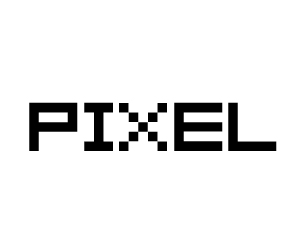
I used a pixel font (thus the cool X) but you can use any font you want.
3d_pixel_1.jpg

Step 2

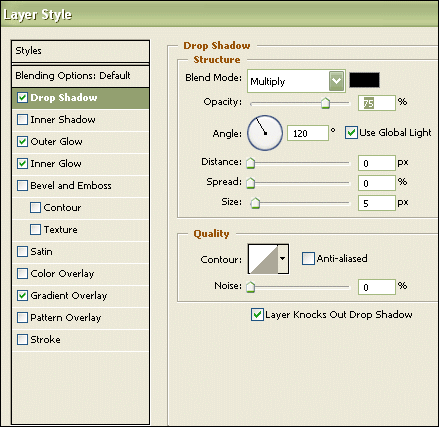
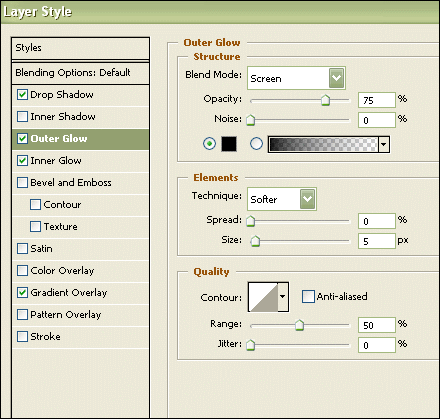
You have to apply a bunch of layer styles (right click text layer and choose blending options):
Drop Shadow:
3d_pixel_5.gif

Outer Glow:
3d_pixel_6.gif

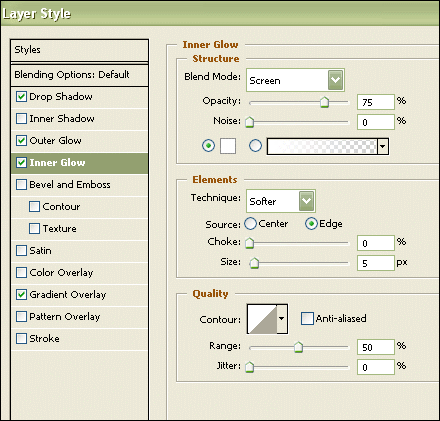
Inner Glow:
3d_pixel_7.gif

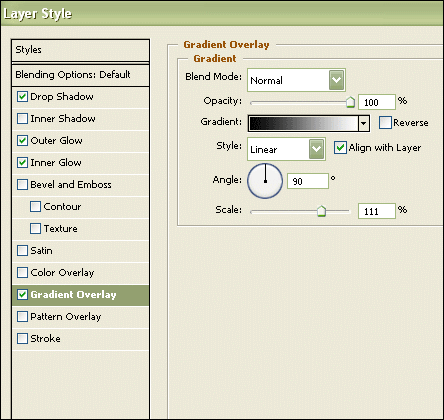
Gradient Overlay:
3d_pixel_9.gif

You might to change some of the values to achieve a different outcome of the 3D text.

The text will look something like this now:
3d_pixel_2.jpg

Right click the text layer and choose Rasterize.
Step 3

Hit CTRL-T and choose Warp or Perspective and distort the text any way you want.
I used Warp and came up with this:
3d_pixel_3.jpg

Step 4

Alright, now hold down ALT and start pressing left and down repeatedly until you are satisfied with the 3D effect:
3d_pixel_4.jpg

Step 5

Click Image --> Flatten Image.
If you want to colorize your image hit CTRL-U and pick a nice color like this:
3d_pixel_10.jpg


Step 6

If you want the fiery color for you 3D Text do this:
Go to Image --> Mode --> Grayscale
then Image -->Mode --> Indexed Colors
and finally Image -->Mode --> Color Table and choose Black Body
There you go. your 3D text:
3d_pixel_11.jpg
 

50Cent_SL

Member
Sep 4, 2008
556
1
0
colombo
Recreate the ‘Bee Movie’ Text Effect

Recreate the ‘Bee Movie’ Text Effect

In this quick Photoshop tutorial we’ll be recreating the ‘Bee movie’ text effect, you know, the one you’ve seen all over the place over the last few months?
icon_razz.gif

You can see what we’ll be designing with this tutorial in the below image.
bee-movie-tutorial.jpg

You can see the original text over at the Apple trailers page.
1. Background Creation

Firstly we’re going to make a nice background. Start by creating a new document in Photoshop, all the default settings except dimensions: 600 pixels width, 300 pixels height.
create-document.gif

After making your new document, fill the background layer with black then make a light gradient in a new layer.
light-gradient.jpg

Now you’ve got two layers, the background layer and your gradient layer, change the opacity for your gradient layer to about 5-15%, so that you end up with a very dark background again.
dark-gradient.jpg

Now, you can finish off the background by adding in a screenshot of the Bee movie or like that. For this I went to Google Images and searched for an extra large picture of ‘bee movie.’ I found this image. If the that site is down, download here.
Copy the image you’ve chosen to your document and resize it to fit. After this, change the layer opacity to around 15-25%, duplicate your screenshot layer and change the layer mode to either Overlay or Soft Light.
screenshot-added.jpg

Now you should have a background like this.
Lastly for your background, create a new layer and draw a black to white linear gradient on your canvas, black at the bottom and white at the top, similar to this:
black-to-white.jpg

Change the layer mode for your gradient layer to Multiply and you’ll end up with an effect like this:
gradient-layer-modes.jpg

What do you think? Well, at least we’re done for the background!
icon_smile.gif

2. Create Base Text

Alright, time to make our base text. What you need here is a very,very fat font. Head over to DaFont or UrbanFonts and see if you can find a nice, large sans-serif font.
bee-text-added.jpg

In the above image I’ve used a font called Frutiger 95, which is sadly a commercial font. Feel free to try a different font such as Arial Black, or you know, buy or ‘get’ a nice font from somewhere.
icon_wink.gif

Note: Since we’re working in a fairly large document size, you will want to use a large text size, around 150 pt or whatever suites the document size.
3. Apply Layer Styles to Text

Now, to make our text look like the real thing, we’ll add some layer styles.
  1. Drop Shadow
  2. Inner Shadow
  3. Inner Glow
  4. Bevel and Emboss
  5. Bevel and Emboss — Contour
  6. Gradient Overlay
Colors used were:
  1. Inner Glow: #7f7f51.
  2. Gradient Overlay: #f86503 and #fbe432.
And now we have something like this:
layer-styles-applied.jpg

Looks pretty much finished already, huh?
icon_smile.gif

Please note: The layer styles depend on what size your text is, the size of the bevel may need to be adjusted for smaller or bigger text, please remember this.
4. Small ‘Movie’ Text

The last thing we really need to do is add ‘Movie’ underneath the main text, but in a smaller font size. You can simply duplicate your main text here, size it down and change the letters, but the layer styles will actually need a little tweaking.
After duplicating your main text and changing what needs to be changed, position your text accordingly, like mine:
movie-text-moved.jpg

Now, apply/edit the following layer styles/settings:
  1. Drop Shadow
  2. Inner Shadow
  3. Inner Glow
  4. Bevel and Emboss
  5. Bevel and Emboss — Contour
  6. Gradient Overlay
Alright, now, hopefully your text looks something like this:
bee-movie-text.jpg

If it does, then congratulations! If not, well, you can always download the PSD file for this tutorial and see what went wrong!
icon_smile.gif

5. Completion

This isn’t actually a real step, it’s just letting you know we’re finished and you can also download the PSD file if you like
icon_wink.gif

Thanks for reading this tutorial everyone, I hope it was alright by your standards! If you would like, you can download the PSD file from this tutorial from below, for learning purposes only, of course.

(1.8mb)​
 

50Cent_SL

Member
Sep 4, 2008
556
1
0
colombo
3D Cliff Text

Start a new document about 800x300.
Reset your foreground and background color to black and white (Press "D").
blackandwhite.gif

Then go to Filter->Render->Clouds.
1.jpg
Select the type tool and create your text. Make it fairly large, and position it towards the top.
2.jpg

CTRL+CLICK the text layer to load the selection, then go to SELECT->Feather, and enter 3. Now hide the text layer.
3.jpg

Set your foreground color to white and background to light grey. I used:#7E7E7E.
Now create a new layer, then go to Filter->Render->Cloud. Then go to Layer->Image->Flatten Image. (if prompt for "Discard Hidden Layers" Click ok.)
4.jpg

Now go to Image->Rotate Canvas->90CW. Then Filter->Stylize->Wind:
Method: Wind. Direction: From the Right. Press CTRL+F about 7 times to reapply the wind filter. Then Image->Rotate Canvas->90CCW to turn the image back to normal viewing.
5.jpg

Now Filter->Sharpen->Unsharp Mask. Amount: 500%. Radius: 2. Threshold: 0.
Then Filter->Sharpen->Sharpen. Reapply twice..
6.jpg

Now open the color balance box and play with the color sliders to get some nice colors.

HERE'S MINE.
f.jpg