!!!!!!!!!!!!!! Photoshop Tutorials !!!!!!!!!!!!!!

sharki333

Well-known member
  • Feb 7, 2008
    6,280
    294
    83
    mal waththe!!!
    Hand drawn Designing
    :yes::yes::yes:menna meka karana hati:yes::yes::yes:

    In case you haven’t noticed yet, the hand drawn style is one of the hottest design trends. There are several ways to create hand drawn images — you can create it from scratch in Photoshop or you can scan an actual hand drawn sketch. Personally, I like to use a scanned drawing because you get a realistic drawing texture. Here is a quick tutorial to show you how to create a hand drawn design in Photoshop using the blending mode and alpha channel.
    1 Create From Scratch in Photoshop

    If you have a tablet, you can simply draw the sketch by using the brush tool.
    tablet.jpg

    Don’t Have a Tablet?

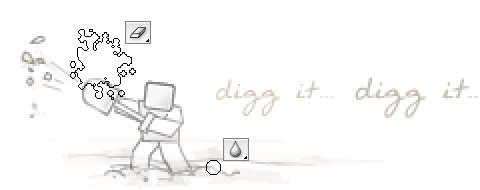
    If you don’t have a tablet, you can create the artwork in Adobe Illustrator and then imitate a hand drawing effect in Photoshop.
    First draw a vector illustration. Then import it in Photoshop. Use a grungy brush and gently erase select parts of the image. Use the Blur tool to create the smug effect.
    digg-it-final.jpg

    2 Scan It

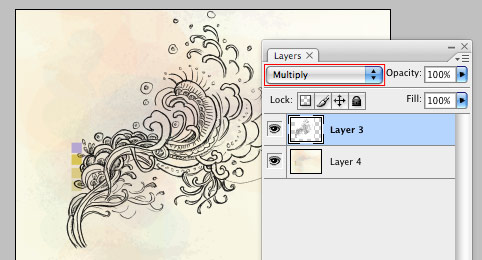
    The easiest way — scan the drawing and set the layer blending mode to Multiply.
    scan-multiply.jpg

    Invert Color

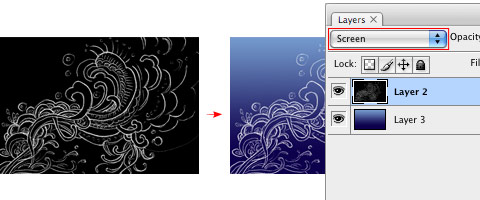
    If you want to have a white color stroke instead of black — go to menu Image > Adjustments > Invert (or press shortcut Cmd+i) and then select Screen blending mode.
    invert-screen.jpg

    white-screen.jpg

    Step It Up: Create Color Gradients

    What if you want more than just a black or white stroke (ie. colors gradients)? Then you will have to extract the drawing from the white background. A simple way to do this is by using alpha channel.
    • Copy (Cmd+C) the drawing.
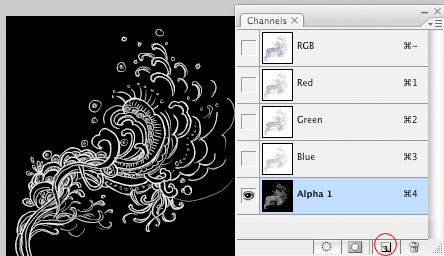
    • In the Channels palette, create a new channel. Then paste the drawing in the new channel.
    • Invert (Cmd+i) the channel layer.
    alpha-channel.jpg

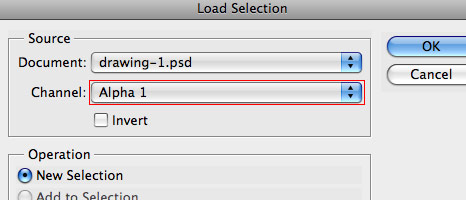
    Go back to the Layers palette, create a new layer. Go to menu Select > Load Selection. In the Load Selection prompt box, select Channel: "Alpha 1" (which is the name of the alpha channel I created earlier).
    alpha-1.jpg

    Shortcut Tip: the shortcut for loading a channel selection is Cmd + Opt + any number key (ie. 1, 2, 3). Learn more Photoshop shortcuts.
    Fill Selection

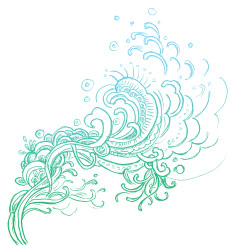
    With the channel selection loaded, you can fill it with any color.
    drawing-color.jpg

    Using It In The Design

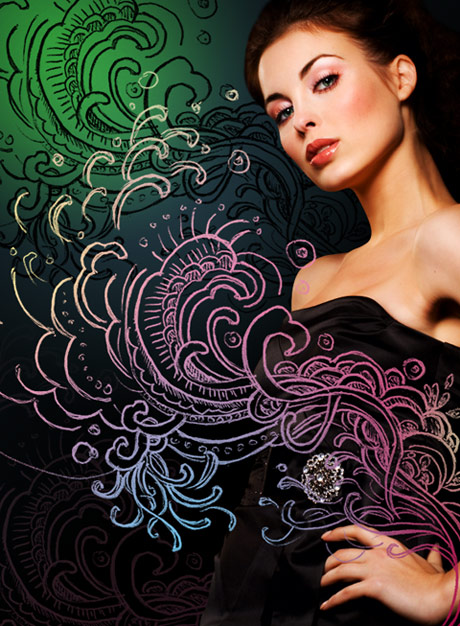
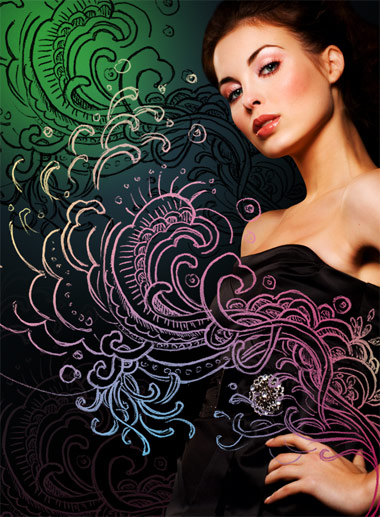
    For the purpose of this tutorial, I’m going to show you how to incorporate your hand drawing on a female model (the photo was purchased from iStock).
    drawing-on-model.jpg

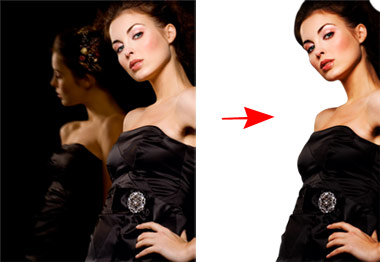
    1. First, cut out the model.
    model-cutout.jpg

    2. Fill the background with some sort of light glowing gradients.
    glowing-bg.jpg

    3. Paste the drawing on top of the model. Lock the layer transparency. Play around with the color gradients.
    color-gradient.jpg

    4. Duplicate the drawing in the background to add more details to the image.
    final-model.jpg


    • Like
    Reactions: KrAzY_iN_LuV

    sharki333

    Well-known member
  • Feb 7, 2008
    6,280
    294
    83
    mal waththe!!!
    Chroma Wallpaper
    :yes::yes::yes:menna hadana widiha:yes::yes::yes:

    This tutorial explains how to create a energetic, vibrant, colorful wallpaper, like the ones available at Color Charge. These lines, which we’ll call Chroma were highly inspired by the iPod Nano Ad from 2006 and some Quantum Chromodynamics nerdery stuff. You will learn how to bend blurry shapes with Warp tool to draw the lines, beams, and steams. Then you’ll know how to add some glowing and vibrating color effects, and finally polish your drawing. Aside reading this tutorial, you’ll need Photoshop CS2 or CS3, and preferably a computer with a lot of memory and a larger screen to achieve that effect.
    Download Photoshop file
    Initial setup

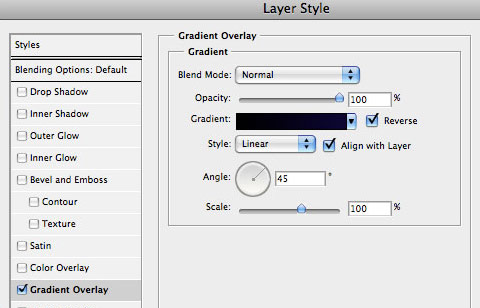
    Start with a very, very large screen: 3000 px x 2000 px wide. Draw a rectangle as background for the whole area and fill it with a dark linear gradient layer style. Align that gradient with 45 degrees vertically (sometimes you may change that angle to 90 or 60 degrees). Since the beginning, pay special attention to colors: black and dark violet as base color. The waves colors will match a triad complementary balance with the base color, in our case, the violet-cyan-orange axis.
    chroma1.jpg

    Warp Tool

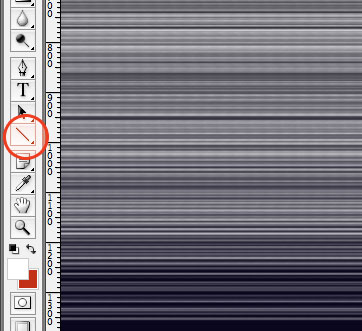
    Draw lines! Many parallel lines (horizontal or vertical, or both!). Group them, duplicate, rasterize, group, duplicate, rasterize… and finally add some blur. In this example I used white as base-color for the line themselves (white is the easiest color to balance and add glowing and other layer styles):
    chroma2.jpg

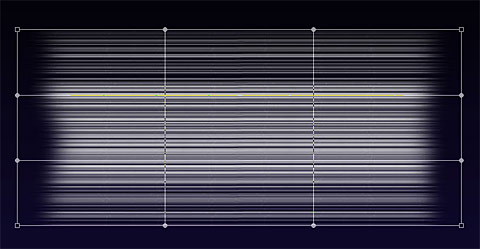
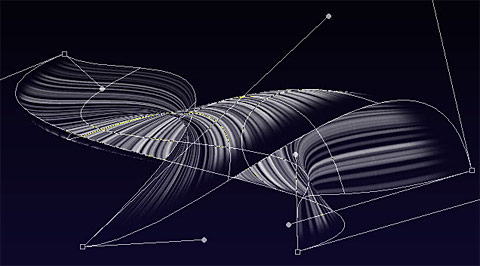
    After you reach a wide and tall group of lines, is time for some magic: randomly distort the shape with Warp Transform Tool ( Photoshop > Edit > Transform > Warp ):
    chroma3.jpg

    One thing you’ll probably notice is the amount of confusing structural lines crossing over the shape; your first attempts are going to be almost trial-and-error, later you’ll get used to this really amazing tool and will master the shapes of Chroma. Don’t worry trying to find the perfect shape so early, things will fit better together when you have more than 5 separate shapes matching a pattern or a familiar shape.
    When complete, remember to press the Enter key, or click on the Apply Warp button, on the top. If your computer survives the intense rendering and image post-processing…
    icon_wink.gif
    your artwork should be something like this:
    chroma4.jpg

    Remember to use the Erase Tool to remove sharpen edges and give the wave a surreal looking. Explore other combinations of shapes, lines, and textures - they’ll enhance your drawings.
    If you did a small shape I don’t recommend you size it up or even warping again. The Warp tool isn’t that smart because you’ll be playing with rasterized shapes - not smart objects or vector shapes. If you insist warping the same shape again, your shape is going to get some unwanted sharpen or sometimes blurry edges (depending on your case). To avoid that, I recommend you the opposite way: start with a very large area and a large shape, then size it down. Better results, easier to distort.
    Glow, screen, multiply, and other layer styles

    When you have the perfect shape, you will need to add its soul, I mean, the layer styles :). Again, open the layer styles panel, and mix Gradient Overlay with Outer Glow styles, and combine them with Screen, or Overlay as layer Blending Mode. A secret hint: when glowing, try using brightly and vivid colors, such as yellow, lime, pink, or cyan, picking the color that is in complementary contrast with the dark gradient we did on the beginning.
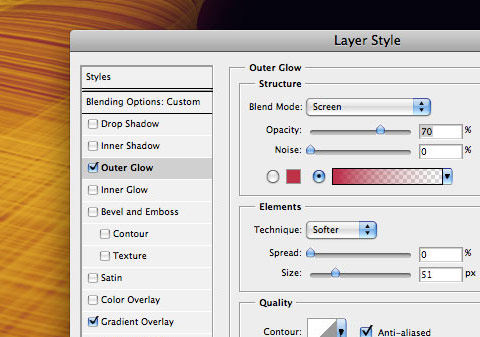
    To achieve the Chroma effect, I used a gradient fill (yellow to gold), plus the following Outer Glow styles with the following configuration:
    chroma5.jpg

    Brush polishing

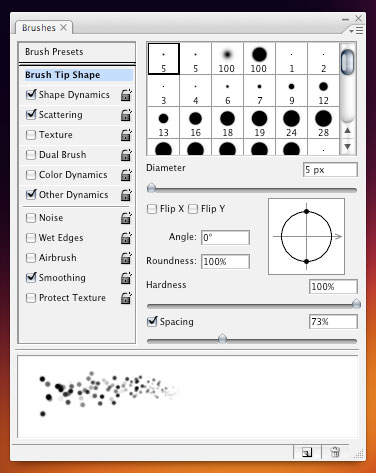
    Bring your drawing to life with motion. Add some scattered round dots to simulate speed and movement. Within the Brushes panel ( Photoshop > Window > Brushes, or F5 ), explore the sizing, scattering (with fade), spacing, and pressure:
    chroma6.jpg

    The big cells are just the way the smaller ones, except the size and spacing. A bit of randomness is really welcome and exciting:
    chroma7.jpg

    The "range" option in this step is very important - it will give a cellular-looking to the glowing particles - like if they were intensely vibrating:
    chroma8.jpg

    Poor kid…got any blurry edge? Don’t worry. Use the blur tool and correct that.
    chroma9.jpg

    Finalizing the drawing

    Be creative and fearless to do a complete mess with the shape - in my experience, the messier the better. Size down the area and crop. Draw as many layers as your computer’s memory can handle. Sometimes you won’t be able to merge layers because the effects and styles that were applied. Also use layer’s blending and opacity to give your shapes a translucent appearance.
    Our final result, after cropping:
    chroma10.jpg


    ravicham

    Member
    Jan 22, 2007
    162
    0
    0
    Thanks BRO.....

    :yes:


    sharki333 said:
    Chroma Wallpaper
    :yes::yes::yes:menna hadana widiha:yes::yes::yes:

    This tutorial explains how to create a energetic, vibrant, colorful wallpaper, like the ones available at Color Charge. These lines, which we’ll call Chroma were highly inspired by the iPod Nano Ad from 2006 and some Quantum Chromodynamics nerdery stuff. You will learn how to bend blurry shapes with Warp tool to draw the lines, beams, and steams. Then you’ll know how to add some glowing and vibrating color effects, and finally polish your drawing. Aside reading this tutorial, you’ll need Photoshop CS2 or CS3, and preferably a computer with a lot of memory and a larger screen to achieve that effect.
    Download Photoshop file
    Initial setup

    Start with a very, very large screen: 3000 px x 2000 px wide. Draw a rectangle as background for the whole area and fill it with a dark linear gradient layer style. Align that gradient with 45 degrees vertically (sometimes you may change that angle to 90 or 60 degrees). Since the beginning, pay special attention to colors: black and dark violet as base color. The waves colors will match a triad complementary balance with the base color, in our case, the violet-cyan-orange axis.
    chroma1.jpg

    Warp Tool

    Draw lines! Many parallel lines (horizontal or vertical, or both!). Group them, duplicate, rasterize, group, duplicate, rasterize… and finally add some blur. In this example I used white as base-color for the line themselves (white is the easiest color to balance and add glowing and other layer styles):
    chroma2.jpg

    After you reach a wide and tall group of lines, is time for some magic: randomly distort the shape with Warp Transform Tool ( Photoshop > Edit > Transform > Warp ):
    chroma3.jpg

    One thing you’ll probably notice is the amount of confusing structural lines crossing over the shape; your first attempts are going to be almost trial-and-error, later you’ll get used to this really amazing tool and will master the shapes of Chroma. Don’t worry trying to find the perfect shape so early, things will fit better together when you have more than 5 separate shapes matching a pattern or a familiar shape.
    When complete, remember to press the Enter key, or click on the Apply Warp button, on the top. If your computer survives the intense rendering and image post-processing…
    icon_wink.gif
    your artwork should be something like this:
    chroma4.jpg

    Remember to use the Erase Tool to remove sharpen edges and give the wave a surreal looking. Explore other combinations of shapes, lines, and textures - they’ll enhance your drawings.
    If you did a small shape I don’t recommend you size it up or even warping again. The Warp tool isn’t that smart because you’ll be playing with rasterized shapes - not smart objects or vector shapes. If you insist warping the same shape again, your shape is going to get some unwanted sharpen or sometimes blurry edges (depending on your case). To avoid that, I recommend you the opposite way: start with a very large area and a large shape, then size it down. Better results, easier to distort.
    Glow, screen, multiply, and other layer styles

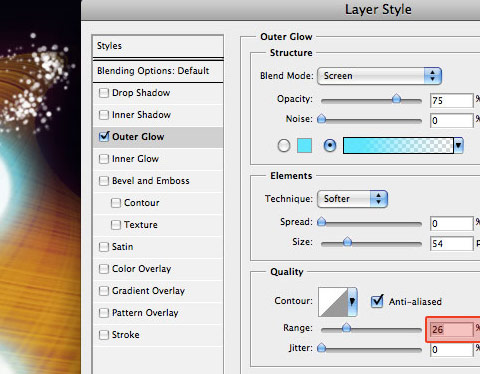
    When you have the perfect shape, you will need to add its soul, I mean, the layer styles :). Again, open the layer styles panel, and mix Gradient Overlay with Outer Glow styles, and combine them with Screen, or Overlay as layer Blending Mode. A secret hint: when glowing, try using brightly and vivid colors, such as yellow, lime, pink, or cyan, picking the color that is in complementary contrast with the dark gradient we did on the beginning.
    To achieve the Chroma effect, I used a gradient fill (yellow to gold), plus the following Outer Glow styles with the following configuration:
    chroma5.jpg

    Brush polishing

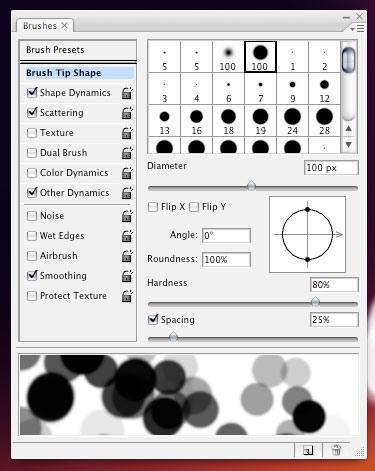
    Bring your drawing to life with motion. Add some scattered round dots to simulate speed and movement. Within the Brushes panel ( Photoshop > Window > Brushes, or F5 ), explore the sizing, scattering (with fade), spacing, and pressure:
    chroma6.jpg

    The big cells are just the way the smaller ones, except the size and spacing. A bit of randomness is really welcome and exciting:
    chroma7.jpg

    The "range" option in this step is very important - it will give a cellular-looking to the glowing particles - like if they were intensely vibrating:
    chroma8.jpg

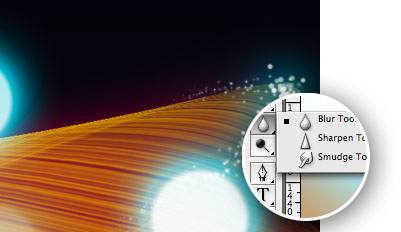
    Poor kid…got any blurry edge? Don’t worry. Use the blur tool and correct that.
    chroma9.jpg

    Finalizing the drawing

    Be creative and fearless to do a complete mess with the shape - in my experience, the messier the better. Size down the area and crop. Draw as many layers as your computer’s memory can handle. Sometimes you won’t be able to merge layers because the effects and styles that were applied. Also use layer’s blending and opacity to give your shapes a translucent appearance.
    Our final result, after cropping:

    chroma10.jpg


    sharki333

    Well-known member
  • Feb 7, 2008
    6,280
    294
    83
    mal waththe!!!
    Photoshop Secret Shortcuts


    It is proven that by using software shortcuts can boost up productivity. Here are 30 secret Photoshop shortcuts that I’ve learned from years of experience. Well, what I mean by "secret" is that these shortcuts are not documented in the menus. Keep reading and you will find how these shortcuts can speed up your productivity. I bet you don’t know all of them.
    Note: this article is written in Mac Photoshop format. If you are using PC, Cmd = Ctrl and Opt = Alt.
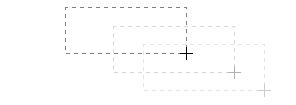
    1. Drag selection
      With the Marquee tool, drag on the document (do not release the mouse yet), now hold down Spacebar, it will let you drag the undefined selection.
      shortcuts-1.gif
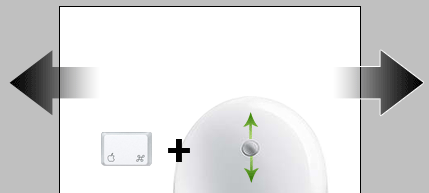
    2. Navigate the document left or right
      Hold down the Cmd key and scroll up or down allows you to navigate the document left or right. For example, hold down Cmd + scroll up will navigate to right.
      shortcuts-2.gif
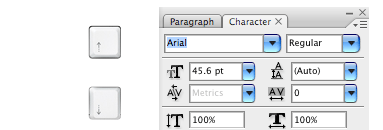
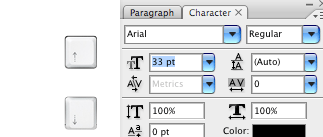
    3. Browse the font list
      Put your cursor in the font list dropdown, you can browse the font list by pressing arrow Up or Down key.
      shortcuts-3.gif
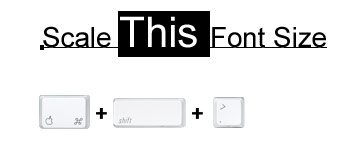
    4. Scale font size
      Select the text that you want to scale the font size, press Cmd + Shift + > or < to increase / decrease font size.
      shortcuts-4.gif
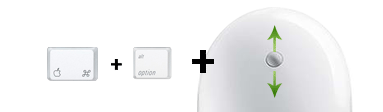
    5. Zoom with the scroll wheel
      You can zoom in / out by Cmd + Opt + scroll up or down.
      shortcuts-5.gif
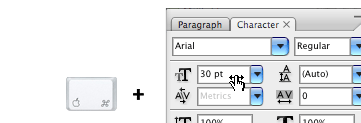
    6. Drag to adjust numberic value
      Mouseover the input box, hold down Cmd + drag left or right to increase / decrease. Hold down Cmd + Opt or Shift key and drag can change the value in decimal or 10 interval. This shortcut works in all dialog palettes.
      shortcuts-6.gif
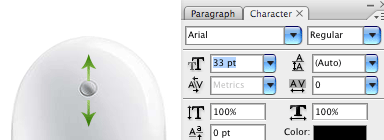
    7. Scroll to adjust numeric value
      Put the cursor in the input box, scroll up or down to increase / decrease value. This shortcut works in all dialog palettes.
      shortcuts-7.gif
    8. Arrow up / down to adjust numeric value
      Put the cursor in the input box, press arrow Up or Down to increase / decrease. Hold down Shift and press arrow Up or Down will change value in 10 interval.
      shortcuts-8.gif
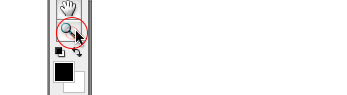
    9. Zoom to 100%
      Double click on the Zoom tool will zoom document to 100%.
      shortcuts-9.gif
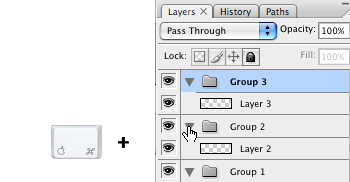
    10. Collapse or expand all layer groups
      You can collapse or expand all root-level layer groups by holding down Cmd + click on the triangle icon. Hold down Cmd + Opt + click on the triangle icon will collapse or expand all level layer groups.
      shortcuts-10.gif
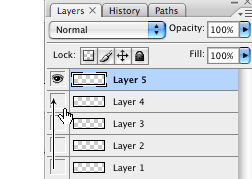
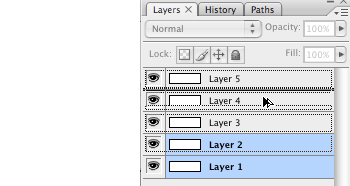
    11. Show / hide in a row
      If you need to show / hide more than one layers, instead of clicking one by one, you can click on the visibility icon and drag in a row.
      shortcuts-11.gif
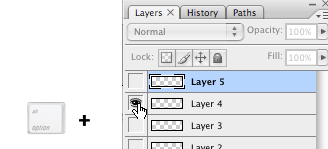
    12. Hide other layers
      Hold down Opt + click on the visibility icon will hide all other layers.
      shortcuts-12.gif
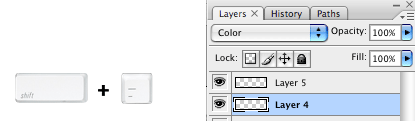
    13. Navigate layer blending mode
      Opt + Shift + "-" or "+" key allows you to navigate through the blending mode dropdown.
      shortcuts-13.gif
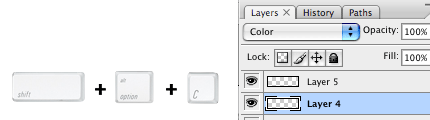
    14. Set specific blending mode
      Opt + Shift + C, N, M, S, D… allows to set layer to specific blending mode.
      For examples:
      Normal = Opt + Shift + N
      Screen = Opt + Shift + S
      Multiply = Opt + Shift + M
      Color = Opt + Shift + C
      shortcuts-14.gif
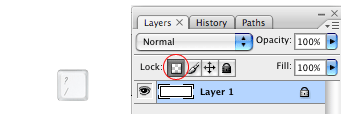
    15. Lock layer transparency
      Press forward slash ("/") to lock layer transparency.
      shortcuts-15.gif
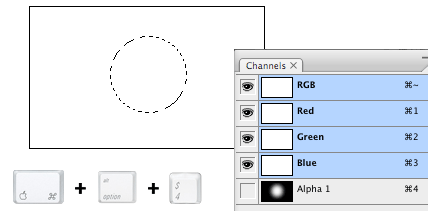
    16. Load Channel selection
      You probably know that Cmd + number keys (1, 2, 3) will activate the channels in sequent. Press Cmd + Opt + number keys will load the selection. For example, press Cmd + Opt + 4 will load Alpha channel 1.
      shortcuts-16.gif
    17. Tool panels
      Press Tab to toggle tool panels.
      shortcuts-17.gif
    18. Precise cursor
      Caps lock will display tool cursor in precise mode.
      shortcuts-18.gif
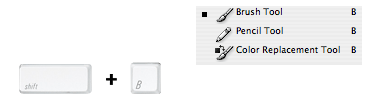
    19. Navigate the tool list
      You can navigate through the tool list by pressing Shift + tool shorcut. For example: B = Brush tool, if you press Shift + B again, you will switch to Pencil tool.
      shortcuts-19.gif
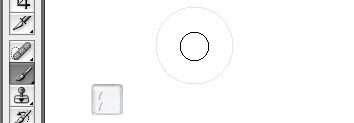
    20. Increase / decrease brush size
      With the Brush tool selected, you can increase / decrease the brush size by pressing [ or ] key (square bracket key). Press Shift + [ or ] will increase / decrease brush hardness.
      shortcuts-20.gif
    21. Opacity
      You can set the layer opacity by pressing the number keys (ie. 1 = 10%, 2 = 20%…). When you have the brush tool selected, pressing the number keys will adjust the brush opacity.
      shortcuts-21.gif
    22. Duplicate layer
      There are several shortcuts to duplicate layers.
      1. You can hold down Cmd + Opt + drag to duplicate the active layer.
      2. Cmd + Opt + arrow keys (Up, Down, Left, Right).
      3. Cmd + J will duplicate the active layer in exact position.
      4. Hold down Opt + drag within the Layers palette can also duplicate layers.
      shortcuts-22.gif
    23. Copy visible and paste in a new layer
      Press Cmd + Opt + Shift + E will copy the visible layers and paste in a new layer.
      shortcuts-23.gif
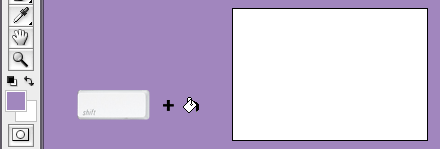
    24. Change workspace background
      By default Photoshop use grey for the workspace background color. You can change that by:
      1. select your favorite color
      2. choose the Paint Bucket tool
      3. Hold down Shift + click on the working area (outside the document area)
      shortcuts-24.gif

      Update: right-click on the workspace area to get a dropdown menu - allows you to set the background to black, grey, or a custom color (commented by Todd Patrick).
    25. Fill background or foreground color
      Opt + Delete (Backspace) = fill the layer with foreground color.
      Cmd + Delete (Backspace) = fill the layer with background color
      shortcuts-25.gif

      Update:
      Cmd + Shift + Delete (Backspace) = Fill non-transparent pixels with background color
      Opt + Shift + Delete (Backspace) = Fill non-transparent pixels with foreground color
      (commented by André Dion)
    26. Switch between document windows
      Ctrl + Tab will switch between document windows.
      shortcuts-26.gif
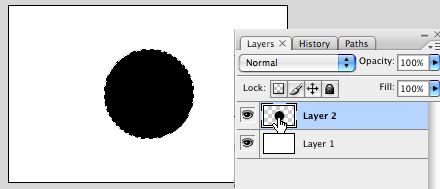
    27. Load layer transparent
      Cmd + click on the layer thumbnail will load its transparency.
      shortcuts-27.gif
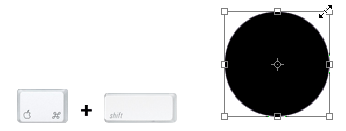
    28. Scale proportionally from center
      When you are using the Marquee tools or Free Transform, hold down Opt + Shift + drag will scale proportionally from the center.
      shortcuts-28.gif
    29. Shortcut to Eyedropper
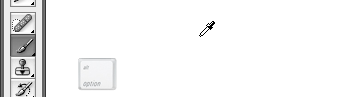
      If you have the Brush tool selected, hold down Opt key will quickly activate the Eyedropper tool. Hold down Opt + Shift will activate the Color Sampler Tool.
      shortcuts-29.gif
    30. Finally…
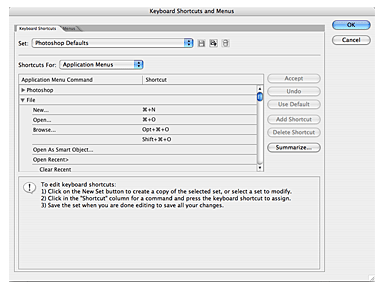
      Finally, if you want to check or set your own custom shortcuts, press Cmd + Opt + Shift + K will bring up the Keyboard Shortcuts panel.
      shortcuts-30.gif
    Additional from the comments

    • In some dialog boxes, holding the Opt key will turn the “Cancel” button into a most useful “Reset”. (by Miguel Tavares)
    • To stroke a path, first select the path, then change to the brush tool, select a brush, and type Enter or Return. This works with all of the brush-like tools (eraser, clone, blur, etc.). (by buddhistMonkey)
    • To turn a path into a selection, type Command-Enter or Command-Return (doesn’t matter what tool is selected). If there is already a selection, then Command-Shift-Return will add your path’s shape to the selection, Command-Option-Return will subtract it, and Command-Option-Shift-Return will select the intersection. (by buddhistMonkey)
    • If you are adding a “Drop Shadow” layer effect, and you have the Layer Style dialog open to the Drop Shadow settings, you can move the shadow around by clicking and dragging in the image. This also works with the “Inner Shadow” effect. If you hold down the Option key, you can also adjust the Gradient Overlay, Pattern Overlay, and Satin effects by clicking and dragging. (by buddhistMonkey)