Step 1: Download and install the program.
Download 4Musics Multiformat Converter to a known location. Run setup and follow on-screen instructions to install the application.
Step 2: Start the program. Select your MP3 files.
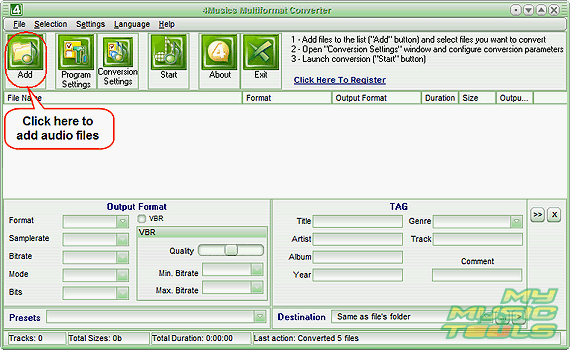
Launch 4Musics Multiformat Converter. Click the "Add" button on the toolbar.
Select whether you want to convert single files, or a whole folder. For our demo we will convert single files.
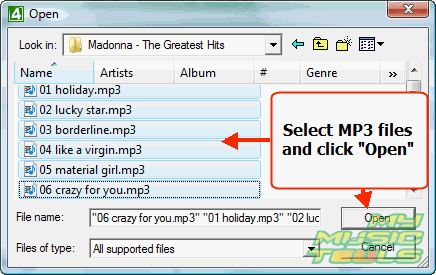
A usual "Open" system dialog will appear. Browse to the folder where your MP3 files are stored, select those that you want to convert to M4A, click "Open".
The files will be added to the conversion list.
Step 3: Set output format and folder. Convert your MP3 to M4A.
As the "Open" dialog disappears, we return to the main window.
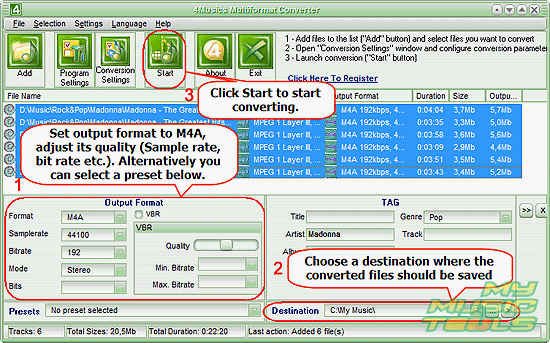
Make sure that the files are selected (if they aren't, click a file in the list and press "Ctrl" + "A" on your keyboard). In the "Output format" area (1), set "Format" to M4A and adjust quality settings (sample rate, bit rate, mode, VBR/CBR etc.).
Alternatively you can select a preset from the dropdown list right below the area.
As next, select some folder to save the converted M4A files. By default, the same folder where your input MP3 files are stored will be used. If you want to put the converted files into another folder, set it in the "Destination" field (2).
Finally, click "Start" to begin converting MP3 to M4A.