

Latest ads
-
 📸 SIGMA 85mm F1.4 DG HSM | Art — Nikon Mount
- romeshnonis
- Updated:
-
 Google AI PRO - 18 Month
- Sanathbh
- Updated:
-
Singapore V2Ray VPN for Tunneling
- hu KANNA
- Updated:
-
 Plan your Crypto & Forex entries before you take the trade
- romeshnonis
- Updated:
-
 RHCSA, RHCE, AWS, Docker, Kubernetes Training
- Sanjeewani95
- Updated:
You are using an out of date browser. It may not display this or other websites correctly.
You should upgrade or use an alternative browser.
You should upgrade or use an alternative browser.


Uba mea thread eka balanavda? man hituvea balanne natuwa ati kiyla.. ekai mukut post karea natte..
thava tiyanava... dennan badu!
YAKO MEWAGE USE FULL TREAD EKAK BALANNATTE MONA GONA DA???


How To Reinstall Windows Without Losing Anything
-------------------------------------------------------
You can use this method as often as you like when you need to repair something that had gotten corrupted and you don't want to do a clean install.
This is better than doing a windows repair install from the cd because doing that can cause changes to settings and even make it so you can't get updates anymore from microsoft update site because of the 'silent install' they did a year or so ago (unless you rereg some dll files).
1- Start WindowsXP
2- Go to the location of your source files
3- Run WINNT32 /unattend
For example, D:\I386\winnt32 /unattend ( copy & paste this command into the RUN box, then press ENTER ) Your computer will do the rest.
OR
Start > All Programs > Accessories > Command Prompt.
Copy & paste > D:\I386\winnt32 /unattend (notice the space between 32 and / )
Press Enter.
If you have i386 on your drive, you can replace D: ( if D: is your cd drive ) with the location of it. (be sure it's the full i386 though)
D: is the driver letter where your windows XP Cd is
if D:\I386\winnt32 /unattend doesn't work then try : d:\winnt32 /unattend.
-------------------------------------------------------
You can use this method as often as you like when you need to repair something that had gotten corrupted and you don't want to do a clean install.
This is better than doing a windows repair install from the cd because doing that can cause changes to settings and even make it so you can't get updates anymore from microsoft update site because of the 'silent install' they did a year or so ago (unless you rereg some dll files).
1- Start WindowsXP
2- Go to the location of your source files
3- Run WINNT32 /unattend
For example, D:\I386\winnt32 /unattend ( copy & paste this command into the RUN box, then press ENTER ) Your computer will do the rest.
OR
Start > All Programs > Accessories > Command Prompt.
Copy & paste > D:\I386\winnt32 /unattend (notice the space between 32 and / )
Press Enter.
If you have i386 on your drive, you can replace D: ( if D: is your cd drive ) with the location of it. (be sure it's the full i386 though)
D: is the driver letter where your windows XP Cd is
if D:\I386\winnt32 /unattend doesn't work then try : d:\winnt32 /unattend.


How to use Driver Robot for Free, No Crack, No Serial, it Really WORKS...
hi there, today i am going to show you How to use Driver Robot for Free, No Crack, No Serials, for any drivers like if u have Win7 and you don't have Drivers for Win7, that Really Helped me with Sound Drivers, and others
 ..
..
Ok now Go to this Link and Download Driver Robot.
After Downloading, Install It.
After Installing it Open it, and Click Start Scan.

After the Scan Finnished, click on Exporter, and than Click Export.

Save the HTML File to Desktop, and Open It.
You can close now Drive Robot, you don't really need it anymore.
After Opening the HTML File, Click >> GET DRIVERS.

There are the Results for you Drivers, all drivers that you need, to download the drivers click on the Blue Link.

There you go.. Thank you Very Much.
hi there, today i am going to show you How to use Driver Robot for Free, No Crack, No Serials, for any drivers like if u have Win7 and you don't have Drivers for Win7, that Really Helped me with Sound Drivers, and others

Ok now Go to this Link and Download Driver Robot.
http://driverrobot.com/download/
After Downloading, Install It.
After Installing it Open it, and Click Start Scan.

After the Scan Finnished, click on Exporter, and than Click Export.

Save the HTML File to Desktop, and Open It.
You can close now Drive Robot, you don't really need it anymore.
After Opening the HTML File, Click >> GET DRIVERS.

There are the Results for you Drivers, all drivers that you need, to download the drivers click on the Blue Link.

There you go.. Thank you Very Much.
How to delete an undeletable file
Open a Command Prompt window and leave it open. Close all open programs, and open task manager. Go to the Processes tab and End Process on Explorer.exe. Leave Task Manager open. Go back to the Command Prompt window and change to the directory the undeletable file is located in. At the command prompt type DEL <filename> where <filename> is the file you wish to delete. Go back to Task Manager, click File, New Task and enter EXPLORER.EXE to restart the GUI shell. Close Task Manager.
Open a Command Prompt window and leave it open. Close all open programs, and open task manager. Go to the Processes tab and End Process on Explorer.exe. Leave Task Manager open. Go back to the Command Prompt window and change to the directory the undeletable file is located in. At the command prompt type DEL <filename> where <filename> is the file you wish to delete. Go back to Task Manager, click File, New Task and enter EXPLORER.EXE to restart the GUI shell. Close Task Manager.
Branding Windows with your Name !!
Branding Windows with your Name !!
Open Notepad dump the following lines into it and Save It with the name OEMINFO.INI in the c:\windows\system32 directory:
- [General]
- Manufacturer=Your Name Here
- Model=Your Model Here
- [Support Information]
- Line1=Your Name Here
- Line2=Your Address Here
- Line3=Your Email Address Here
- Save the file, then make a right click on my computer select properties, in the general tab a button will be highlighted (support information) make a click on it, you will be able to see the changes.
- Now if you want to display some more information then simply increase the line in the file.
- ex: Line4=Your Working Hours Here
Pls hit thanks..

Branding Windows with your Name !!
Open Notepad dump the following lines into it and Save It with the name OEMINFO.INI in the c:\windows\system32 directory:
- [General]
- Manufacturer=Your Name Here
- Model=Your Model Here
- [Support Information]
- Line1=Your Name Here
- Line2=Your Address Here
- Line3=Your Email Address Here
- Save the file, then make a right click on my computer select properties, in the general tab a button will be highlighted (support information) make a click on it, you will be able to see the changes.
- Now if you want to display some more information then simply increase the line in the file.
- ex: Line4=Your Working Hours Here
Pls hit thanks..


Niyama Thread eka .. Digatama Karamu .. We also help you
Ela.. thanks lokka


Test your antivirus is up to scratch
Copy and paste the code below into notebook
X5O!P%@AP[4\PZX54(P^)7CC)7}$EICAR-STANDARD-ANTIVIRUS-TEST-FILE!$H+H*
(The text should be in one line.)
Save file as "checkantivirus.com" including quotation-marks (make sure it is saved in extention . com)
A few seconds after saving this file, your Anti-Virus should come with the message that this file is infected with virus asking permission for its deletion/clean.
*** This file is secure and its not going to infect your computer in whatever way. It is a standard text developed by the European Institute for Computer Anti-virus Research (EICAR). Every Anti-Virus is programed to load this file as a virus.***
If your Anti-Virus will not detect this file as a virus, a program will appear as DOS window with this text EICAR-STANDARD-ANTIVIRUS-TEST-FILE.
If this happens then you should probably find some other Anti-Virus up to date as you are not fully protected.


Macho help............. mam me file eka haeduw den eka deet karann denne pls help

10 Tricks With A USB Thumb Drive


Take your programs with you
We all know how frustrating it is when we take your files to another computer just to discover that the software required to read the files is not installed.
Here’s the simplest solution – take your programs with you – on your USB thumb drive. Here’s how to do it with Portable Apps:
1. Go to the Portable Apps website and download the installer, choosing the software you want to carry along.
2. Run the installer and install the software to the root of your USB thumb drive.
And you’re done! As soon as you connect your thumb drive into a computer, Portable Apps will open up automatically.

Surf anonymously
With Portable Apps and Firefox, you can surf the web without leaving any trace on the computer you are using. If you want extra security, install a Firefox security plugin such as FoxyProxy. To iput Firefox onto the drive, just copy-paste the Firefox folder from you computer, or install Firefox onto the thumb drive.

Set a program to run automatically (autorun)
Using autorun, you can set a program to start up automatically when you connect the drive to a computer. You can also use the same script for a data CD-ROM. Note that some computers have autorun disabled for security purposes. [Here's how to disable autorun.]
Open up notepad and paste the following script:
Make sure you replace filename with the full path to the file. For example, a file called program.exe in a folder called “programs” on the thumb drive would be /programs/program.exe
Replace description with a short description of the program, for example, My Jukebox or Mozilla Firefox.
Save the file as autorun.inf, making sure you select “All Programs” from the save menu, not “Text document”!

Help! I’m lost!
Ever lost a USB drive? Even if you haven’t, there’s a pretty good chance you’ll lose a few during your life. And with all the important information on it, it could be a disaster to have it fall into someone’s hands.
A good idea is to encrypt all the information on the drive, but you would still want it back, wouldn’t you? Luckily, the folks at the Daily Cup Of Tech have come up with a solution.

Save a program called “Help! I’m Lost!” on the drive, that a finder just can’t get around opening. The program opens a message box with your personal “I’m lost” message. It’s a good idea to offer the finder a bigger reward than the drive itself, so that they’ll be interested in contacting you.

Hide the drive inside something
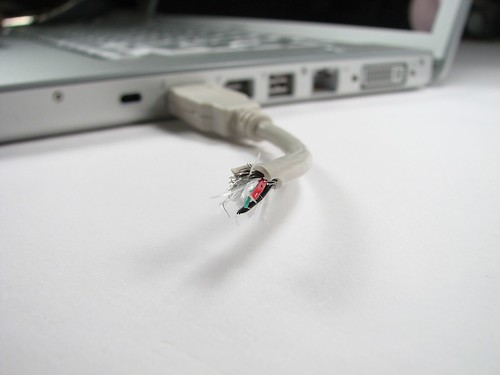 Why not surprise your friends and co-workers by sticking something that looks like a broken USB cable into the computer’s USB drive?
You’ll be sure to get a few shocked faces when you start to play a movie from it.
 Secure your PC
Just like with an RFID badge, you can use a USB drive to lock and unlock a PC. Insert it to begin working and pull it out when you’ve finished, locking the computer. There are several programs for this . Rohos, a commercial program and WiKID, a semi-open source one.
If you really need to secure your computer with a USB drive, I suggest you give Rohos a try, as WiKID is rather complicated.
 Portable jukebox
Don’t just carry the music with you, also carry the player! You can install audio programs such as WinAmp and CoolPlayer+ on your thumb drive. Just unextract the ZIP folders to the USB drive.
If you want the jukebox to start up automatically when you connect the memory stick to the computer, use the autorun feature shown tip 3 and point it to the exe of your audio player.


Encrypt your data
If you carry any sensitive indormation on your USB memory stick, a good idea is to encrypt it. Hardware-level encryption will help, but it will cost extra. You can get a free program to encrypt your data just as securely. For this I recommend TrueCrypt, but most others will also do.
You will need admin access on the computer you want to use your encrypted thumb drive on, so this it’s usability a little.

Run a standalone OS for dedicated tasks
The easiest OS to boot from a USB drive is probably Linux. There are many small capacity Linux versions out there that will fit on your drive. The best 3 are Puppy Linux, Damn Small Linux and Webconverger.
Make sure you select a version that needs less space than your USB drive’s maximum, so you have room for files and software.
And this leads us nicely to the final tip…


Run Windows itself from a USB thumb drive
Modifying Windows to work on a USB drive is quite difficult, but luckily there are some tools that will do it for us. Note that you will need a separate Windows license for this, as Microsoft only lets you use one for each single computer, and a USB drive is treated by them like a computer…
What you’ll need:
Quote:
A licensed copy of Windows
A USB device, min. 1GB (We recommend a USB hard disk, as a flash memory stick will become unusable after 100000 writing processes. Assuming that only 2 processes are used per second, the drive will last only 60 days with 8 hours of work each day… A hard disk doesn’t have this problem.)
Here is the link to the full tutorial, translated from German.


Take your programs with you
We all know how frustrating it is when we take your files to another computer just to discover that the software required to read the files is not installed.
Here’s the simplest solution – take your programs with you – on your USB thumb drive. Here’s how to do it with Portable Apps:
1. Go to the Portable Apps website and download the installer, choosing the software you want to carry along.
2. Run the installer and install the software to the root of your USB thumb drive.
And you’re done! As soon as you connect your thumb drive into a computer, Portable Apps will open up automatically.

Surf anonymously
With Portable Apps and Firefox, you can surf the web without leaving any trace on the computer you are using. If you want extra security, install a Firefox security plugin such as FoxyProxy. To iput Firefox onto the drive, just copy-paste the Firefox folder from you computer, or install Firefox onto the thumb drive.

Set a program to run automatically (autorun)
Using autorun, you can set a program to start up automatically when you connect the drive to a computer. You can also use the same script for a data CD-ROM. Note that some computers have autorun disabled for security purposes. [Here's how to disable autorun.]
Open up notepad and paste the following script:
[autorun]
ShellExecute=filename
Label=description
UseAutoPlay=1
Replace description with a short description of the program, for example, My Jukebox or Mozilla Firefox.
Save the file as autorun.inf, making sure you select “All Programs” from the save menu, not “Text document”!

Help! I’m lost!
Ever lost a USB drive? Even if you haven’t, there’s a pretty good chance you’ll lose a few during your life. And with all the important information on it, it could be a disaster to have it fall into someone’s hands.
A good idea is to encrypt all the information on the drive, but you would still want it back, wouldn’t you? Luckily, the folks at the Daily Cup Of Tech have come up with a solution.

Save a program called “Help! I’m Lost!” on the drive, that a finder just can’t get around opening. The program opens a message box with your personal “I’m lost” message. It’s a good idea to offer the finder a bigger reward than the drive itself, so that they’ll be interested in contacting you.

Hide the drive inside something
You’ll be sure to get a few shocked faces when you start to play a movie from it.

Just like with an RFID badge, you can use a USB drive to lock and unlock a PC. Insert it to begin working and pull it out when you’ve finished, locking the computer. There are several programs for this . Rohos, a commercial program and WiKID, a semi-open source one.
If you really need to secure your computer with a USB drive, I suggest you give Rohos a try, as WiKID is rather complicated.

Don’t just carry the music with you, also carry the player! You can install audio programs such as WinAmp and CoolPlayer+ on your thumb drive. Just unextract the ZIP folders to the USB drive.
If you want the jukebox to start up automatically when you connect the memory stick to the computer, use the autorun feature shown tip 3 and point it to the exe of your audio player.


Encrypt your data
If you carry any sensitive indormation on your USB memory stick, a good idea is to encrypt it. Hardware-level encryption will help, but it will cost extra. You can get a free program to encrypt your data just as securely. For this I recommend TrueCrypt, but most others will also do.
You will need admin access on the computer you want to use your encrypted thumb drive on, so this it’s usability a little.

Run a standalone OS for dedicated tasks
The easiest OS to boot from a USB drive is probably Linux. There are many small capacity Linux versions out there that will fit on your drive. The best 3 are Puppy Linux, Damn Small Linux and Webconverger.
Make sure you select a version that needs less space than your USB drive’s maximum, so you have room for files and software.
And this leads us nicely to the final tip…


Run Windows itself from a USB thumb drive
Modifying Windows to work on a USB drive is quite difficult, but luckily there are some tools that will do it for us. Note that you will need a separate Windows license for this, as Microsoft only lets you use one for each single computer, and a USB drive is treated by them like a computer…
What you’ll need:
Quote:
A licensed copy of Windows
A USB device, min. 1GB (We recommend a USB hard disk, as a flash memory stick will become unusable after 100000 writing processes. Assuming that only 2 processes are used per second, the drive will last only 60 days with 8 hours of work each day… A hard disk doesn’t have this problem.)
Here is the link to the full tutorial, translated from German.
Similar threads

- Replies
- 11
- Views
- 834


- Replies
- 6
- Views
- 522


- Replies
- 1
- Views
- 326
