
Latest ads
-
 ඕනම රටකට සෙට් වෙන CV එකක්
- ErMurazor
- Updated:
-
 Hambantota 7 Acres Beachfront Land For Sell DownSouth , PerPerch Price 420 000
- 1024 Digital
- Updated:
-
 Baseus PI LITE INDOOR CAMERA
- ErMurazor
- Updated:
-
Colombo Hard Disk For Sale
- mazza
- Updated:

Share the way to rip DVD and convert video (For Mac user)
- Thread starter kaixin114
- Start date
You are using an out of date browser. It may not display this or other websites correctly.
You should upgrade or use an alternative browser.
You should upgrade or use an alternative browser.


follow your need
Ahha~ in my experience I have also tried to use some species of video converter developed by different soft companies. In fact you can use the product from itoolsoft , dvd to avi easier to operate and more practically for you, the best worthy to mention is the lower price. Here I share my pleasure and hope there are some help to you, maybe just a bit!
Ahha~ in my experience I have also tried to use some species of video converter developed by different soft companies. In fact you can use the product from itoolsoft , dvd to avi easier to operate and more practically for you, the best worthy to mention is the lower price. Here I share my pleasure and hope there are some help to you, maybe just a bit!
Fully support most HD(High-Definition) video encoder and HD decoder, Tipard HD Video Converter is the fast HD Converter to convert HD video to general video, convert general video to HD video, convert among HD videos, such as HD TS, HD MTS, HD WMV, HD MPG, HD MPEG4, H.264/AVC , HD AVI, HD ASF, etc. Moreover, Tipard HD Video Converter has audio conversion and audio extraction functions to convert among audios, extract audios from general videos and HD videos to AAC, AC3, AIFF, AMR, AU, FLAC, MP3, M4A, MP2, OGG, WAV, WMA audios.
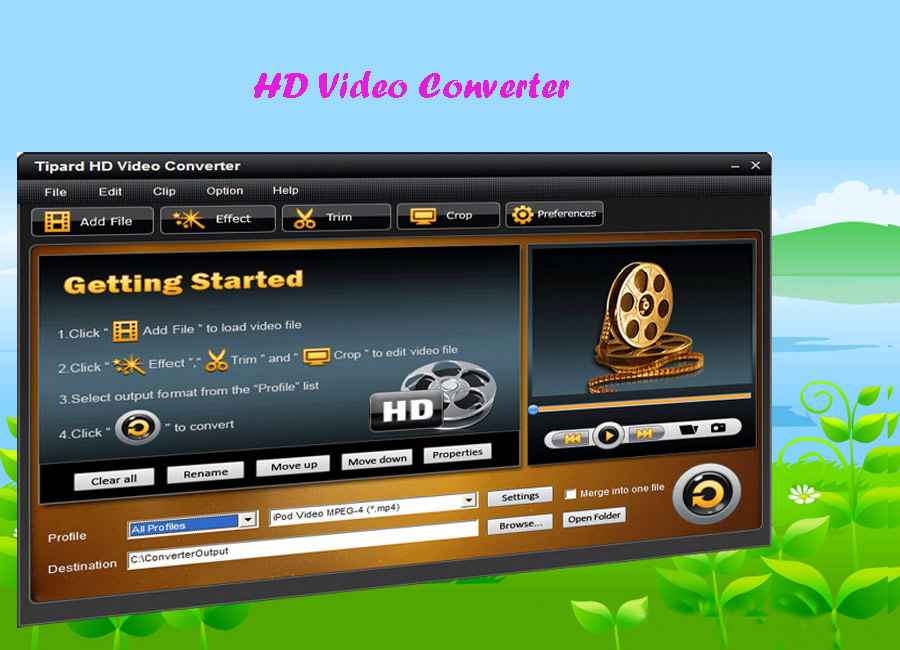
*Key Features*
1. Support most HD video encoder, HD decoder and general video
Support among HD videos conversion, such as HD TS, HD MTS, HD WMV, HD MPG, HD MPEG4, H.264/AVC , HD AVI, HD ASF, and so forth; general videos to HD video conversion, HD video to general video conversion.
2. Set video effect
Set the Brightness, Contrast and Saturation of the video.
3. Provide Deinterlacing function
Convert interlaced video to the progressive video in order to optimize the video effect.
4. Trim video length
Clip any segment of the video exactly.
5. Crop the playing region
Adjust the playing region of the video to fit for the player and user’s taste.
6. Merge clips into one file
Provide to join separated video files into one.
7. Customize output settings
Set the Video Encoder, Resolution, Frame Rate, Video Bitrate. You can also directly input your own resolution as the form of “XXX*XXX”; Set the Audio Encoder, Sample Rate, Channels, Audio Bitrate. You also can save all the output settings as your preference, which is saved in the user-defined column automatically.
*Key Features*
1. Support most HD video encoder, HD decoder and general video
Support among HD videos conversion, such as HD TS, HD MTS, HD WMV, HD MPG, HD MPEG4, H.264/AVC , HD AVI, HD ASF, and so forth; general videos to HD video conversion, HD video to general video conversion.
2. Set video effect
Set the Brightness, Contrast and Saturation of the video.
3. Provide Deinterlacing function
Convert interlaced video to the progressive video in order to optimize the video effect.
4. Trim video length
Clip any segment of the video exactly.
5. Crop the playing region
Adjust the playing region of the video to fit for the player and user’s taste.
6. Merge clips into one file
Provide to join separated video files into one.
7. Customize output settings
Set the Video Encoder, Resolution, Frame Rate, Video Bitrate. You can also directly input your own resolution as the form of “XXX*XXX”; Set the Audio Encoder, Sample Rate, Channels, Audio Bitrate. You also can save all the output settings as your preference, which is saved in the user-defined column automatically.
HD Converter is a powerful software! which can convert hd video to regular video, convert among hd video.
Best and cheapest iPhone Ringtone Maker, this is for windows users, if you are mac users, then you can try this iPhone Ringtone Maker for Mac.
Also there is another nice iPhone Ringtone Converter (windows version), for mac version-- iPhone Ringtone Converter for Mac
Go HERE to get full guide.
Also there is another nice iPhone Ringtone Converter (windows version), for mac version-- iPhone Ringtone Converter for Mac
Go HERE to get full guide.
Similar threads
- Replies
- 3
- Views
- 137


- Replies
- 1
- Views
- 216

- Replies
- 0
- Views
- 90

- Replies
- 6
- Views
- 453


- Replies
- 2
- Views
- 332
