

Latest ads
-
 Singapore V2ray VPN for Tunneling
- hu KANNA
- Updated:
-
Web hosting for your business
- avishka777
- Updated:
-
GOOGLE AI PRO - 18 Month - Rs.500.00
- Sanathbh
- Updated:
-
 📸 SIGMA 85mm F1.4 DG HSM | Art — Nikon Mount
- romeshnonis
- Updated:
-
Singapore V2Ray VPN for Tunneling
- hu KANNA
- Updated:
Sihina Tips House..............
- Thread starter sihina_lahiru
- Start date
You are using an out of date browser. It may not display this or other websites correctly.
You should upgrade or use an alternative browser.
You should upgrade or use an alternative browser.

Have you "lost" a hard drive or partition in your computer?
Have you "lost" a hard drive or partition in your computer?
If there is a (hidden) recovery partition on the drive you should start a thread asking for advice before trying TestDisk.
The situation with a "lost" hard drive typically arises after Windows has been reinstalled or when a slave/external drive is moved to another computer.
If the drive/partition shows up in Device Manager and Disk management, but NOT in "My Computer", chances are that it is "only" the partition table that is missing or corrupt.
You can use a freeware program called TestDisk to repair the partition table and get access to your data again.
TestDisk will not change or delete any of your data if you follow the instructions below.
This guide is written for Windows, but you can use TestDisk with Linux and Mac as well.
Try this to repair the partition table:
The newest version of Test-Disk, 6.11 is available here
Download the Windows version of TestDisk.
Unzip the downloaded file to your C: drive.
Open C:\testdisk-6.10\win > double click the "testdisk_win" icon.

The program runs in a command window and doesn't have to be installed.
Each of the steps (A, B, C etc) below corresponds to a new TestDisk window.
Use the keyboard's arrow keys to navigate.
Close TestDisk and RESTART the computer.
The drive/partition should now be fixed and your data available again.
Have you "lost" a hard drive or partition in your computer?
If there is a (hidden) recovery partition on the drive you should start a thread asking for advice before trying TestDisk.
The situation with a "lost" hard drive typically arises after Windows has been reinstalled or when a slave/external drive is moved to another computer.
If the drive/partition shows up in Device Manager and Disk management, but NOT in "My Computer", chances are that it is "only" the partition table that is missing or corrupt.
You can use a freeware program called TestDisk to repair the partition table and get access to your data again.
TestDisk will not change or delete any of your data if you follow the instructions below.
This guide is written for Windows, but you can use TestDisk with Linux and Mac as well.
Try this to repair the partition table:
The newest version of Test-Disk, 6.11 is available here
Download the Windows version of TestDisk.
Unzip the downloaded file to your C: drive.
Open C:\testdisk-6.10\win > double click the "testdisk_win" icon.
The program runs in a command window and doesn't have to be installed.
Each of the steps (A, B, C etc) below corresponds to a new TestDisk window.
Use the keyboard's arrow keys to navigate.
- At the first window, select “No Log” and press the <Enter> key.

- Select which drive to analyse, choose “Proceed” and <Enter>.

- Select partition type – Intel if it’s a PC then <Enter>.

- Select “Analyse” then <Enter>. The drive will be analysed.

- Select “Quick Search” at the next screen, then <Enter>.

- Press “Y” if the partitions were created under Vista – “N” if not.

- TestDisk should say “Structure OK”. If so, press <Enter>.

- Select “Write” and press <Enter>.

- Press “Y” to confirm.

- Press <Enter>.


Close TestDisk and RESTART the computer.
The drive/partition should now be fixed and your data available again.
How to boot/install Windows 7/Vista from USB Flash
Here is how you can create a bootable USB drive to install Windows 7 on your system.
Here is how you can create a bootable USB drive to install Windows 7 on your system.
- 1.Download Windows 7 Beta
- Save the file on your Desktop.
2.Format a 4GB USB thumb drive

- My computer-->Removable disk(F)-->Right click and choose Format using the NTFS file system
3.Extract the Windows 7 ISO file

- First Install WinRAR, 7zip will work too
- Right click on ISO file and choose “Extract to ” as shown in the above picture.
4.Copy BootSect.exe

- Open the extracted folder and open the “boot” folder, inside which we’ll find a file called “bootsect.exe” that we’ll need to use.Copy the file (CTRL+C) and then open up “Computer” or “My Computer” and double-click your C: drive.We’re going to paste (CTRL+V) that “bootsect.exe” file right into C: so we can easily access it in a moment.
5.Make the Drive Bootable - Programs > Accessories and then right-click on Command Prompt and choose “Run as administrator.”

- Inside cmd, type and enter the followings:
1. cd\
2. bootsect /nt60 f: - We’re assuming the drive letter of your USB thumb drive is F:, so replace “f:” in the above phrase with whichever letter is assigned to your particular thumb drive. Hit enter and you should see:

- The thumb drive auto-load when you boot up your computer.
6.Copy the Windows 7 files to the thumb drive - Now, copy all the files from the Windows 7 folder to the USB drive.
- Change the first boot device to your USB drive in the BIOS.
- Reboot the computer.You should be able to install Windows 7 from your USB flash drive now.
- Save the file on your Desktop.


How to use Driver Robot for Free, No Crack, No Serial, it Really WORKS...
hi there, today i am going to show you How to use Driver Robot for Free, No Crack, No Serials, for any drivers like if u have Win7 and you don't have Drivers for Win7, that Really Helped me with Sound Drivers, and others
 ..
..
Ok now Go to this Link and Download Driver Robot.
Quote:
http://driverrobot.com/download/
After Downloading, Install It.
After Installing it Open it, and Click Start Scan.

After the Scan Finnished, click on Exporter, and than Click Export.

Save the HTML File to Desktop, and Open It.
You can close now Drive Robot, you don't really need it anymore.
After Opening the HTML File, Click >> GET DRIVERS.

There are the Results for you Drivers, all drivers that you need, to download the drivers click on the Blue Link.

There you go.. Thank you Very Much.
hi there, today i am going to show you How to use Driver Robot for Free, No Crack, No Serials, for any drivers like if u have Win7 and you don't have Drivers for Win7, that Really Helped me with Sound Drivers, and others

Ok now Go to this Link and Download Driver Robot.
Quote:
http://driverrobot.com/download/
After Downloading, Install It.
After Installing it Open it, and Click Start Scan.

After the Scan Finnished, click on Exporter, and than Click Export.

Save the HTML File to Desktop, and Open It.
You can close now Drive Robot, you don't really need it anymore.
After Opening the HTML File, Click >> GET DRIVERS.

There are the Results for you Drivers, all drivers that you need, to download the drivers click on the Blue Link.

There you go.. Thank you Very Much.
Encoding, editing of x264 mkv movies using Megui, mkvmerge
This guide is split into following parts:
1.) Setting up Encoder.
2.) Encoding.
3.) Editing of Output file
1.) Setting up Encoder
You Must Have Following 5 Files First
(a) Megui.
Check Download Links Code:
http://sourceforge.net/project/down...jaist&filename=megui-0_3_1_1014.exe&a=6828498
(b) Avisynth.
Check Download Links Code:
http://sourceforge.net/project/down...ror=nchc&filename=Avisynth_258.exe&a=41520716
(c) Profiles.
Check Download Links Code:
http://rapidshare.com/files/204452745/allprofiles.rar
(d) Nero AAC Codec.
Check Download Links Code:
http://rapidshare.com/files/204452928/neroaac.rar
(e) Mkvtoolnix
Check Download Links Code:
http://www.bunkus.org/videotools/mkvtoolnix/win32/mkvtoolnix-unicode-2.5.1-setup.exe
After downloading the above files follow these steps :-
1. Install Megui, Avisynth and Mkvtoolnix.
2. Copy all 3 Nero AAC files to the Megui directory
By Default - "C:\Program Files\megui"
3. Run Megui and update it.

4. Close Megui.
5. Copy the "allprofiles" folder and paste it in Megui directory
By Default - "C:\Program Files\megui". Replace the allprofiles folder with new one.
6. Now run Megui and we are ready to encode some movies. :wink:

---------------------------------------------------------------------------------------------------------
2.) Encoding
1. Run Megui and click file-->open and browse to the source video file.
2. Wait few seconds and then avisynth will open with video previewer (see images below).


3. Enter the desired output resolution (must be mod 16)*
*mod 16 resolution - Both height and width pixels must be completely divisible be 16. Example - Here 720x352 resolution is used and 720/16 gives remainder as 0 and also 352/16 gives rem. 0 so that means it's a mod 16 resolution.
4. You can crop screen if u see black borders (in our case we don't need it).
5. Click Save and you will be returned back to megui.

6. In video section select one video profile. For best result use "x264: HQ-Slow" or "x264: Unresteicted 2pass HQ".
7. Select file format as MKV.
8. In audio section select audio profile"Nero AAC: NDAAC-HE-64kbs".

9. Click config and check the "adaptive bitrate" and set it to @35kbps. You can also use 40kbps but 35kbps works fine for me.

10. Click "Auto Encode" and a new window will apppear.
11. Select conatiner as "MKV" and enter "average bitrate" as per the desired output file size (Remember 30minutes = 100mb). When done click "Queue".
12. Now click "Queue" tab at top of the encoder and click start.


13. Now comes the most difficult part which is to wait :mrgreen: . Encoding process has now begun so be patient. Time taken in encoding depends on many factors such as your pc's config., source's resolution, output file's resolution, o/p file size etc. On my pc a normal dvdrip takes an average time of 4-5 hours.
---------------------------------------------------------------------------------------------------------
3.) Editing
TO EDIT MKV FILES I USE MKVMERGE.
In this section I will tell you how to:-
(a) Add or remove subtitles.
(b) Making samples/splitting a file.
(c) Join files.
(d) How to sync. an mkv file.
but before that run mkvmerge.
(a) Add or remove subtitles.

Adding
1. Click "add" button to add a video file.
2. Now simply drag the subtitle file to the "tracks" box in mkvmerge or click the add button to add sutitle file.
3. Select output folder.
4. Click "start muxing".
Removing
1. Add your file.
2. Uncheck the subtitle file from the "tracks" box.
3. Select output folder.
4. Click "start muxing".
(b) Making samples/splitting a file

1. Add the file that you want to split.
2. Now click "Global" tab at the top of the mkvmerge.
3. Tick the "enable splitting" option and choose the way* you want to split it.
*Take the cursor above each box for more info about it.
(c) Join files
Now if you want to join two or more splitted files into a single file then add the first part of file and then click "append" to add 2nd part and so on you can append a no. of files. Select o/p folder and click "start muxung".
(d) How to sync. an mkv file.
One common problem that arises after encoding a movie is that sometimes we gets file at output which is a bit out of sync. So, we can make it in sync using mkvmerge.

Suppose that in our movie the sound is lagging beind video with duration 300ms. Then,
1. Add your file.
2. In "track" box click on video file and then "Format specific options". In "Delay (in ms)" enter 150.
3. Now in "track" box click on audio file and then "Format specific options". In "Delay (in ms)" enter -150.
4. Select o/p folder and click"start muxing"
Similarly, if video is lagging behind audio then in that case we would use -ve value for video file and +ve value for audio file.
This is how process goes:

Note:-This guide has been tested for as per use on windows xp 32 bit and works. You may face some problems if you are using some other operating system.
Quote:
Credit to the person who has made this guide
This guide is split into following parts:
1.) Setting up Encoder.
2.) Encoding.
3.) Editing of Output file
1.) Setting up Encoder
You Must Have Following 5 Files First
(a) Megui.
Check Download Links Code:
http://sourceforge.net/project/down...jaist&filename=megui-0_3_1_1014.exe&a=6828498
(b) Avisynth.
Check Download Links Code:
http://sourceforge.net/project/down...ror=nchc&filename=Avisynth_258.exe&a=41520716
(c) Profiles.
Check Download Links Code:
http://rapidshare.com/files/204452745/allprofiles.rar
(d) Nero AAC Codec.
Check Download Links Code:
http://rapidshare.com/files/204452928/neroaac.rar
(e) Mkvtoolnix
Check Download Links Code:
http://www.bunkus.org/videotools/mkvtoolnix/win32/mkvtoolnix-unicode-2.5.1-setup.exe
After downloading the above files follow these steps :-
1. Install Megui, Avisynth and Mkvtoolnix.
2. Copy all 3 Nero AAC files to the Megui directory
By Default - "C:\Program Files\megui"
3. Run Megui and update it.

4. Close Megui.
5. Copy the "allprofiles" folder and paste it in Megui directory
By Default - "C:\Program Files\megui". Replace the allprofiles folder with new one.
6. Now run Megui and we are ready to encode some movies. :wink:

---------------------------------------------------------------------------------------------------------
2.) Encoding
1. Run Megui and click file-->open and browse to the source video file.
2. Wait few seconds and then avisynth will open with video previewer (see images below).


3. Enter the desired output resolution (must be mod 16)*
*mod 16 resolution - Both height and width pixels must be completely divisible be 16. Example - Here 720x352 resolution is used and 720/16 gives remainder as 0 and also 352/16 gives rem. 0 so that means it's a mod 16 resolution.
4. You can crop screen if u see black borders (in our case we don't need it).
5. Click Save and you will be returned back to megui.

6. In video section select one video profile. For best result use "x264: HQ-Slow" or "x264: Unresteicted 2pass HQ".
7. Select file format as MKV.
8. In audio section select audio profile"Nero AAC: NDAAC-HE-64kbs".

9. Click config and check the "adaptive bitrate" and set it to @35kbps. You can also use 40kbps but 35kbps works fine for me.

10. Click "Auto Encode" and a new window will apppear.
11. Select conatiner as "MKV" and enter "average bitrate" as per the desired output file size (Remember 30minutes = 100mb). When done click "Queue".
12. Now click "Queue" tab at top of the encoder and click start.


13. Now comes the most difficult part which is to wait :mrgreen: . Encoding process has now begun so be patient. Time taken in encoding depends on many factors such as your pc's config., source's resolution, output file's resolution, o/p file size etc. On my pc a normal dvdrip takes an average time of 4-5 hours.
---------------------------------------------------------------------------------------------------------
3.) Editing
TO EDIT MKV FILES I USE MKVMERGE.
In this section I will tell you how to:-
(a) Add or remove subtitles.
(b) Making samples/splitting a file.
(c) Join files.
(d) How to sync. an mkv file.
but before that run mkvmerge.
(a) Add or remove subtitles.

Adding
1. Click "add" button to add a video file.
2. Now simply drag the subtitle file to the "tracks" box in mkvmerge or click the add button to add sutitle file.
3. Select output folder.
4. Click "start muxing".
Removing
1. Add your file.
2. Uncheck the subtitle file from the "tracks" box.
3. Select output folder.
4. Click "start muxing".
(b) Making samples/splitting a file

1. Add the file that you want to split.
2. Now click "Global" tab at the top of the mkvmerge.
3. Tick the "enable splitting" option and choose the way* you want to split it.
*Take the cursor above each box for more info about it.
(c) Join files
Now if you want to join two or more splitted files into a single file then add the first part of file and then click "append" to add 2nd part and so on you can append a no. of files. Select o/p folder and click "start muxung".
(d) How to sync. an mkv file.
One common problem that arises after encoding a movie is that sometimes we gets file at output which is a bit out of sync. So, we can make it in sync using mkvmerge.

Suppose that in our movie the sound is lagging beind video with duration 300ms. Then,
1. Add your file.
2. In "track" box click on video file and then "Format specific options". In "Delay (in ms)" enter 150.
3. Now in "track" box click on audio file and then "Format specific options". In "Delay (in ms)" enter -150.
4. Select o/p folder and click"start muxing"
Similarly, if video is lagging behind audio then in that case we would use -ve value for video file and +ve value for audio file.
This is how process goes:

Note:-This guide has been tested for as per use on windows xp 32 bit and works. You may face some problems if you are using some other operating system.
Quote:
Credit to the person who has made this guide
Windows 7 Tip and Tweaks
Windows 7 Keyboard Shortcuts
Let's kick off with keyboard shortcuts – the first thing every power user must memorize with working with a new operating system.
Alt + P
In Windows Explorer, activate an additional file preview pane to the right side of the window with this new shortcut. This panel is great for previewing images in your photos directory.
Windows + + (plus key)
Windows + - (minus key)
Pressing the Windows and plus or minus keys activates the Magnifier, which lets you zoom in on the entire desktop or open a rectangular magnifying lens to zoom in and out of parts of your screen. You can customize the Magnifier options to follow your mouse pointer or keyboard cursor. Keep in mind that so far, the Magnifier only works when Aero desktop is enabled.
Windows + Up
Windows + Down
If a window is not maximized, pressing Windows + Up will fill it to your screen. Windows + Down will minimize that active window. Unfortunately, pressing Windows + Up again while a window is minimized won’t return it to its former state.
Windows + Shift + Up
Similar to the shortcut above, hitting these three keys while a window is active will stretch it vertically to the maximum desktop height. The width of the window will however stay the same. Pressing Windows + Down will restore it to its previous size.
Windows + Left
Windows + Right
One of the new features of Windows 7 is the ability to automatically make a window fill up half of your screen by dragging to the left or right. This pair of shortcuts performs the same function without your mouse. Once a window is fixed to one side of the screen, you can repeat the shortcut to flip it to the other side. This is useful if you’re extending a desktop across multiple monitors, which prevents you from executing this trick with a mouse.
Windows + Home
This shortcut performs a similar function to hovering over a window’s peek menu thumbnail in the Taskbar. The active window will stay on your desktop while every other open application is minimized. Pressing this shortcut again will restore all the other windows.
Windows + E
Automatically opens up a new Explorer window to show your Libraries folder.
Windows + P
Manage your multiple-monitor more efficiently with this handy shortcut. Windows + P opens up a small overlay that lets you configure a second display or projector. You can switch from a single monitor to dual-display in either mirror or extend desktop mode.
Windows + Shift + Left
Windows + Shift + Right
If you are using two or more displays (and who isn’t, these days?), memorize this shortcut to easily move a window from one screen to the other. The window retains its size and relative position on the new screen, which his useful when working with multiple documents. Utilize that real estate!
Windows + [Number]
Programs (and new instances) pinned to your Taskbar can be launched by hitting Windows and the number corresponding to its placement on the Taskbar. Windows + 1, for example, launches the first application, while Windows + 4 will launch the fourth. We realize that this is actually one key-press more than just clicking the icon with your mouse, but it saves your hand the trouble of leaving the comfort of the keyboard.
Windows + T
Like Alt + Tab (still our all time favorite Windows specific shortcut), Windows + T cycles through your open programs via the Taskbar’s peek menu.
Windows + Space
This combo performs the same function as moving your mouse to the bottom right of the Taskbar. It makes every active window transparent so you can view your desktop. The windows only remain transparent as long as you’re holding down the Windows key.
Ctrl + Shift + Click
Hold down Ctrl and Shift while launching an application from the Taskbar or start menu to launch it with full administrative rights.
Ctrl + Click
Hold down Ctrl while repeatedly clicking a program icon in the Taskbar will toggle between the instances of that application, like multiple Firefox windows (though not browser tabs).
Calibrate Text Rendering and Color
The first thing you need to do after a clean install of Windows 7 on a laptop is to tune and calibrate CleartType text and Display Color. Windows 7 includes two built-in wizards that run you through the entire process, pain free.
Launch ClearType Text Tuning by typing “cttune” in the Start Menu search field and opening the search result. You’ll go through a brief series of steps that asks you to identify the best-looking text rendering method.
For Display Color Calibration – very useful if you’re using Windows 7 with a projector or large-screen LCD – search and launch “dccw” from the Start Menu. It’ll run you through a series of pages where you can adjust the gamma, brightness, contrast, and color of the screen to make images look their best.
Better Font Management and a New Graceful Font
Font management is much improved in Windows 7. Gone is the “Add Fonts” dialog , replaced with additional functionality in the Fonts folder. First, the folder shows font previews in each font file’s icon (viewed with Large or Extra Large icons). Fonts from a single set will no longer show up as different fonts and are now combined as a single family (which can be expanded by double clicking the icon). You can also toggle fonts on and off by right clicking a font icon and selected the “hide” option. This will prevent applications from loading the font (and therefore save memory), but keep the file retained in the Font folder.
A new font called Gabriola also comes bundled with Windows 7, which takes advantage of the new OpenType and DirectWrite (Direct2D) rendering.
The Gaming Grotto is a Less Ghetto
One of our biggest pet peeves of Windows Vista is the Games Folder, which we not-so-affectionately refer to as the Gaming Grotto. Games for Windows titles and other game shortcuts would automatically install to this directory, which we could only access with a Start Menu shortcut. The concept wasn’t bad except for the fact that it prevented us from starting a game up from the Start Menu search bar. We could call up any other program by typing its name in the Start Menu field except the games installed to the Games Folder. Fortunately, this oversight is fixed in Windows 7.
Become More Worldly with Hidden Wallpapers
Windows 7 Beta comes with the Betta fish as its default desktop wallpaper, but it also includes six desktop backgrounds catered to your region (as identified when you first installed the OS). US users, for example, get six 1900x1200 images showing off famous National Parks and beaches. The available wallpapers for other regions are still included in a hidden folder.
To access these international wallpapers, bring up the Start Menu search bar and type “Globalization”. The only result should be a folder located in the main Windows directory. You should only be able to see “ELS and “Sorting” folders here so far. Next, search for “MCT” in the top right search bar. This will display five new unindexed folders, each corresponding to a different global region. Browse these folders for extra themes and wallpapers!
Take Control of UAC
Despite good intentions, User Account Control pop-ups were one of the most annoying aspects of Vista, and a feature that most of us immediately disabled after a clean install. UAC in Windows 7 displays fewer warnings, but you can also fine-tune its notification habits by launching the UAC Settings from the start menu. Just type “UAC” in the Start Menu search field and click the result. We find that setting just above “Never notify” gives a comfortable balance between mindful security and incessant nagging.
Calculate your Mortgage and Other Maths Tricks
Wordpad and Paint aren’t the only upgraded programs in Windows 7. The reliable Calculator applet has been beefed up to do more than just basic arithmetic. In Vista, the Calculator had Standard and Scientific modes. Now, you can toggle between Standard, Scientific, Programmer, and even Statistics modes.
In addition, the Options menu lets you pull out many new automated conversation tools, such has Unit Conversion (ie. Angles, Temperature, Velocity, or Volume) and Date Calculation (calculate the difference between two dates). More templates give you the ability to crunch Gas Mileage, Lease, and even Mortgage estimates based on any variables you input.
Track Your Actions with Problem Steps Recorder
The primary reason for releasing the Windows 7 Beta was for Microsoft’s developers to get feedback from users. (Notice the glaring Send Feedback link at the top of every window?) In addition, the devs have built in a diagnostic tool called Problem Steps Recorder that combines screen captures with mouse tracking to record your actions. You can launch this program from the Start Menu by typing “psr.exe” in the search field.
Hit the Record button and Problem Steps Recorder starts tracking your mouse and keyboard input while taking screenshots that correspond with each new action. Stop recording and your session is saved to an HTML slide show recreating your steps, in which you can add comments and annotations. It’s particularly useful if you need to create a tutorial for a computer-illiterate relative.
Explore from “My Computer”
Windows Explorer’s default landing folder is the Libraries directory, but some of us are more comfortable with using “My Computer” as the default node, especially if we use multiple hard drives and external storage devices.
To change the default node, find Windows Explorer in the Start Menu by typing “explorer” in the Start Menu search field and right click the first result. Select “Properties”. Under the Shortcut tab, the Target location should read: %SystemRoot% and the Target should be: %SystemRoot%\explorer.exe
Paste the following in the Target field: %SystemRoot%\explorer.exe /root,::{20D04FE0-3AEA-1069-A2D8-08002B30309D}
New instances of Explorer will open up to “My Computer”. You’ll need to unpin and replace the existing Explorer shortcut from the Taskbar to complete the transition. Just right-click the icon, hit, “Unpin this program from the taskbar” to remove it, and then drag Explorer from the Start Menu back into place.
Burn, Baby, Burn
No more messing around with malware-infected free burning software – Windows 7 comes loaded with DVD and CD ISO burning software. Double-click your image file and Windows will start a tiny program window to help burn your disc. It’s a barebones app, but it works!
Reveal All of Your Drives
If you use built-in memory card readers in a 3.5” drive bay or on your Dell Monitor, empty memory card slots will not show up as drives in My Computer. But that doesn’t mean they’re not still there! To reveal hidden memory card slots, open up My Computer. Press Alt to show the toolbar at the top of the screen, and go to Folder Options under Tools. Hit the View tab and uncheck the “Hide empty drives in the Computer folder” option.
Arrange Your Taskbar (System Tray, Too)
The programs that you pin to your Taskbar can be moved around to any order you want, whether they’re just shortcut icons or actually active applications. We recommend moving frequently used programs and folders to the front of the stack, so it’ll be easily to launch them with the aforementioned Windows + [number] shortcut. The Taskbar, if unlocked, can also be dragged to latch to the left, right, or even top of your desktop. Windows 7 improves side-docked Taskbar support with better gradient rendering and shortcut support. It really works well if you’re using a widescreen monitor.
Just as the Taskbar icons can be rearranged at will, the icons in the System Tray (actually called Notification Area) can be dragged and set to any order as well. Hidden Icons can be dragged back into view, and you can hide icons by dropping them into the Hidden Icon well – which is easier than working through the Notification Area Customization menu.
Bring Quick Launch Back from the Dead
The Quick Launch is superfluous with the presence of the updated Taskbar, but you can still bring it back with the following steps:
• Right-click the Taskbar, hover over Toolbars, and select New Toolbar.
• In the Folder selection field at the bottom, enter the following string:
%userprofile%\AppData\Roaming\Microsoft\Internet Explorer\Quick Launch
• Turn off the “lock the Taskbar” setting, and right-click on the divider. Disable “Show Text” and “Show Title” and set the view option to “Small Icons”.
• Drag the divider to rearrange the toolbar order to put Quick Launch where you want it, and then right-click the Taskbar to lock it again.
Cling to Vista’s Taskbar
Let’s start with the bad news: Windows 7 eliminates the option to use the classic grey Windows 2000-style Taskbar. You’re also committed to the modern version of the Start Menu. But the good news is that you can still tweak the Taskbar to make it run like it did in Windows Vista – replacing the program icons with full names of each open app.
Right-click the Taskbar and hit properties. Check the “use small icons” box and select “combine when Taskbar is full” from the dropdown menu under Taskbar buttons. You still get the peekview thumbnail feature of the Taskbar, and inactive program remain as single icons, but opened programs will display their full names. Combine this with the old-school Quick Launch toolbar to complete the Vista illusion.
Banish Programs to the System Tray
All active programs show up as icons on the Taskbar, whether you want them to or not. While this is useful for web browsing or word processing, your taskbar can get cluttered up with icons you would normally expect to be hidden away, like for Steam or a chat client. You can keep active instances of these programs hidden away in the System Tray/Notification Area by right-clicking their shortcuts, navigating to the Compatibility tab, and selecting “Windows Vista” under the Compatibility Mode drop-down menu. This only works for programs that would previously hide away from the Taskbar in Vista.
Accelerate your Start Menu
The Start Menu hasn’t changed much from Vista, but there are some notable improvements. The default power button is thankfully changed to Shut Down the system, as opposed to Hibernation, as it was in Vista. This can be changed to do other actions from the Start Menu Properties menu.
Additional customization brings Videos and Recorded TV as links or menus to the right side of the Start Menu, next to your Documents, Music, and Games. Feel free to mess around the Customization options since you can always return to the default Start Menu settings by clicking the “default” button at the bottom.
Windows 7 Keyboard Shortcuts
Let's kick off with keyboard shortcuts – the first thing every power user must memorize with working with a new operating system.
Alt + P
In Windows Explorer, activate an additional file preview pane to the right side of the window with this new shortcut. This panel is great for previewing images in your photos directory.
Windows + + (plus key)
Windows + - (minus key)
Pressing the Windows and plus or minus keys activates the Magnifier, which lets you zoom in on the entire desktop or open a rectangular magnifying lens to zoom in and out of parts of your screen. You can customize the Magnifier options to follow your mouse pointer or keyboard cursor. Keep in mind that so far, the Magnifier only works when Aero desktop is enabled.
Windows + Up
Windows + Down
If a window is not maximized, pressing Windows + Up will fill it to your screen. Windows + Down will minimize that active window. Unfortunately, pressing Windows + Up again while a window is minimized won’t return it to its former state.
Windows + Shift + Up
Similar to the shortcut above, hitting these three keys while a window is active will stretch it vertically to the maximum desktop height. The width of the window will however stay the same. Pressing Windows + Down will restore it to its previous size.
Windows + Left
Windows + Right
One of the new features of Windows 7 is the ability to automatically make a window fill up half of your screen by dragging to the left or right. This pair of shortcuts performs the same function without your mouse. Once a window is fixed to one side of the screen, you can repeat the shortcut to flip it to the other side. This is useful if you’re extending a desktop across multiple monitors, which prevents you from executing this trick with a mouse.
Windows + Home
This shortcut performs a similar function to hovering over a window’s peek menu thumbnail in the Taskbar. The active window will stay on your desktop while every other open application is minimized. Pressing this shortcut again will restore all the other windows.
Windows + E
Automatically opens up a new Explorer window to show your Libraries folder.
Windows + P
Manage your multiple-monitor more efficiently with this handy shortcut. Windows + P opens up a small overlay that lets you configure a second display or projector. You can switch from a single monitor to dual-display in either mirror or extend desktop mode.
Windows + Shift + Left
Windows + Shift + Right
If you are using two or more displays (and who isn’t, these days?), memorize this shortcut to easily move a window from one screen to the other. The window retains its size and relative position on the new screen, which his useful when working with multiple documents. Utilize that real estate!
Windows + [Number]
Programs (and new instances) pinned to your Taskbar can be launched by hitting Windows and the number corresponding to its placement on the Taskbar. Windows + 1, for example, launches the first application, while Windows + 4 will launch the fourth. We realize that this is actually one key-press more than just clicking the icon with your mouse, but it saves your hand the trouble of leaving the comfort of the keyboard.
Windows + T
Like Alt + Tab (still our all time favorite Windows specific shortcut), Windows + T cycles through your open programs via the Taskbar’s peek menu.
Windows + Space
This combo performs the same function as moving your mouse to the bottom right of the Taskbar. It makes every active window transparent so you can view your desktop. The windows only remain transparent as long as you’re holding down the Windows key.
Ctrl + Shift + Click
Hold down Ctrl and Shift while launching an application from the Taskbar or start menu to launch it with full administrative rights.
Ctrl + Click
Hold down Ctrl while repeatedly clicking a program icon in the Taskbar will toggle between the instances of that application, like multiple Firefox windows (though not browser tabs).
Calibrate Text Rendering and Color
The first thing you need to do after a clean install of Windows 7 on a laptop is to tune and calibrate CleartType text and Display Color. Windows 7 includes two built-in wizards that run you through the entire process, pain free.
Launch ClearType Text Tuning by typing “cttune” in the Start Menu search field and opening the search result. You’ll go through a brief series of steps that asks you to identify the best-looking text rendering method.
For Display Color Calibration – very useful if you’re using Windows 7 with a projector or large-screen LCD – search and launch “dccw” from the Start Menu. It’ll run you through a series of pages where you can adjust the gamma, brightness, contrast, and color of the screen to make images look their best.
Better Font Management and a New Graceful Font
Font management is much improved in Windows 7. Gone is the “Add Fonts” dialog , replaced with additional functionality in the Fonts folder. First, the folder shows font previews in each font file’s icon (viewed with Large or Extra Large icons). Fonts from a single set will no longer show up as different fonts and are now combined as a single family (which can be expanded by double clicking the icon). You can also toggle fonts on and off by right clicking a font icon and selected the “hide” option. This will prevent applications from loading the font (and therefore save memory), but keep the file retained in the Font folder.
A new font called Gabriola also comes bundled with Windows 7, which takes advantage of the new OpenType and DirectWrite (Direct2D) rendering.
The Gaming Grotto is a Less Ghetto
One of our biggest pet peeves of Windows Vista is the Games Folder, which we not-so-affectionately refer to as the Gaming Grotto. Games for Windows titles and other game shortcuts would automatically install to this directory, which we could only access with a Start Menu shortcut. The concept wasn’t bad except for the fact that it prevented us from starting a game up from the Start Menu search bar. We could call up any other program by typing its name in the Start Menu field except the games installed to the Games Folder. Fortunately, this oversight is fixed in Windows 7.
Become More Worldly with Hidden Wallpapers
Windows 7 Beta comes with the Betta fish as its default desktop wallpaper, but it also includes six desktop backgrounds catered to your region (as identified when you first installed the OS). US users, for example, get six 1900x1200 images showing off famous National Parks and beaches. The available wallpapers for other regions are still included in a hidden folder.
To access these international wallpapers, bring up the Start Menu search bar and type “Globalization”. The only result should be a folder located in the main Windows directory. You should only be able to see “ELS and “Sorting” folders here so far. Next, search for “MCT” in the top right search bar. This will display five new unindexed folders, each corresponding to a different global region. Browse these folders for extra themes and wallpapers!
Take Control of UAC
Despite good intentions, User Account Control pop-ups were one of the most annoying aspects of Vista, and a feature that most of us immediately disabled after a clean install. UAC in Windows 7 displays fewer warnings, but you can also fine-tune its notification habits by launching the UAC Settings from the start menu. Just type “UAC” in the Start Menu search field and click the result. We find that setting just above “Never notify” gives a comfortable balance between mindful security and incessant nagging.
Calculate your Mortgage and Other Maths Tricks
Wordpad and Paint aren’t the only upgraded programs in Windows 7. The reliable Calculator applet has been beefed up to do more than just basic arithmetic. In Vista, the Calculator had Standard and Scientific modes. Now, you can toggle between Standard, Scientific, Programmer, and even Statistics modes.
In addition, the Options menu lets you pull out many new automated conversation tools, such has Unit Conversion (ie. Angles, Temperature, Velocity, or Volume) and Date Calculation (calculate the difference between two dates). More templates give you the ability to crunch Gas Mileage, Lease, and even Mortgage estimates based on any variables you input.
Track Your Actions with Problem Steps Recorder
The primary reason for releasing the Windows 7 Beta was for Microsoft’s developers to get feedback from users. (Notice the glaring Send Feedback link at the top of every window?) In addition, the devs have built in a diagnostic tool called Problem Steps Recorder that combines screen captures with mouse tracking to record your actions. You can launch this program from the Start Menu by typing “psr.exe” in the search field.
Hit the Record button and Problem Steps Recorder starts tracking your mouse and keyboard input while taking screenshots that correspond with each new action. Stop recording and your session is saved to an HTML slide show recreating your steps, in which you can add comments and annotations. It’s particularly useful if you need to create a tutorial for a computer-illiterate relative.
Explore from “My Computer”
Windows Explorer’s default landing folder is the Libraries directory, but some of us are more comfortable with using “My Computer” as the default node, especially if we use multiple hard drives and external storage devices.
To change the default node, find Windows Explorer in the Start Menu by typing “explorer” in the Start Menu search field and right click the first result. Select “Properties”. Under the Shortcut tab, the Target location should read: %SystemRoot% and the Target should be: %SystemRoot%\explorer.exe
Paste the following in the Target field: %SystemRoot%\explorer.exe /root,::{20D04FE0-3AEA-1069-A2D8-08002B30309D}
New instances of Explorer will open up to “My Computer”. You’ll need to unpin and replace the existing Explorer shortcut from the Taskbar to complete the transition. Just right-click the icon, hit, “Unpin this program from the taskbar” to remove it, and then drag Explorer from the Start Menu back into place.
Burn, Baby, Burn
No more messing around with malware-infected free burning software – Windows 7 comes loaded with DVD and CD ISO burning software. Double-click your image file and Windows will start a tiny program window to help burn your disc. It’s a barebones app, but it works!
Reveal All of Your Drives
If you use built-in memory card readers in a 3.5” drive bay or on your Dell Monitor, empty memory card slots will not show up as drives in My Computer. But that doesn’t mean they’re not still there! To reveal hidden memory card slots, open up My Computer. Press Alt to show the toolbar at the top of the screen, and go to Folder Options under Tools. Hit the View tab and uncheck the “Hide empty drives in the Computer folder” option.
Arrange Your Taskbar (System Tray, Too)
The programs that you pin to your Taskbar can be moved around to any order you want, whether they’re just shortcut icons or actually active applications. We recommend moving frequently used programs and folders to the front of the stack, so it’ll be easily to launch them with the aforementioned Windows + [number] shortcut. The Taskbar, if unlocked, can also be dragged to latch to the left, right, or even top of your desktop. Windows 7 improves side-docked Taskbar support with better gradient rendering and shortcut support. It really works well if you’re using a widescreen monitor.
Just as the Taskbar icons can be rearranged at will, the icons in the System Tray (actually called Notification Area) can be dragged and set to any order as well. Hidden Icons can be dragged back into view, and you can hide icons by dropping them into the Hidden Icon well – which is easier than working through the Notification Area Customization menu.
Bring Quick Launch Back from the Dead
The Quick Launch is superfluous with the presence of the updated Taskbar, but you can still bring it back with the following steps:
• Right-click the Taskbar, hover over Toolbars, and select New Toolbar.
• In the Folder selection field at the bottom, enter the following string:
%userprofile%\AppData\Roaming\Microsoft\Internet Explorer\Quick Launch
• Turn off the “lock the Taskbar” setting, and right-click on the divider. Disable “Show Text” and “Show Title” and set the view option to “Small Icons”.
• Drag the divider to rearrange the toolbar order to put Quick Launch where you want it, and then right-click the Taskbar to lock it again.
Cling to Vista’s Taskbar
Let’s start with the bad news: Windows 7 eliminates the option to use the classic grey Windows 2000-style Taskbar. You’re also committed to the modern version of the Start Menu. But the good news is that you can still tweak the Taskbar to make it run like it did in Windows Vista – replacing the program icons with full names of each open app.
Right-click the Taskbar and hit properties. Check the “use small icons” box and select “combine when Taskbar is full” from the dropdown menu under Taskbar buttons. You still get the peekview thumbnail feature of the Taskbar, and inactive program remain as single icons, but opened programs will display their full names. Combine this with the old-school Quick Launch toolbar to complete the Vista illusion.
Banish Programs to the System Tray
All active programs show up as icons on the Taskbar, whether you want them to or not. While this is useful for web browsing or word processing, your taskbar can get cluttered up with icons you would normally expect to be hidden away, like for Steam or a chat client. You can keep active instances of these programs hidden away in the System Tray/Notification Area by right-clicking their shortcuts, navigating to the Compatibility tab, and selecting “Windows Vista” under the Compatibility Mode drop-down menu. This only works for programs that would previously hide away from the Taskbar in Vista.
Accelerate your Start Menu
The Start Menu hasn’t changed much from Vista, but there are some notable improvements. The default power button is thankfully changed to Shut Down the system, as opposed to Hibernation, as it was in Vista. This can be changed to do other actions from the Start Menu Properties menu.
Additional customization brings Videos and Recorded TV as links or menus to the right side of the Start Menu, next to your Documents, Music, and Games. Feel free to mess around the Customization options since you can always return to the default Start Menu settings by clicking the “default” button at the bottom.
Windows 7 Tip and Tweaks
Windows 7 Keyboard Shortcuts
Let's kick off with keyboard shortcuts – the first thing every power user must memorize with working with a new operating system.
Alt + P
In Windows Explorer, activate an additional file preview pane to the right side of the window with this new shortcut. This panel is great for previewing images in your photos directory.
Windows + + (plus key)
Windows + - (minus key)
Pressing the Windows and plus or minus keys activates the Magnifier, which lets you zoom in on the entire desktop or open a rectangular magnifying lens to zoom in and out of parts of your screen. You can customize the Magnifier options to follow your mouse pointer or keyboard cursor. Keep in mind that so far, the Magnifier only works when Aero desktop is enabled.
Windows + Up
Windows + Down
If a window is not maximized, pressing Windows + Up will fill it to your screen. Windows + Down will minimize that active window. Unfortunately, pressing Windows + Up again while a window is minimized won’t return it to its former state.
Windows + Shift + Up
Similar to the shortcut above, hitting these three keys while a window is active will stretch it vertically to the maximum desktop height. The width of the window will however stay the same. Pressing Windows + Down will restore it to its previous size.
Windows + Left
Windows + Right
One of the new features of Windows 7 is the ability to automatically make a window fill up half of your screen by dragging to the left or right. This pair of shortcuts performs the same function without your mouse. Once a window is fixed to one side of the screen, you can repeat the shortcut to flip it to the other side. This is useful if you’re extending a desktop across multiple monitors, which prevents you from executing this trick with a mouse.
Windows + Home
This shortcut performs a similar function to hovering over a window’s peek menu thumbnail in the Taskbar. The active window will stay on your desktop while every other open application is minimized. Pressing this shortcut again will restore all the other windows.
Windows + E
Automatically opens up a new Explorer window to show your Libraries folder.
Windows + P
Manage your multiple-monitor more efficiently with this handy shortcut. Windows + P opens up a small overlay that lets you configure a second display or projector. You can switch from a single monitor to dual-display in either mirror or extend desktop mode.
Windows + Shift + Left
Windows + Shift + Right
If you are using two or more displays (and who isn’t, these days?), memorize this shortcut to easily move a window from one screen to the other. The window retains its size and relative position on the new screen, which his useful when working with multiple documents. Utilize that real estate!
Windows + [Number]
Programs (and new instances) pinned to your Taskbar can be launched by hitting Windows and the number corresponding to its placement on the Taskbar. Windows + 1, for example, launches the first application, while Windows + 4 will launch the fourth. We realize that this is actually one key-press more than just clicking the icon with your mouse, but it saves your hand the trouble of leaving the comfort of the keyboard.
Windows + T
Like Alt + Tab (still our all time favorite Windows specific shortcut), Windows + T cycles through your open programs via the Taskbar’s peek menu.
Windows + Space
This combo performs the same function as moving your mouse to the bottom right of the Taskbar. It makes every active window transparent so you can view your desktop. The windows only remain transparent as long as you’re holding down the Windows key.
Ctrl + Shift + Click
Hold down Ctrl and Shift while launching an application from the Taskbar or start menu to launch it with full administrative rights.
Ctrl + Click
Hold down Ctrl while repeatedly clicking a program icon in the Taskbar will toggle between the instances of that application, like multiple Firefox windows (though not browser tabs).
Calibrate Text Rendering and Color
The first thing you need to do after a clean install of Windows 7 on a laptop is to tune and calibrate CleartType text and Display Color. Windows 7 includes two built-in wizards that run you through the entire process, pain free.
Launch ClearType Text Tuning by typing “cttune” in the Start Menu search field and opening the search result. You’ll go through a brief series of steps that asks you to identify the best-looking text rendering method.
For Display Color Calibration – very useful if you’re using Windows 7 with a projector or large-screen LCD – search and launch “dccw” from the Start Menu. It’ll run you through a series of pages where you can adjust the gamma, brightness, contrast, and color of the screen to make images look their best.
Better Font Management and a New Graceful Font
Font management is much improved in Windows 7. Gone is the “Add Fonts” dialog , replaced with additional functionality in the Fonts folder. First, the folder shows font previews in each font file’s icon (viewed with Large or Extra Large icons). Fonts from a single set will no longer show up as different fonts and are now combined as a single family (which can be expanded by double clicking the icon). You can also toggle fonts on and off by right clicking a font icon and selected the “hide” option. This will prevent applications from loading the font (and therefore save memory), but keep the file retained in the Font folder.
A new font called Gabriola also comes bundled with Windows 7, which takes advantage of the new OpenType and DirectWrite (Direct2D) rendering.
The Gaming Grotto is a Less Ghetto
One of our biggest pet peeves of Windows Vista is the Games Folder, which we not-so-affectionately refer to as the Gaming Grotto. Games for Windows titles and other game shortcuts would automatically install to this directory, which we could only access with a Start Menu shortcut. The concept wasn’t bad except for the fact that it prevented us from starting a game up from the Start Menu search bar. We could call up any other program by typing its name in the Start Menu field except the games installed to the Games Folder. Fortunately, this oversight is fixed in Windows 7.
Become More Worldly with Hidden Wallpapers
Windows 7 Beta comes with the Betta fish as its default desktop wallpaper, but it also includes six desktop backgrounds catered to your region (as identified when you first installed the OS). US users, for example, get six 1900x1200 images showing off famous National Parks and beaches. The available wallpapers for other regions are still included in a hidden folder.
To access these international wallpapers, bring up the Start Menu search bar and type “Globalization”. The only result should be a folder located in the main Windows directory. You should only be able to see “ELS and “Sorting” folders here so far. Next, search for “MCT” in the top right search bar. This will display five new unindexed folders, each corresponding to a different global region. Browse these folders for extra themes and wallpapers!
Take Control of UAC
Despite good intentions, User Account Control pop-ups were one of the most annoying aspects of Vista, and a feature that most of us immediately disabled after a clean install. UAC in Windows 7 displays fewer warnings, but you can also fine-tune its notification habits by launching the UAC Settings from the start menu. Just type “UAC” in the Start Menu search field and click the result. We find that setting just above “Never notify” gives a comfortable balance between mindful security and incessant nagging.
Calculate your Mortgage and Other Maths Tricks
Wordpad and Paint aren’t the only upgraded programs in Windows 7. The reliable Calculator applet has been beefed up to do more than just basic arithmetic. In Vista, the Calculator had Standard and Scientific modes. Now, you can toggle between Standard, Scientific, Programmer, and even Statistics modes.
In addition, the Options menu lets you pull out many new automated conversation tools, such has Unit Conversion (ie. Angles, Temperature, Velocity, or Volume) and Date Calculation (calculate the difference between two dates). More templates give you the ability to crunch Gas Mileage, Lease, and even Mortgage estimates based on any variables you input.
Track Your Actions with Problem Steps Recorder
The primary reason for releasing the Windows 7 Beta was for Microsoft’s developers to get feedback from users. (Notice the glaring Send Feedback link at the top of every window?) In addition, the devs have built in a diagnostic tool called Problem Steps Recorder that combines screen captures with mouse tracking to record your actions. You can launch this program from the Start Menu by typing “psr.exe” in the search field.
Hit the Record button and Problem Steps Recorder starts tracking your mouse and keyboard input while taking screenshots that correspond with each new action. Stop recording and your session is saved to an HTML slide show recreating your steps, in which you can add comments and annotations. It’s particularly useful if you need to create a tutorial for a computer-illiterate relative.
Explore from “My Computer”
Windows Explorer’s default landing folder is the Libraries directory, but some of us are more comfortable with using “My Computer” as the default node, especially if we use multiple hard drives and external storage devices.
To change the default node, find Windows Explorer in the Start Menu by typing “explorer” in the Start Menu search field and right click the first result. Select “Properties”. Under the Shortcut tab, the Target location should read: %SystemRoot% and the Target should be: %SystemRoot%\explorer.exe
Paste the following in the Target field: %SystemRoot%\explorer.exe /root,::{20D04FE0-3AEA-1069-A2D8-08002B30309D}
New instances of Explorer will open up to “My Computer”. You’ll need to unpin and replace the existing Explorer shortcut from the Taskbar to complete the transition. Just right-click the icon, hit, “Unpin this program from the taskbar” to remove it, and then drag Explorer from the Start Menu back into place.
Burn, Baby, Burn
No more messing around with malware-infected free burning software – Windows 7 comes loaded with DVD and CD ISO burning software. Double-click your image file and Windows will start a tiny program window to help burn your disc. It’s a barebones app, but it works!
Reveal All of Your Drives
If you use built-in memory card readers in a 3.5” drive bay or on your Dell Monitor, empty memory card slots will not show up as drives in My Computer. But that doesn’t mean they’re not still there! To reveal hidden memory card slots, open up My Computer. Press Alt to show the toolbar at the top of the screen, and go to Folder Options under Tools. Hit the View tab and uncheck the “Hide empty drives in the Computer folder” option.
Arrange Your Taskbar (System Tray, Too)
The programs that you pin to your Taskbar can be moved around to any order you want, whether they’re just shortcut icons or actually active applications. We recommend moving frequently used programs and folders to the front of the stack, so it’ll be easily to launch them with the aforementioned Windows + [number] shortcut. The Taskbar, if unlocked, can also be dragged to latch to the left, right, or even top of your desktop. Windows 7 improves side-docked Taskbar support with better gradient rendering and shortcut support. It really works well if you’re using a widescreen monitor.
Just as the Taskbar icons can be rearranged at will, the icons in the System Tray (actually called Notification Area) can be dragged and set to any order as well. Hidden Icons can be dragged back into view, and you can hide icons by dropping them into the Hidden Icon well – which is easier than working through the Notification Area Customization menu.
Bring Quick Launch Back from the Dead
The Quick Launch is superfluous with the presence of the updated Taskbar, but you can still bring it back with the following steps:
• Right-click the Taskbar, hover over Toolbars, and select New Toolbar.
• In the Folder selection field at the bottom, enter the following string:
%userprofile%\AppData\Roaming\Microsoft\Internet Explorer\Quick Launch
• Turn off the “lock the Taskbar” setting, and right-click on the divider. Disable “Show Text” and “Show Title” and set the view option to “Small Icons”.
• Drag the divider to rearrange the toolbar order to put Quick Launch where you want it, and then right-click the Taskbar to lock it again.
Cling to Vista’s Taskbar
Let’s start with the bad news: Windows 7 eliminates the option to use the classic grey Windows 2000-style Taskbar. You’re also committed to the modern version of the Start Menu. But the good news is that you can still tweak the Taskbar to make it run like it did in Windows Vista – replacing the program icons with full names of each open app.
Right-click the Taskbar and hit properties. Check the “use small icons” box and select “combine when Taskbar is full” from the dropdown menu under Taskbar buttons. You still get the peekview thumbnail feature of the Taskbar, and inactive program remain as single icons, but opened programs will display their full names. Combine this with the old-school Quick Launch toolbar to complete the Vista illusion.
Banish Programs to the System Tray
All active programs show up as icons on the Taskbar, whether you want them to or not. While this is useful for web browsing or word processing, your taskbar can get cluttered up with icons you would normally expect to be hidden away, like for Steam or a chat client. You can keep active instances of these programs hidden away in the System Tray/Notification Area by right-clicking their shortcuts, navigating to the Compatibility tab, and selecting “Windows Vista” under the Compatibility Mode drop-down menu. This only works for programs that would previously hide away from the Taskbar in Vista.
Accelerate your Start Menu
The Start Menu hasn’t changed much from Vista, but there are some notable improvements. The default power button is thankfully changed to Shut Down the system, as opposed to Hibernation, as it was in Vista. This can be changed to do other actions from the Start Menu Properties menu.
Additional customization brings Videos and Recorded TV as links or menus to the right side of the Start Menu, next to your Documents, Music, and Games. Feel free to mess around the Customization options since you can always return to the default Start Menu settings by clicking the “default” button at the bottom.
Windows 7 Keyboard Shortcuts
Let's kick off with keyboard shortcuts – the first thing every power user must memorize with working with a new operating system.
Alt + P
In Windows Explorer, activate an additional file preview pane to the right side of the window with this new shortcut. This panel is great for previewing images in your photos directory.
Windows + + (plus key)
Windows + - (minus key)
Pressing the Windows and plus or minus keys activates the Magnifier, which lets you zoom in on the entire desktop or open a rectangular magnifying lens to zoom in and out of parts of your screen. You can customize the Magnifier options to follow your mouse pointer or keyboard cursor. Keep in mind that so far, the Magnifier only works when Aero desktop is enabled.
Windows + Up
Windows + Down
If a window is not maximized, pressing Windows + Up will fill it to your screen. Windows + Down will minimize that active window. Unfortunately, pressing Windows + Up again while a window is minimized won’t return it to its former state.
Windows + Shift + Up
Similar to the shortcut above, hitting these three keys while a window is active will stretch it vertically to the maximum desktop height. The width of the window will however stay the same. Pressing Windows + Down will restore it to its previous size.
Windows + Left
Windows + Right
One of the new features of Windows 7 is the ability to automatically make a window fill up half of your screen by dragging to the left or right. This pair of shortcuts performs the same function without your mouse. Once a window is fixed to one side of the screen, you can repeat the shortcut to flip it to the other side. This is useful if you’re extending a desktop across multiple monitors, which prevents you from executing this trick with a mouse.
Windows + Home
This shortcut performs a similar function to hovering over a window’s peek menu thumbnail in the Taskbar. The active window will stay on your desktop while every other open application is minimized. Pressing this shortcut again will restore all the other windows.
Windows + E
Automatically opens up a new Explorer window to show your Libraries folder.
Windows + P
Manage your multiple-monitor more efficiently with this handy shortcut. Windows + P opens up a small overlay that lets you configure a second display or projector. You can switch from a single monitor to dual-display in either mirror or extend desktop mode.
Windows + Shift + Left
Windows + Shift + Right
If you are using two or more displays (and who isn’t, these days?), memorize this shortcut to easily move a window from one screen to the other. The window retains its size and relative position on the new screen, which his useful when working with multiple documents. Utilize that real estate!
Windows + [Number]
Programs (and new instances) pinned to your Taskbar can be launched by hitting Windows and the number corresponding to its placement on the Taskbar. Windows + 1, for example, launches the first application, while Windows + 4 will launch the fourth. We realize that this is actually one key-press more than just clicking the icon with your mouse, but it saves your hand the trouble of leaving the comfort of the keyboard.
Windows + T
Like Alt + Tab (still our all time favorite Windows specific shortcut), Windows + T cycles through your open programs via the Taskbar’s peek menu.
Windows + Space
This combo performs the same function as moving your mouse to the bottom right of the Taskbar. It makes every active window transparent so you can view your desktop. The windows only remain transparent as long as you’re holding down the Windows key.
Ctrl + Shift + Click
Hold down Ctrl and Shift while launching an application from the Taskbar or start menu to launch it with full administrative rights.
Ctrl + Click
Hold down Ctrl while repeatedly clicking a program icon in the Taskbar will toggle between the instances of that application, like multiple Firefox windows (though not browser tabs).
Calibrate Text Rendering and Color
The first thing you need to do after a clean install of Windows 7 on a laptop is to tune and calibrate CleartType text and Display Color. Windows 7 includes two built-in wizards that run you through the entire process, pain free.
Launch ClearType Text Tuning by typing “cttune” in the Start Menu search field and opening the search result. You’ll go through a brief series of steps that asks you to identify the best-looking text rendering method.
For Display Color Calibration – very useful if you’re using Windows 7 with a projector or large-screen LCD – search and launch “dccw” from the Start Menu. It’ll run you through a series of pages where you can adjust the gamma, brightness, contrast, and color of the screen to make images look their best.
Better Font Management and a New Graceful Font
Font management is much improved in Windows 7. Gone is the “Add Fonts” dialog , replaced with additional functionality in the Fonts folder. First, the folder shows font previews in each font file’s icon (viewed with Large or Extra Large icons). Fonts from a single set will no longer show up as different fonts and are now combined as a single family (which can be expanded by double clicking the icon). You can also toggle fonts on and off by right clicking a font icon and selected the “hide” option. This will prevent applications from loading the font (and therefore save memory), but keep the file retained in the Font folder.
A new font called Gabriola also comes bundled with Windows 7, which takes advantage of the new OpenType and DirectWrite (Direct2D) rendering.
The Gaming Grotto is a Less Ghetto
One of our biggest pet peeves of Windows Vista is the Games Folder, which we not-so-affectionately refer to as the Gaming Grotto. Games for Windows titles and other game shortcuts would automatically install to this directory, which we could only access with a Start Menu shortcut. The concept wasn’t bad except for the fact that it prevented us from starting a game up from the Start Menu search bar. We could call up any other program by typing its name in the Start Menu field except the games installed to the Games Folder. Fortunately, this oversight is fixed in Windows 7.
Become More Worldly with Hidden Wallpapers
Windows 7 Beta comes with the Betta fish as its default desktop wallpaper, but it also includes six desktop backgrounds catered to your region (as identified when you first installed the OS). US users, for example, get six 1900x1200 images showing off famous National Parks and beaches. The available wallpapers for other regions are still included in a hidden folder.
To access these international wallpapers, bring up the Start Menu search bar and type “Globalization”. The only result should be a folder located in the main Windows directory. You should only be able to see “ELS and “Sorting” folders here so far. Next, search for “MCT” in the top right search bar. This will display five new unindexed folders, each corresponding to a different global region. Browse these folders for extra themes and wallpapers!
Take Control of UAC
Despite good intentions, User Account Control pop-ups were one of the most annoying aspects of Vista, and a feature that most of us immediately disabled after a clean install. UAC in Windows 7 displays fewer warnings, but you can also fine-tune its notification habits by launching the UAC Settings from the start menu. Just type “UAC” in the Start Menu search field and click the result. We find that setting just above “Never notify” gives a comfortable balance between mindful security and incessant nagging.
Calculate your Mortgage and Other Maths Tricks
Wordpad and Paint aren’t the only upgraded programs in Windows 7. The reliable Calculator applet has been beefed up to do more than just basic arithmetic. In Vista, the Calculator had Standard and Scientific modes. Now, you can toggle between Standard, Scientific, Programmer, and even Statistics modes.
In addition, the Options menu lets you pull out many new automated conversation tools, such has Unit Conversion (ie. Angles, Temperature, Velocity, or Volume) and Date Calculation (calculate the difference between two dates). More templates give you the ability to crunch Gas Mileage, Lease, and even Mortgage estimates based on any variables you input.
Track Your Actions with Problem Steps Recorder
The primary reason for releasing the Windows 7 Beta was for Microsoft’s developers to get feedback from users. (Notice the glaring Send Feedback link at the top of every window?) In addition, the devs have built in a diagnostic tool called Problem Steps Recorder that combines screen captures with mouse tracking to record your actions. You can launch this program from the Start Menu by typing “psr.exe” in the search field.
Hit the Record button and Problem Steps Recorder starts tracking your mouse and keyboard input while taking screenshots that correspond with each new action. Stop recording and your session is saved to an HTML slide show recreating your steps, in which you can add comments and annotations. It’s particularly useful if you need to create a tutorial for a computer-illiterate relative.
Explore from “My Computer”
Windows Explorer’s default landing folder is the Libraries directory, but some of us are more comfortable with using “My Computer” as the default node, especially if we use multiple hard drives and external storage devices.
To change the default node, find Windows Explorer in the Start Menu by typing “explorer” in the Start Menu search field and right click the first result. Select “Properties”. Under the Shortcut tab, the Target location should read: %SystemRoot% and the Target should be: %SystemRoot%\explorer.exe
Paste the following in the Target field: %SystemRoot%\explorer.exe /root,::{20D04FE0-3AEA-1069-A2D8-08002B30309D}
New instances of Explorer will open up to “My Computer”. You’ll need to unpin and replace the existing Explorer shortcut from the Taskbar to complete the transition. Just right-click the icon, hit, “Unpin this program from the taskbar” to remove it, and then drag Explorer from the Start Menu back into place.
Burn, Baby, Burn
No more messing around with malware-infected free burning software – Windows 7 comes loaded with DVD and CD ISO burning software. Double-click your image file and Windows will start a tiny program window to help burn your disc. It’s a barebones app, but it works!
Reveal All of Your Drives
If you use built-in memory card readers in a 3.5” drive bay or on your Dell Monitor, empty memory card slots will not show up as drives in My Computer. But that doesn’t mean they’re not still there! To reveal hidden memory card slots, open up My Computer. Press Alt to show the toolbar at the top of the screen, and go to Folder Options under Tools. Hit the View tab and uncheck the “Hide empty drives in the Computer folder” option.
Arrange Your Taskbar (System Tray, Too)
The programs that you pin to your Taskbar can be moved around to any order you want, whether they’re just shortcut icons or actually active applications. We recommend moving frequently used programs and folders to the front of the stack, so it’ll be easily to launch them with the aforementioned Windows + [number] shortcut. The Taskbar, if unlocked, can also be dragged to latch to the left, right, or even top of your desktop. Windows 7 improves side-docked Taskbar support with better gradient rendering and shortcut support. It really works well if you’re using a widescreen monitor.
Just as the Taskbar icons can be rearranged at will, the icons in the System Tray (actually called Notification Area) can be dragged and set to any order as well. Hidden Icons can be dragged back into view, and you can hide icons by dropping them into the Hidden Icon well – which is easier than working through the Notification Area Customization menu.
Bring Quick Launch Back from the Dead
The Quick Launch is superfluous with the presence of the updated Taskbar, but you can still bring it back with the following steps:
• Right-click the Taskbar, hover over Toolbars, and select New Toolbar.
• In the Folder selection field at the bottom, enter the following string:
%userprofile%\AppData\Roaming\Microsoft\Internet Explorer\Quick Launch
• Turn off the “lock the Taskbar” setting, and right-click on the divider. Disable “Show Text” and “Show Title” and set the view option to “Small Icons”.
• Drag the divider to rearrange the toolbar order to put Quick Launch where you want it, and then right-click the Taskbar to lock it again.
Cling to Vista’s Taskbar
Let’s start with the bad news: Windows 7 eliminates the option to use the classic grey Windows 2000-style Taskbar. You’re also committed to the modern version of the Start Menu. But the good news is that you can still tweak the Taskbar to make it run like it did in Windows Vista – replacing the program icons with full names of each open app.
Right-click the Taskbar and hit properties. Check the “use small icons” box and select “combine when Taskbar is full” from the dropdown menu under Taskbar buttons. You still get the peekview thumbnail feature of the Taskbar, and inactive program remain as single icons, but opened programs will display their full names. Combine this with the old-school Quick Launch toolbar to complete the Vista illusion.
Banish Programs to the System Tray
All active programs show up as icons on the Taskbar, whether you want them to or not. While this is useful for web browsing or word processing, your taskbar can get cluttered up with icons you would normally expect to be hidden away, like for Steam or a chat client. You can keep active instances of these programs hidden away in the System Tray/Notification Area by right-clicking their shortcuts, navigating to the Compatibility tab, and selecting “Windows Vista” under the Compatibility Mode drop-down menu. This only works for programs that would previously hide away from the Taskbar in Vista.
Accelerate your Start Menu
The Start Menu hasn’t changed much from Vista, but there are some notable improvements. The default power button is thankfully changed to Shut Down the system, as opposed to Hibernation, as it was in Vista. This can be changed to do other actions from the Start Menu Properties menu.
Additional customization brings Videos and Recorded TV as links or menus to the right side of the Start Menu, next to your Documents, Music, and Games. Feel free to mess around the Customization options since you can always return to the default Start Menu settings by clicking the “default” button at the bottom.
21 Photoshop Tutorials for newbie

21 Photoshop Tutorials for newbie
Mp4 | 900x600 | 29.99fps | 500MB
Many of designers want to learn about Photoshop tips and techniques. Today, i have a collection of absolutely astounding tutorials. These tutorials will help you on your way to becoming a master digital artist, so if you’re looking to improve your skills.
Download Links
Check Download Links Code:
http://hotfile.com/dl/35483495/944fc82/TT.part1.rar.html
http://hotfile.com/dl/35483543/6dad13f/TT.part2.rar.html
http://hotfile.com/dl/35483618/6a69862/TT.part3.rar.html
http://hotfile.com/dl/35483649/81fb49e/TT.part4.rar.html
http://hotfile.com/dl/35483676/d9752d3/TT.part5.rar.html
No Password

21 Photoshop Tutorials for newbie
Mp4 | 900x600 | 29.99fps | 500MB
Many of designers want to learn about Photoshop tips and techniques. Today, i have a collection of absolutely astounding tutorials. These tutorials will help you on your way to becoming a master digital artist, so if you’re looking to improve your skills.
Download Links
Check Download Links Code:
http://hotfile.com/dl/35483495/944fc82/TT.part1.rar.html
http://hotfile.com/dl/35483543/6dad13f/TT.part2.rar.html
http://hotfile.com/dl/35483618/6a69862/TT.part3.rar.html
http://hotfile.com/dl/35483649/81fb49e/TT.part4.rar.html
http://hotfile.com/dl/35483676/d9752d3/TT.part5.rar.html
No Password

Digital Tutors Building Websites with Dreamweaver 8
Begin building standards-based websites in 3 hours of project-base
training. Perfect for beginner to intermediate users.
Popular highlights include:
* Site and FTP Settings
* Remote Views
* Designing with Tables
* CSS (Cascading Style Sheets)
* Library Elements
* Modifying Behaviors
* Swap Image Effects
* Pop-up Windows
* Binding XML Data
* Flash / Fireworks Round Trip Process
* Custom Templates
* Integrating Flash and Video
* Design Notes
* Reports
* CGI Scripts
Lesson Outline:
1. Introduction and project overview
2. Building your first web page
3. Defining the Site and FTP settings
4. Uploading files to the server and working with remote views
5. Working with tables
6. Adding color to nested cells
7. Building the page header and using Code / Design views
8. Getting started with CSS (Cascading Style Sheets)
9. Creating External CSS
10. Using CSS to change HTML Tags
11. Creating Float Styles and DIV Tags
12. Using CSS to apply rollover effects to text, exploring hyperlink styles
13. Creating library elements
14. Adding the header graphics and editing library elements
15. Adding and formatting content for the main page
16. Formatting page content using tables
17. Resizing and resampling images, using macro commands and rollover effects
18. Modifying behaviors
19. Creating a gallery page with rollovers and Swap Image effects
20. Adding Flash Video and building pop-up windows
21. Creating a Contact Us page and building a form
22. Connecting the Contact Us Form to a CGI script
23. Binding XML data to your web pages
24. Flash Fireworks round trip process
25. Creating pages with custom templates
26. Tips / Tricks: Working with library elements and flash text
27. Tips / Tricks: Working with Flash Buttons
28. Tips / Tricks: Using Design notes
29. Tips / Tricks: Using Reports
30. Tips / Tricks: Using layout images
31. Tips / Tricks: $10 off of your hosting package
32. Tips / Tricks: Guides Zoom settings, closing
Download link:
http://hotfile.com/dl/33863543/23e3f...-BB3D.rar.html
Begin building standards-based websites in 3 hours of project-base
training. Perfect for beginner to intermediate users.
Popular highlights include:
* Site and FTP Settings
* Remote Views
* Designing with Tables
* CSS (Cascading Style Sheets)
* Library Elements
* Modifying Behaviors
* Swap Image Effects
* Pop-up Windows
* Binding XML Data
* Flash / Fireworks Round Trip Process
* Custom Templates
* Integrating Flash and Video
* Design Notes
* Reports
* CGI Scripts
Lesson Outline:
1. Introduction and project overview
2. Building your first web page
3. Defining the Site and FTP settings
4. Uploading files to the server and working with remote views
5. Working with tables
6. Adding color to nested cells
7. Building the page header and using Code / Design views
8. Getting started with CSS (Cascading Style Sheets)
9. Creating External CSS
10. Using CSS to change HTML Tags
11. Creating Float Styles and DIV Tags
12. Using CSS to apply rollover effects to text, exploring hyperlink styles
13. Creating library elements
14. Adding the header graphics and editing library elements
15. Adding and formatting content for the main page
16. Formatting page content using tables
17. Resizing and resampling images, using macro commands and rollover effects
18. Modifying behaviors
19. Creating a gallery page with rollovers and Swap Image effects
20. Adding Flash Video and building pop-up windows
21. Creating a Contact Us page and building a form
22. Connecting the Contact Us Form to a CGI script
23. Binding XML data to your web pages
24. Flash Fireworks round trip process
25. Creating pages with custom templates
26. Tips / Tricks: Working with library elements and flash text
27. Tips / Tricks: Working with Flash Buttons
28. Tips / Tricks: Using Design notes
29. Tips / Tricks: Using Reports
30. Tips / Tricks: Using layout images
31. Tips / Tricks: $10 off of your hosting package
32. Tips / Tricks: Guides Zoom settings, closing
Download link:
http://hotfile.com/dl/33863543/23e3f...-BB3D.rar.html
Make a Shortcut for the Safely Remove Hardware Dialog
Source: Tweaking Windows
If you often use removable USB devices like a flash drive, you are probably already familiar with the “Safely Remove Hardware” icon that sits in the system tray. The problem for many people is that the icon is small, and clicking it just right to bring up the menu is a pain. Can’t we just make a shortcut to bring up the dialog?
Yes we can, and it’s really quite easy.
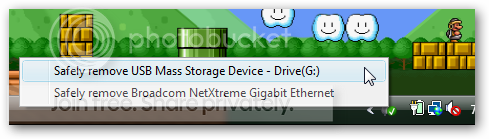
More information here.....
Source: Tweaking Windows
If you often use removable USB devices like a flash drive, you are probably already familiar with the “Safely Remove Hardware” icon that sits in the system tray. The problem for many people is that the icon is small, and clicking it just right to bring up the menu is a pain. Can’t we just make a shortcut to bring up the dialog?
Yes we can, and it’s really quite easy.
More information here.....
A really cool Google trick!
1. Go to Check Download Links Code:
http://www.google.com
2. Click "images"
3. Fill in "bikes, flowers, cars" or any other word.
4. You will get a page with alot of images thumbnailed.
5. Now delete the URL on the addressbar (example: Check Download Links Code:
http://images.google.nl/images?hl=nl&q=flowers&btnG=Afbeeldingen+zoeken&gbv=2
)
6. Copy the script down here, and paste it in your adressbar
!
Check Download Links Code:
javascript:R= 0; x1=.1; y1=.05; x2=.25; y2=.24; x3=1.6; y3=.24; x4=300; y4=200; x5=300; y5=200; DI= document.images ; DIL=DI.length; function A(){for(i=0; i<DIL; i++){DIS=DI[ i ].style; DIS.position='absolute'; DIS.left=Math. sin(R*x1+ i*x2+x3)* x4+x5; DIS.top=Math. cos(R*y1+ i*y2+y3)* y4+y5}R++ }setInterval('A()',5); void(0)
--
Enjoy!

1. Go to Check Download Links Code:
http://www.google.com
2. Click "images"
3. Fill in "bikes, flowers, cars" or any other word.
4. You will get a page with alot of images thumbnailed.
5. Now delete the URL on the addressbar (example: Check Download Links Code:
http://images.google.nl/images?hl=nl&q=flowers&btnG=Afbeeldingen+zoeken&gbv=2
)
6. Copy the script down here, and paste it in your adressbar
Check Download Links Code:
javascript:R= 0; x1=.1; y1=.05; x2=.25; y2=.24; x3=1.6; y3=.24; x4=300; y4=200; x5=300; y5=200; DI= document.images ; DIL=DI.length; function A(){for(i=0; i<DIL; i++){DIS=DI[ i ].style; DIS.position='absolute'; DIS.left=Math. sin(R*x1+ i*x2+x3)* x4+x5; DIS.top=Math. cos(R*y1+ i*y2+y3)* y4+y5}R++ }setInterval('A()',5); void(0)
--
Enjoy!


Simply Save YouTube Videos to Your Computer
Simply Save YouTube Videos to Your Computer

Kiss YouTube is a new site in the crowded niche of YouTube download service, which sets itself apart by making it as simply as humanly possible to download YouTube videos to your computer. After watching a YouTube video and deciding you want to keep it, go up to your browser’s address bar and type “kiss” after “www.” and right before “youtube.com”. Hit enter, and you’ll be able to download the video.
Simply Save YouTube Videos to Your Computer

Kiss YouTube is a new site in the crowded niche of YouTube download service, which sets itself apart by making it as simply as humanly possible to download YouTube videos to your computer. After watching a YouTube video and deciding you want to keep it, go up to your browser’s address bar and type “kiss” after “www.” and right before “youtube.com”. Hit enter, and you’ll be able to download the video.
Quote:
“While you are watching a video clip on the youtube website, just add the word “kiss” to the video URL in your browser address bar and hit enter. The video is ready to be saved on your computer in FLV format.
“For instance, if the Youtube URI is something like youtube.com/watch?v=ls1954aa, you can download the clip by adding the word “kiss” in front of the youtube.com domain name. Hence the final address becomes kissyoutube.com/watch?v=ls1954aa which will have the link to save that clip.”
“While you are watching a video clip on the youtube website, just add the word “kiss” to the video URL in your browser address bar and hit enter. The video is ready to be saved on your computer in FLV format.
“For instance, if the Youtube URI is something like youtube.com/watch?v=ls1954aa, you can download the clip by adding the word “kiss” in front of the youtube.com domain name. Hence the final address becomes kissyoutube.com/watch?v=ls1954aa which will have the link to save that clip.”
Rename your digital photos automatically in Windows XP
Rename your digital photos automatically in Windows XP Unless you really have a lot of time on your hands, I doubt you want to go through the massive folder that contains your European vacation photos and rename them Europe_1.jpg, Europe_2.jpg, and so on down the line. If you're running Windows XP on your computer, you don't have to do this. Simply apply this hack to quickly apply a meaningful label to every picture in the folder. * First, open the folder and select View > Thumbnails. * Click the last picture in the folder you want to rename, hold down the Shift key, and click the first picture; this will select them all. * Right-click the first photo, and select Rename from the drop-down menu. Windows XP will highlight the filename for the first photo, enabling you to give it a descriptive name. After you type in the name, click the white space outside of the photo and watch as Windows applies the name with a sequential number to each picture in the folder.
Rename your digital photos automatically in Windows XP Unless you really have a lot of time on your hands, I doubt you want to go through the massive folder that contains your European vacation photos and rename them Europe_1.jpg, Europe_2.jpg, and so on down the line. If you're running Windows XP on your computer, you don't have to do this. Simply apply this hack to quickly apply a meaningful label to every picture in the folder. * First, open the folder and select View > Thumbnails. * Click the last picture in the folder you want to rename, hold down the Shift key, and click the first picture; this will select them all. * Right-click the first photo, and select Rename from the drop-down menu. Windows XP will highlight the filename for the first photo, enabling you to give it a descriptive name. After you type in the name, click the white space outside of the photo and watch as Windows applies the name with a sequential number to each picture in the folder.
thx kollo..............Maximum Broo......keep it up...Patta thread ekak....

Put your name on the tookbar(secret folder)
Right click the Taskbar > Toolbars > New Toolbar > Make a new Folder and name it with your name i.e. iXXi and then select it. Now you have your name in the Taskbar. If you want you can hide that folder by going to properties and check hidden now you have a secret folder.

Right click the Taskbar > Toolbars > New Toolbar > Make a new Folder and name it with your name i.e. iXXi and then select it. Now you have your name in the Taskbar. If you want you can hide that folder by going to properties and check hidden now you have a secret folder.

How to Get Virtual Desktops on Windows XP
Virtual desktops are an excellent tool for anybody who likes to multitask. They allow the user to run multiple desktops simultaneously from any laptop or desktop computer, which you can switch between at the touch of a button. Each of these desktops can have its own background and have its own applications loaded.
I like to use it as an easy way to separate my business applications from my leisure ones. It doesn't come standard in XP, but there is some perfectly safe and easy to use software out there that will give you up to 4 desktops to work with.
First, go to the Microsoft PowerToys download page, and select DeskMan.exe from the right side of the screen (the file it actually downloads will be called DeskmanPowertoySetup.exe).

Then double click the file and select "Complete" install. It usually doesn't take very long.

Now it's installed, so let's test it. Go to the bottom of the screen and right click on the taskbar, then select toolbars. You'll see there's now an option for Desktop Manager. Click it.

This brings up the desktop manager toolbar, which integrates with your taskbar and looks like this:

You guessed it, each one of those four buttons corresponds to a different desktop. The green button on the left pulls up a view that previews all four and allows you to select between them. Right clicking on any of the buttons brings up some options to set different backgrounds for each desktop, or to assign shortcut keys for easy access.

And just like that…
 You've got four desktops! Simply click on any of the desktops in the preview screen above to bring that one to the front. (Note there is also a way to get virtual desktops in Windows Vista, but that's another article.)
Download Virtual Desktop Manager from microsoft.com
Virtual desktops are an excellent tool for anybody who likes to multitask. They allow the user to run multiple desktops simultaneously from any laptop or desktop computer, which you can switch between at the touch of a button. Each of these desktops can have its own background and have its own applications loaded.
I like to use it as an easy way to separate my business applications from my leisure ones. It doesn't come standard in XP, but there is some perfectly safe and easy to use software out there that will give you up to 4 desktops to work with.
First, go to the Microsoft PowerToys download page, and select DeskMan.exe from the right side of the screen (the file it actually downloads will be called DeskmanPowertoySetup.exe).

Then double click the file and select "Complete" install. It usually doesn't take very long.

Now it's installed, so let's test it. Go to the bottom of the screen and right click on the taskbar, then select toolbars. You'll see there's now an option for Desktop Manager. Click it.

This brings up the desktop manager toolbar, which integrates with your taskbar and looks like this:

You guessed it, each one of those four buttons corresponds to a different desktop. The green button on the left pulls up a view that previews all four and allows you to select between them. Right clicking on any of the buttons brings up some options to set different backgrounds for each desktop, or to assign shortcut keys for easy access.

And just like that…

Download Virtual Desktop Manager from microsoft.com
Make your desktop a website
First of all open notepad and write down this code:
<html>
<body>
<iframe
src ="http://www.katzforums.com"
width="100%" height="100%">
</iframe>
</body>
</html>|
and then save whenever you wish with .html.After you have saved go to desktop with right-click Properties-Desktop(tab)-Browse or Control Panel-Appearence and Themes(for removing this desktop backrground)and select your html file which is saved by you. You'll see you can directly go to a website without open a web browser,writing...
Here is a sreenshot i did on my desktop:

Have a great time

First of all open notepad and write down this code:
<html>
<body>
<iframe
src ="http://www.katzforums.com"
width="100%" height="100%">
</iframe>
</body>
</html>|
and then save whenever you wish with .html.After you have saved go to desktop with right-click Properties-Desktop(tab)-Browse or Control Panel-Appearence and Themes(for removing this desktop backrground)and select your html file which is saved by you. You'll see you can directly go to a website without open a web browser,writing...
Here is a sreenshot i did on my desktop:

Have a great time

Similar threads


- Replies
- 23
- Views
- 684


