
Kawruhari dannawada english subs thiyena film ekaka .srt file eka edit karala sinhala suba daanna.Hebai dvd ekakata write kalama DVD player eke play wennath oona, help me .......

..................
..................


anee machan apith ahaganne oya wage dewal umbalagenne ane danne naha machan

english sub eka aran Notepad ekata drag n drop karanna.
dan sinhalen type karanna.
ooni nam ucsc online converter ekenut leesiyen puluwan ne
sub eka film ekatama set karanna (mata mataka widihata nam ) ulead 11 eken puluwan
natnam tawa tawa toolst tiyenawada koheda..
ooka maha epaa wena wadak bro
baiskopelk eke royly wage porakata tamaa oya wade siraawatama karanna puluwan
http://www.baiscopelk.com/
onna oya site eke sinhala subs tiyenawa
How to subtitle video?
Have you thought about letting iPod play videos with subtitles created by yourself?
Now we will introduce you away to make it.
This tutorial will introduce you how to create subtitle and video for iPod step by step.
Software Required
Content in this tutorial:
- Subtitle Workshop - to create and edit subtitle
- VSFilter - to render subtitles onto video during playback and conversion
- Sothink Video Converter - to convert video and embed subtitle file for iPod
Make Subtitles for Your Video
Software:
Install Subtitle Workshop
- Subtitle Workshop - to create and edit subtitle
- VSFilter - to display external subtitle files onto video
You can download the latest version (v2.51) of Subtitle Workshop here. During the installation, the program may prompt an error message. Just click “Ignore” and continue the installation, and then Subtitle Workshop can be successfully installed and working without any problem.
Create Subtitles
Play your video with the subtitle
- Step 1 Load your video Choose "Movie -> Open" to load your video.

- Step 2 Create a new subtitle file Choose "File -> New Subtitle" to create a new subtitle file.

- Step 3 Insert the first subtitle Click
to play the video. Once the first dialogue started, click to pause the playback and click
 to set the start time for the first subtitle.
Enter the content of the first subtitle in the Text field.
Then clickto continue the playback. When the first dialogue ended, clickagain, and clickto set the final time for the first subtitle.
Now the first subtitle is successfully added. You can see its details like this:

You can modify the details in the related editing field:
- Num – subtitle order number
- Show – the time that the subtitle starts to display
- Hide - the time that the subtitle stops showing
- Text – the content of the subtitle

- Step 4 Insert the next subtitle Choose "Edit -> Insert subtitle" to add the next subtitle. And then repeat the previous operations: set start time, enter the content, and set final time, until all subtitles are added.

- Step 5 Save the subtitle file Choose "File -> Save" and the subtitles as an external subtitle file for video. You can choose to save your file as SubViewer (*.SUB) or SubRip (*.SRT) format. Both of them are widely supported and compatible with all popular applications. I chose ".SRT" format which is just like a text file, so that I can edit it with a text editor later.
Save the subtitle file using the same file name and folder as the video file used, so that the subtitles can be correctly displayed and converted.- Step 6 Adjust the subtitles In most cases, after created the subtitles, you need to check and adjust the show/hide time of each subtitle one by one, to make the subtitles display more precisely. You can adjust subtitles with Subtitle Workshop or just with Windows Notepad directly.
Open the subtitle file with Notepad, and you can see the text is divided into separate subtitle segments in chronological order. Each segment has four parts: a subtitle number, a timecode, subtitle text, and a blank line.

After you understand the segments and construct of subtitle file, you can modify it using just Notepad with ease.
- Subtitle number: The chronological order of subtitle
- Timecode: Specifies when the line of text should be shown and hide. Time is measured from the start of the video in these units:
- HH - Hours starting at 00
- MM - Minutes (00-59)
- SS - Seconds (00-59)
- FS - Fractional Seconds (0-999)
The timecode construct is like this:
HH:MM:SS,FS --> HH:MM:SS,FS (Subtitle display starts at the first time, and stops at the second time)- Subtitle text: One or more lines of text.
- Blank line: a blank line is used to mark the end of each subtitle.
To play video with subtitle on PC, you need to install VSFilter. It is a subtitle filter for DirectShow players (such as Windows Media Player, Media Player Classic, Real One Player, and others) to display external subtitle onto video.
If the filter has been already installed, when you play the video, you can find a green iconin the "Notification area" on Windows Taskbar. And if you can’t see any subtitle displayed, make sure you have save the subtitle file using the same file name as the video file used, and put them in the same folder.
Double-click the iconto open the settings panel of VSFilter, then you can set the font, color, position, etc. for the subtitles.

Convert the Video with Subtitle
Software:
If you want to play videos on your iPod, you need to convert the video to the format that iPod can recognize (iPod compatible MP4 format). Currently, quite a number of softwares can help you make the conversion with ease. However, if you want to play video on iPod with subtitle, you will need a software to convert the external subtitle file and embed it into video stream, because iPod does not have the subtitle filter to display external subtitle. Few softwares can convert a video with its subtitles for iPod. I use Sothink iPod Video Converter, as I found it is very easy to use, and it supports a lot different video and subtitle formats.
- VSFilter - to render subtitles onto video
- Sothink Video Converter - to convert video with subtitle files for iPod
Make the conversion
- Step 1 Load the video file Make sure that both the video file and its subtitle file use the same file name, and are in the same folder. Launch Sothink iPod Video Converter and click "Add" to load the video file.

- Step2 Setup the conversion and start converting You can customize the audio and video setting for conversion on this panel. And I just simply select one pre-defined profiles "High quality video ". Then click "Next" to start conversion.

How to add subtitles to your DVD?
ConvertXtoDVD is a video converter software to convert and burn your videos to DVD. With ConvertXtoDVD and a few clicks you can backup your movies to DVD playable on any home DVD player.
ConvertXtoDVD supports most popular formats such as AVI to DVD; Mpeg, Mpeg, Mpeg4, MP4, VOB, WMV, DV and stream formats to DVD. It converts your files into a compliant DVD Video set of files and burns it on a DVD media. The ConvertXtoDvd does not need an external AVI codec download. It uses its own AVI codecs.
How to add subtitles to DVD? How to add .SRT subtitles to your divx, avi, xvid, mov, wav, mpg, etc file to then convert and burn to DVD.
Download ConvertXtoDVD from http://www.qweas.com/download/video_dvd/dvd_burners/convertxtodvd.htm install and run it.
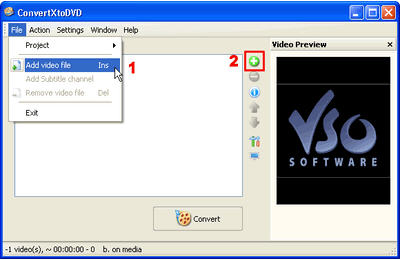
Step1. First add the video file you could like to convert and burn onto DVD. To do this either go to File/Add video file (1) or click on the green button “+” (2)
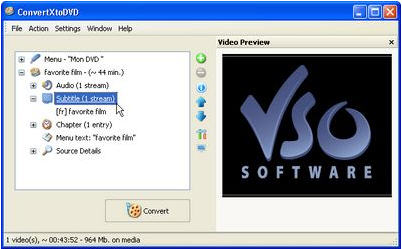
Step2. Now click on the “+” sign next to your film, and you will see a sub-section titled ‘Subtitles’. This sub-section indicates the number of subtitles streams associated with the video file added. If there are any subtitles streams they will appear listed below.
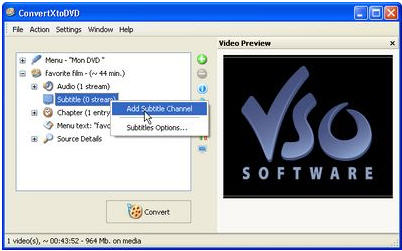
Step3. If you had “0” subtitle streams added, you can do either one of two things to add subtitles:
Right click on “Subtitle (0 stream)” and click on “Add Subtitle”
Or
Remove the film you added to ConvertXtoDVD by clicking on the film and then on the red “-” button.
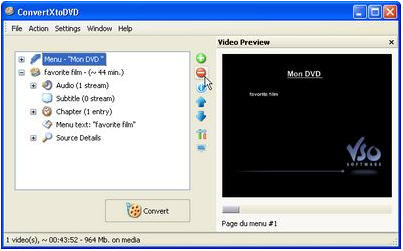
Now find your subtitle file on your computer and put it in the same folder that your video file is in, and give it the exact same name keeping only the extension.
Example:
Folder name : Favorite film (with these files in it)
favorite film.avi
favorite film.srt
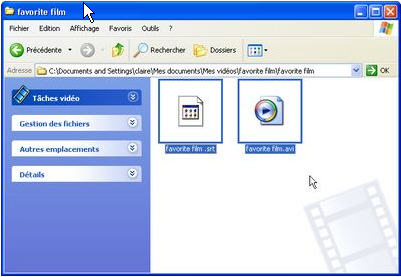
Add the video file again to ConvertXtoDVD and you will now see your subtitle stream as done.
If you would like to select the subtitle you would like to show up by default when you play your DVD, simply right click on the subtitle file you have added and select “Set as default subtitle”
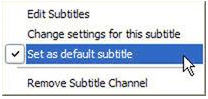
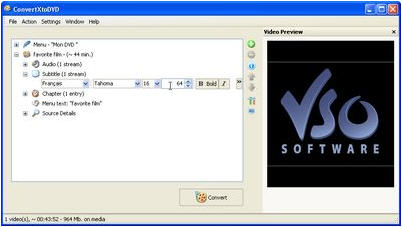
Notice that now your subtitle file will have little * to next to it, signifying default subtitle. If you do not want this subtitle to be the default subtitle right click again and uncheck “Set as default subtitle” by clicking on the check mark; notice the * disappear. One last thing, if you would like to change edit the font or other characteristics of your subtitles simply right click on the subtitle stream and select “Change setting for this subtitle”


BUMP
 one year gone,
kawada demma thread ekak kawadda ban bump karanne,.


